- Users
- Converting User Types
Converting User Types
Overview
You can convert an existing user between the two Astalty user types yourself — switching a Standard User to a Support Worker, or a Support Worker back to a Standard User. This is a self-service action, so there's no need to contact support to change a user's type.
When you convert a user, Astalty automatically issues a pro-rata credit or charge for the difference between the two user types for the remainder of your current billing period.
Converting a User
You can start a conversion from a user's profile. Head to the Users menu and select the team member you want to convert.
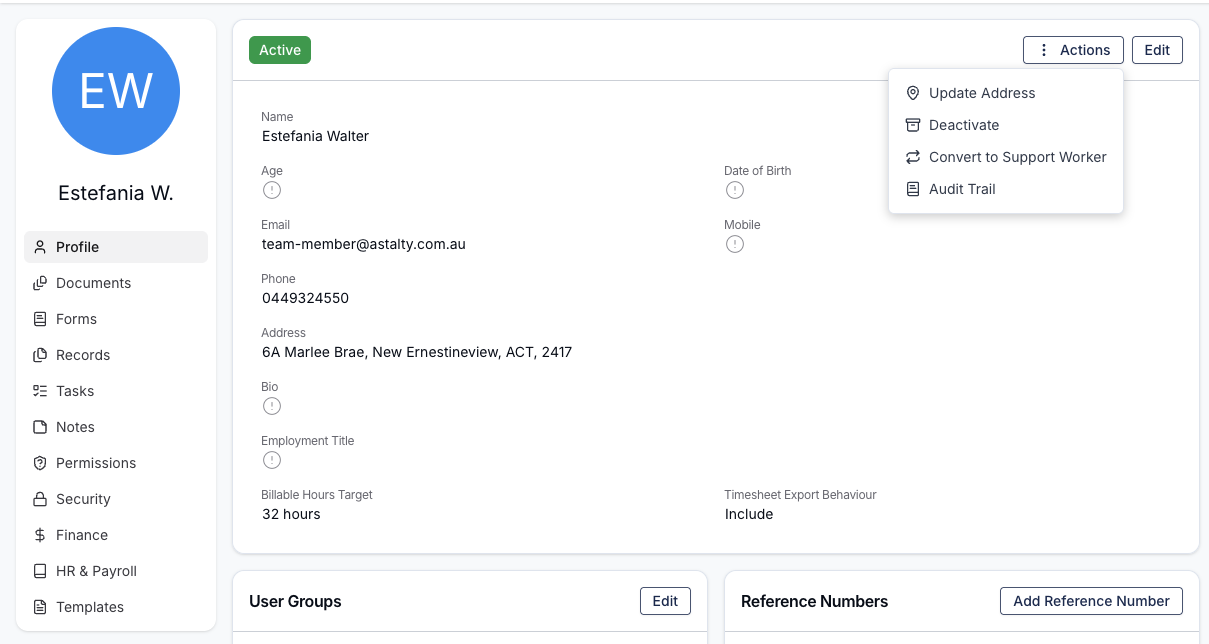
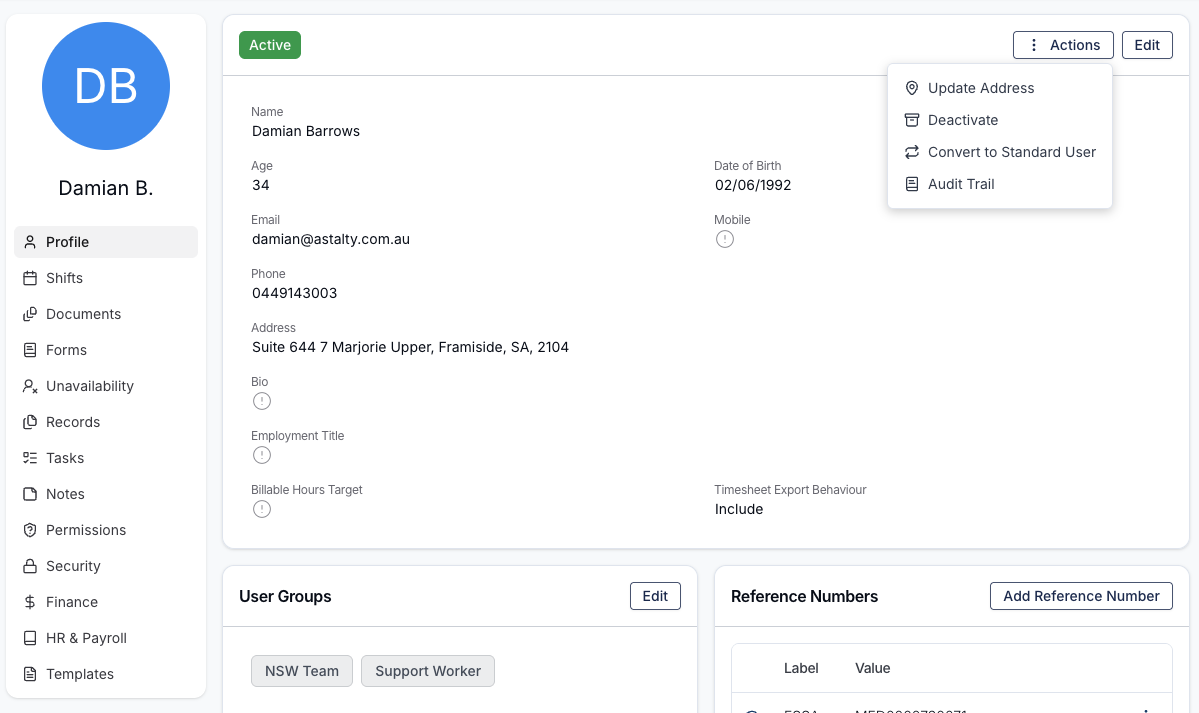
From their Profile tab, click the Actions button in the top right. Depending on the user's current type, you'll see either Convert to Support Worker or Convert to Standard User.
For example, converting a Standard User (Team Member) to a Support Worker:
Or converting a Support Worker back to a Standard User:
Confirming the Pro-Rata Charge or Credit
After selecting the conversion, Astalty shows a confirmation dialog with a pro-rata billing adjustment for the current period. A pro-rata credit or pro-rata charge is applied automatically depending on the direction of the conversion:
- Standard User → Support Worker results in a pro-rata credit, since the Support Worker rate is lower.
- Support Worker → Standard User results in a pro-rata charge for the difference.
Review the adjustment and click Confirm to complete the change.
Updating the Role After Converting
When you convert a Support Worker to a Standard User, they're added as a Team Member by default. If they need a different role, see the Updating Roles and Permissions guide.