How to Set Up an API Key
Overview
This guide covers how to create and manage your API keys in Astalty, including how to choose the right access level for each key and how to access the API Dashboard.
The API Dashboard is available on Premium with nothing to switch on. The Account Owner can always reach it, and can grant an Admin the same access via Can manage API keys and webhooks on that Admin's Permissions tab — see Granting API Key and Webhook Access. Managers, Team Members and Support Workers can never reach it. Every key the Account Owner or a delegated Admin creates is visible to, and can be managed by, any of them — the keys aren't siloed per creator.
How to Access the API Dashboard
To access the API Dashboard in Astalty:
- Head to the Settings menu
- Select API Dashboard
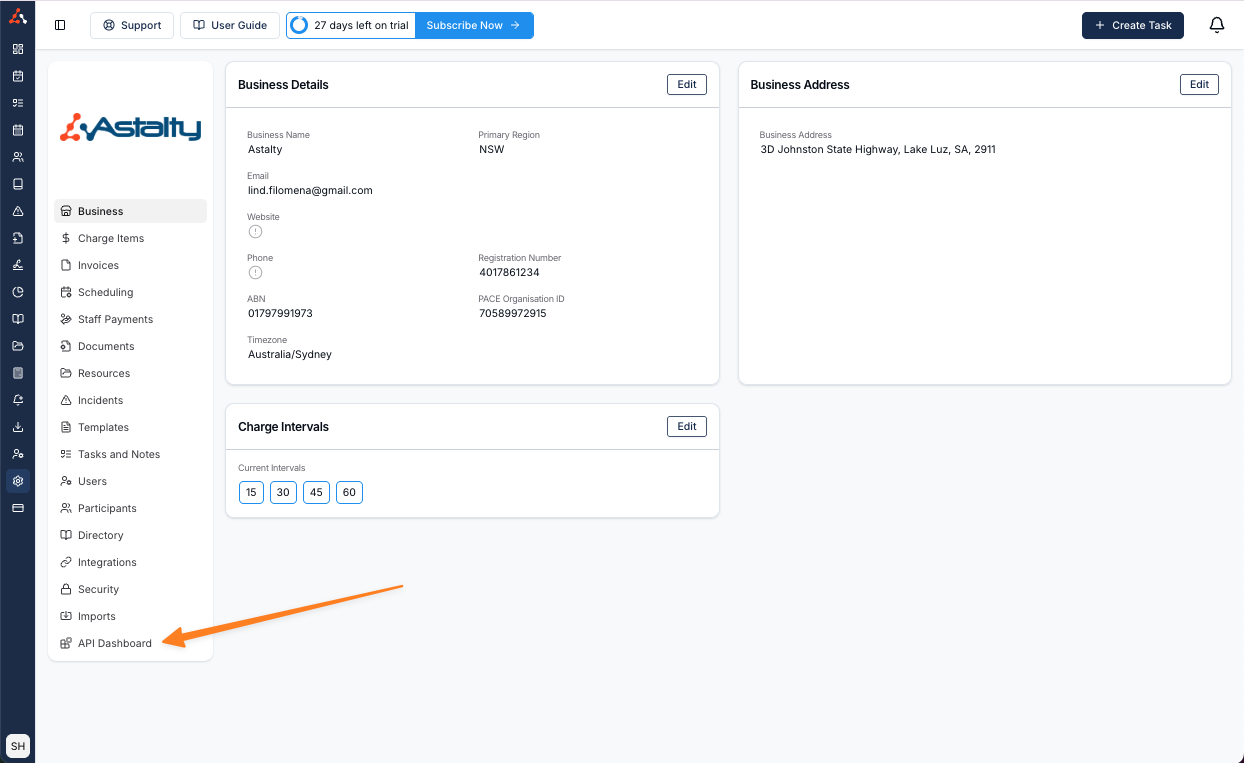
How to create an API Key
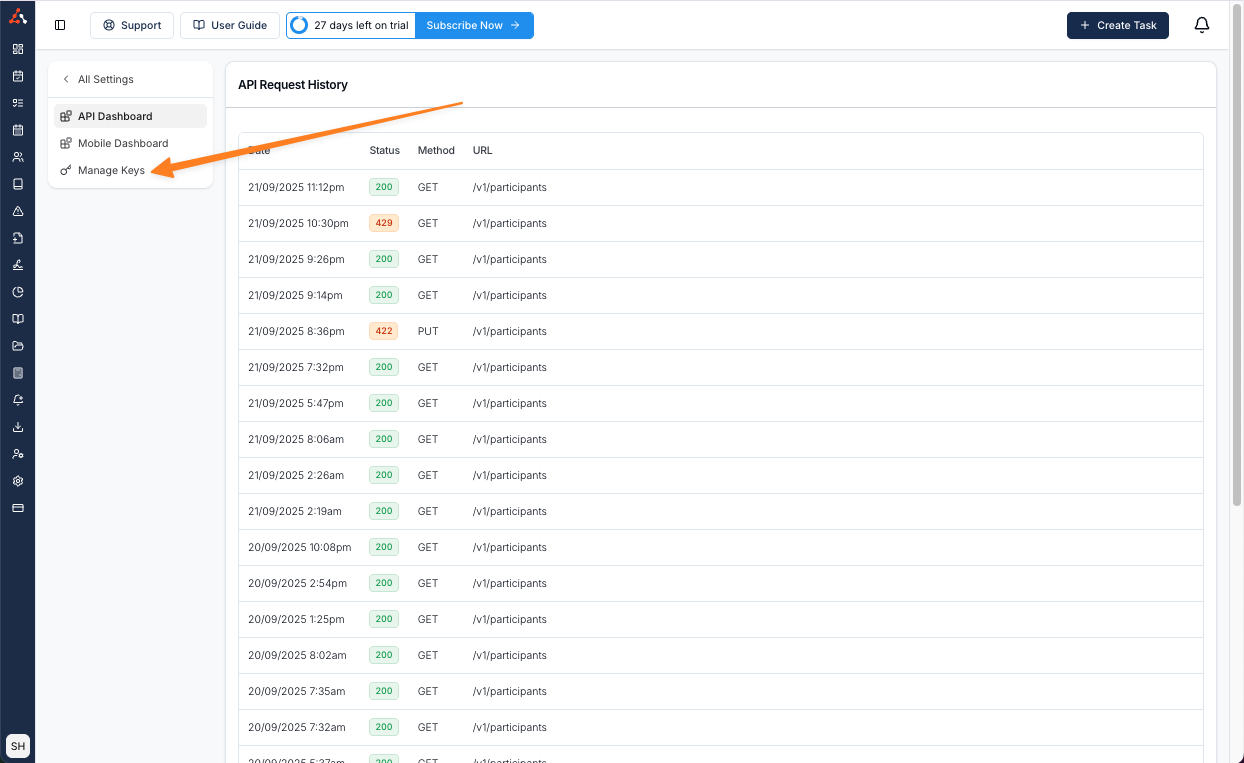
Once in the API Dashboard, select the Manage Keys option. This will take you to the menu where you can create an API key.
Select the Create API Key option.
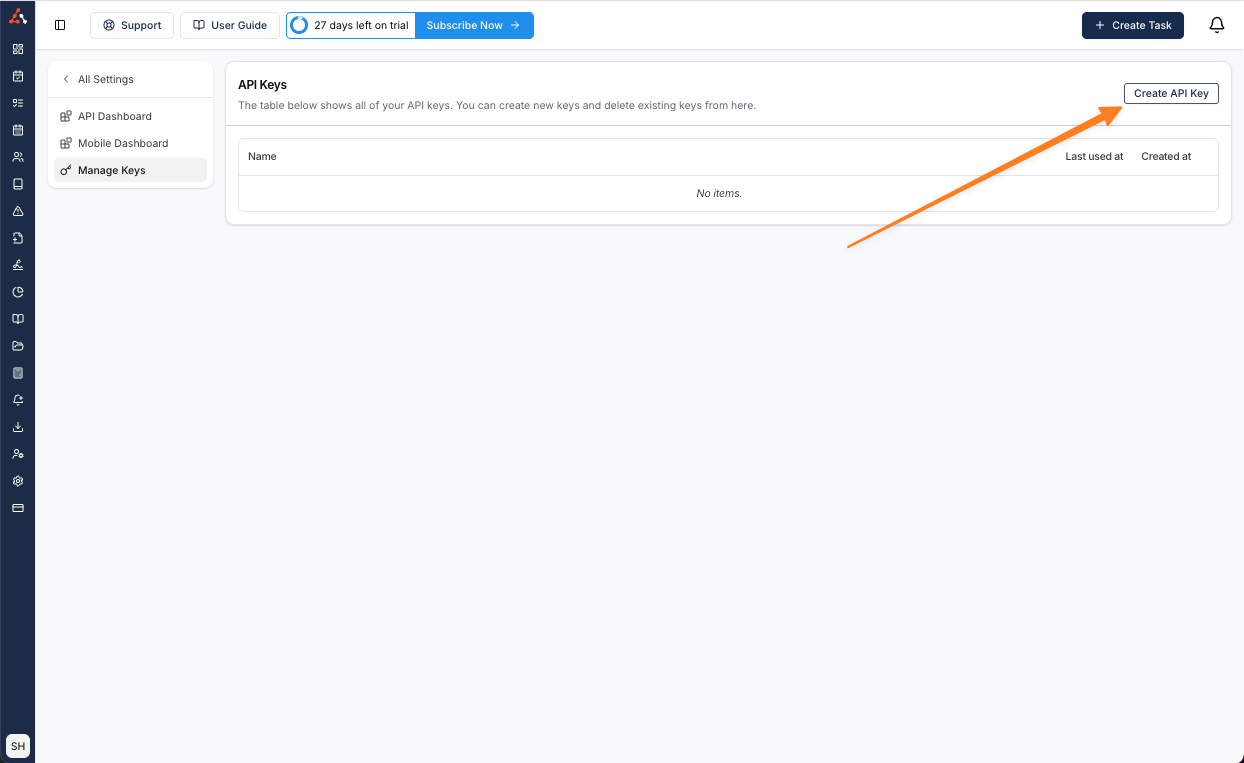
When creating a key you will be asked to:
- Name the key — give it a descriptive name so you can identify it later.
- Choose an access level — select either Full Access or Read Only (see Access levels below).
Once you have filled in the details, click Create to create the API key.
You will then be prompted to copy the key.
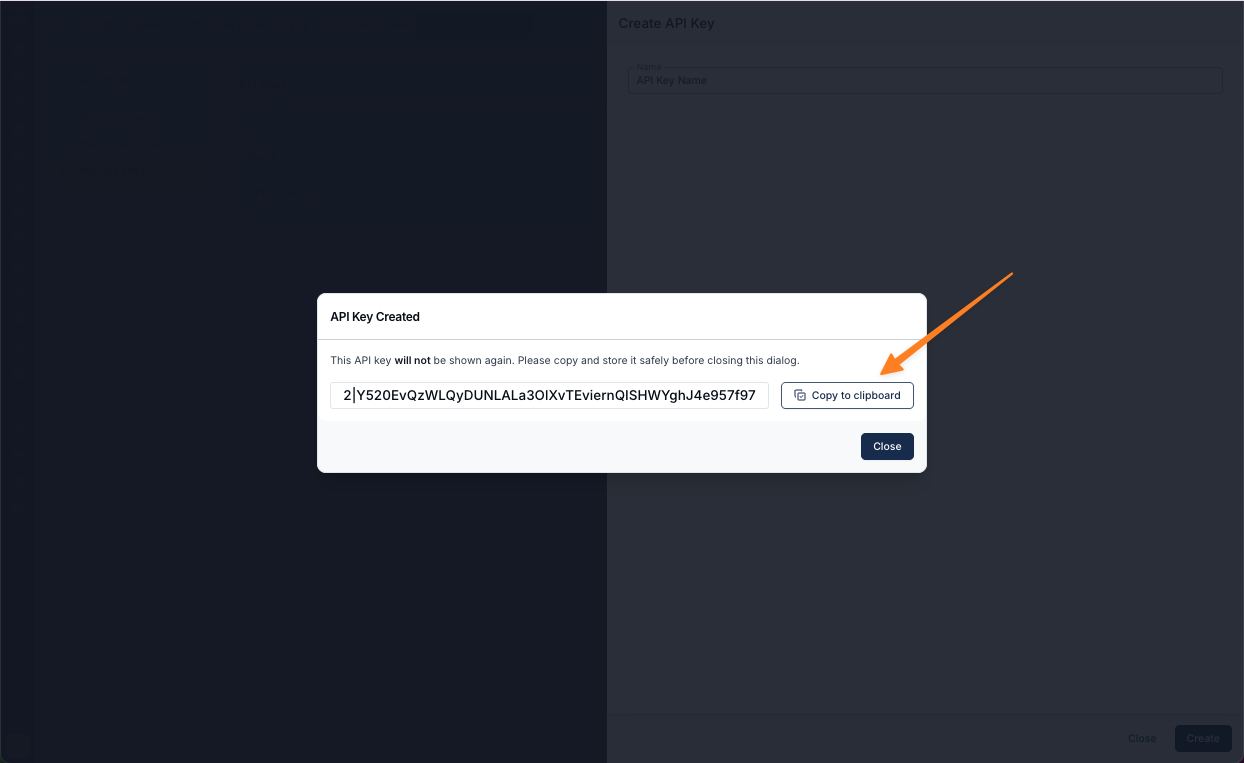
Access levels
Every API key has an access level that controls what it can do. You choose the access level when you create the key, and you can change it at any time afterwards.
| Access level | What the key can do |
|---|---|
| Full Access | Can read data as well as create, update and delete it. |
| Read Only | Can only read data. Any request that tries to create, update or delete data is rejected. |
Changing an existing key's access level
You can change the access level of an existing API key at any time:
- Go to the API Dashboard and select Manage Keys.
- Find the key you want to update and click the Edit action.
- Select the new access level (Full Access or Read Only) and click Save.
The change takes effect immediately — the next request made with that key will use the new access level.
The keys list shows each key's current access level so you can see at a glance which keys have which permissions.
API Dashboard
The API Dashboard displays the API request history within your Astalty account.
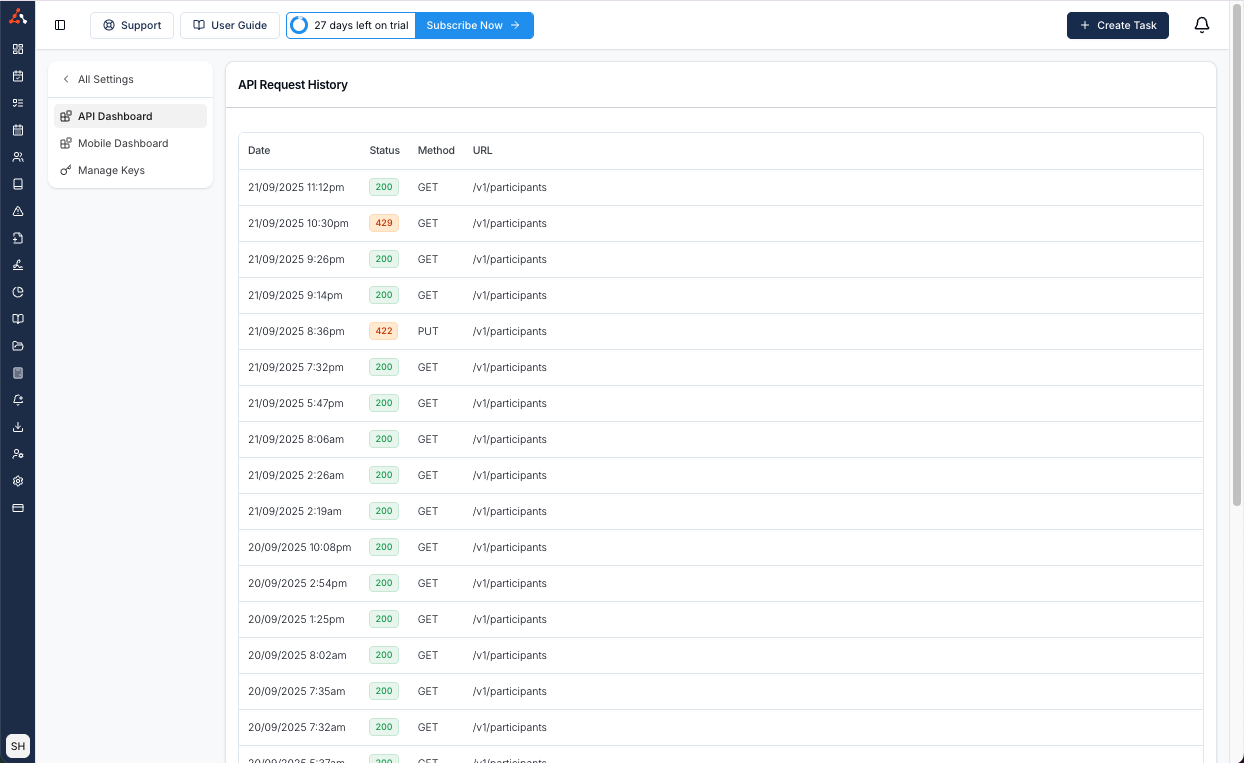
When you select an entry you can see information about the request including the:
- Status
- ID
- Time
- IP Address
- User
- User ID
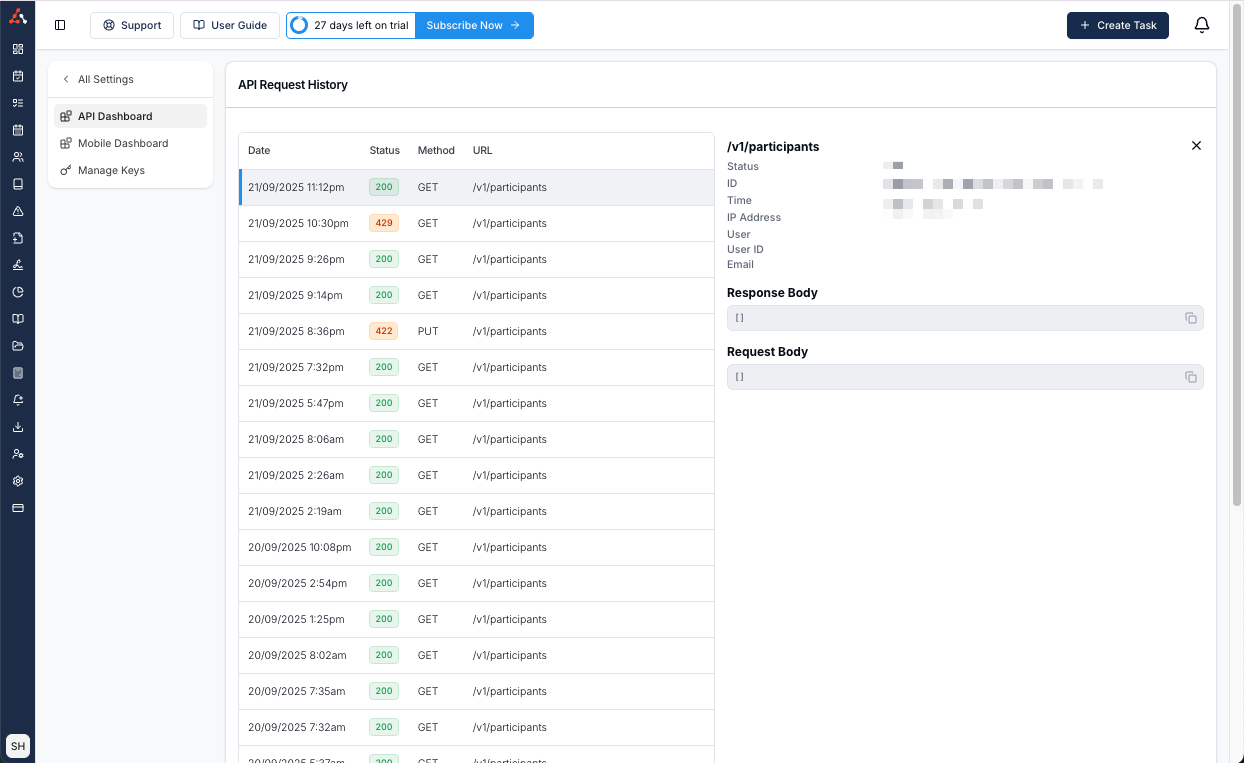
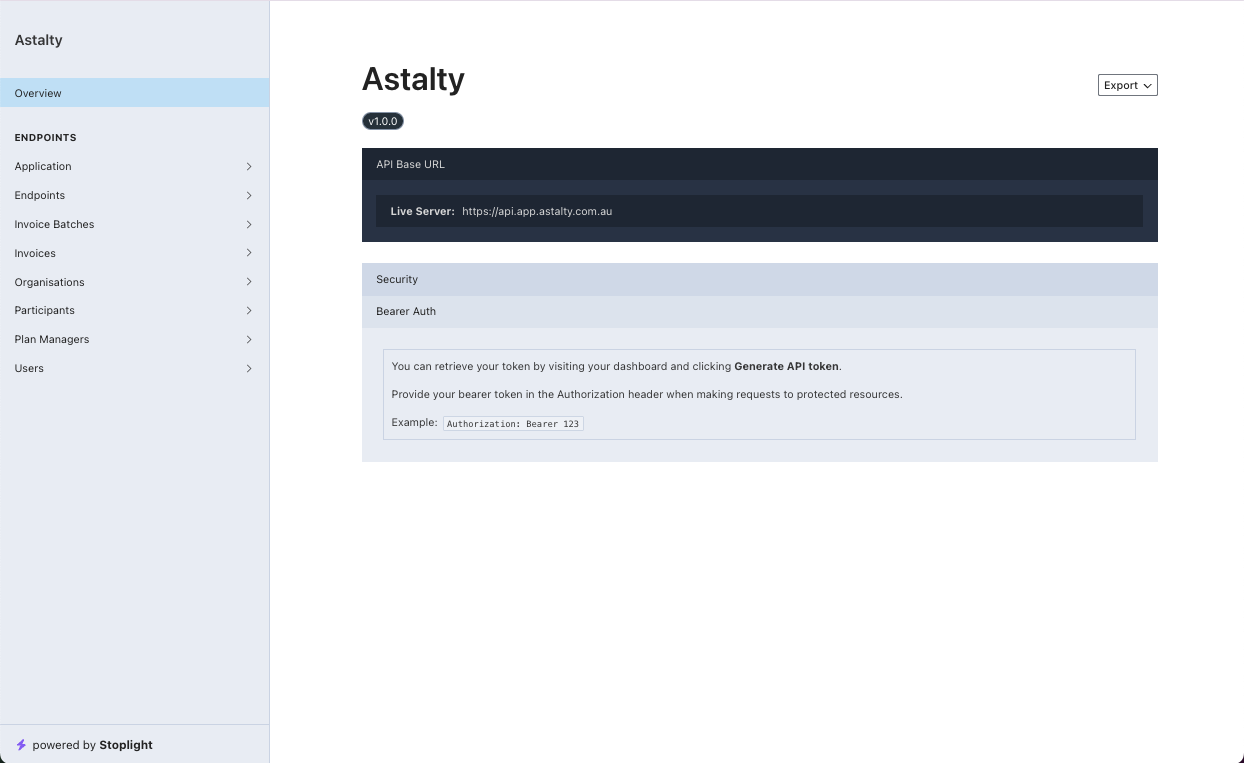
You can also see the response and request body of the API request. You can see more about our response body and our endpoints within our API endpoint dashboard at api.app.astalty.com.au/docs.
API Endpoint Dashboard
The API endpoint dashboard at api.app.astalty.com.au/docs displays all of our current endpoints and their associated information.