- Users
- Sending Invitations in Bulk
Sending Invitations in Bulk
Overview
When you're onboarding a team - or you created users without emailing them straight away - you no longer have to open each person's profile to send their invitation. The Send Invitations drawer on the Users page lists everyone who is still waiting on an invitation, so you can pick who to email - up to 500 people at a time - and send to them all in one go.
Opening the Send Invitations Drawer
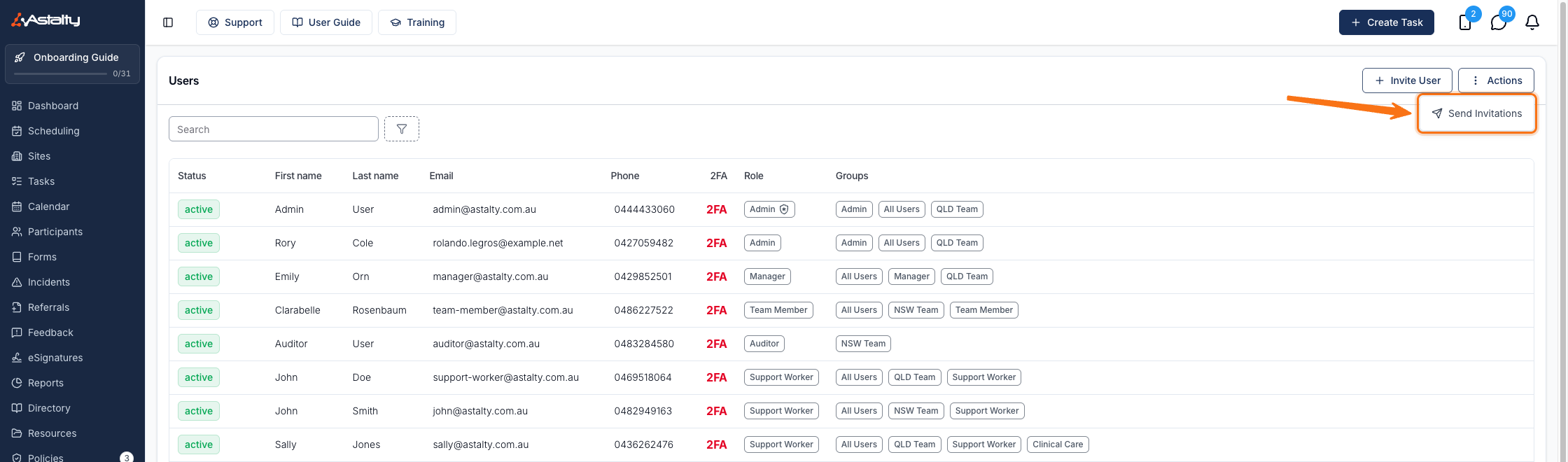
Head to the Users page, click the Actions button in the top right, and choose Send Invitations.
Who Appears in the List
The drawer lists every user whose account is still in the invited state - in other words, anyone who hasn't logged in and set their password yet. Users who have already accepted aren't listed.
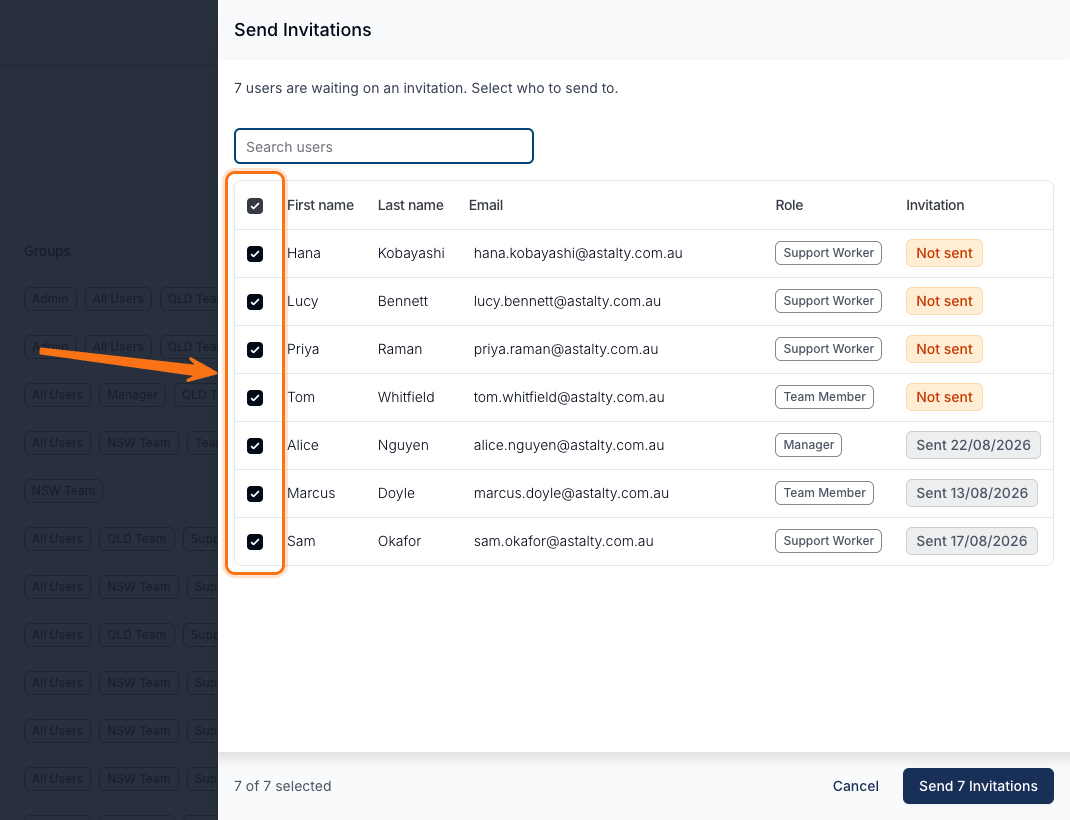
Each row shows the person's first name, last name, email, role, and the status of their invitation:
- Not sent - the user was created without an invitation email, so they've never been emailed a link.
- Sent [date] - an invitation has already gone out on that date, but the user hasn't accepted it yet.
People who have never been emailed are listed first, so the ones most likely to be waiting on you are at the top.
Selecting Who to Send To
Tick the checkbox next to each person you want to email, or use the checkbox in the table header to select everyone at once. The footer keeps a running count of how many you've selected.
Use the Search users box to narrow the list by first name, last name, or email. Two things worth knowing about search:
- The header checkbox only selects the rows that match your current search, so you can search, select all, change the search, and select all again.
- Anyone you've already ticked stays selected when you change the search term, even if they drop out of view.
Sending the Invitations
Click Send [number] Invitations to send. The button stays disabled until you've selected at least one person.
Astalty queues the emails and sends them in the background, so the drawer closes straight away and you'll see a confirmation that the invitations are on their way rather than waiting for every email to go out.
Users That Get Skipped
If someone's situation changes between opening the drawer and hitting send, Astalty skips them rather than failing the whole batch. The confirmation message tells you how many were skipped and why:
- They had already accepted their invitation.
- They were deactivated.
- They are restricted.
Everyone else in your selection is still emailed.
Large Teams
The drawer loads up to 500 users at a time, and you can send to at most 500 people in one go. If more than 500 people are waiting on an invitation, a note at the top of the drawer tells you how many there are in total.
In that case, send to the people listed, then reopen the drawer to pick up the rest - once the first batch has been emailed, the next group moves to the top of the list.
Nobody Left to Invite
If everyone on your team has accepted their invitation, the drawer shows No invitations to send instead of a list. That's a quick way to confirm nobody is stuck waiting on an email.