- Users
- Reassigning Participants
Reassigning Participants
Overview
When a coordinator goes on leave or leaves your organisation, Reassign Participants moves their whole case load onto whoever is covering in one action, rather than editing each Participant individually. It sits on the More tab of that user's profile.
Opening Reassign Participants
- From the Users page, open the coordinator whose Participants you want to move.
- From the left-hand menu, select More.
- Next to Reassign Participants, select Reassign.
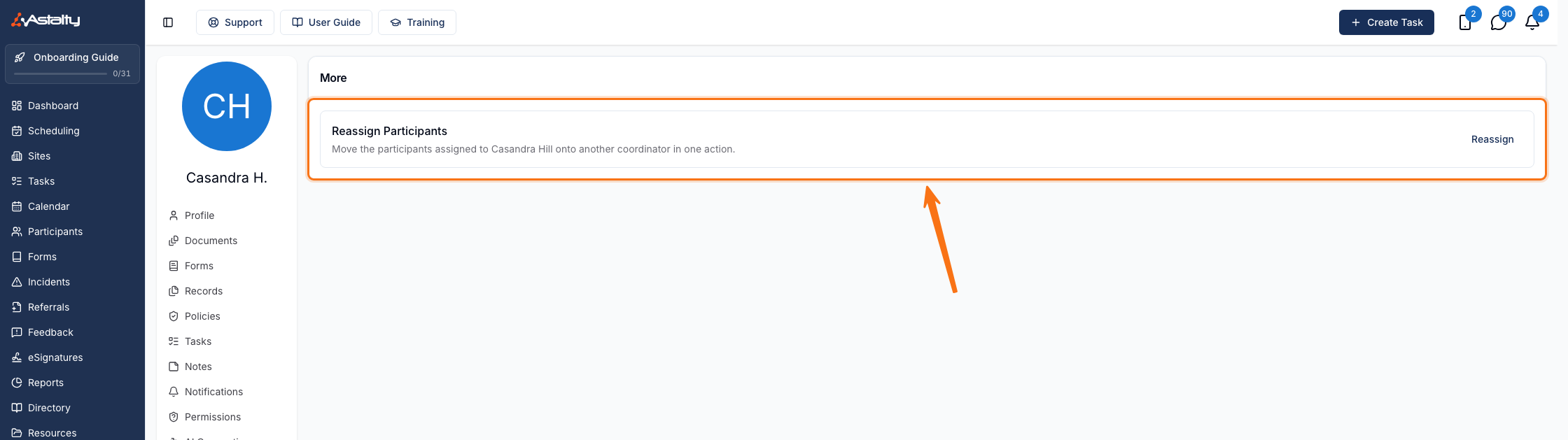
If the user isn't the Primary or Service Coordinator for anyone, the drawer shows No participants assigned instead of a list.
Choosing Which Assignments Move
Under Assignments to reassign, choose which of the two coordinator roles moves. Each option shows how many Participants it covers.
| Option | What moves |
|---|---|
| Primary Coordinator only | The Primary Coordinator on the Participant's profile. |
| Service Coordinator only | The Service Coordinator on each of their Services. |
| Both roles | Both of the above. Selected by default. |
Switching between these resets your search and re-ticks everyone in the new scope, so choose the scope before you start unticking people.
For the difference between the two roles, see Primary vs Service Coordinators.
Selecting the Participants
Everyone in scope is ticked when the drawer opens. Untick anyone who should stay with the current coordinator.
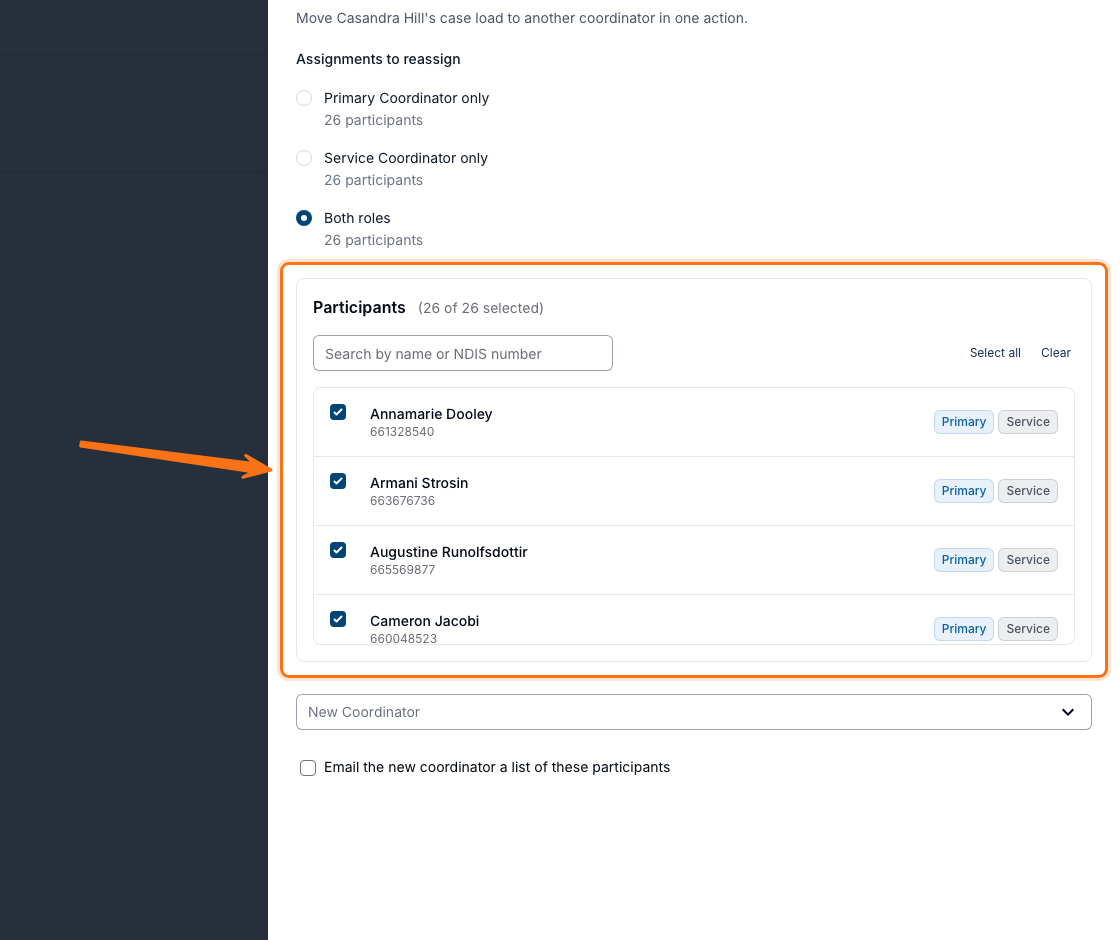
- Use Search by name or NDIS number to narrow the list.
- Select all ticks everyone. While you're searching it becomes Select shown and ticks only the rows matching your search; Clear unticks those same rows.
- The Primary and Service chips on each row show which of the two assignments that person is there for.
The list covers Participants the user is Primary Coordinator for, plus Participants with a Service they coordinate that hasn't ended yet. Archived Participants are never listed, and a Service whose end date has passed stays with the original coordinator.
Choosing the New Coordinator
Select the incoming person in New Coordinator. Any active or invited Standard User can be chosen whatever their role - they don't need to be an Admin. You can't select the coordinator who already holds the case load.
Tick Email the new coordinator a list of these participants to send them a single email, subject "A case load has been assigned to you", listing everyone they've been given. Leave it unticked and nobody is notified. That email is the only list of who moved in a single reassignment, so tick it if you might need to reverse one.
Confirming the Reassignment
Type the incoming person's name into Type the new coordinator's name to confirm - it has to match exactly - then select Reassign [number] Participants.
What Changes
Reassigning writes two things: the Primary Coordinator on the Participant's profile, and the Service Coordinator on their Services. The incoming coordinator can see those Participants' notes, records and plans as soon as the reassignment runs.
It doesn't follow that the original coordinator loses sight of them. Admins and Managers can see every Participant whoever coordinates them, and so can Team Members with View all Participants switched on - the default. Only a Team Member with it switched off is held to their own case load and loses the Participants they've handed over, see Roles & Permissions.
Both changes are recorded against the Participant and the Service, so the move shows in the Audit Trail - as a separate entry per record, not as one reassignment.
Nothing else moves either: shifts, invoices, service agreements, notes and documents stay exactly as they were.
Reassigning Before You Deactivate Someone
Deactivating a user removes them as Primary and Service Coordinator without putting anyone in their place, which leaves those Participants and Services unassigned. Reassign their case load first, then deactivate them - see Restricting, Deactivating and Reactivating Users.