- Administration
- Setup Pay Groups and Employees in Astalty
Setup Pay Groups and Employees in Astalty
Overview
A worker's employment contract selects the award and employment basis used by Astalty's interpreter. Their pay group maps the resulting pay categories and allowance quantities to payroll items. It does not change their award or the base rate used for Astalty costing.
Which System Calculates Pay?
| Payroll path | What Astalty sends | What you must configure |
|---|---|---|
| Xero API or Xero-formatted Excel | Interpreted pay categories, hours and allowance quantities | Matching award and employment basis, Xero pay items, employee base rates and allowance rates |
| Employment Hero, PayCat or QuickBooks Payroll | Timesheet records and work types | The award or agreement, penalties, overtime and minimum payments in that payroll system |
| SCHADS interpreted Excel | Astalty's interpretation for each worker's contract award, despite the legacy export name | Check the result against the applicable award and payroll setup |
| Raw shift data | Shift records | Your payroll process must determine pay |
The interpretation supports SCHADS, Nurses, Aged Care and Health Professionals. Each award page lists implemented rules and manual checks. Rostering alerts, estimated costs and a successful export do not certify a pay run.
Check an End-to-End Pay Run
- Confirm award coverage, classification and employment basis. Record these in Staff Contracted Hours.
- Set the correct pay period and public holidays.
- Assign a pay group for the same award and the appropriate casual/permanent rates. Map every category the worker can earn, including overtime, sleepovers and enabled allowances.
- Approve shifts, travel, breaks and active overnight work. Resolve or investigate award alerts.
- Review the Award Pay Report for the full period, including excluded employees and interpretation traces. Check manual entitlements and work crossing a pay-period boundary.
- Export or send the timesheet batch, then compare the resulting payroll amounts with the expected award rates before posting the pay run.
Create a Pay Group
Create a separate pay group for each combination of award and payroll mapping. The award must match the workers assigned to it.
To create a Pay Group:
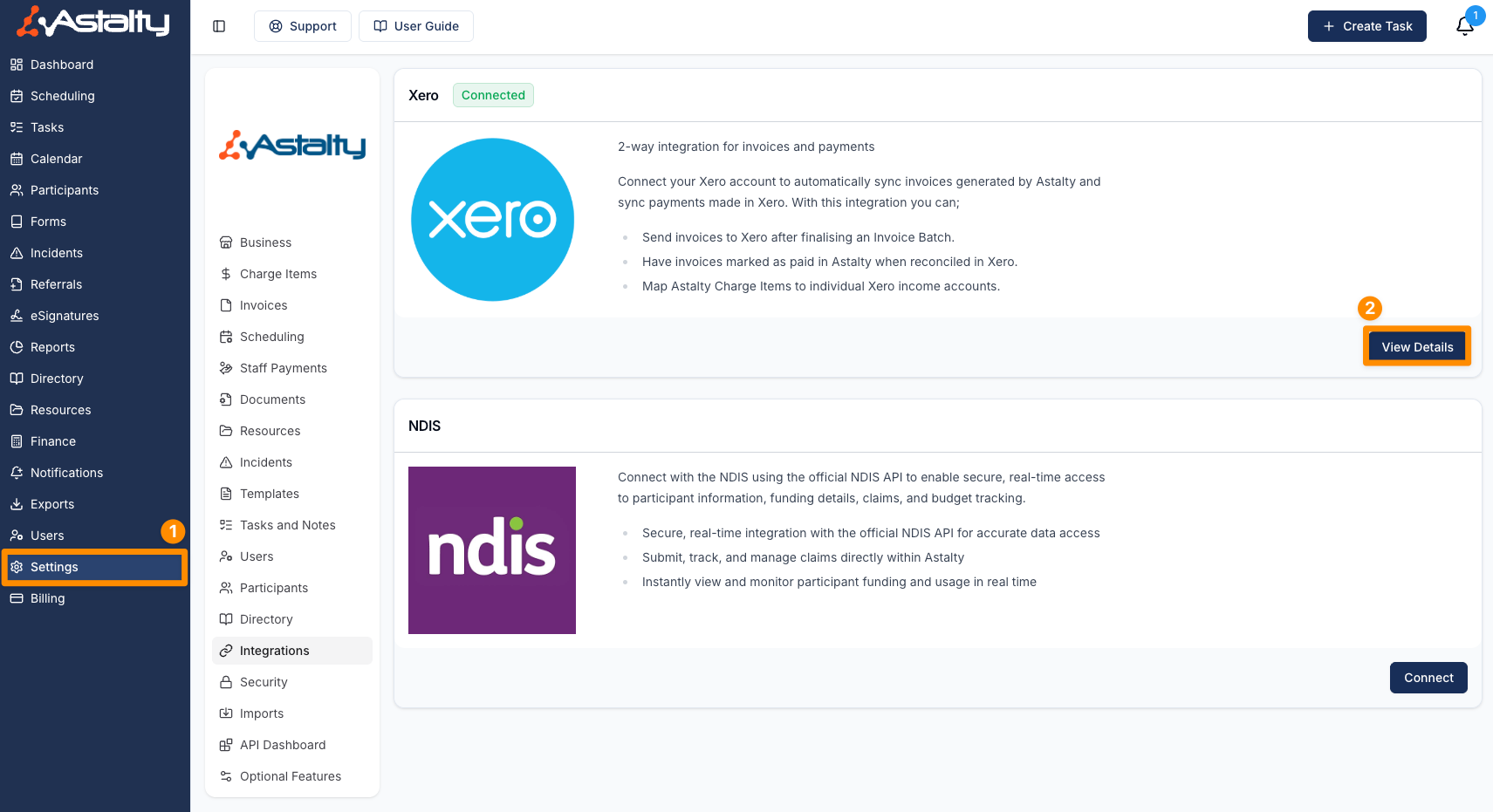
- Navigate to Settings in Astalty, select Integrations, and click View Details for Xero.
- Select Pay Groups from the sub-menu.

- Click Create Pay Group.

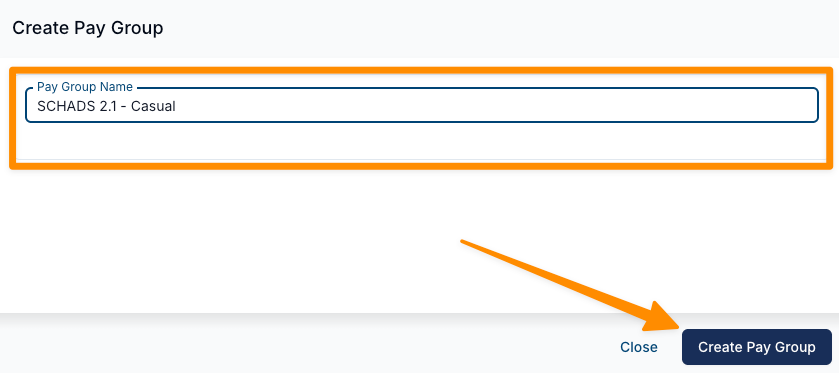
- Enter a Pay Group Name, choose the matching Award, and click Create Pay Group.
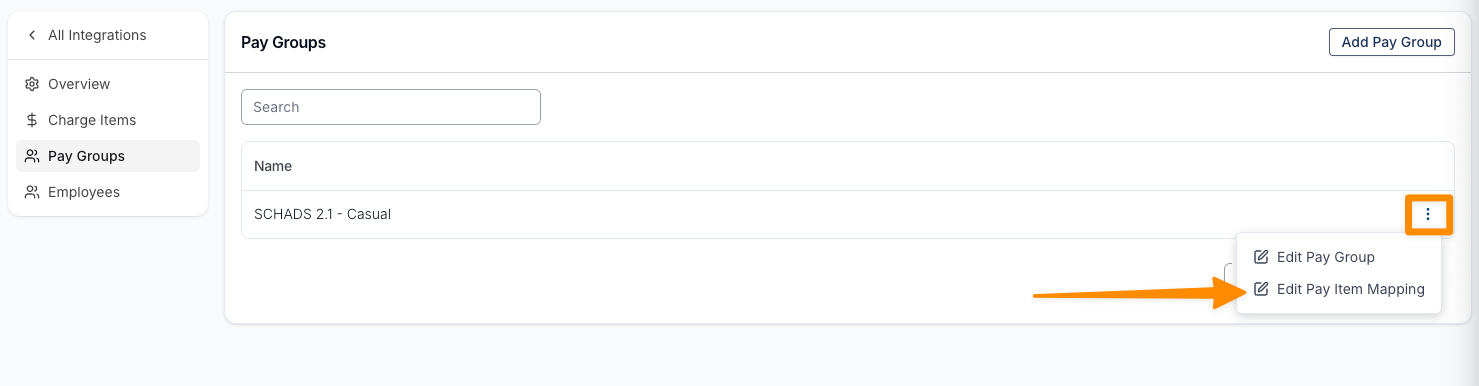
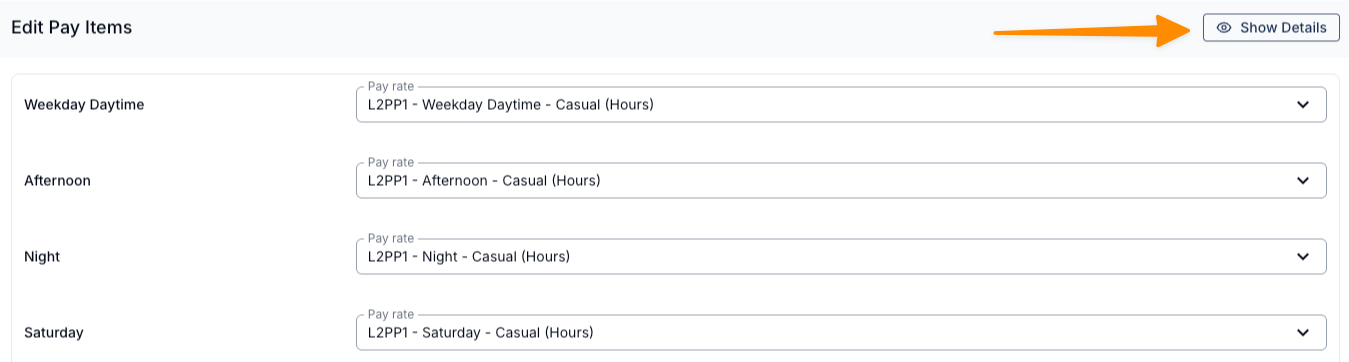
- Click the three dots next to the Pay Group and select Edit Pay Item Mapping.
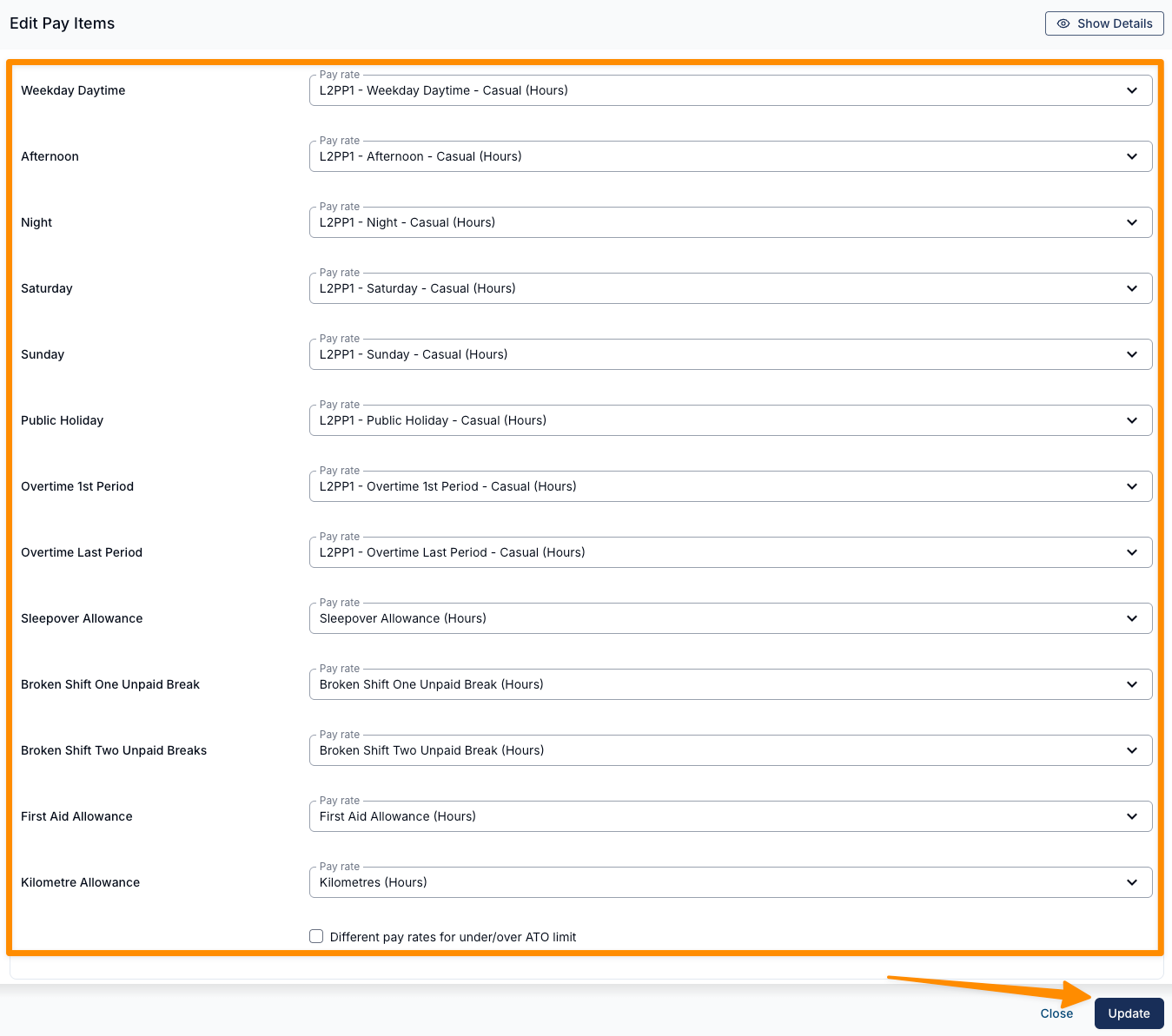
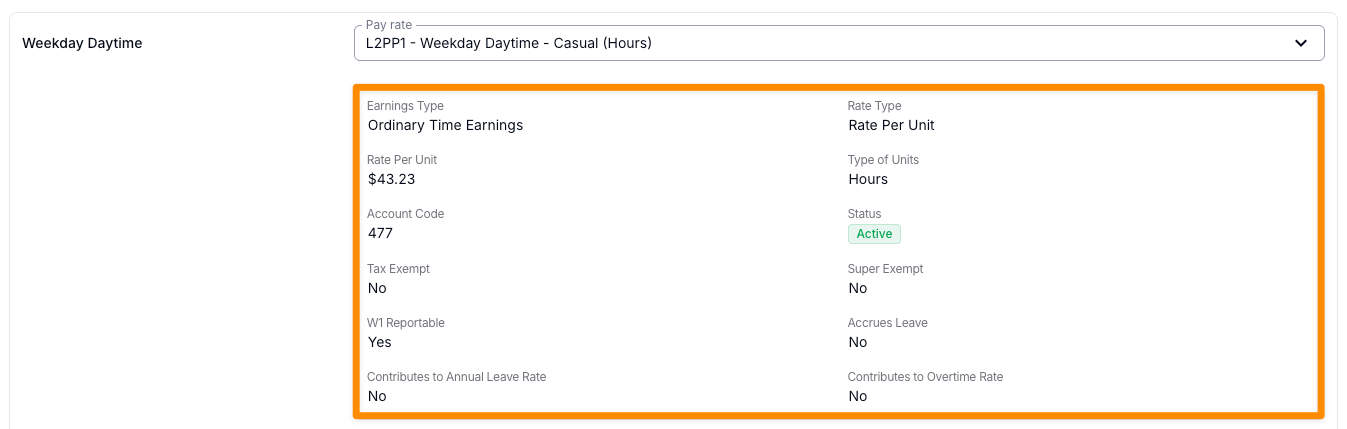
- Assign the Pay Items created in Xero to the corresponding Pay Items in Astalty (make sure to select the appropriate Pay Classification or Employment Basis (e.g. Casual, Permanent)).
Setup Employees
Once your Pay Groups have been created, you will need to link employees between Astalty and Xero, assign them to the correct Pay Group, and ensure each employee has Employment Details configured.
Link Employees to Xero
- Navigate to Settings in Astalty, select Integrations, and click View Details for Xero.
- Select Employees from the sub-menu.

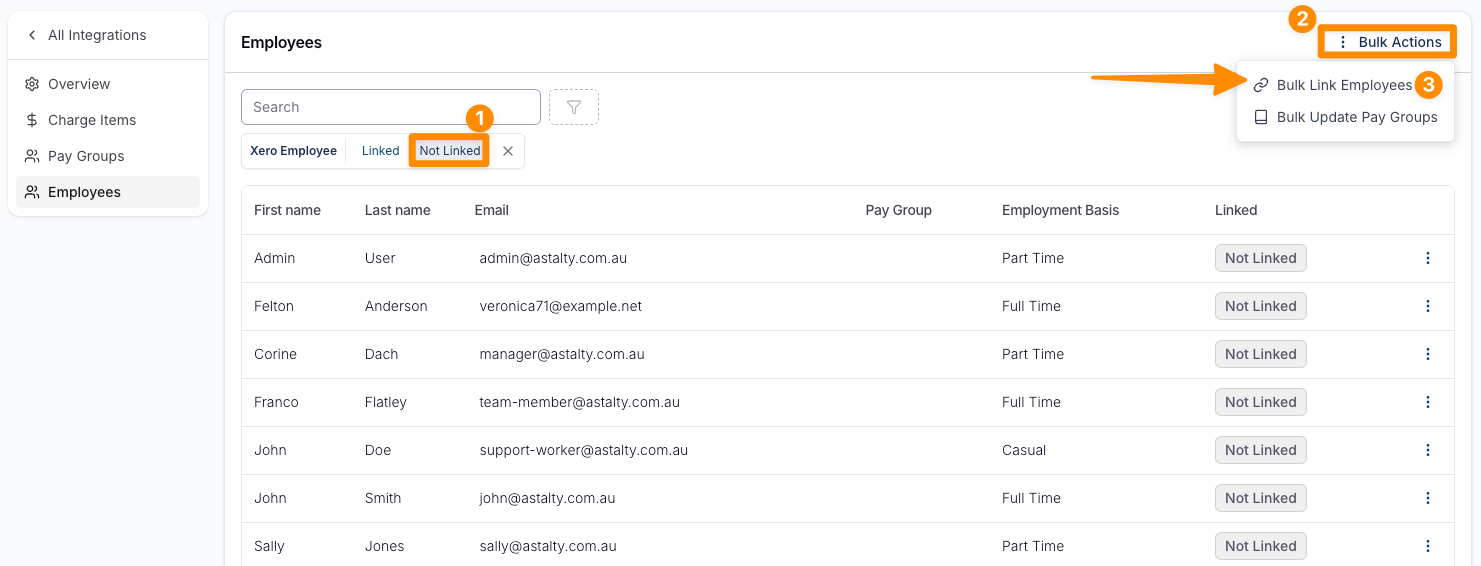
- In the Xero Employee filter, select Not Linked.
- Click Bulk Actions and select Bulk Link Employees.
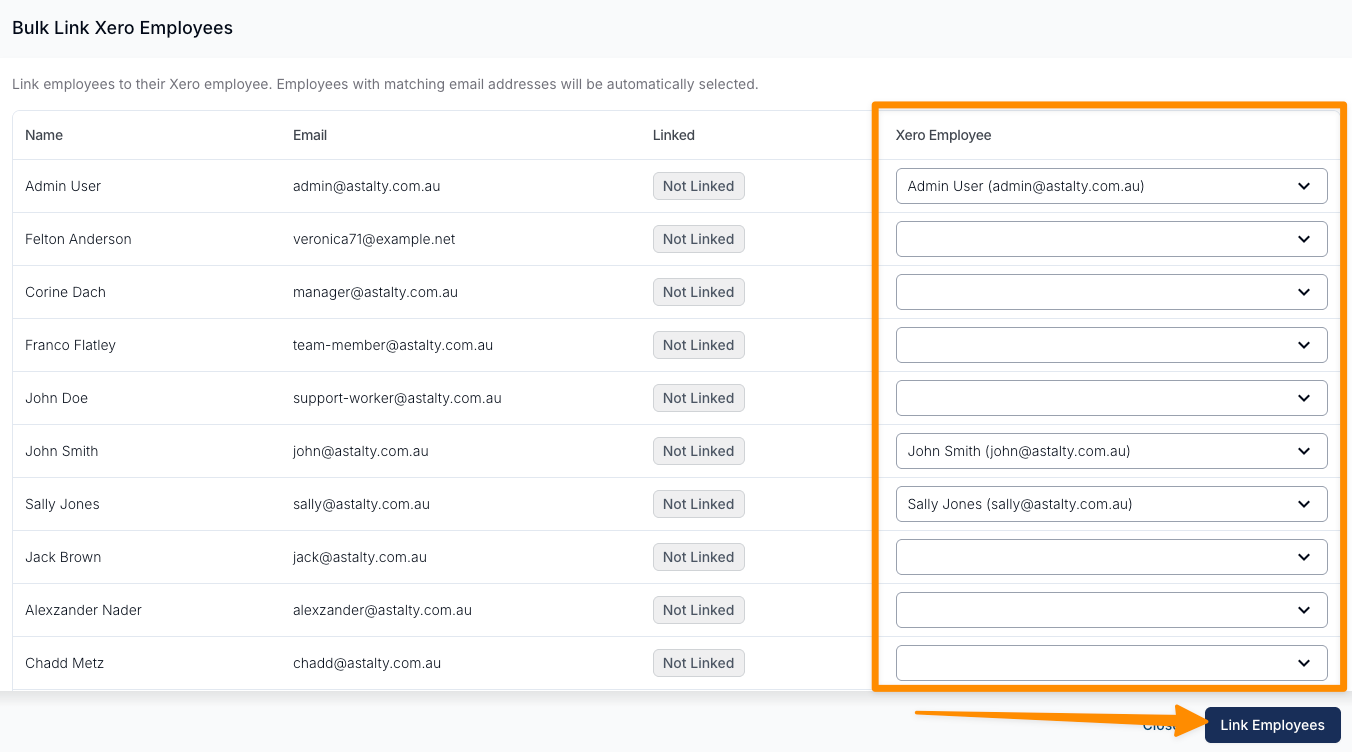
- For each Astalty employee, select the corresponding Xero employee from the dropdown menu.
- Once all employees have been matched, click Link Employees.
Assign Pay Groups
After linking employees, you will need to assign them to the correct Pay Group.
- Change the Xero Employee filter to Linked.
- Click Bulk Actions and select Bulk Update Pay Groups.
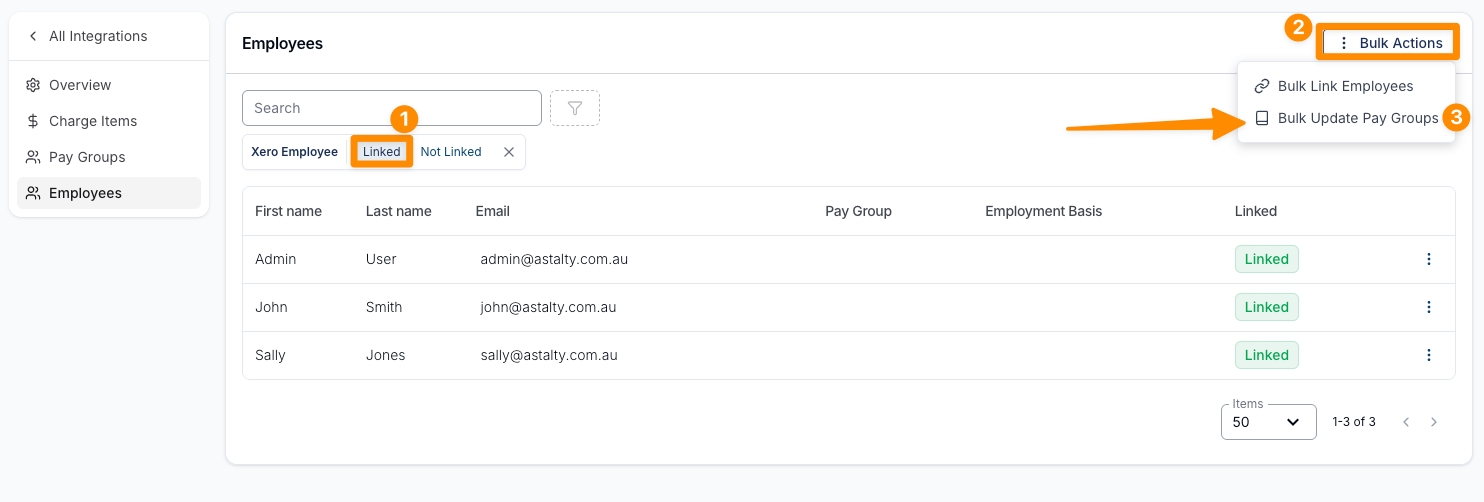
To assign the same Pay Group to multiple employees:
- Select the Pay Group from the dropdown menu at the top of the page.
- Tick the checkbox next to the Name header to select all employees.
- Click Apply to Selected.
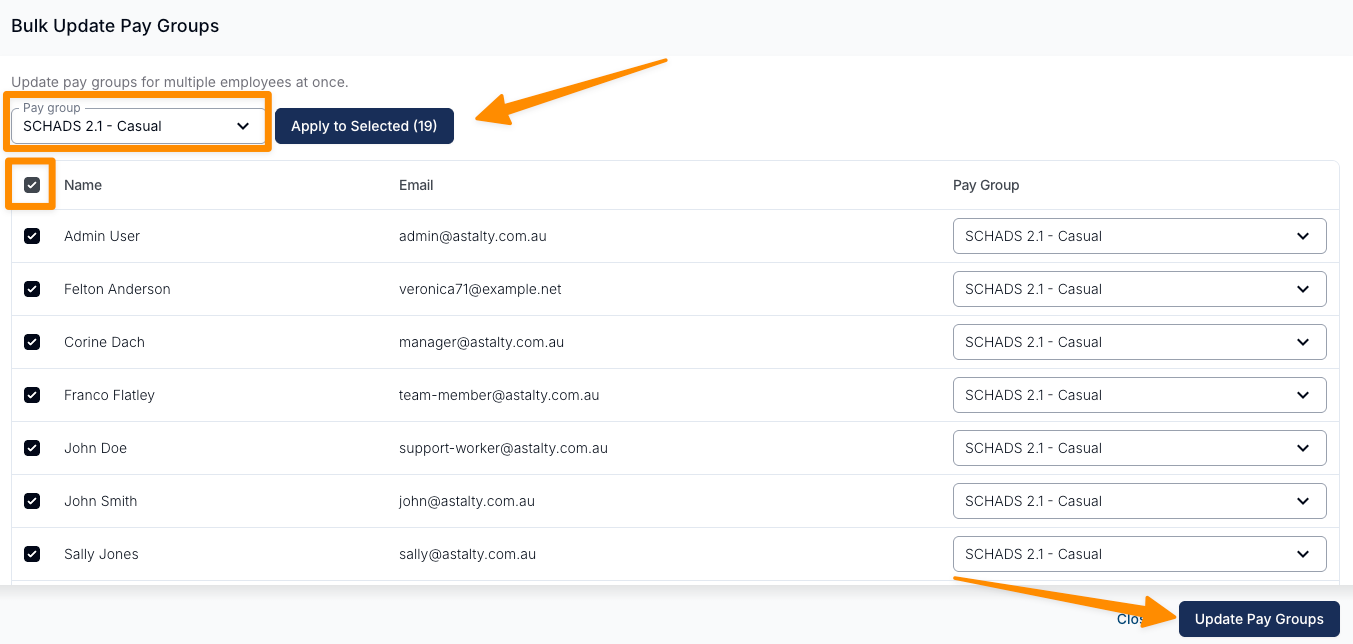
If an employee requires a different Pay Group, you can select the Pay Group dropdown next to their name and choose the appropriate group from the list.
Once all Pay Groups have been assigned, click Update Pay Groups.
Create Employment Details
Each employee must have Employment Details configured in Astalty.
To create employment details:
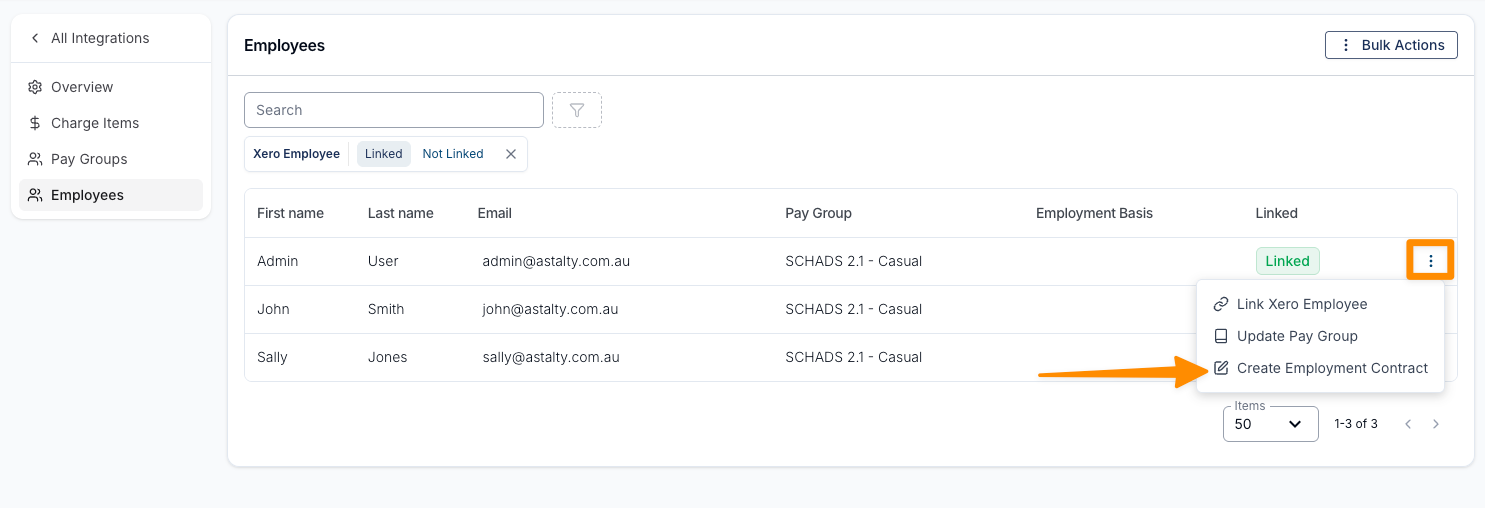
- In the Linked Employees list, click the three dots next to the employee's name.
- Select Create Employment Details.
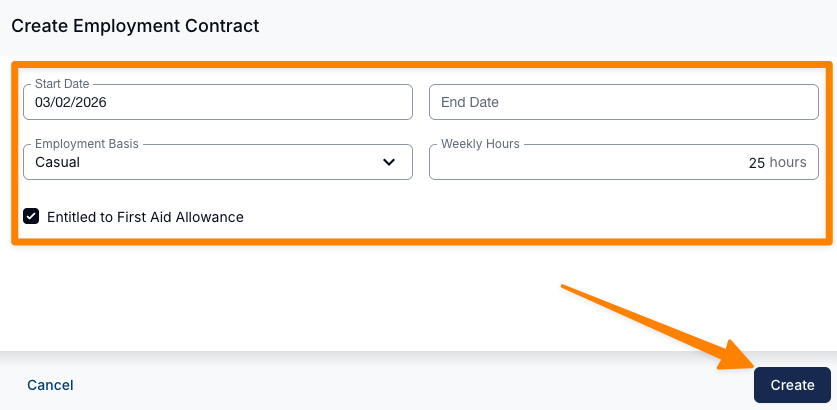
- Enter the relevant Start Date and select the employee's Employment Basis.
- If required, enter the employee's Weekly Hours.
- Select the Award and classification. Check the Base Hourly Rate before saving. For SCHADS, set the overtime stream and agreed ordinary-hours cap.
- Enable allowance entitlements only where they apply; first aid training alone does not establish the SCHADS allowance entitlement.
- Click Create to save. See Staff Contracted Hours for award-specific fields and rate maintenance.
For employees who already have contract information in Xero, you can select Prefill from Xero in the Employment Details form. This will automatically retrieve the start date and employment basis from Xero and populate these fields in Astalty.
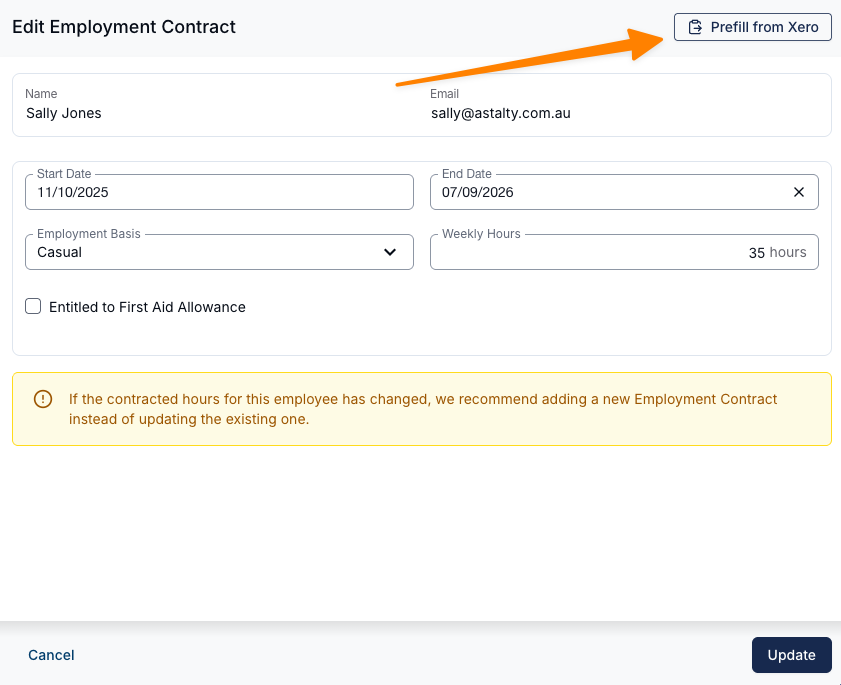
Repeat this process for all employees.
Setting Up Pay Groups and Employees Video Walk-Throughs
Rate Per Unit Method
In this video, we walk through how to create Pay Groups and set up Employees in Astalty using the Rate Per Unit Method.
Multiplier Method
In this video, we walk through how to create Pay Groups and set up Employees in Astalty using the Multiplier Method.
Next Steps
Once all employees have been linked, assigned to the correct Pay Groups, and have Employment Details in place, follow Process Timesheet Batches for Xero to prepare the first batch.