Automatic Updates
Review Charge Item price updates from Settings, Charge Items, Automatic Updates.
The completed-update view shows Charge Items that were updated and Charge Items that were not updated. Check Previous Price, Current Price and Message against the prices you expect. Contact support if an item or result needs investigation.
Eligible and ineligible Charge Items
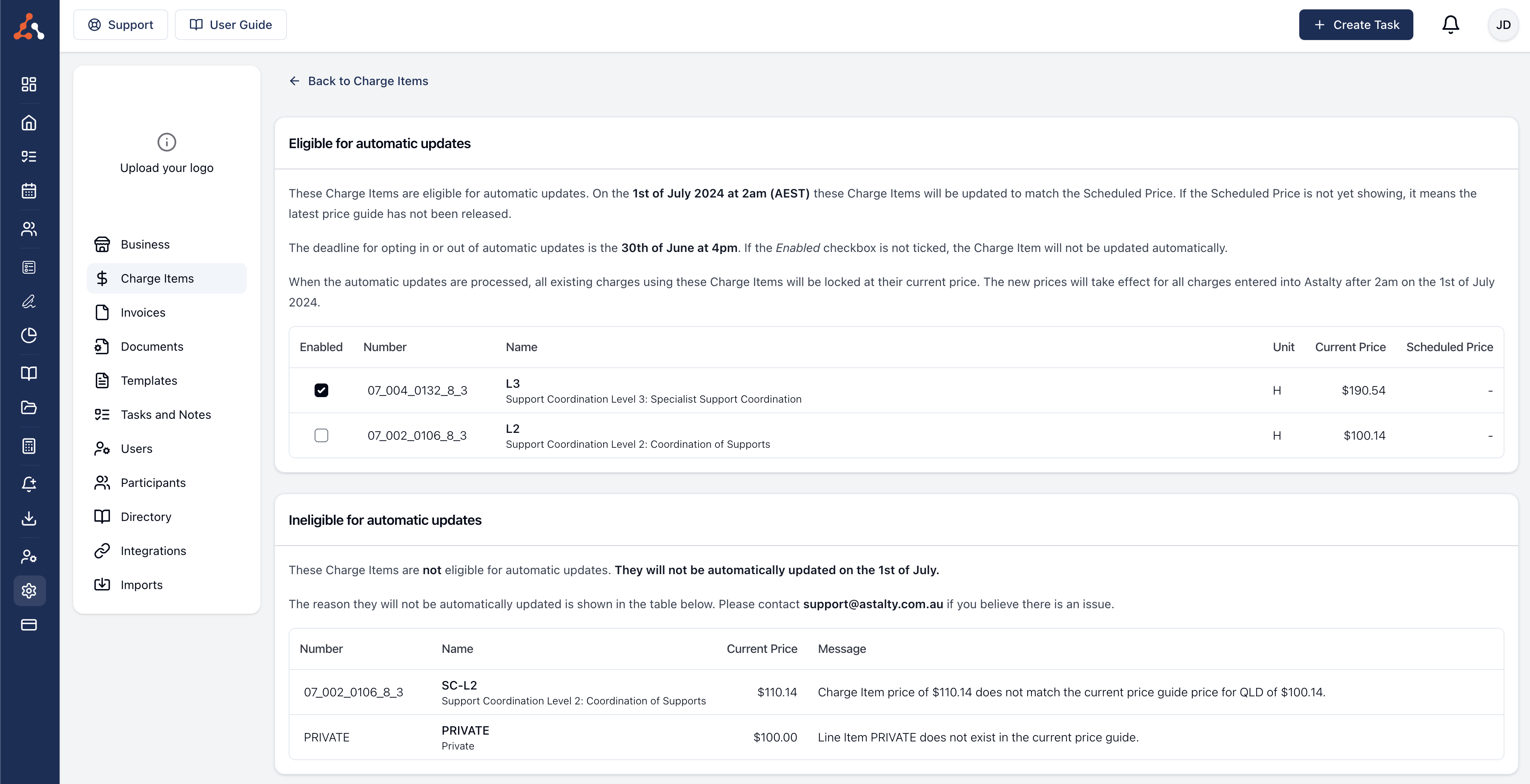
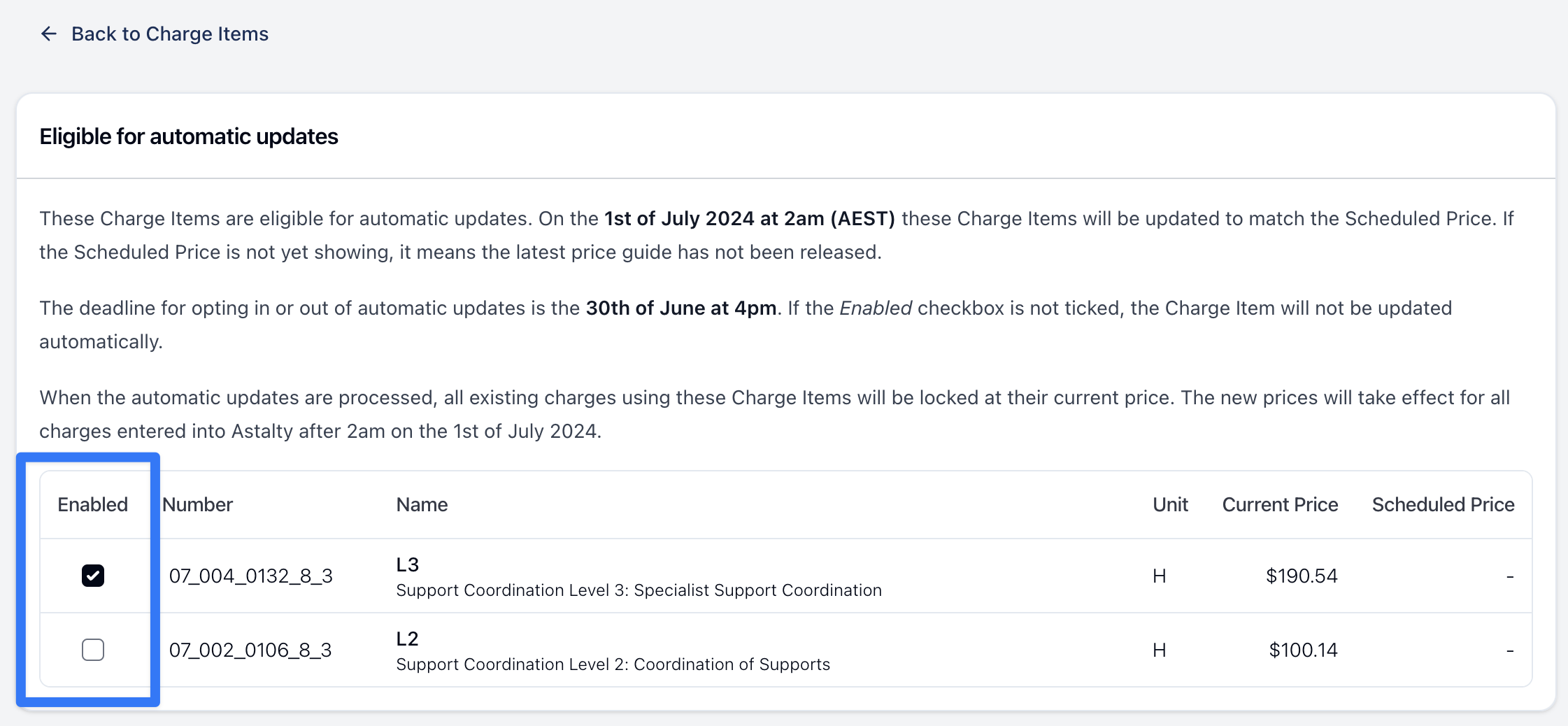
During an announced update window, eligible items appear in Charge Items - can be updated with Current Price, Scheduled Price and an Enabled checkbox. Ineligible items show a Message explaining why they cannot be updated automatically.
Opt-in and opt-out
When an update window is open, use Enabled to opt an eligible Charge Item in or out before the displayed deadline. Check the selection for each item; an eligibility failure turns automatic updates off for that item. Once your account's update is completed, its opt-in setting cannot be changed for that completed run.
Ineligible Charge Items
Eligibility requires:
- A Region in Business Settings.
- A matching support item number in the current price guide.
- The current Charge Item price to match that guide's price for your business region.
- Matching units.
- A matching item in the next price guide once that guide is available for checking.
Archived items are not processed. An item also needs automatic updates enabled and a scheduled price before its price can change.
Updating ineligible Charge Items
Use Creating & Updating Charge Items to change an item manually, or Update Prices for a set.
Locking of previous Charges
When a price changes, Astalty stores the previous rate on charges dated before the update day in your account's timezone, if those charges do not already have a stored rate. Charges that already have a stored rate keep it.
Existing charges dated today or later that still use the Charge Item's live price can take the new price too. New charges use the current price unless you apply an override.
Backdating Charges
Entering an earlier charge date does not recover the old Charge Item price automatically. For an uninvoiced charge, open its Finance details and set a Unit Price override if the earlier rate is required. The override action is unavailable once the charge has been invoiced.
FAQs
When will Charge Items be updated in Astalty?
Use the schedule displayed for an announced update window. The completed-update view records the previous run; it does not announce the next one. Confirm future dates with Astalty support.
What if I want to update my prices on a different date?
Opt out while the update window is open, then manually change the price on the date you need. Manual price changes take effect immediately.
From which date will the new prices be in effect?
The current price changes when the update is processed. Previously stored rates stay on their charges. Check Locking of previous Charges before changing prices or entering backdated work.
What if I do not want to automatically update to the latest price?
Clear Enabled during the announced opt-in window. For a completed update, review the current price and change it manually if required.
When will 'Scheduled Price' show the price?
It appears when the next price guide has been loaded and scheduled prices have been prepared. A missing value is not a zero-dollar rate.
After the prices are updated, what do I do if I need to backdate a charge prior to 30 June, 2026?
Apply the appropriate Unit Price override as described in Backdating Charges. This applies to later price changes too; backdating alone does not restore a historical rate.
If I have a Task that is dated before 30 June, 2026 and I move that Task to a date after 1 July, 2026, will the price be updated?
A charge with a stored rate keeps that rate when its date changes. Review the charge and use the required Unit Price override instead of assuming that moving the task will reprice it.