- Administration
- MYOB
MYOB
The MYOB integration sends the invoices in each finalised Invoice Batch to your MYOB company file, and brings payments you record in MYOB back to Astalty.
Data Flow
Invoices go from Astalty to MYOB and payments come back. Astalty matches each invoice's Participant or Plan Manager to a MYOB customer card, creating one when none exists, and reads your income accounts and Jobs so you can map Charge Items and cost codes to them.
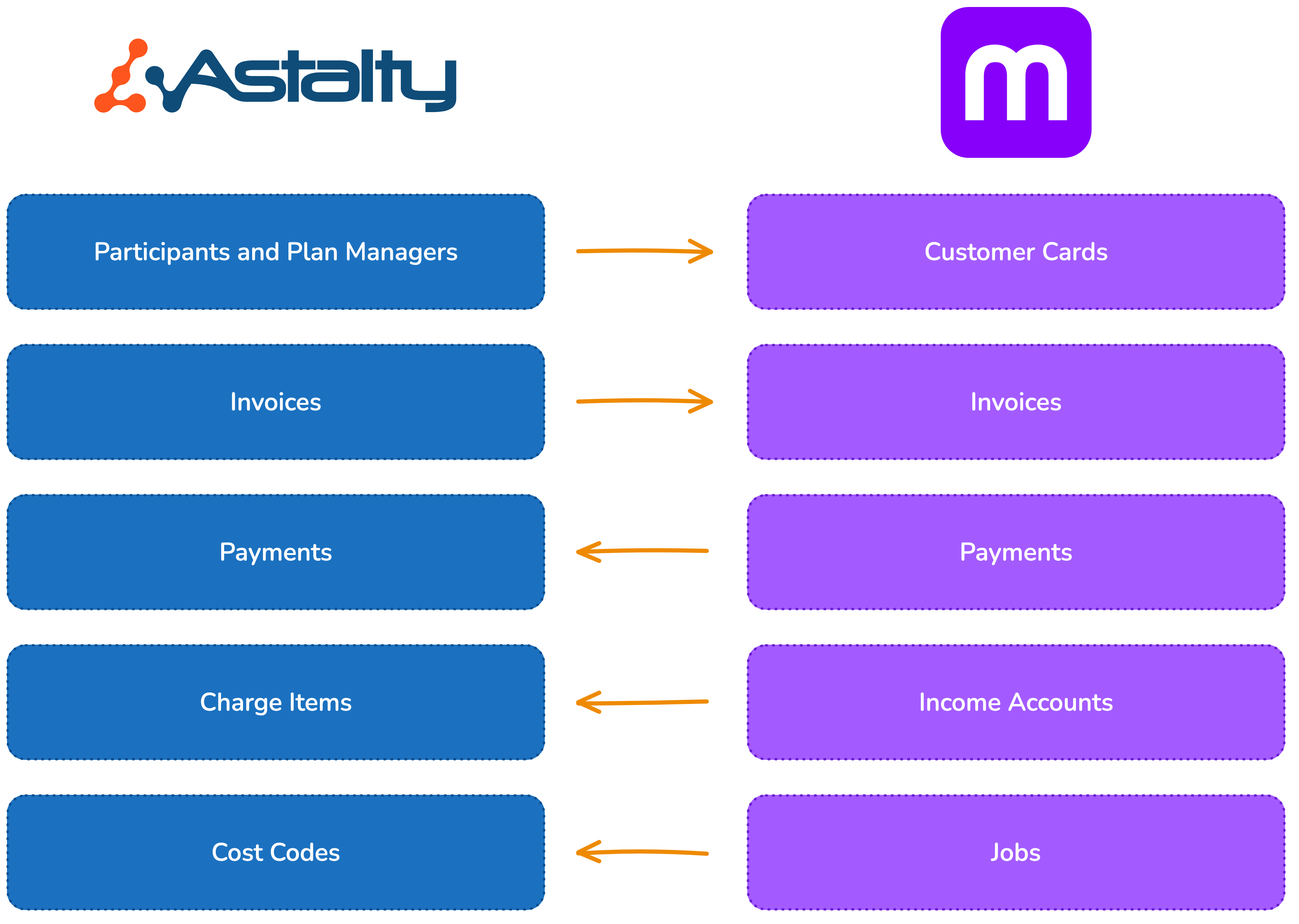
What Can It Do?
Syncing Invoices
Each time you finalise an Invoice Batch in Astalty, the invoices are created in your MYOB company file for you: no more export and import via CSV. Each one is raised against a MYOB customer card, with an income account, tax code and (where mapped) a Job on every line, and arrives open and payable.
Syncing Payments
When you record a payment against one of those invoices in MYOB, Astalty brings it back and assigns it to the invoice, so it is marked as paid in both systems. Astalty checks MYOB every 10 minutes from 8am to 6pm (Sydney time) and hourly outside those hours. Learn how this works for plan and self managed invoices in Reconciling Payments in MYOB.
Voiding Invoices
Voiding an invoice in Astalty deletes it in MYOB, or raises a reversing credit and applies it to the invoice on a company file that requires reversals. A payment or credit applied in MYOB stops the void until it is removed. See Voiding Invoices.
Before You Connect
- The company file is a MYOB company file kept online. A file kept only on your own computer can't be reached.
- A MYOB administrator for that company file connects it.
- One accounting platform at a time. Disconnect any other accounting platform before connecting MYOB.
- Card IDs on your existing Participant customer cards in MYOB should be set to each Participant's NDIS number, so Astalty finds the right card. See Customer Cards.
- Invoice numbers in MYOB have at most 13 characters, so check your invoice number prefix first.
Connecting and Disconnecting Your MYOB Account
You can learn how to connect and disconnect your MYOB company file in Connecting and Disconnecting.
Configuring the Integration
Once connected, you need a valid configuration for the integration to work, starting with a default income account: no invoice syncs without one. Learn how to set this up in Configuring the Integration.
Integration Flow
Once the integration is connected, an invoice moves through Astalty and MYOB like this:
- You finalise an Invoice Batch in Astalty.
- Astalty sends the invoice to the recipient.
- The invoice is created in MYOB, open and payable.
- The recipient pays into your bank account.
- You record the payment in MYOB.
- The payment is created in Astalty on the next check.
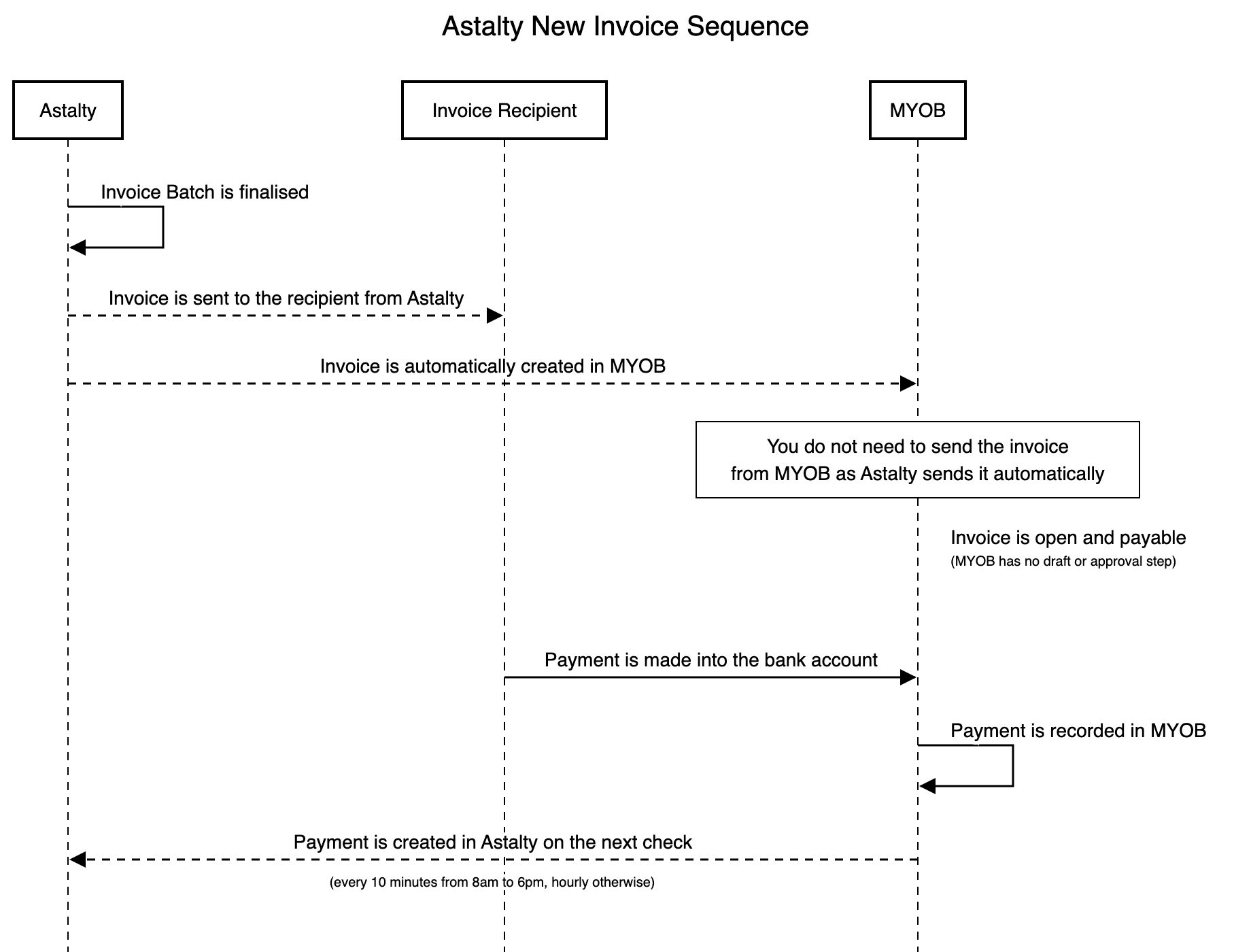
Why Invoices Are Sent From Astalty
In the flow above Astalty emails the invoice, and MYOB is used for recording payments. Sending from Astalty is what makes step 2 worth having:
- You can see whether it arrived. Astalty records a delivery status against every recipient on the invoice, so a failed or bounced invoice shows up instead of going unnoticed. See Invoices for how to read it.
- Every recipient gets one copy. The invoice is emailed once, at step 2, to all of its configured recipients: the Plan Manager or the Participant, plus any additional invoice emails set on the Participant, on the Plan Manager, and in your Invoice Settings. NDIA managed invoices aren't emailed at all.
Payments coming back (steps 5 and 6) don't depend on who emailed the invoice. For a payment to come back the invoice has to have synced to MYOB and still have an amount outstanding in Astalty, and NDIA managed invoices never take their payments from MYOB. See Reconciling Payments in MYOB.
If you would rather send invoices yourself, turn off automatic sending first so Astalty doesn't email them as well (see Turning off automatic invoice sending), and change the invoice delivery on the customer cards Astalty created in MYOB.