Voiding Invoices
Sometimes you may need to correct an invoice, for example because the wrong Charge Item was used or the Participant's management type changed. You can void a whole unpaid invoice for NDIA, Plan, or Self management. You can also void an unpaid line on an NDIA-managed invoice, even when other lines on that invoice have been paid.
Finding the invoice
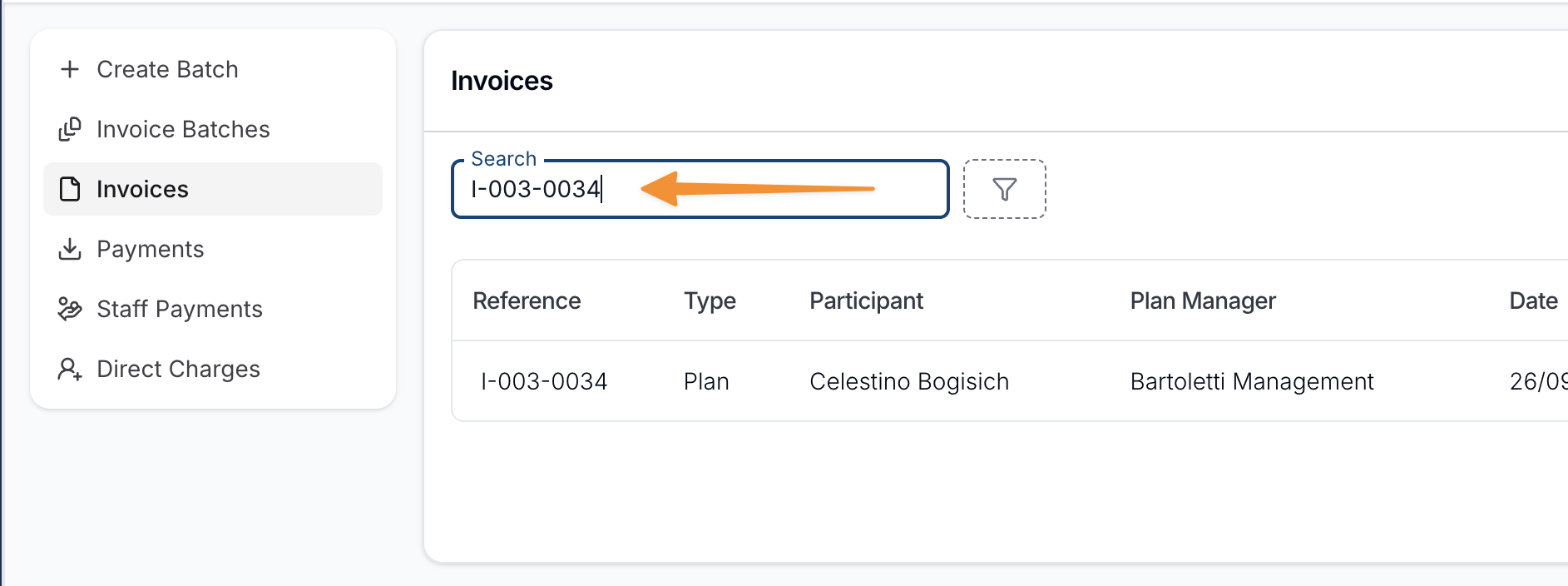
Open Invoices and search for the invoice by reference.
Void the invoice
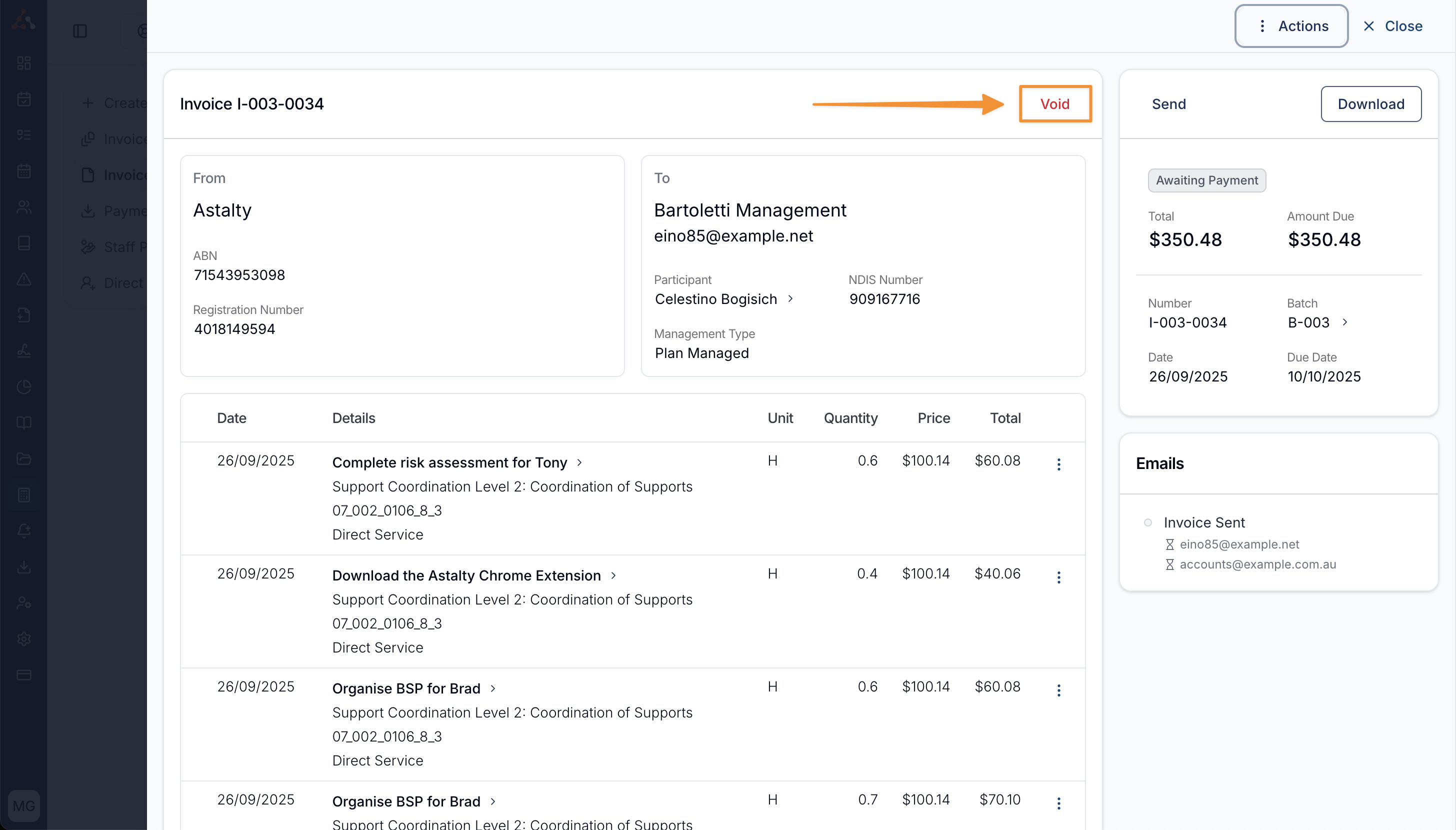
Once you have found the invoice, you can click on it to open the invoice page.
If the invoice can be voided, a red Void button will be showing and you can click this to void the invoice.
When voiding an invoice, you will be given the chance to add a reason for voiding the invoice. This is important for auditing and keeping track of changes. Voided reasons are shown in the Voided Charges report.
For Plan- and Self-managed invoices, the void form can also offer email notifications to the invoice's email recipients. Astalty lists the original automatic email's recipients, excluding those marked permanently failed or cancelled. If there is no remaining automatic To recipient, it also includes recipients from manual sends, with the same exclusions. This can include queued or temporarily failed emails; inclusion does not confirm delivery.
Voiding individual lines
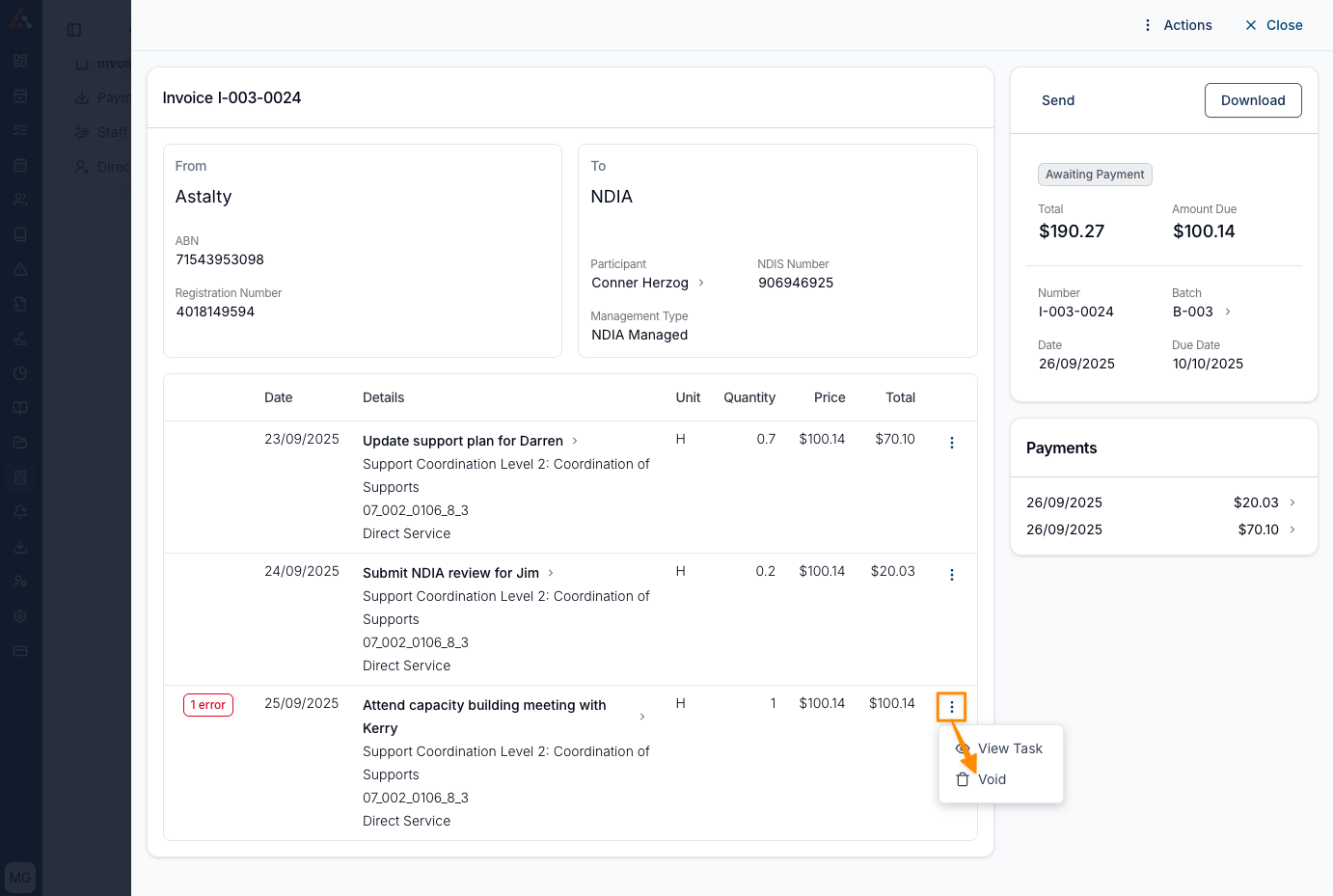
If the invoice is NDIA managed, Astalty allows you to void individual lines within an invoice. You can do this by clicking on the 3 dots for the line and clicking Void. Charges that have been partially or fully paid can not be voided.
Invoices in Xero
When you void an invoice linked to Xero, Astalty voids the invoice and its charges first, then queues the change for Xero. The Xero result appears as a sync error on the invoice if Xero cannot complete it.
Xero deletes a draft invoice and voids an awaiting approval or approved invoice. If the invoice is already deleted or voided in Xero, Astalty treats the change as complete.
Xero refuses the change when the invoice is marked as paid. Remove or reverse the payment or credit in Xero, then void the invoice there. If the connection, permission, or Xero validation stops the change, follow the sync error and complete the void directly in Xero. The invoice remains voided in Astalty, and a later batch sync will not send it again.
Invoices in MYOB
If you invoice through MYOB, voiding an invoice that is in MYOB changes MYOB first. The invoice is only voided in Astalty once MYOB has accepted the change.
| Company file | What happens in MYOB |
|---|---|
| Allows deletions | The invoice is deleted (an invoice already gone from MYOB voids normally) |
| Requires reversals instead | A credit with the same invoice number is raised against the same customer: a copy of the invoice, freight included, with every amount negative, the original memo and payment terms, dated the day of the void. Astalty then applies the credit to the invoice, so both close in MYOB. Voiding again never raises a second credit. |
The void is refused, and the invoice stays as it is in both systems, when MYOB or the connection stops it. Each refusal starts Invoice … has not been voided:
| Refusal | What to do |
|---|---|
| it has a payment or credit applied in MYOB. Remove the payment or credit in MYOB first, then void it here. | Delete or reverse the payment, or remove the credit, in MYOB, then void again. Voiding checks MYOB's payments first, so there's no need to sync payments. |
| Astalty could not connect to MYOB. Please reconnect MYOB, then try again. | Reconnect MYOB, then void again. |
| MYOB could not be reached. Please try again shortly. | Try again in a few minutes. |
| the MYOB user Astalty connects with is not allowed to delete or reverse it. Ask your MYOB administrator for access, then try again. | Ask your MYOB administrator for access. |
| MYOB could not delete or reverse it. MYOB holds a reversal of invoice … but did not apply it to the invoice: … | Void the invoice again in Astalty to apply it, or apply the credit to the invoice in MYOB. |
| MYOB could not delete or reverse it. Invoice … is a credit in MYOB, so Astalty cannot reverse it. Reverse it in MYOB instead. | Reverse it in MYOB. |
| MYOB could not delete or reverse it. Invoice … holds lines in MYOB that Astalty cannot copy onto a reversal. Reverse it in MYOB instead. | Reverse it in MYOB. |
| MYOB could not delete or reverse it. MYOB holds a credit numbered … for this customer that does not offset invoice …, so no second reversal was raised. Check both in MYOB. | Check both in MYOB. |
| MYOB could not delete or reverse it. MYOB raised a reversal of invoice … for a total that does not offset it, so the reversal was not applied. Check both in MYOB. | Check both in MYOB. |
| MYOB could not delete or reverse it. followed by MYOB's reason | Fix what MYOB names, then void again. An invoice you delete in MYOB yourself then voids normally here. |
| MYOB could not delete or reverse it. Please try again, or check the invoice in MYOB. | Try again, then check the invoice in MYOB. |
Invoice … is busy syncing with MYOB. Please wait a moment, then try again. means a sync is still running for that invoice; try again shortly.
When every payment on the invoice came from MYOB, the void form still opens, with the notice This invoice has payments from MYOB. Astalty checks MYOB before voiding, so a payment still there has to be removed in MYOB first. Voiding checks MYOB's payments before anything else: a payment you've removed in MYOB drops off in Astalty and the void goes ahead. Unable to Void Invoice appears instead of the void form only when the invoice has a payment recorded in Astalty itself.
Finding and fixing voided charges
Once a charge has been voided, usually you need to undertake some action to fix the charge so you can invoice for it again. Voided charges that have not yet been re-invoiced or deleted stay attached to the finalised invoice batch they came from, in an Unresolved Voided Charges card. Each row shows the date of the Task or support the charge relates to, so you can find the day you're chasing without opening every charge.
See Unresolved Voided Charges for how to find that card, what each column means, and how to get the charge back onto an invoice.