- Finance
- Invoicing
- Invoice Batches
- Commenting on Invoice Batches
Commenting on Invoice Batches
Overview
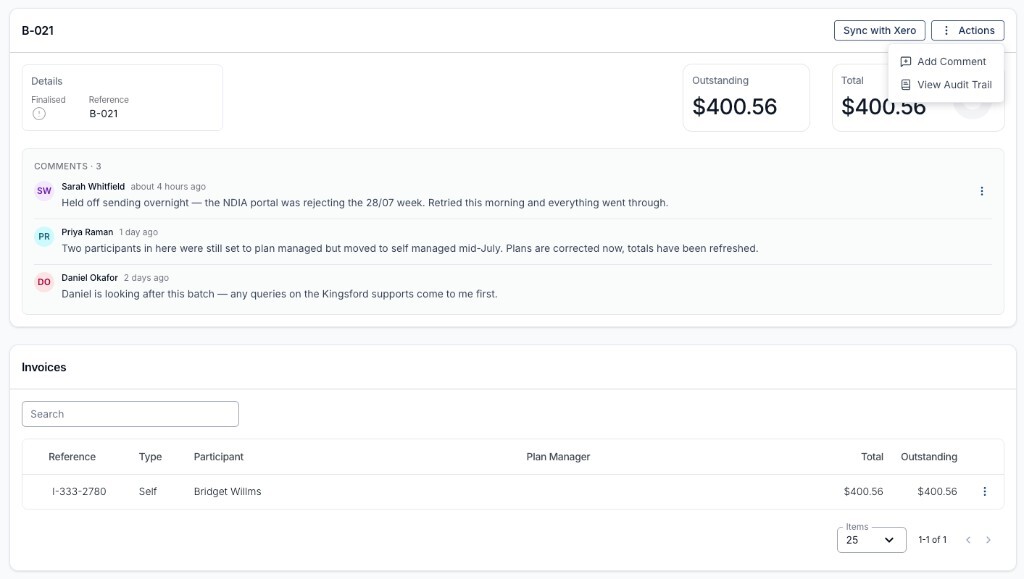
An invoice batch often carries context that isn't visible in the batch itself - you held off finalising because the NDIA portal was rejecting a week, a Participant's management type changed mid-period, or a particular colleague is looking after this batch.
Comments let you record that context directly on the batch, so whoever opens it next can see why it looks the way it does. Comments are available on every account, so there is nothing to switch on, and anyone who can open the batch can read and add them.
Adding a Comment
You can comment on a batch whether it is still a draft or already finalised.
- Open Finance > Invoice Batches and click into the batch.
- Open the Actions menu at the top right of the batch.
- Select Add Comment.
- Type your comment and click Add Comment.
The drawer title confirms which batch you're commenting on - for example, Add Comment on B-021.
Reading Comments
Once a batch has at least one comment, a Comments section appears on the batch, showing a count of how many there are - for example Comments · 3.
Each comment shows the author's name, their initials, and how long ago it was posted. Hover over the timestamp to see the exact date and time.
Formatting a Comment
The comment box is a rich text editor, not a plain text field. You can use bold, italic, headings, bulleted and numbered lists, and hyperlinks to lay out longer notes - handy when you're recording a sequence of steps you took or linking to a related record.
Editing and Deleting Comments
You can change or remove a comment you wrote:
- Find the comment in the Comments section.
- Open the actions menu (the three dots) on the comment itself.
- Select Edit Comment to change the wording, then click Save Comment. Or select Delete Comment and confirm.
Comments Elsewhere in Astalty
Batch comments are for coordinating the invoicing run itself. For other kinds of notes, see:
- Commenting on Invoices - internal notes on a single invoice. Batch comments and invoice comments are separate; commenting on a batch does not comment on its invoices. Unlike batch comments, invoice comments can be synced to Xero as history notes.
- Commenting on Shift Broadcasts - internal notes when filling a broadcast on the Shift Board.
- Messaging - direct conversations with your team in Chat.