Opening an Invoice from a Charge
Overview
Once a charge has been invoiced, you can jump straight to the invoice it was billed on without hunting for it on the Invoices page. This works from the Finance tab of a task, the Finance tab of a support, and the charges list inside a Staff Payment Batch.
From a Task or Support
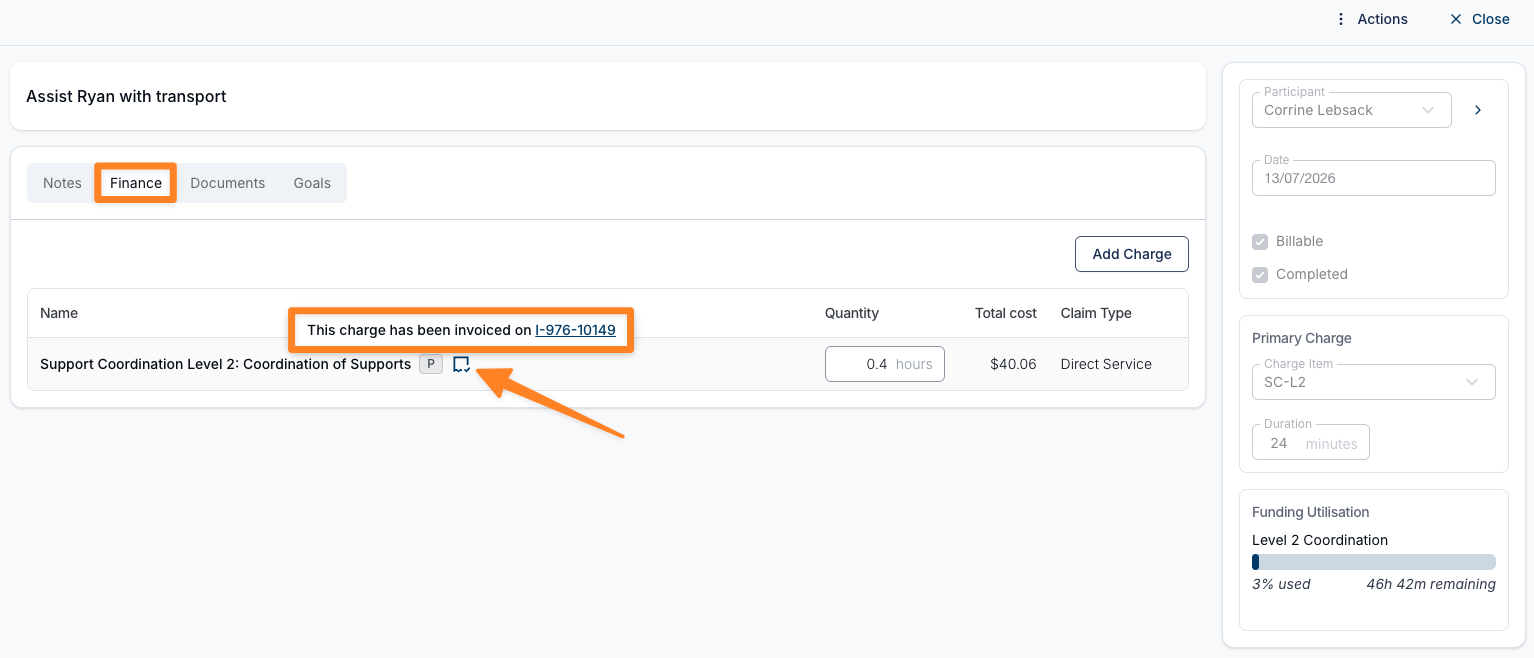
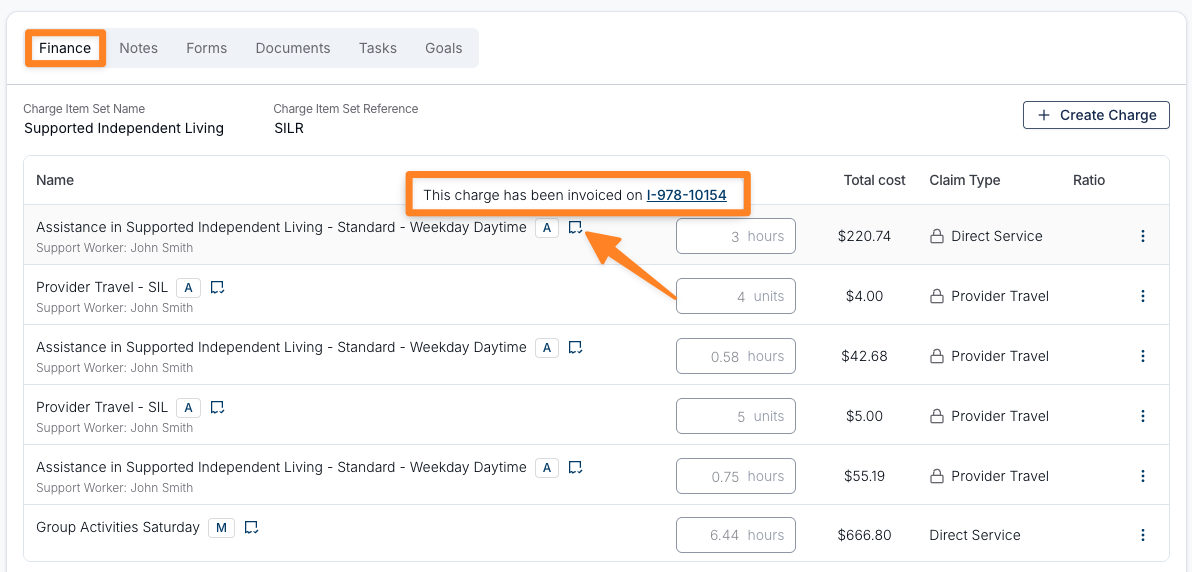
When a charge has been invoiced, an invoice icon appears next to the Charge Item name in the Finance tab of the task or support.
- Hover over the icon to see a tooltip confirming the charge has been invoiced, along with the invoice number shown as a clickable link.
- Click either the icon or the invoice number to open that invoice in a new browser tab, so you don't lose your place on the task or support.
The invoiced icon and its tooltip on a task's Finance tab:
The same on a support's Finance tab:
From a Staff Payment Batch
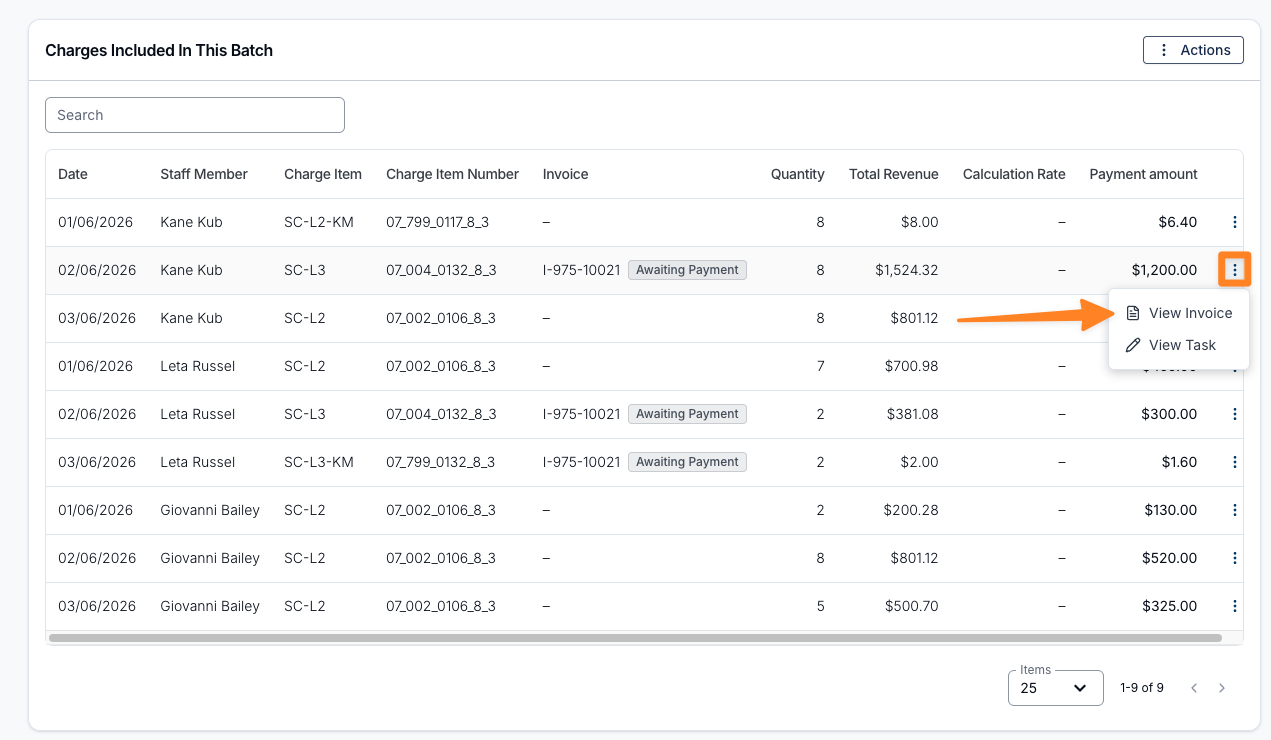
Inside a Staff Payment Batch, the Charges Included In This Batch table shows the invoice number and status for each invoiced charge in the Invoice column.
To open the invoice for a charge, click the three dot menu at the end of the charge's row and select View Invoice. If the charge is linked to a task, you can also select View Task from the same menu.