Invoices
Overview
Astalty creates invoices through an Invoice Batch. See Invoice Batches. Each Participant invoice uses the management type recorded on the Service for its Charge Items.
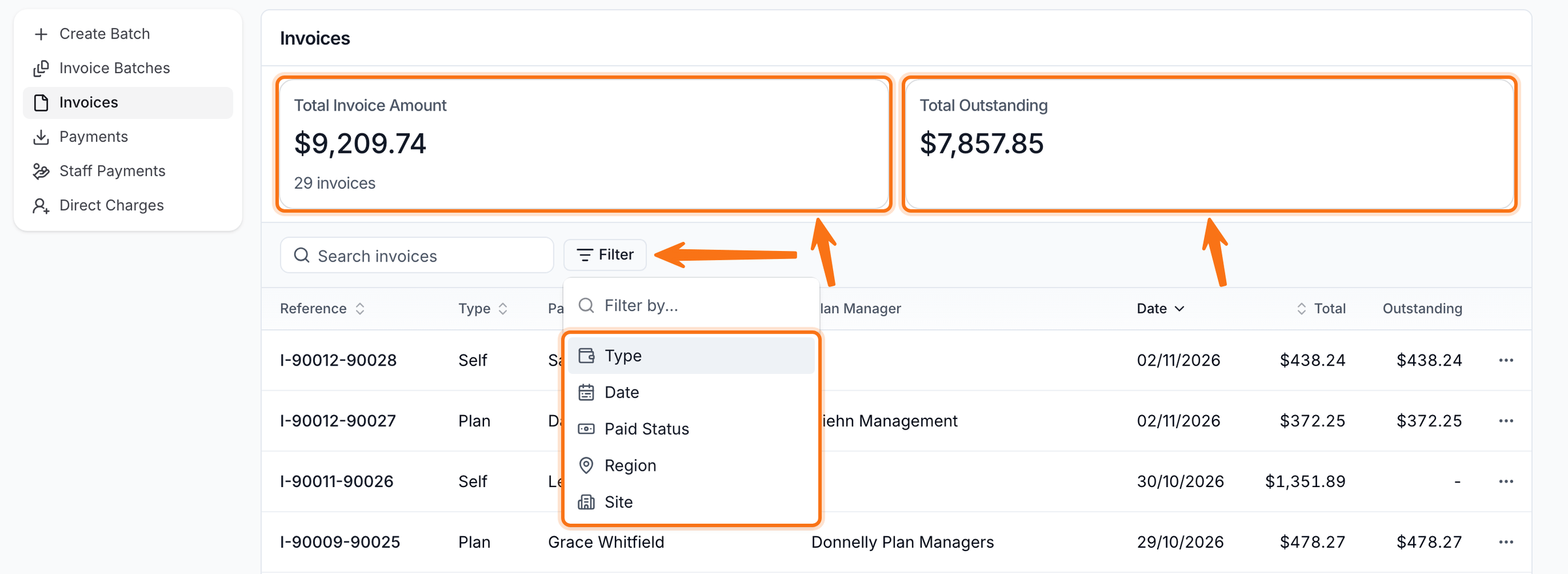
The Invoices page displays all generated invoices. You can search the list and refine it using Type, Date and Paid Status filters, plus Region and Site filters when your account uses Regions or Sites.
On Astalty Premium, the top of the page shows Total Invoice Amount and Total Outstanding. These totals update with the filters.
Click a sortable column heading - Reference, Type, Participant, Date, Due Date or Total - to sort the list; the sort is saved to the page's URL, so a link you share or bookmark reopens it in the same order. Sorting by Participant keeps each Participant's invoices together, A to Z or Z to A, with the oldest due invoice leading each Participant's group either way - useful for chasing a Participant with several overdue invoices. The Invoices table inside a finalised Invoice Batch can be sorted the same way.
Viewing the Invoice
Invoices can be viewed via:
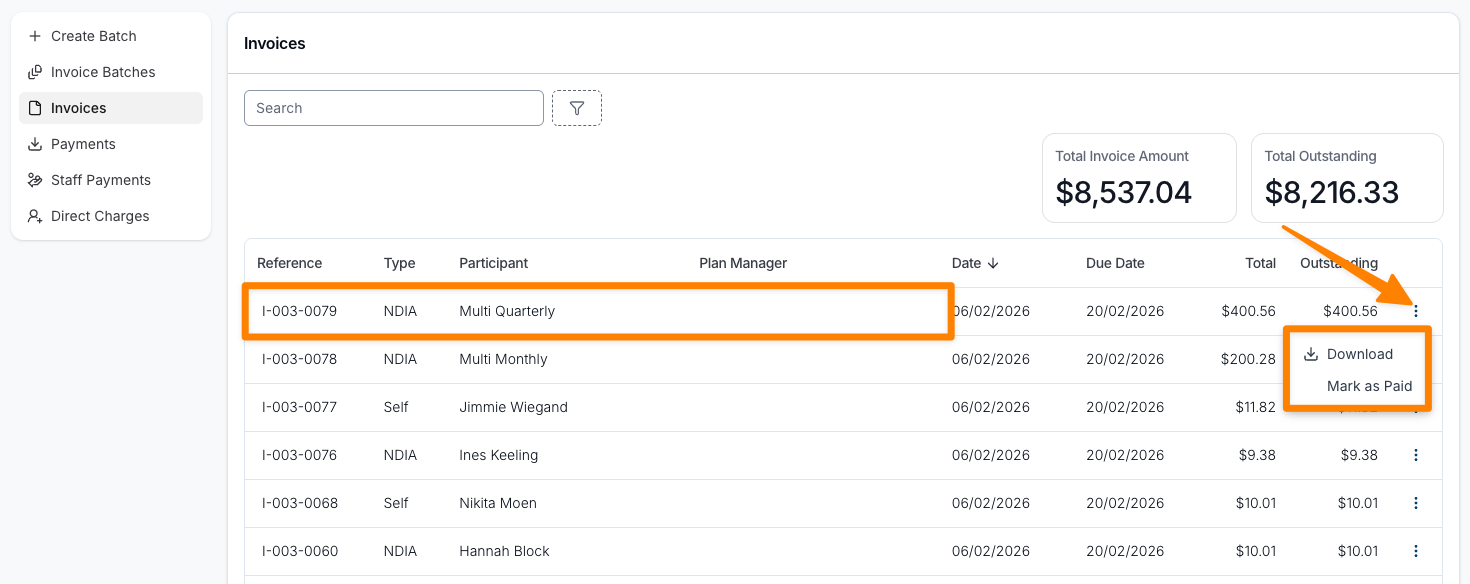
- On Finance > Invoices, select an invoice to open it. Its action menu also includes Download and Mark as Paid when those actions are available.
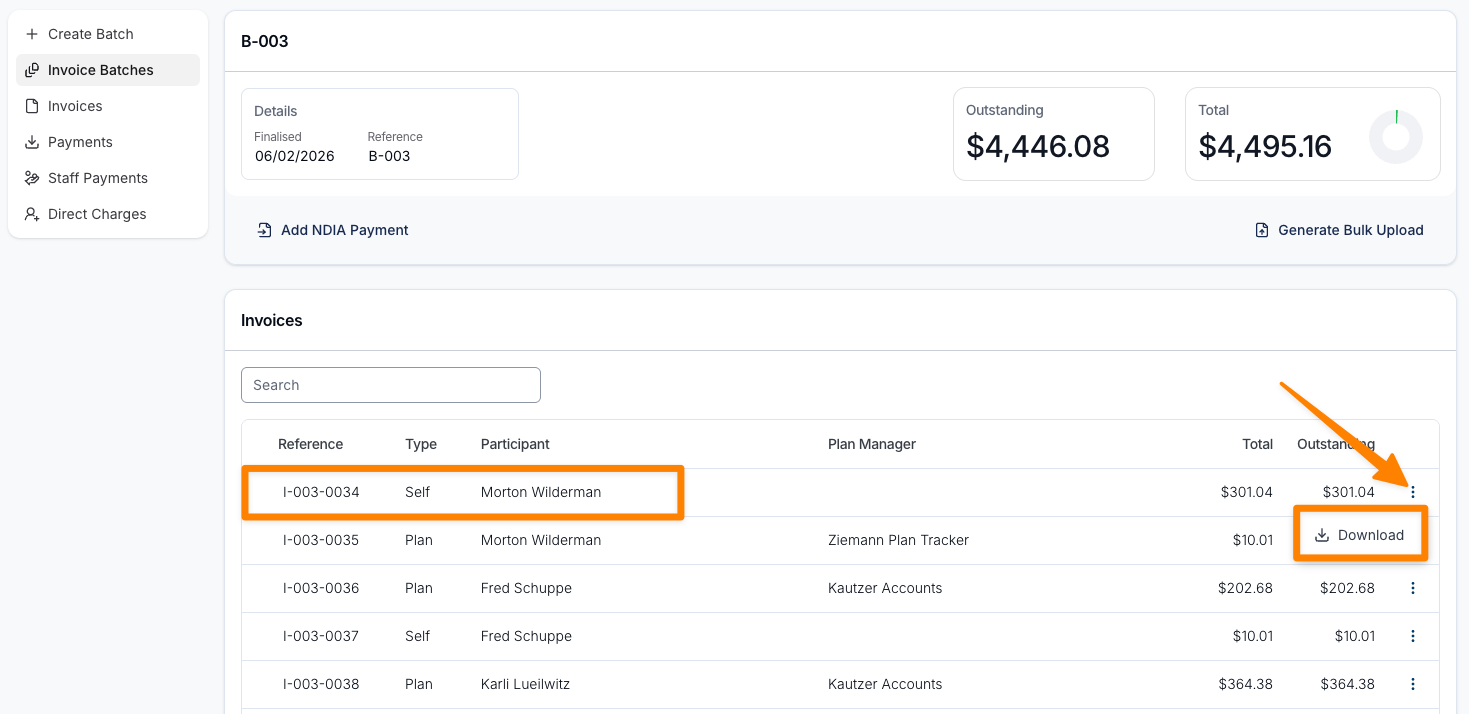
- The individual invoices within Invoice Batches - open the relevant Invoice batch and then click on the Invoice you want to view (you can also click on the three dot menu to Download)
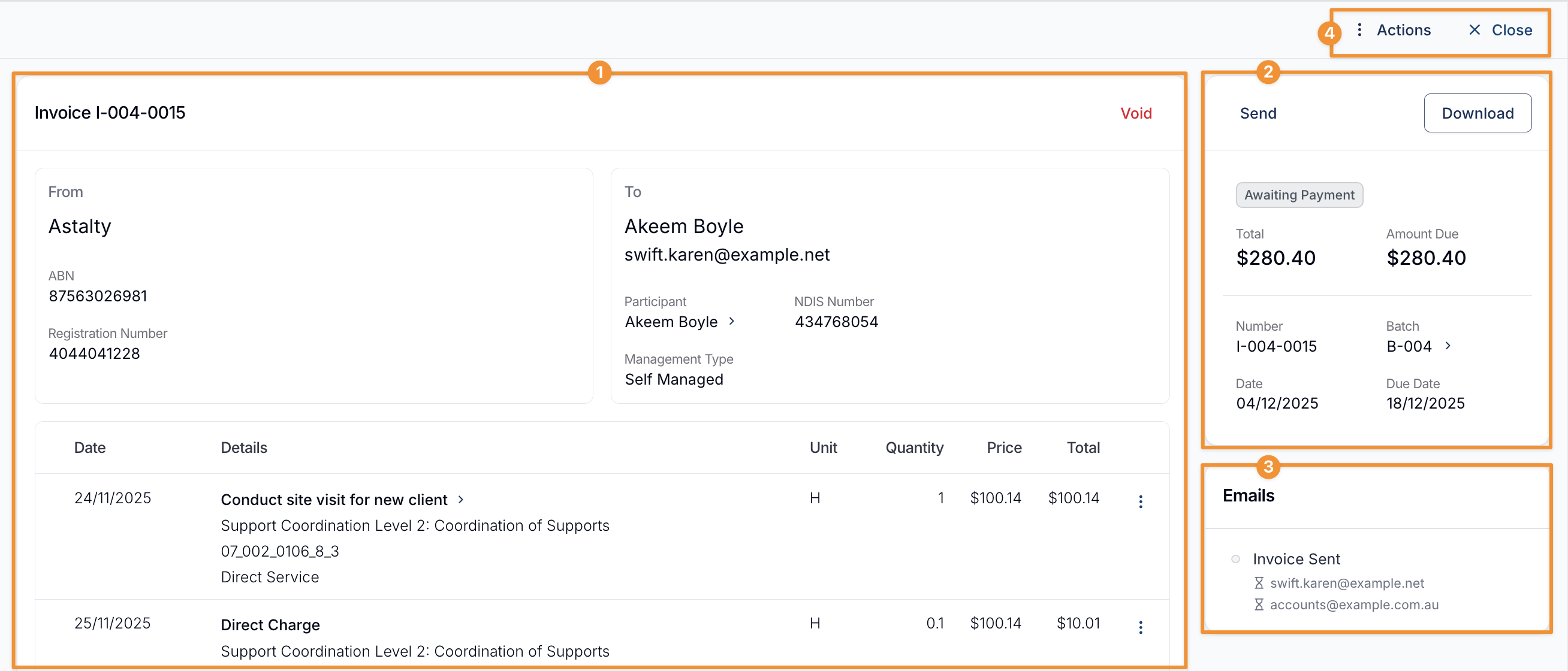
Once opened you can view:
- The details included in the Invoice:
- Invoice Number
- Void - the whole invoice, see our Voiding Invoices guide for more information.
- Invoice Details of who it was sent from and who it is addressed to.
- Charges included - for group supports, each affected charge also shows its billing ratio. See Group Support Ratios on Invoices.
- Invoice Control:
- Send - to a relevant stakeholder or someone else
- Download - download a copy of the invoice as a PDF
- Invoice Status - Awaiting Payment or Paid
- Invoice Amount - Total Invoice Amount
- Amount Due - Total Outstanding
- Dates of Invoice
- Due Date - of invoice
- Invoice Emails:
- Email of who the invoice was sent to (recipient)
- Delivered means the email provider recorded a delivery event. It does not confirm that the message reached the recipient's inbox.
- Delivery failed means the email provider could not deliver the message. Check the recipient's email address. If the address is correct, contact support@astalty.com.au.
- Comments - internal notes your team can leave on the invoice. See Commenting on Invoices.
- Actions and Close
- Within Actions:
- Export Tasks & Notes
- includes Support Worker notes
- Disable Reminders
- Mark as Paid
- Export Tasks & Notes
- Use the Close button to exit the Invoice