Invoice Batches
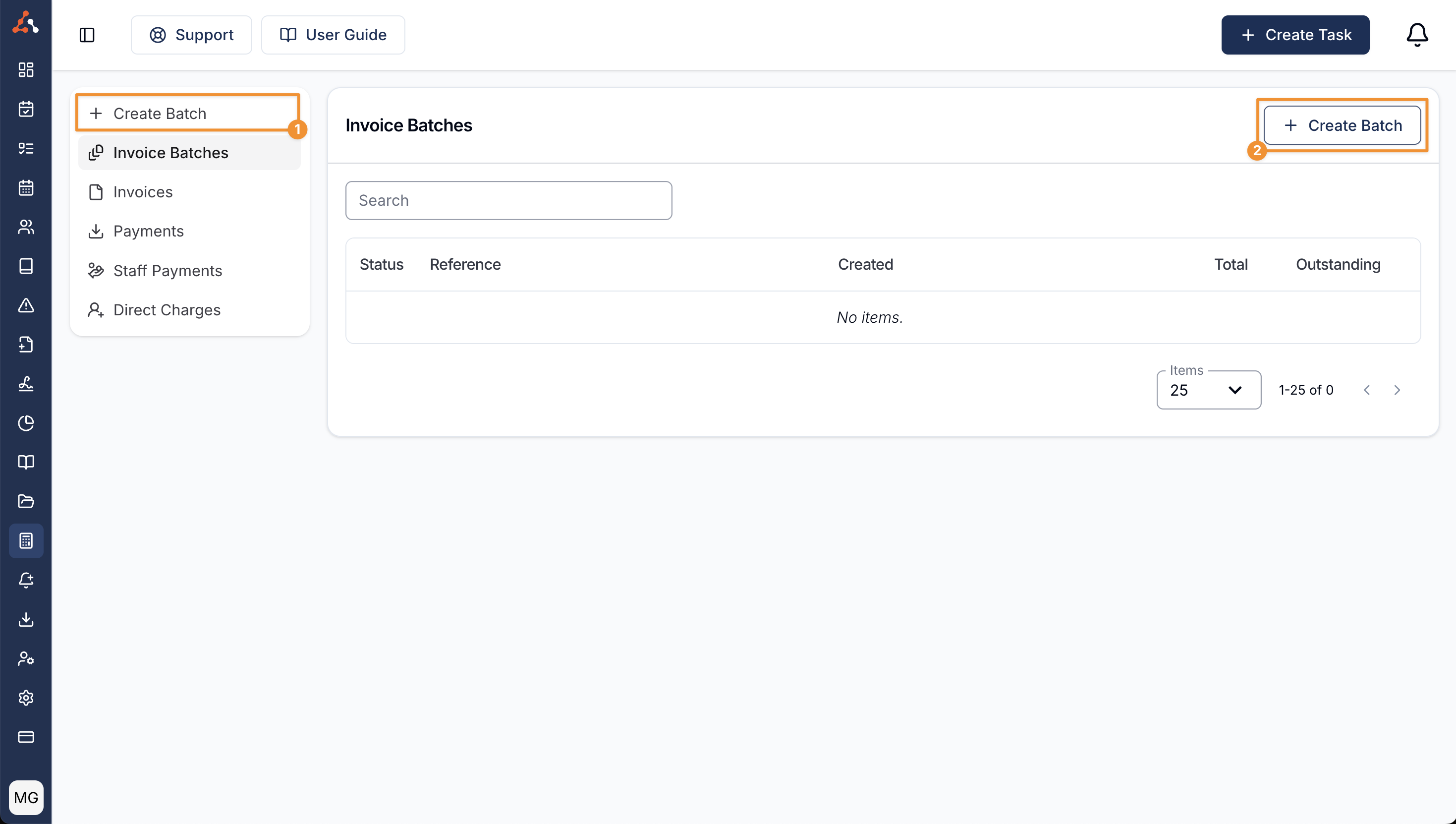
To create an Invoice Batch, you can head to the Invoice Batches page and click Create Batch (1) in the sidebar or towards the top right of the page (2).
You are free to create Invoice Batches for any period you like - you can do it weekly, daily or monthly. You can also go back to any past period and re-run an Invoice Batch to process any uninvoiced items.
Filtering the Invoice Batches List
If your organisation uses Regions, a Regions filter on the Invoice Batches list narrows it down to one or more Regions - the same filter already on the Invoices page. A batch matches if any of its charged Participants falls in a selected Region, so a batch spanning several Regions can appear under more than one. Unassigned works the same way: it finds batches with any charged Participant that has no Region set, so a batch with one Participant in Gold Coast and another with no Region appears under both Gold Coast and Unassigned. This filter only appears if your role can view all Regions.
When Scheduling is enabled and you can view Sites, the Site filter narrows the list to batches containing a charge at one or more selected Sites. Select Unassigned for a batch containing a charge with no Site. A charge uses its own Site when present, otherwise the Site from its Shift or Support. Voided charges still count toward the batch's Site filter.
Creating an Invoice Batch
All Invoice Batches will be created as a draft first. Once you are on the Create Batch page, you can adjust the date range that you'd like to invoice for.
Uninvoiced Charges Warning
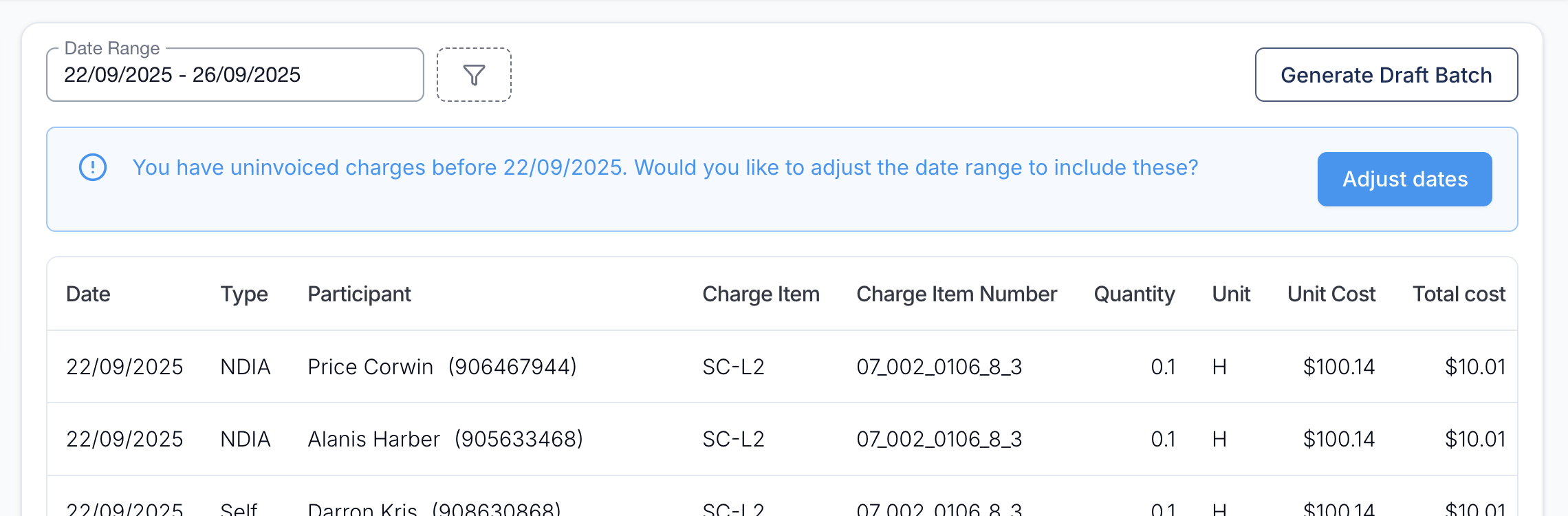
Sometimes you may see a blue warning starting "you have uninvoiced charges before [start date]". This means that Astalty has found charges outside of the selected date range that have not yet been invoiced. If you click on the Adjust dates button, Astalty will automatically adjust the date range to ensure all uninvoiced charges are included in the draft batch.
Tasks Missing Charges Warning
You may also see an orange warning that some Tasks "are marked as billable but have no charges attached which won't appear in this batch". Those Tasks have nothing to invoice, so they are passed over silently unless you fix them.
Click View Tasks to review them, attach a charge to each one, then re-create the batch. See Tasks Missing Charges.
Filters
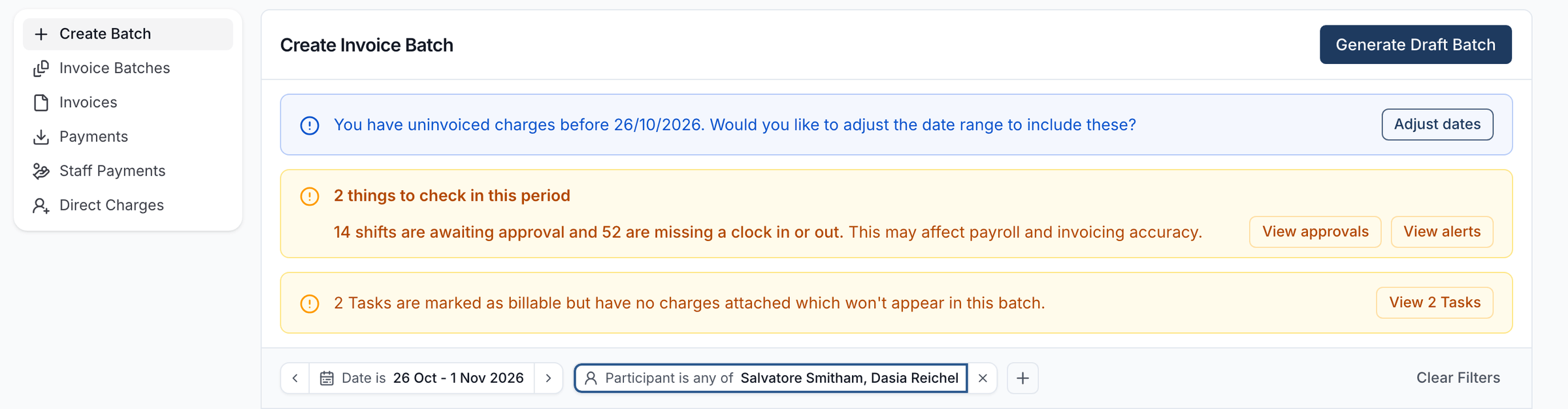
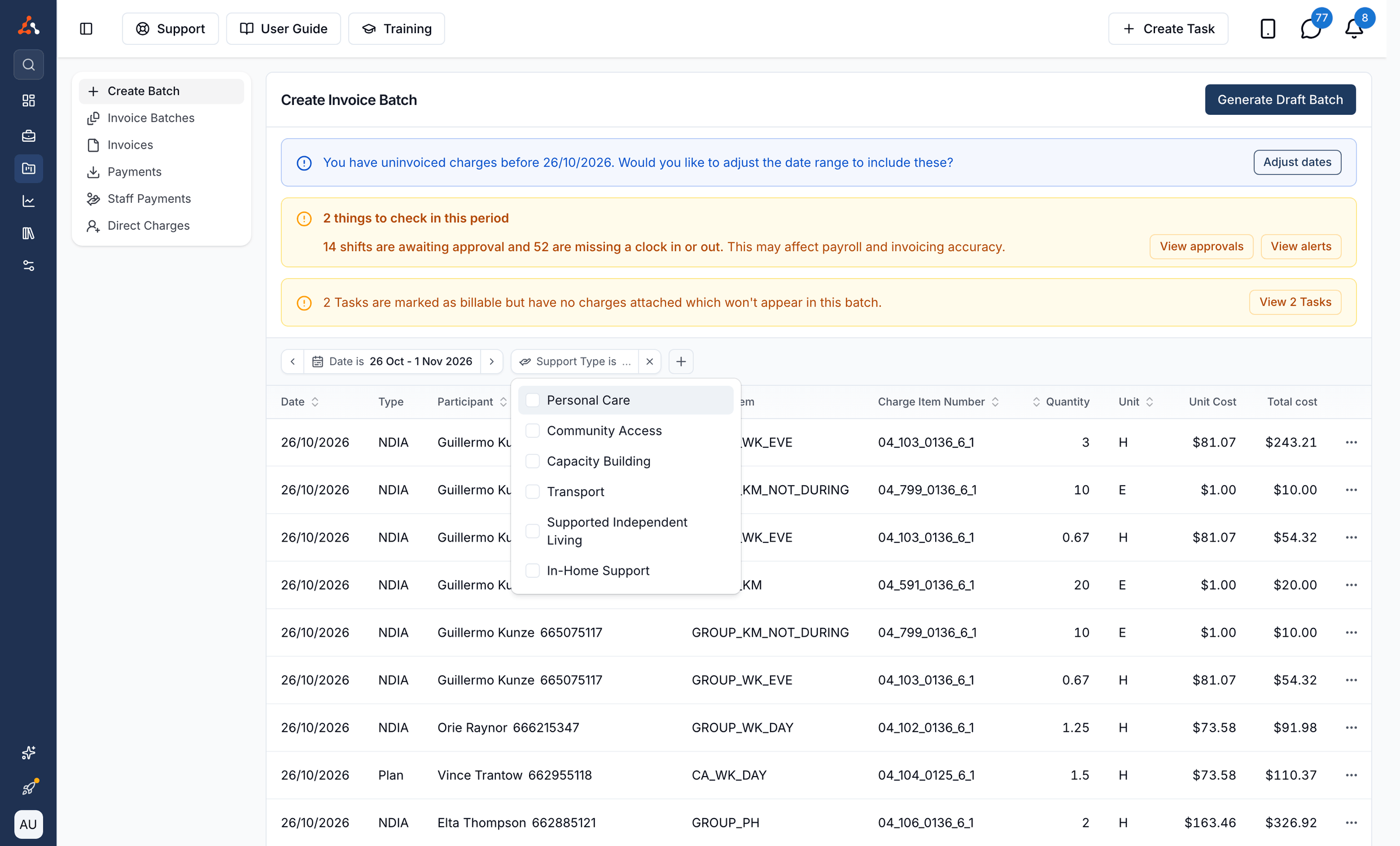
Before generating your draft batch, click the + button next to the date filter to narrow down which charges are included. The following filters are available:
Charge Type: Only show charges created by Task, Support, or Direct Charges. Support only shows up if you use Scheduling.
Management Type: Only show charges for Participants with a particular management type - NDIA, Plan, or Self.
Task Owner: Only show charges for Tasks owned by one or more selected staff members. Selecting a Task Owner will automatically set the Charge Type filter to Task.
Participant: Only show charges for one or more selected Participants.
Region: Only show charges for Participants in one or more selected Regions, or Unassigned. Only shows up if you use Regions and can view all Regions.
Site: Only show charges at one or more selected Sites, or Unassigned. A charge takes its Site from the charge itself, or otherwise from its shift or Support. Only shows up if you use Scheduling and can view Sites.
Support Type: Only show charges for one or more selected support types, such as Personal Care or Community Access. This matches charges linked to a Support, so Task and Direct Charges are excluded whenever a Support Type is selected. Requires Scheduling.
Generating the draft batch
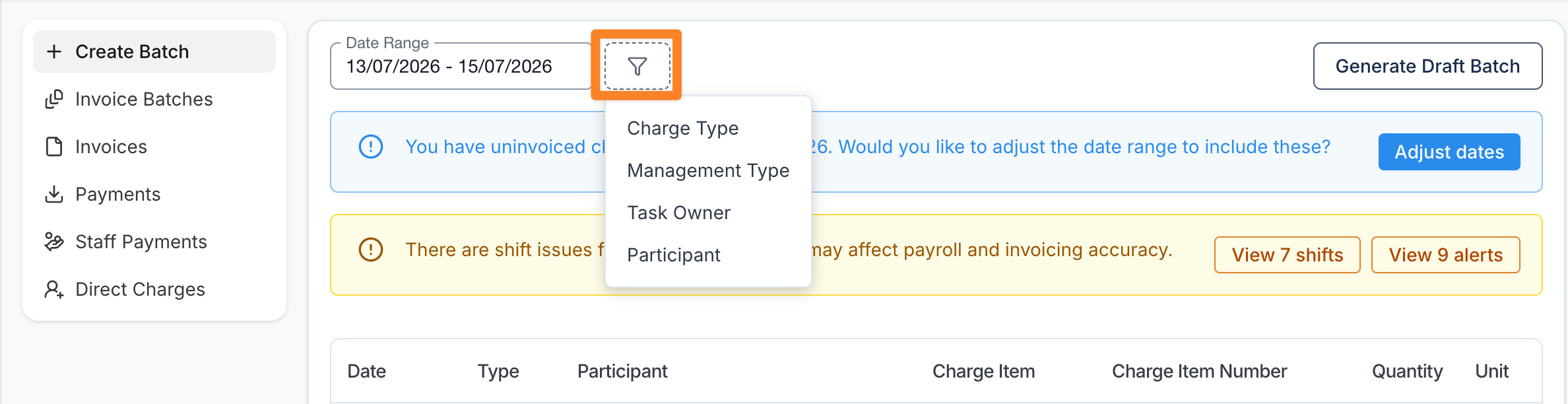
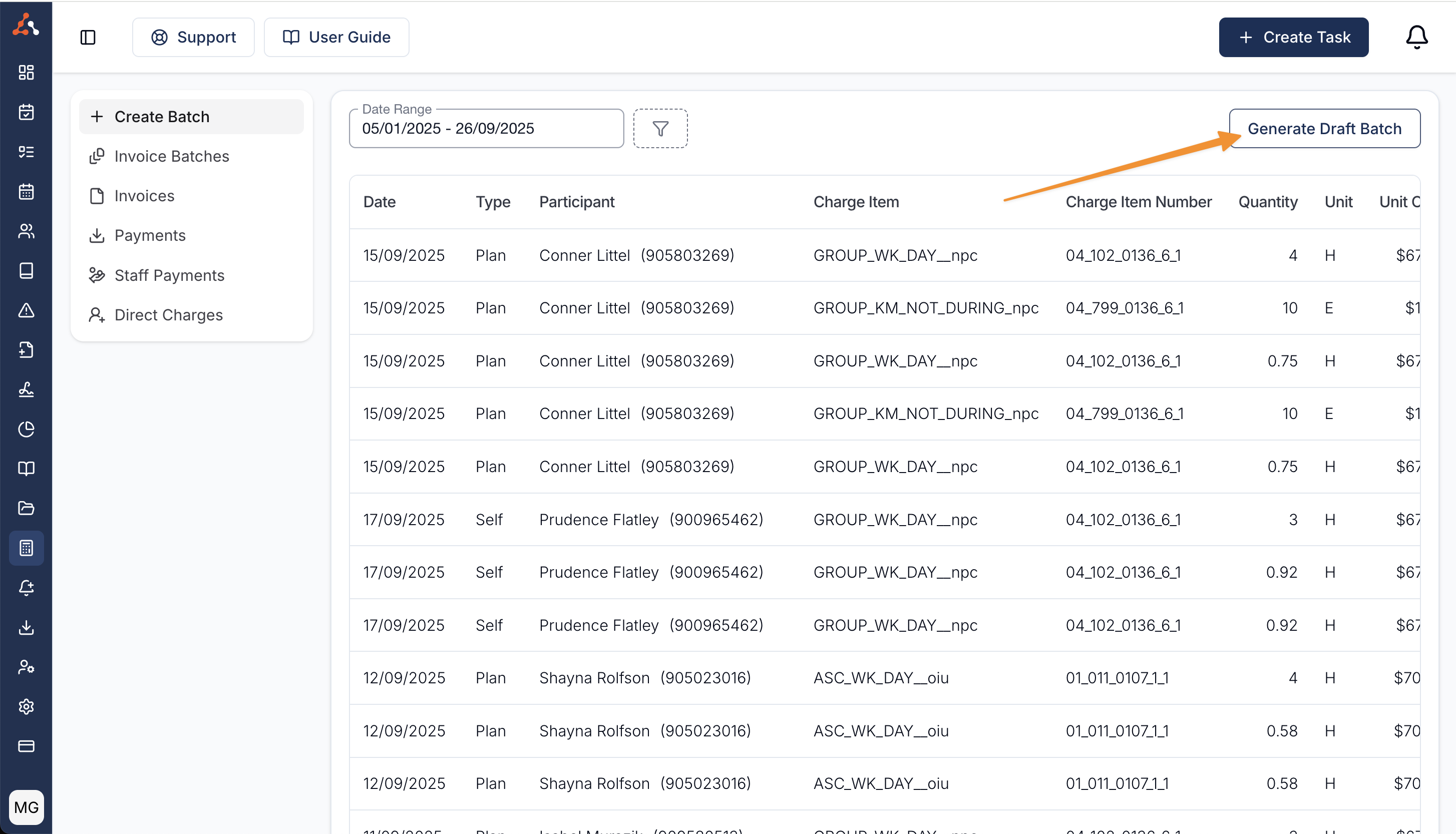
When you are ready and happy with the selected date range click on Generate Draft Batch.
This will not send any invoices yet.
Searching by Participant
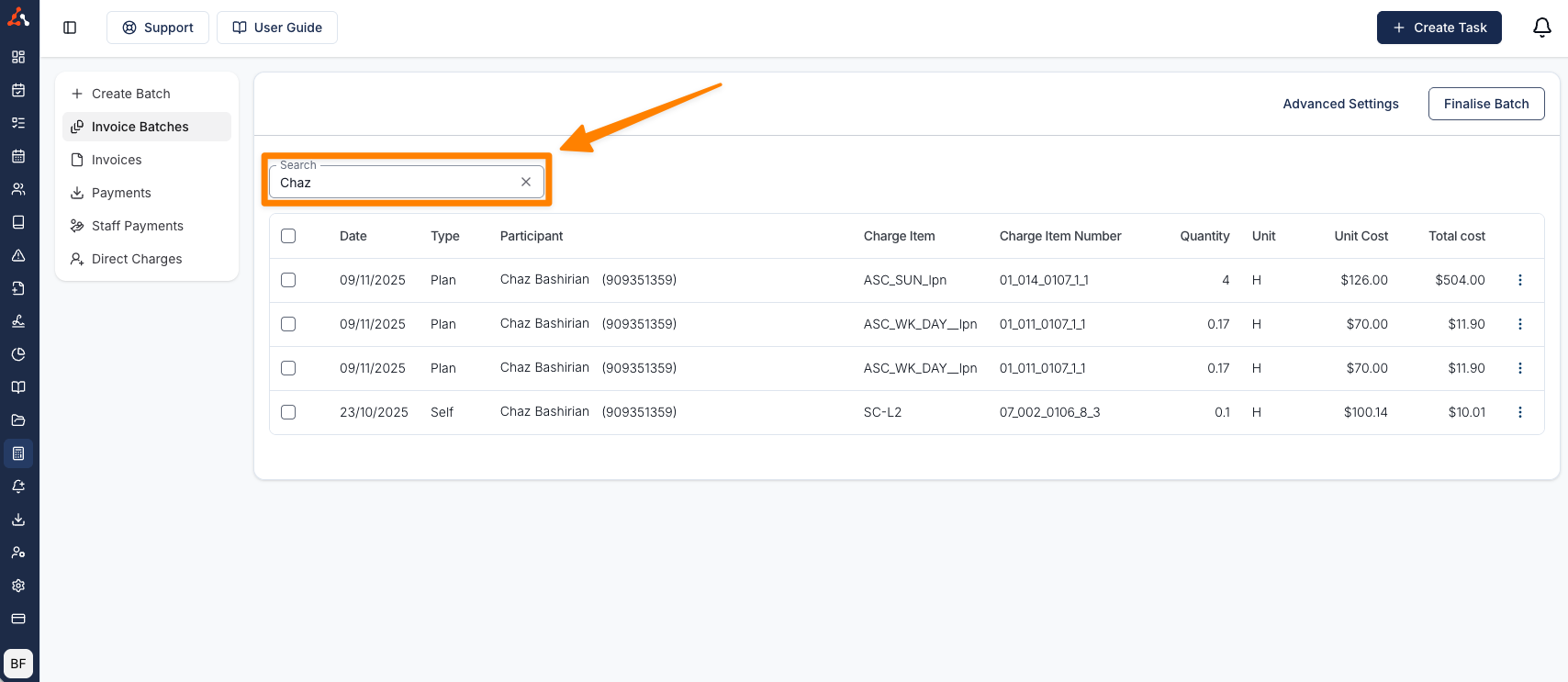
After the Draft Batch has been generated, you can narrow the list to a specific Participant by typing their name into the search field.
Excluding Charges from a batch
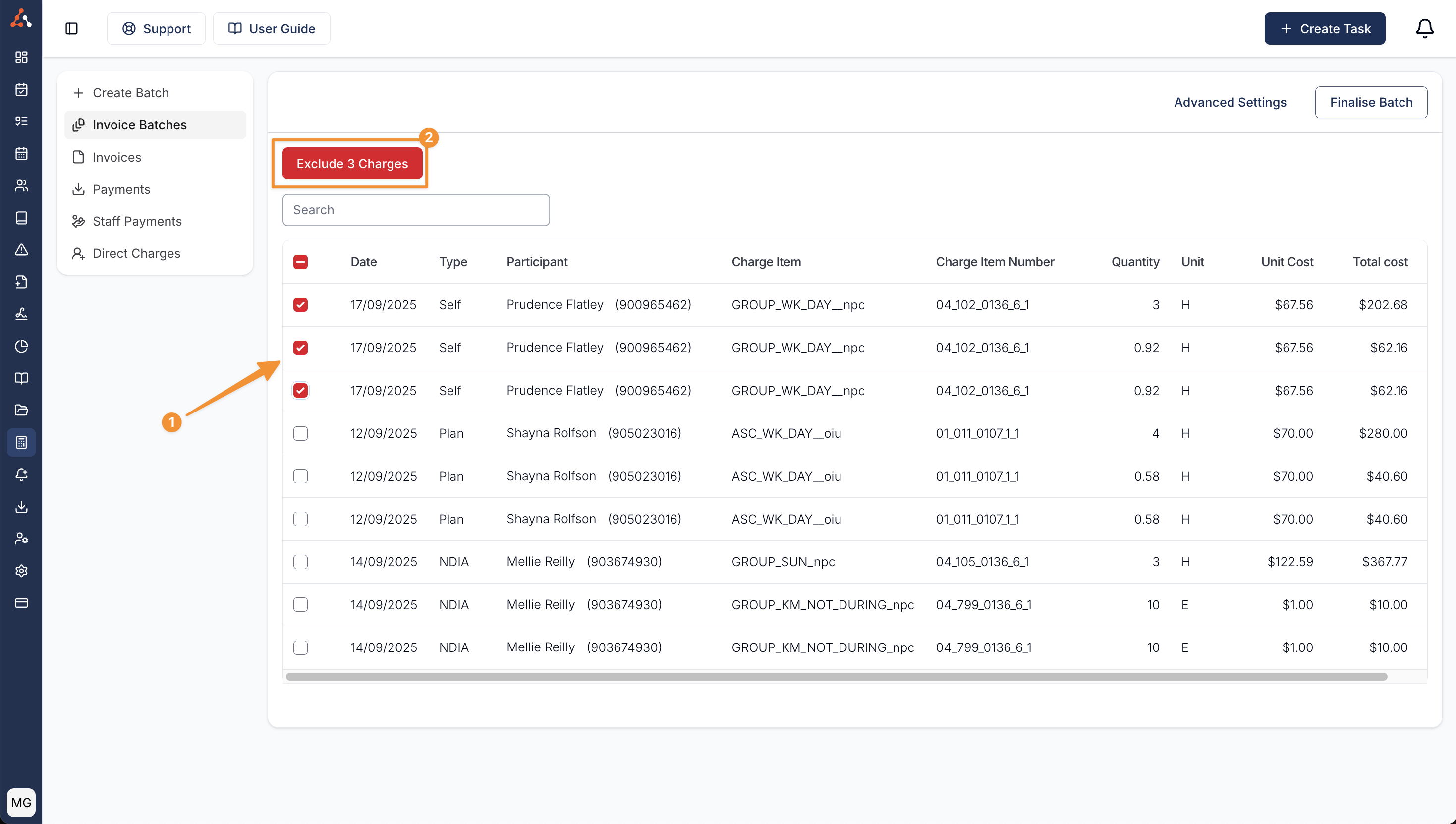
Sometimes you may want to exclude charges from a batch - they might be invalid or you just don't want to invoice for them yet. To do this click on the checkbox on the left hand side of the table to select them (1) and once selected click on the Exclude button (2), then confirm, to remove them from this batch.
Excluding charges does not delete them but it removes them from the current batch so they can be invoiced at a later date.
Invalid Charges
Sometimes you may see errors within the invoice batch - there are a range of errors. To learn more about the types of errors you might see and how to fix them head to the Invoicing Errors page.
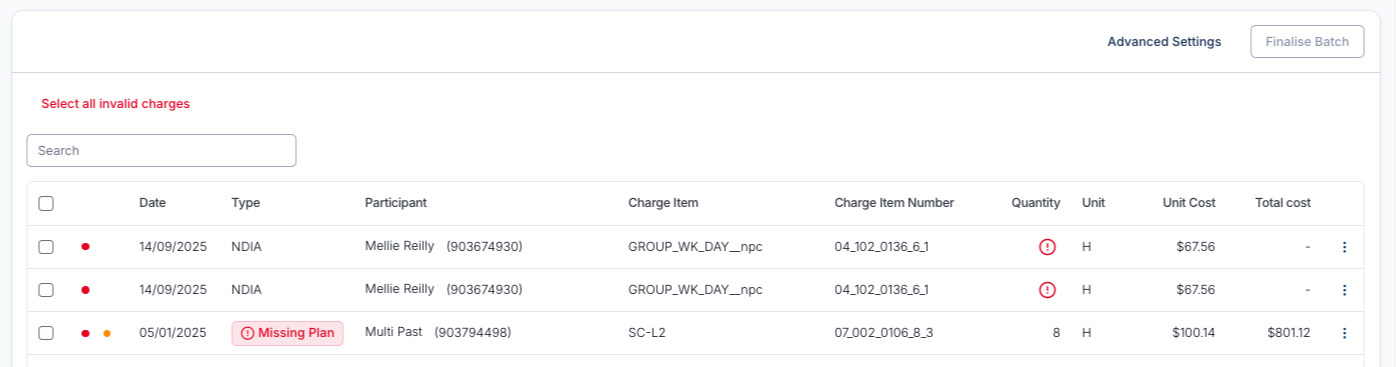
Excluding all invalid charges
Invalid charges appear on their own tab and prevent finalisation. Select Fix on a row to correct its details, or select Exclude all N invalid to remove every invalid charge from this batch. Excluded charges are not deleted and can be fixed and invoiced later.
Finalising an Invoice Batch
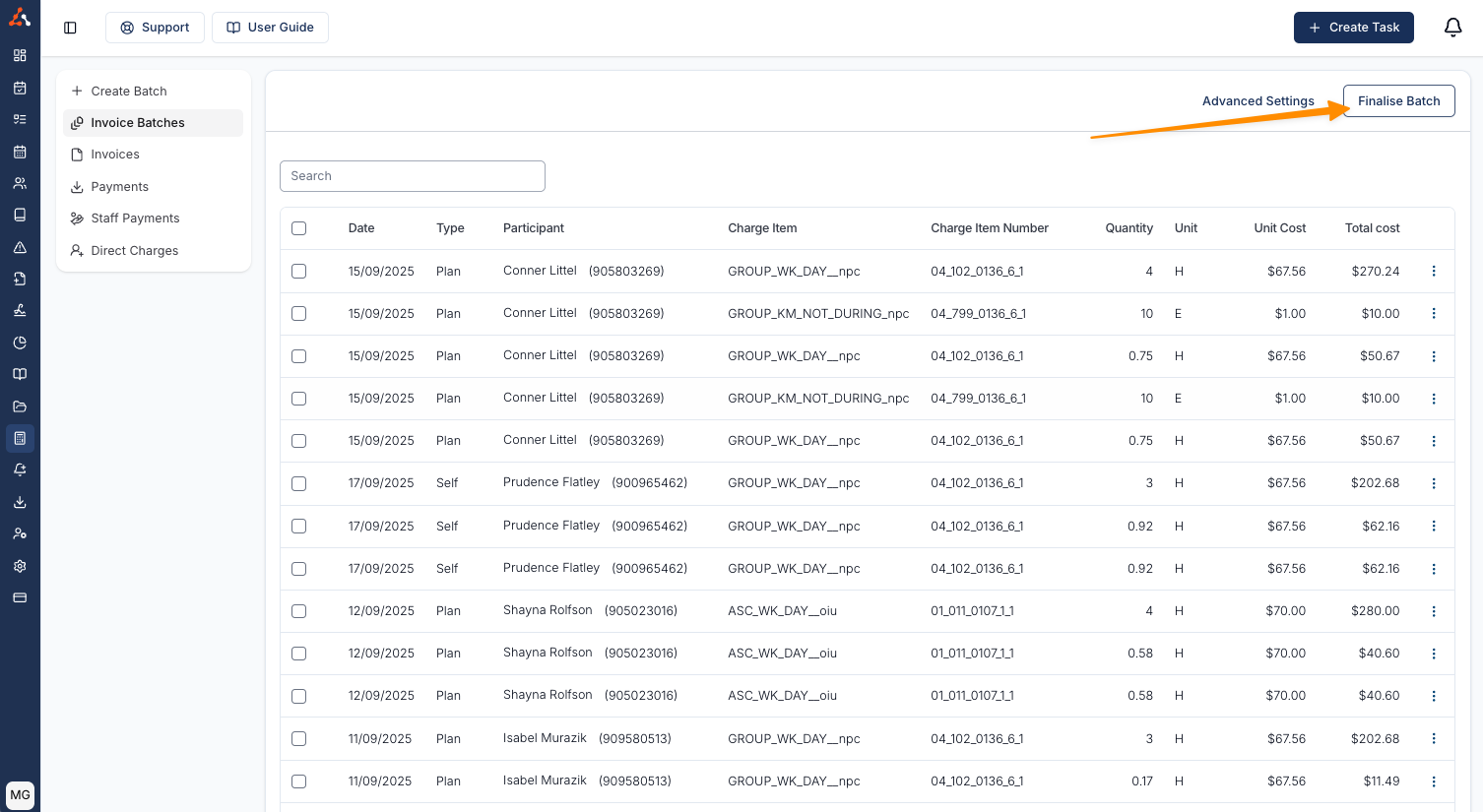
Once you have reviewed the invoice batch and you are happy with all charges, you can click the Finalise Batch button to finalise the Invoice Batch.
If billable Tasks with no charges attached are found, Astalty asks you to confirm before finalising without them. This check is narrower than the warning on the Create Batch page and will not catch every affected Task, so treat the Create Batch warning as the one to act on - see Tasks Missing Charges.
Turning Off Automatic Invoice Sending
To stop Astalty emailing the PDF invoices for a particular batch, open the Actions menu next to Finalise Batch, select Advanced Settings, and untick Send invoices automatically. The batch's Charges list then reads Automatic invoices are disabled, so finalising will not send them. Finalising creates every invoice without emailing any of them.
This is useful when you want to apply a payment or make an adjustment before a Plan Manager sees the invoice. There is no bulk send, so you will need to send each invoice yourself, one at a time.
For the full steps - including the plan requirement and how to send each invoice afterwards - see Turning Off Automatic Invoice Sending.
Leaving Notes on a Batch
Generating an Invoice Batch Video Walkthrough
Unresolved Voided Charges
If a charge in a finalised batch is later voided and has not been re-invoiced or deleted yet, it shows in an Unresolved Voided Charges card on that batch. Each row shows the date of the Task or support it relates to, so you can find the day you're chasing quickly. See Unresolved Voided Charges.
Next Steps
Once the batch has been finalised, Astalty will start sending PDF invoices - unless you turned off automatic sending first. If the batch has NDIA managed charges, you can also generate the Bulk Upload file - see Bulk Upload File.