Turning Off Automatic Invoice Sending
Overview
By default, finalising an invoice batch emails the PDF invoices straight away - plan-managed invoices go to the Plan Manager, and self-managed invoices go to the Participant. Once that has started it cannot be stopped.
Invoice Sending Behaviour lets you turn that off for a batch. Astalty still generates every invoice when you finalise, but emails none of them, leaving you to review, adjust and send each one when you are ready. It is worth doing when you want to apply a payment, check a Plan Manager's claim references, or have someone sign off on a batch before anything reaches a recipient.
Before You Start
Turning Off Automatic Sending for a Batch
- Open Finance → Invoice Batches and click into the draft batch.
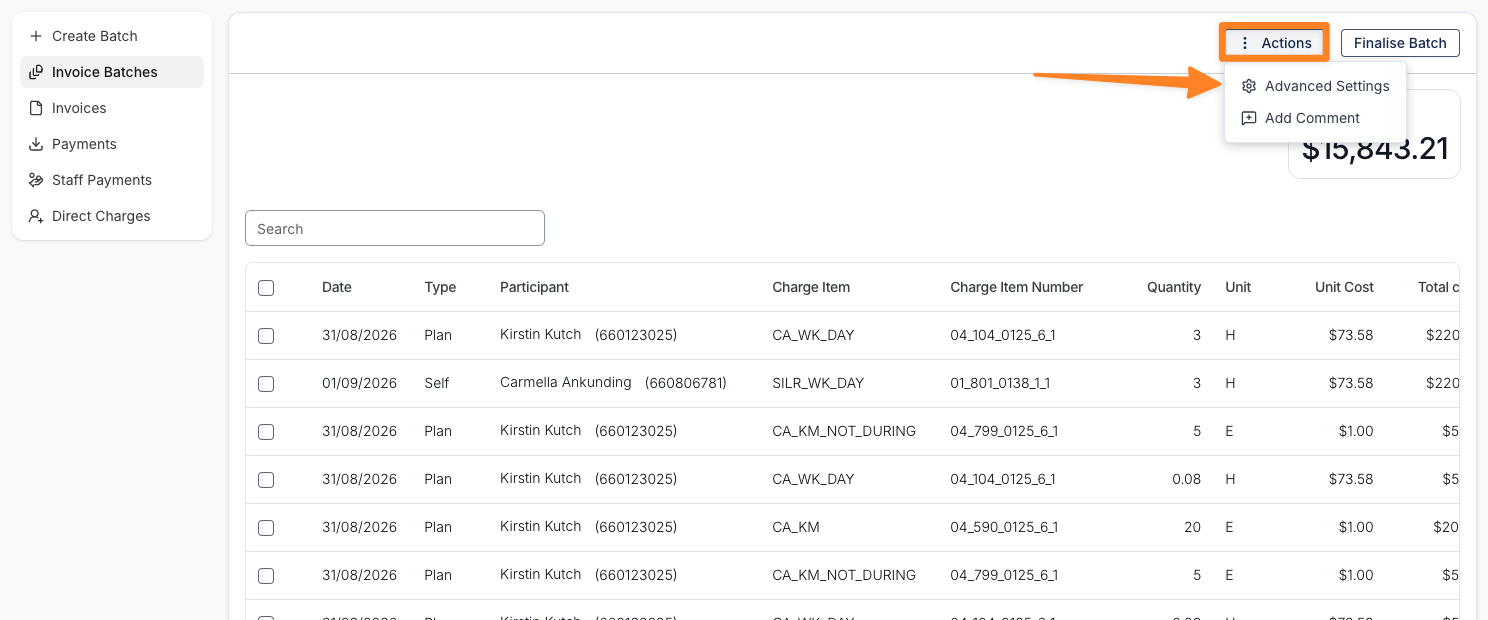
- Open the Actions menu at the top right, next to Finalise Batch, and select Advanced Settings.
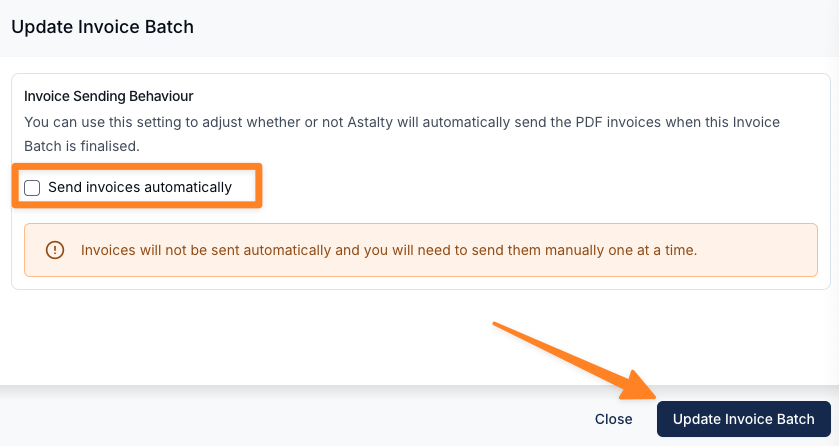
- Under Invoice Sending Behaviour, untick Send invoices automatically.
- Click Update Invoice Batch.
A warning appears as soon as you untick the box, confirming that "Invoices will not be sent automatically and you will need to send them manually one at a time."
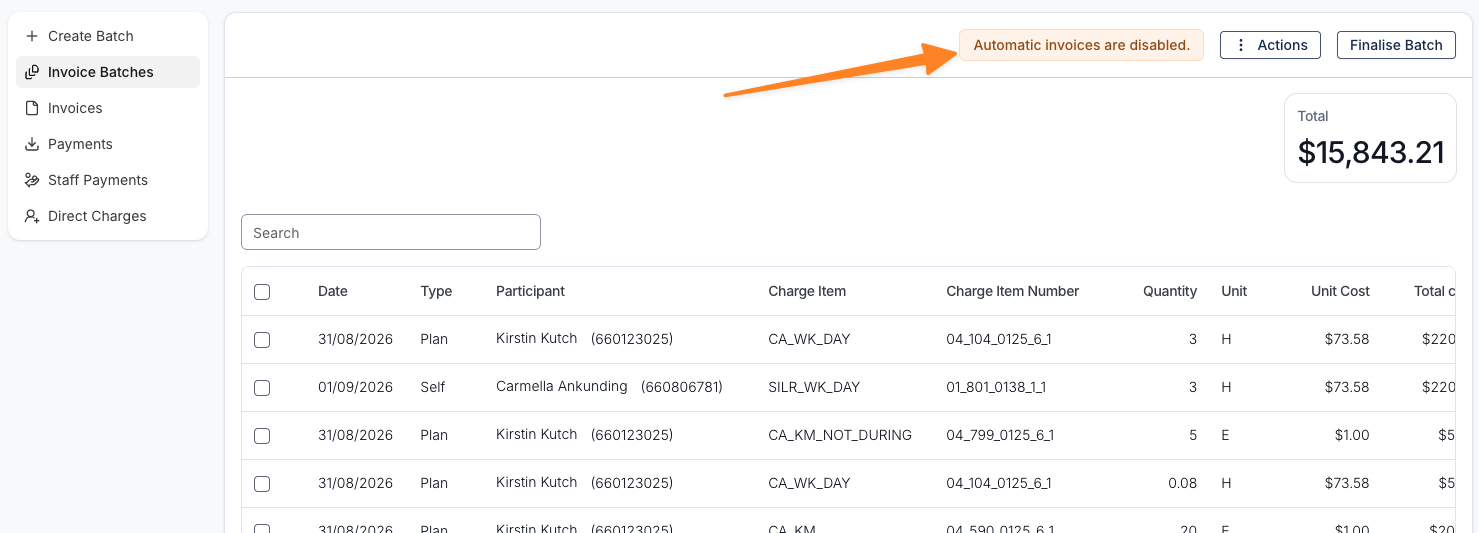
Once you save, the batch's Charges list reads Automatic invoices are disabled, so finalising will not send them. so anyone else opening it knows before they finalise.
Finalising a Batch With Automatic Sending Off
Finalise the batch as you normally would. The confirmation asks you to confirm that "PDF invoices will not be sent automatically", and the button reads Confirm rather than Confirm and Send.
Every invoice is still created and appears on the batch and the Invoices page, but it has no recipient email recorded yet.
Sending the Invoices Yourself
There is no bulk send in Astalty, so invoices have to go out one at a time:
- Open the invoice, either from the batch or from Finance → Invoices.
- Open the Actions menu on the invoice summary card.
- Select Send.
- Click a suggested recipient, or type any email address.
- Click Send.
Astalty confirms with "This invoice has been sent." The recipient and delivery status are then recorded on the invoice, so you can tell at a glance which invoices in the batch you have already sent. See Invoices for how to read that.
For future unpaid-invoice reminders, Astalty uses the automatic invoice email's To recipients, excluding those marked permanently failed or cancelled. If none remain, it uses the To recipients from manual sends, with the same exclusions. Manual recipients are also offered for optional void notifications when there is no eligible automatic To recipient. This can include queued or temporarily failed emails; inclusion does not confirm delivery.
Turning Automatic Sending Back On
Follow the same steps and tick Send invoices automatically again, as long as the batch is still a draft. Turning it back on does not send anything by itself - the invoices go out when you finalise.
Every New Batch Starts From Your Organisation's Default
Invoice Sending Behaviour is set per batch, and every new draft batch starts from your organisation's default. New accounts default to sending automatically, so you need to turn it off on each batch you want held back.
That organisation-wide default isn't self-service - there is no toggle for it in Settings → Invoices. If you would prefer every batch to default to not sending, contact support@astalty.com.au.