Invalid Charges
Overview
Invalid charges appear on a separate tab in a draft Invoice Batch. Astalty blocks finalisation until every invalid charge has either been fixed or excluded from the batch.
Select Fix on a row to open the relevant details. The panel shows the affected charges and the field that needs attention. If you want to invoice the valid charges first, select Exclude all N invalid. Excluding a charge removes it from this batch without deleting it, so it can be fixed and invoiced later.
Failed Invoice
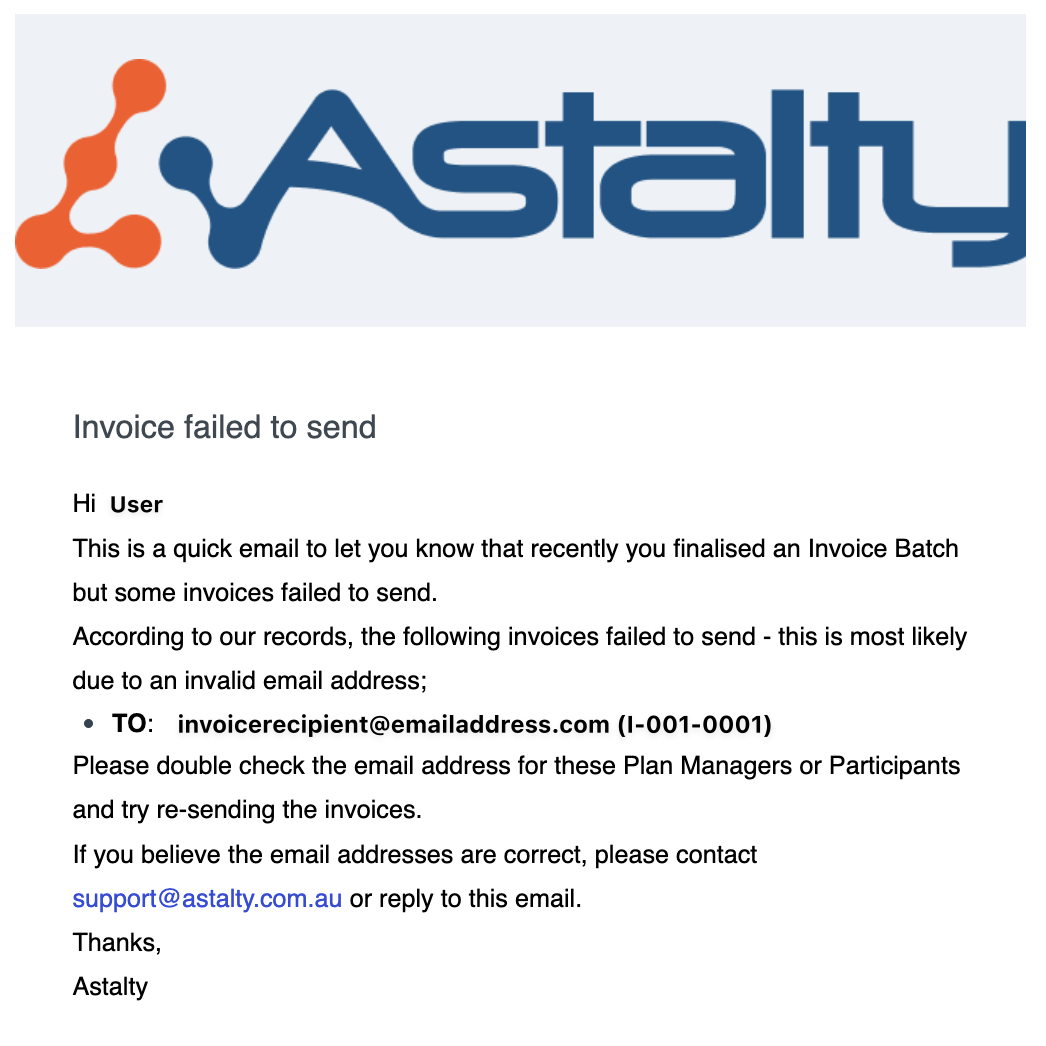
An invoice email delivery failure is separate from an invalid charge in a draft batch. When you receive an email similar to the one below, check the recipient address and the invoice email history first.
The invoice failed email will be sent to the user account email who finalised the invoice.
If the address is correct and delivery still fails, contact support@astalty.com.au.
Invalid charge messages
The draft batch can show the following messages:
| Message | What to check |
|---|---|
| No current plan | The Participant has no plan covering the charge date. Add or correct the plan and its dates. |
| Management type unknown | A plan covers the date, but the Charge Item is not part of a Service that identifies how it should be invoiced. Check the Charge Item and the Participant's Services. |
| No plan manager | The charge is Plan Managed, but no Plan Manager is available for the invoice. Update the Participant's Invoice Details. |
| No invoice email | The Self-managed Participant has no invoice email address. Update the Participant's Invoice Details. |
| No NDIS number | The Participant has no NDIS number. Add it to the Participant details. |
| Charge is $0 | The charge total is zero. Correct its Charge Item, quantity, ratio, or total override. |
| Shift hours not approved | Approve the shift hours before invoicing the charge. |
| Travel not approved | Approve the travel before invoicing the charge. |
| Overnight not approved | Approve the active overnight period before invoicing the charge. |
| Shifts not approved | The support has draft shifts. Approve the shifts before invoicing. |
| Draft charge | The charge is still a draft. Complete the required approval or edit before invoicing. |
| Cancelled with no charge | The support was cancelled without a billable charge. Exclude it from the batch. |
| No participant | The charge has no Participant to invoice. Exclude it from the batch and correct the source record if needed. |
After making a correction, return to the draft batch. Astalty reevaluates the affected charges so they can move to the valid list.