Commenting on Invoices
Overview
An invoice often carries context that isn't visible on the invoice itself - the Plan Manager disputed a travel charge, the original email bounced and you resent it, or you're holding off chasing payment until a Participant's plan is reviewed.
Comments let you record that context directly on the invoice, so whoever opens it next can see what has already happened.
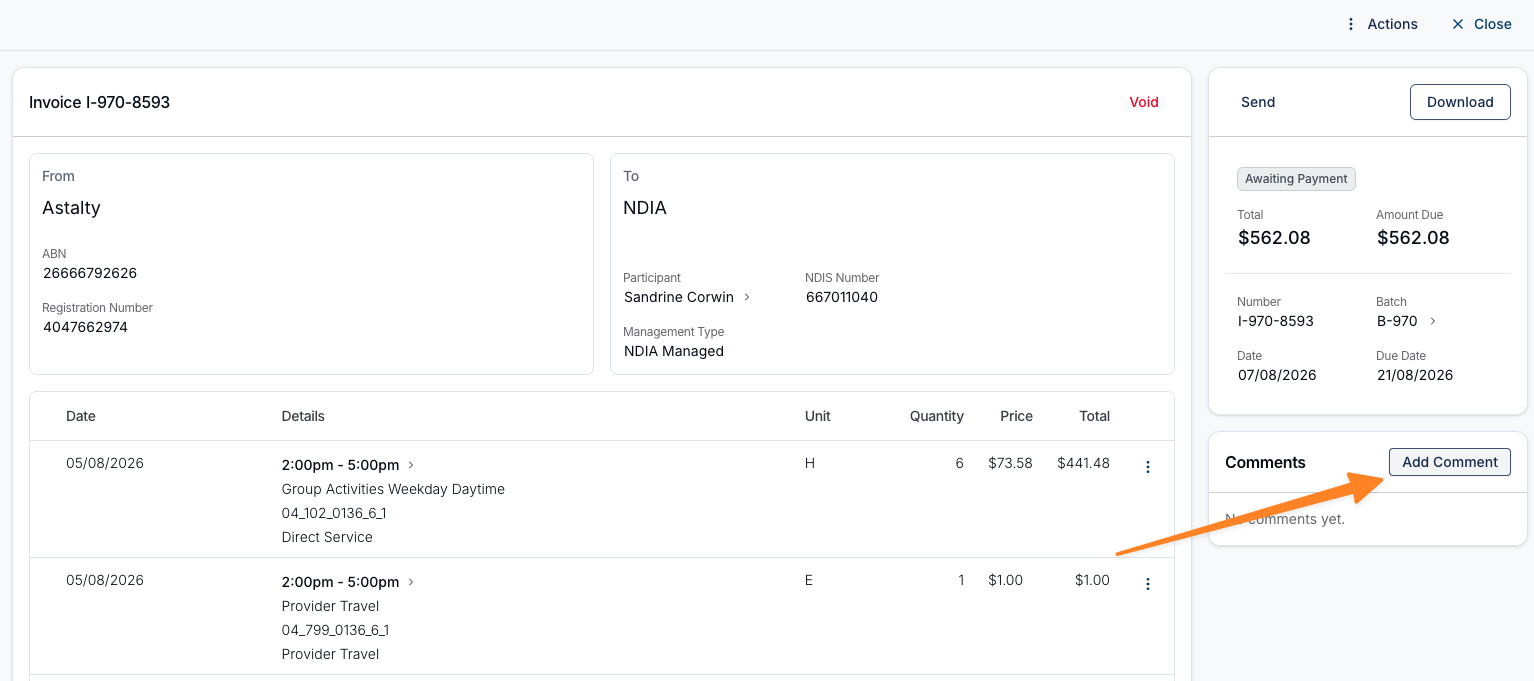
Every invoice has a Comments section at the bottom of the right-hand panel, below the invoice details, emails, and payments. Unlike batch comments, the section is always there - an invoice nobody has commented on shows No comments yet. with an Add Comment button beside the heading.
Adding a Comment
- Open the invoice - for example from Finance > Invoices, by clicking the relevant invoice.
- Scroll down the right-hand panel to the Comments section.
- Click Add Comment beside the heading.
- Type your comment and click Add Comment.
The drawer title confirms which invoice you're commenting on - for example, Add Comment on INV-021-0007.
You can comment on an invoice at any point, including one that has already been paid or voided.
Reading Comments
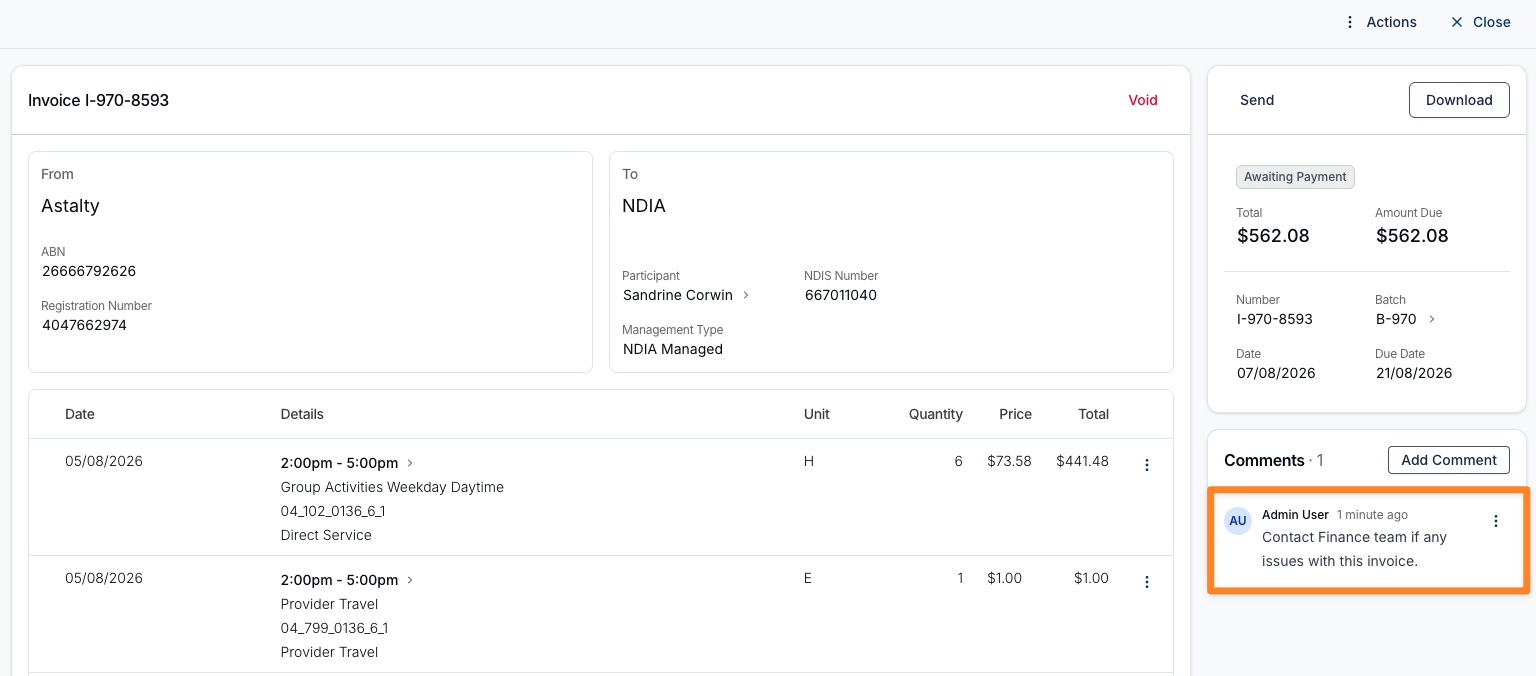
The number beside the heading shows how many comments an invoice has - for example Comments · 3.
Each comment shows the author's name, their initials, and how long ago it was posted. Comments older than a week show the date instead. Hover over the timestamp to see the exact date and time.
Formatting a Comment
The comment box is a rich text editor, not a plain text field. You can use bold, italic, headings, bulleted and numbered lists, and hyperlinks to lay out longer notes - handy when you're recording a sequence of steps you took or linking to a related record.
Editing and Deleting Comments
You can change or remove a comment you wrote:
- Find the comment in the Comments section.
- Open the actions menu (the three dots) on the comment itself.
- Select Edit Comment to change the wording, then click Save Comment. Or select Delete Comment and confirm.
Who Can Add and See Comments
Comments have no setting of their own. Anyone who can open the invoice, which needs Finance access, can read its comments and add new ones.
There is nothing to switch on to start using comments - they are available on every account.
Syncing Comments to Xero
If your provider uses the Xero integration, invoice comments can be copied into Xero. With Sync invoice comments to Xero enabled, each comment is added to the matching Xero invoice as a history note.
This changes how you should treat comments on invoices that are heading to Xero:
- The comment becomes visible to anyone with access to your Xero account, not just your Finance team.
- Xero notes can't be edited or removed once added, so editing or deleting the comment in Astalty won't change what's in Xero.
- If the invoice isn't in Xero yet, the comment waits and goes across when the batch is synced. If the invoice is already in Xero, the comment is sent on its own within moments of you saving it - including comments added long after the batch synced.
A small icon beside each comment tells you where it got to: a green tick once it's in Xero, or a yellow warning triangle if the attempt failed, with the reason on hover. The drawer also warns you before you save when a comment won't go across at all, and batch comments never sync. For the full detail, see Syncing Invoice Comments to Xero.
Invoice Comments and Batch Comments Are Separate
An invoice comment and an invoice batch comment are two different things:
- Invoice comments sit on a single invoice and are about that invoice - a disputed charge, a bounced email, a payment arrangement.
- Batch comments sit on the whole batch and are about the invoicing run - why finalising was delayed, or who is looking after it. See Commenting on Invoice Batches.
Commenting on a batch does not add a comment to any of its invoices, and vice versa.
Comments Elsewhere in Astalty
For other kinds of notes, see:
- Commenting on Invoice Batches - internal notes on an invoicing run.
- Commenting on Shift Broadcasts - internal notes when filling a broadcast on the Shift Board.
- Messaging - direct conversations with your team in Chat.