Syncing Invoice Comments to Xero
Overview
Comments on an invoice record context that is not on the invoice itself, such as a disputed travel charge or a payment arrangement. By default that context stays in Astalty.
Turn on Sync invoice comments and each eligible invoice comment is added to the matching Xero invoice as a history note.
Turning it On
The setting is off until you enable it.
- Open Settings > Integrations > Xero.
- On the Xero Integration Settings card, click Edit.
- Tick Sync invoice comments.
- Click Update.
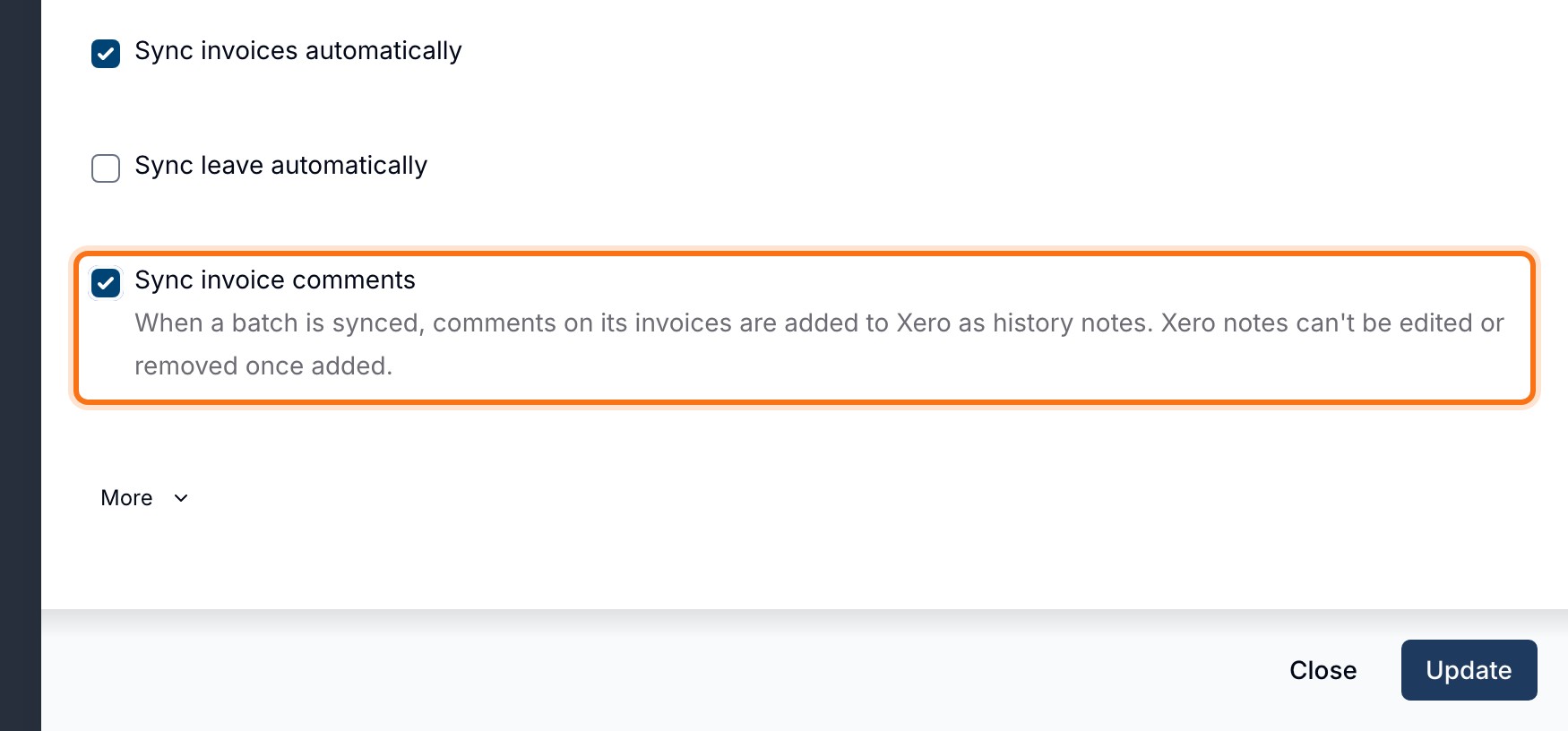
The checkbox is in the first group of settings, below Sync invoices automatically and, when Leave is enabled, Sync leave automatically. It is not under More.
Only Invoice Comments Sync
This setting applies to comments on individual invoices only.
- Invoice comments - can sync to Xero as notes on the matching Xero invoice.
- Invoice batch comments - never sync and stay in Astalty.
When Comments Are Sent
Invoices are created when a batch is finalised. A draft batch holds charges rather than invoices, so invoice comments begin after finalisation.
From there, when a comment reaches Xero depends on whether its invoice has made it to Xero yet.
- The invoice is already in Xero. Saving a new comment queues it for Xero. You do not need to sync the batch again.
- The invoice is not in Xero yet. The comment waits and is included when the invoice batch syncs. If automatic invoice sync is off, use Actions > Sync with accounting on the finalised batch.
With Sync invoices automatically on, finalising the batch queues its invoice sync. Comments added while the invoice is still waiting are picked up after the invoice reaches Xero.
The Sync Confirmation
When you sync a batch manually, the Sync with your accounting platform confirmation tells you how many comments are pending:
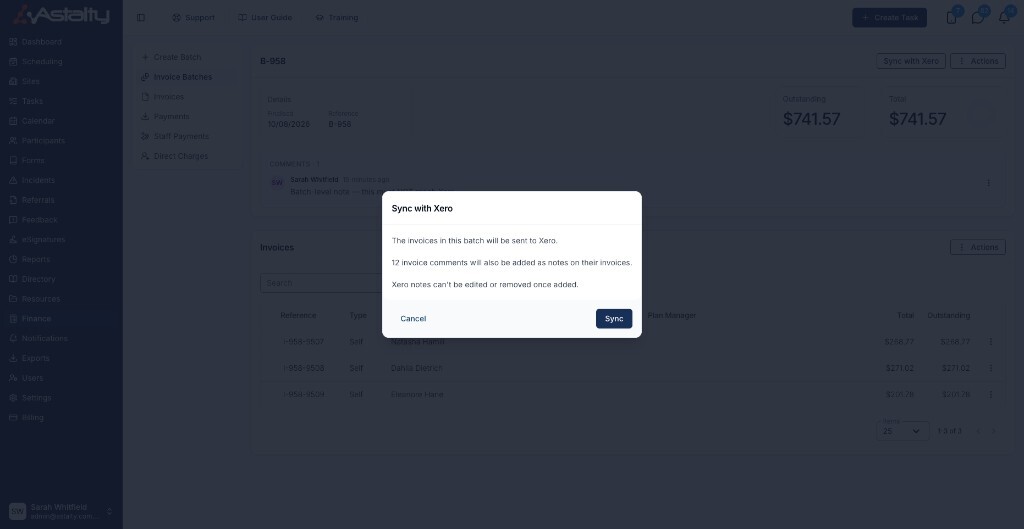
The invoices in this batch will be sent to your accounting platform.
12 invoice comments will also be added as notes on their invoices.
Notes added to your accounting platform can't be edited or removed.
The comment line appears only when at least one comment is pending. It excludes comments already marked as synced.
After the batch has synced, later eligible comments are queued on their own.
What the Note Looks Like in Xero
In Xero, open the invoice and expand History & Notes. Each synced comment appears as a separate history note.
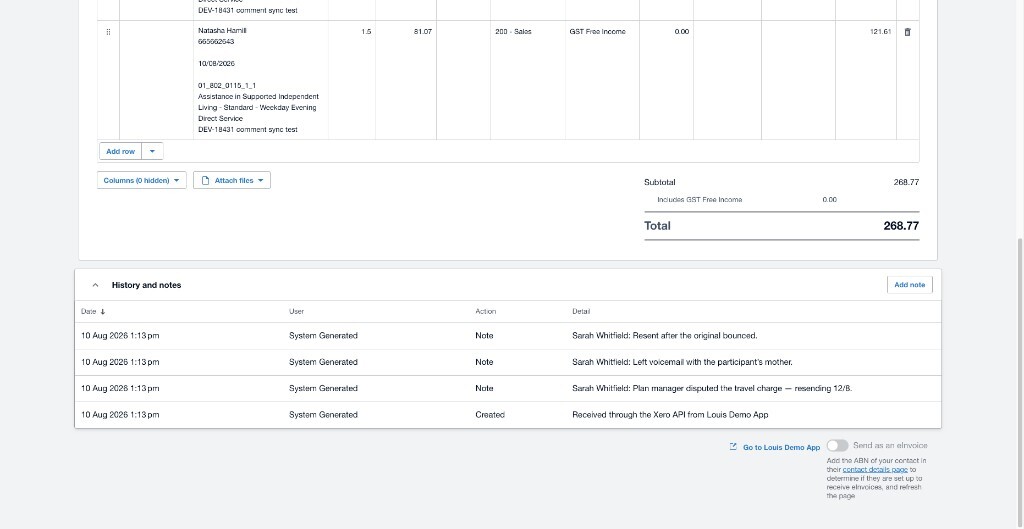
The note text starts with the comment author's name, followed by the comment. For example: Sarah Whitfield: Resent after the original bounced.
Checking a Comment Reached Xero
You don't have to open Xero to know whether a note landed. In the invoice's Comments list, each comment carries a small icon beside its timestamp once Astalty has tried to send it:
- A green tick - the comment is in Xero. Hover it to see Added to your accounting platform.
- A yellow warning triangle - the attempt failed. Hover it to see the recorded reason.
- No icon - the comment has not been sent. It may be waiting for its invoice to sync, or it may be ineligible.
The icons appear on their own as notes land, so you don't need to refresh the invoice while a batch is syncing.
Editing and Deleting After Syncing
Astalty and Xero keep separate copies once a comment has synced.
When you edit a comment that has already gone to Xero, the drawer warns you:
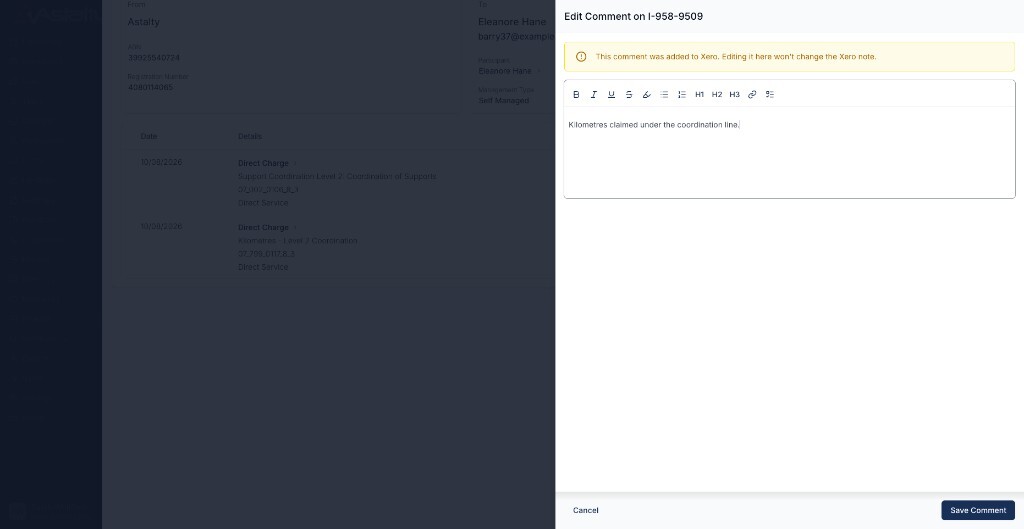
This comment was added to your accounting platform. Editing it here won't change the note there.
Deleting shows the equivalent warning: This comment was added to your accounting platform. Deleting it here won't remove the note there. The comment disappears from Astalty, but the note stays in Xero.
An edited comment is not re-sent, either. Xero keeps the wording as it was at the moment the note was created.
Comments That Won't Sync
Even with the setting on, a comment is skipped when:
- The invoice never reached Xero and no longer can. Comments follow the invoice. If an invoice isn't in Xero and its batch has already been through a sync, there is nothing left to attach a note to.
- The invoice is NDIA managed and you haven't enabled Send NDIA invoices. See Send NDIA Invoices.
- The invoice has been voided. See Voiding Invoices.
- The comment has no text - for example, a comment containing only an image or empty formatting.
- It's a batch comment, which never syncs.
- The Xero connection is not usable - the connection has been disconnected or expired, or no Default Sales Account is set. See Connecting and Disconnecting.
Comments are never sent twice. If an invoice is pushed again, comments already in Xero are skipped rather than duplicated.
Related Guides
- Commenting on Invoices - how to add, read, edit, and delete invoice comments.
- Commenting on Invoice Batches - internal notes on an invoicing run.
- Configuring the Integration - the other Xero integration settings.
- Sync With Xero - manually syncing batches and payments.