- Administration
- Xero
- Connecting and Disconnecting
Connecting and Disconnecting
Connecting Xero
You need permission to update Settings to connect Xero.
- Open the Integrations settings page.
- On the Xero card, click Connect.
- Sign in to Xero and choose the organisation to connect.
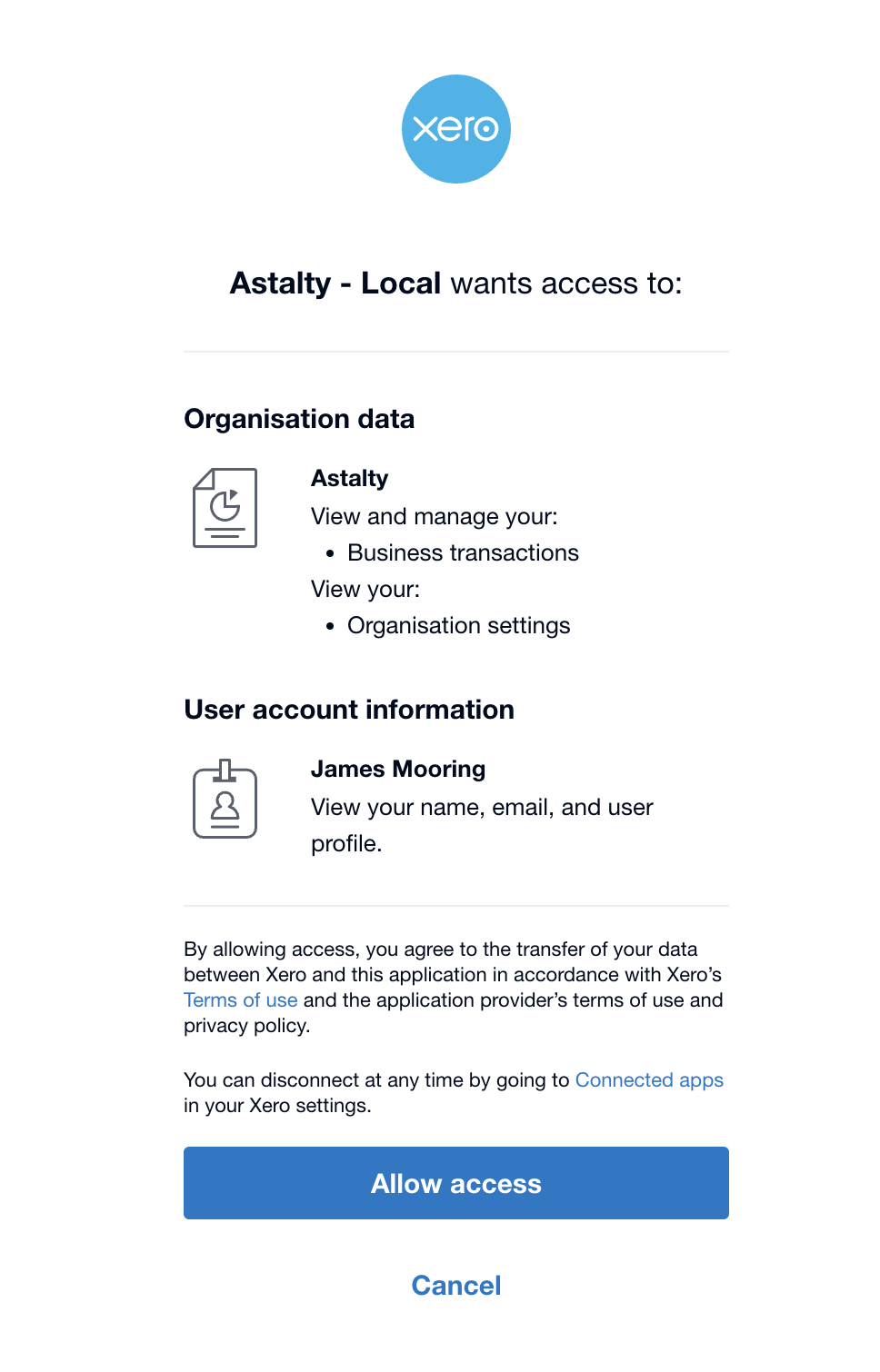
- Grant all requested access, then return to Astalty.
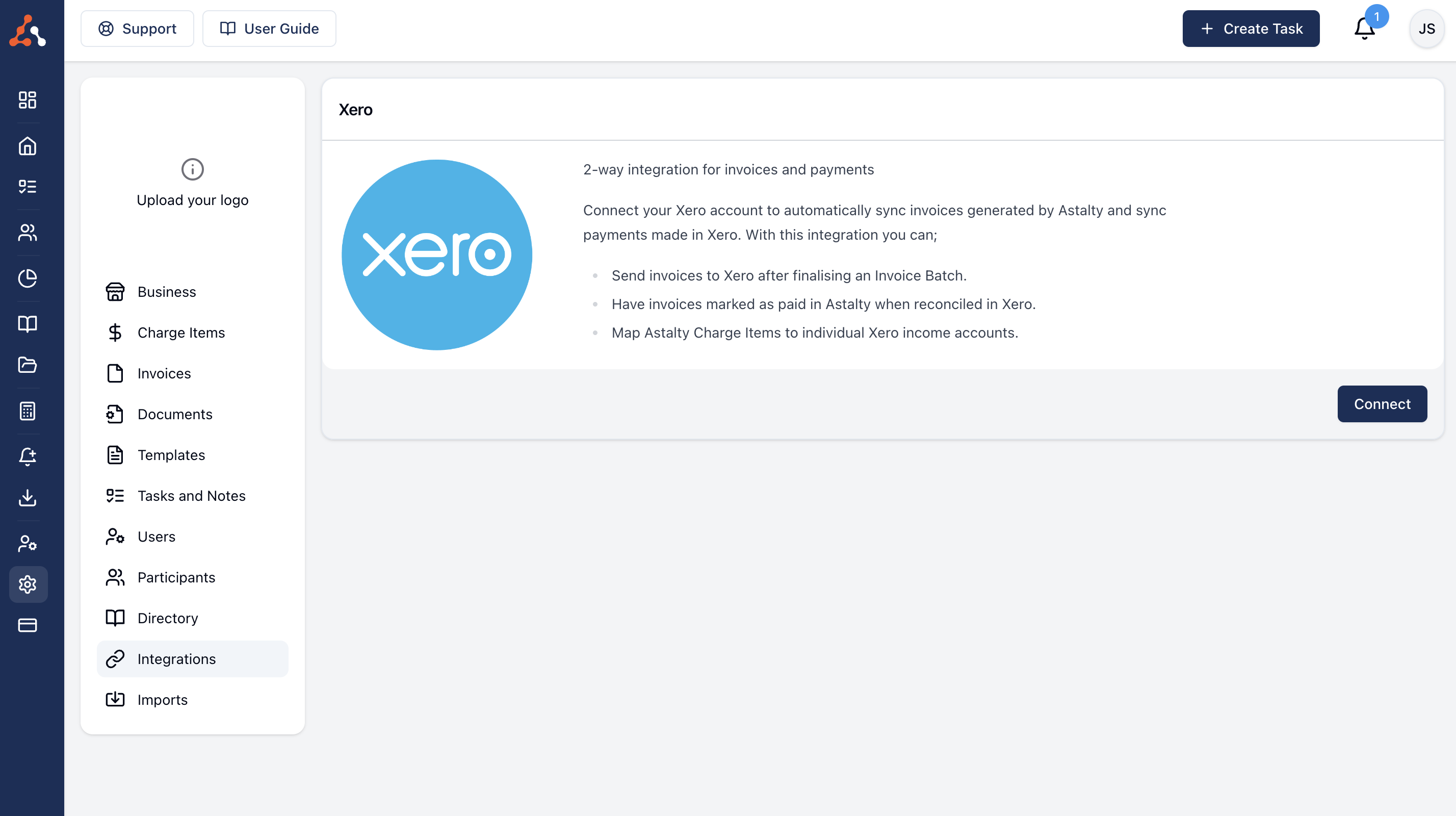
Allow Access
Astalty requests accounting access and the payroll access used by Scheduling. The Xero user authorising the connection needs access to the selected organisation and the required payroll data.
If Astalty shows Select Organisation after the redirect, choose the intended Xero organisation before continuing.
Set a Default Sales Account before invoice batches can sync. If you use Xero Payroll, also check that the Xero card does not show a payroll permission warning. Use Refresh Connection if it does. See Configuring the Integration.
Disconnecting Xero
- Open the Xero settings page.
- Select Actions > Disconnect.
- Confirm Disconnect.
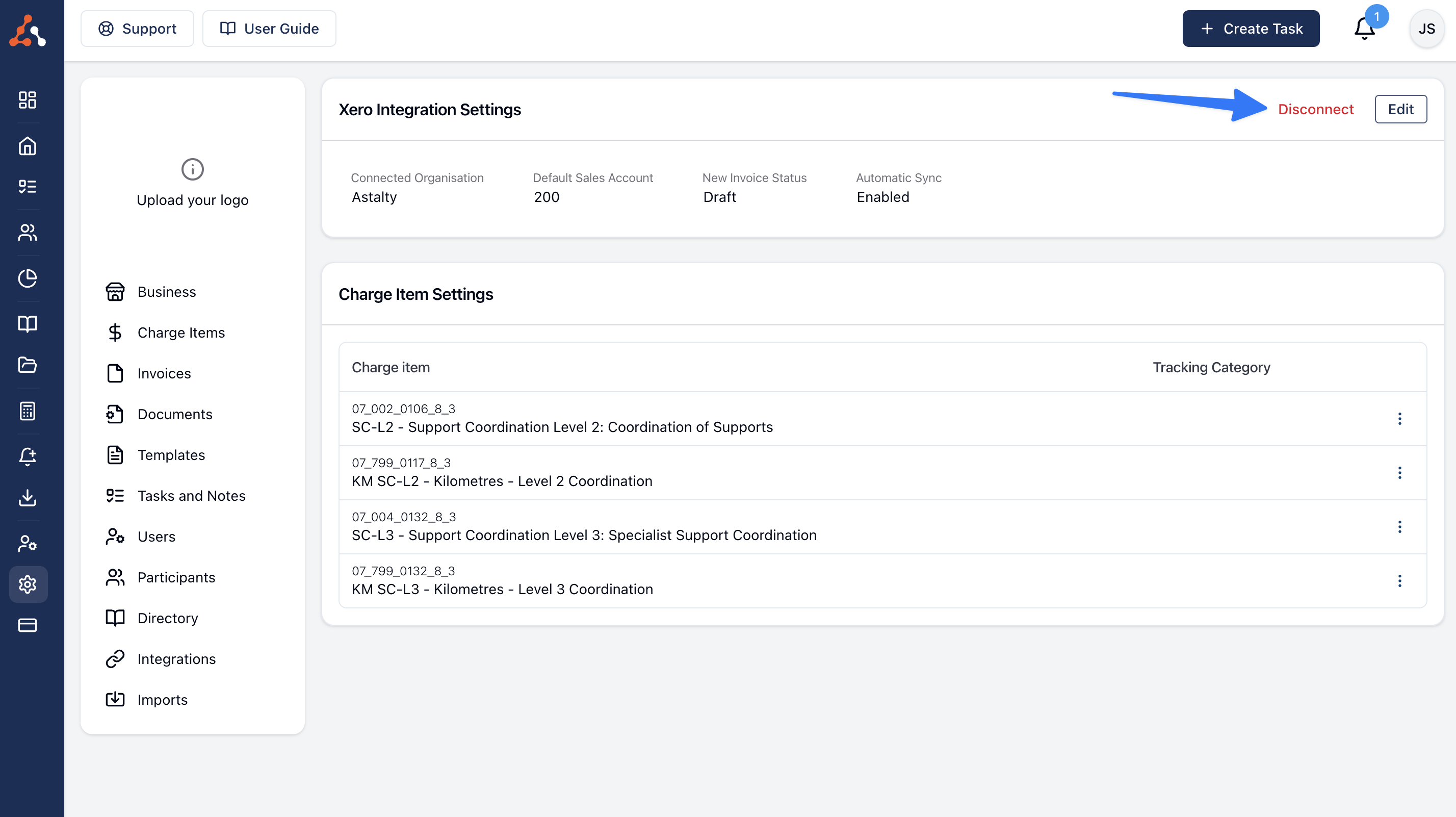
Disconnecting removes Astalty's stored Xero credentials and stops Xero invoice, payment, comment, leave, and payroll actions immediately. Existing records and their Xero identifiers remain in Astalty. Reconnecting later does not automatically rerun pending or failed work.
To repair expired access or add missing payroll permissions, use Actions > Refresh Connection instead. You do not need to disconnect first.