- Administration
- Xero
- Teams Tracking Categories in Xero
Teams Tracking Categories in Xero
Overview
Astalty can add Xero tracking categories to individual invoice lines. A team mapping uses the team of the worker who delivered the task. The Xero connection must be active, the team must have a complete Tracking category and Tracking option mapping, and the worker must belong to that team.
This page covers tracking on accounting invoices. Xero Payroll timesheet tracking uses a separate cost-code-to-payroll-tracking-option mapping.
Tracking Categories in Xero
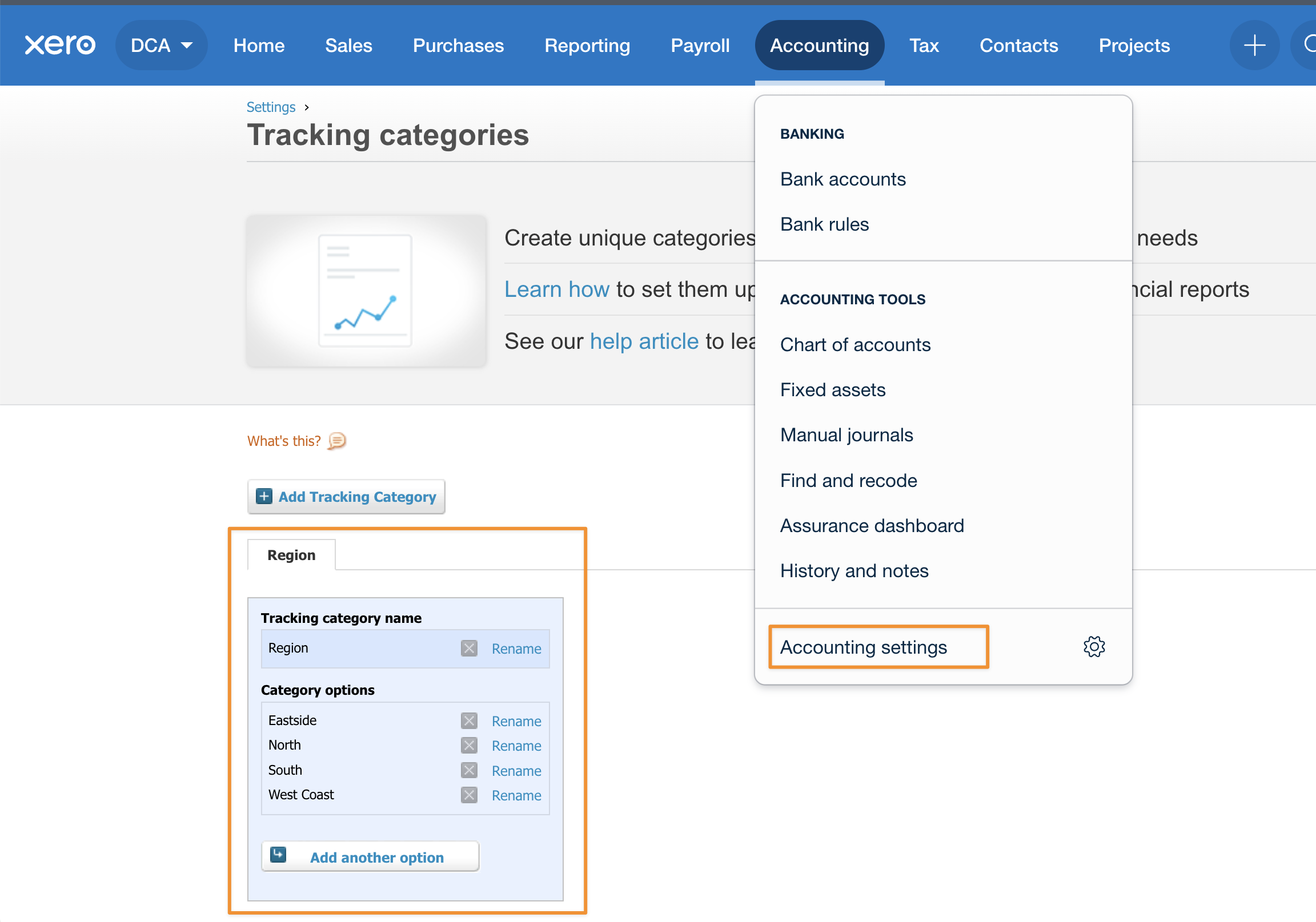
Create the tracking categories and options in Xero before mapping them in Astalty. Xero's current instructions use Accounting > Accounting settings > Tracking categories > Add Tracking Category. See Set up tracking categories and options. Xero controls the available categories, options, screen labels and limits, so follow its current instructions if the screens differ from the example below.
Teams Setup in Astalty
You need access to view teams and the appropriate permission to create or update them.
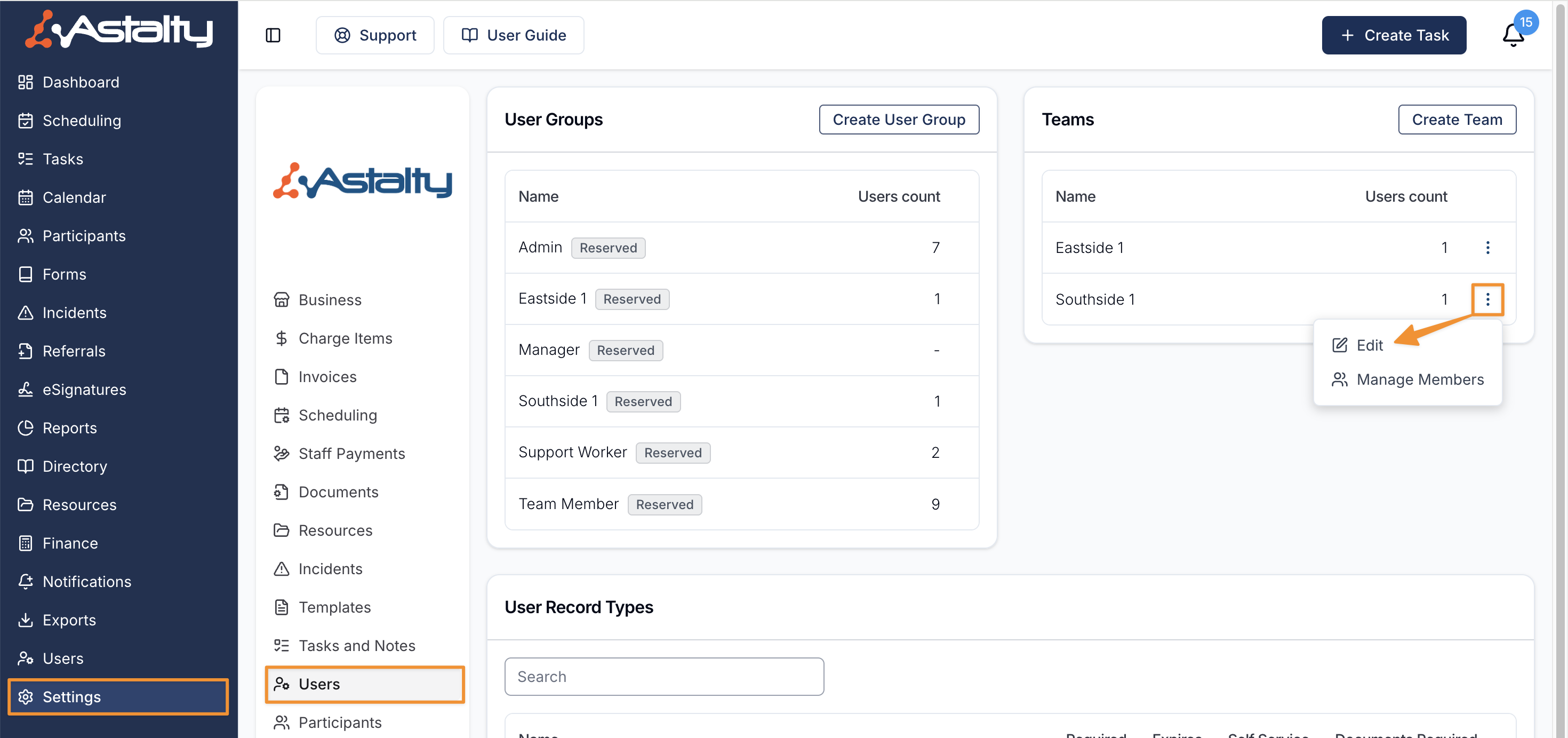
- In Astalty, open Settings and select Users.
- In Teams, create a team or open the three-dot menu for an existing team and select Edit.
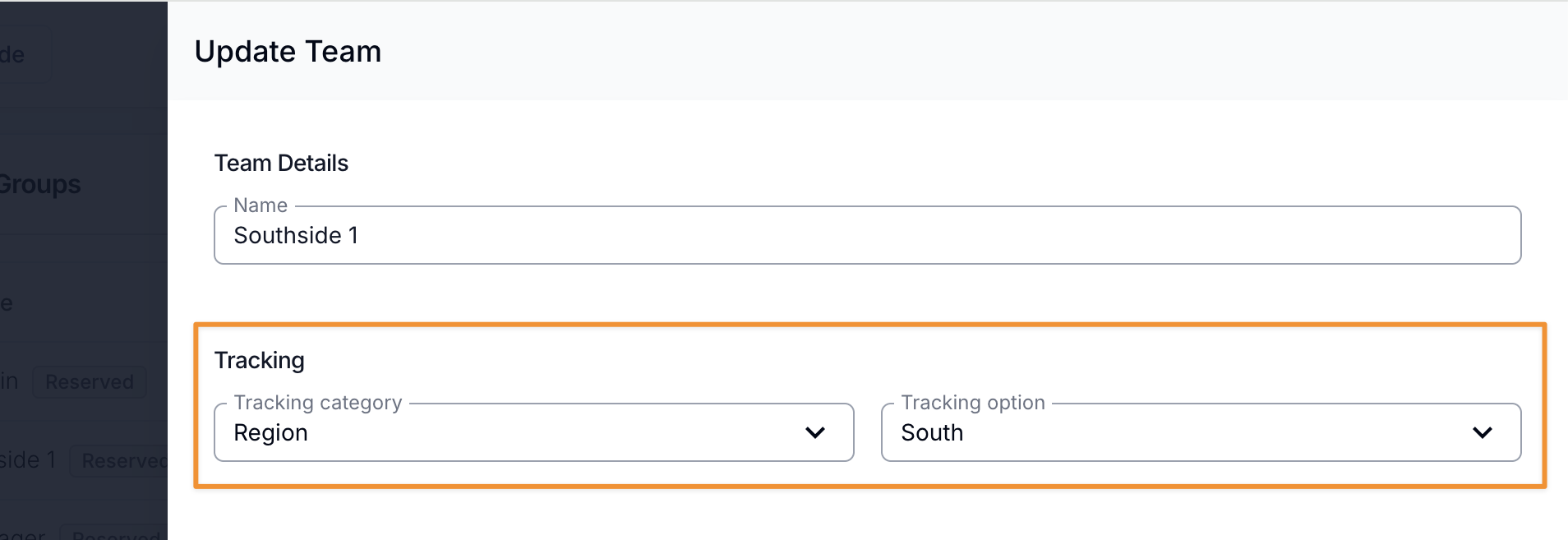
- Under Tracking, select a Tracking category and Tracking option, then save the team. These fields appear only while Xero is connected.
- Open the team's three-dot menu, select Manage Members, and assign the workers whose invoice lines should use that option.
Which Mapping Wins
Astalty can resolve up to two tracking dimensions for an invoice line:
- Dimension 1: a complete cost code mapping takes priority. If there is none, Astalty uses the Charge Item's complete tracking mapping.
- Dimension 2: a complete cost code mapping takes priority. If there is none, Astalty uses the delivering worker's team mapping.
A mapping must contain both a category name and an option. Astalty ignores an incomplete mapping and uses the next available source for that dimension. A team mapping never supplies dimension 1, and a Charge Item mapping never supplies dimension 2.
Example - Invoicing Tasks and Teams Tracking Categories
In the following example, the teams have tracking categories from Xero and users are assigned to their respective teams.
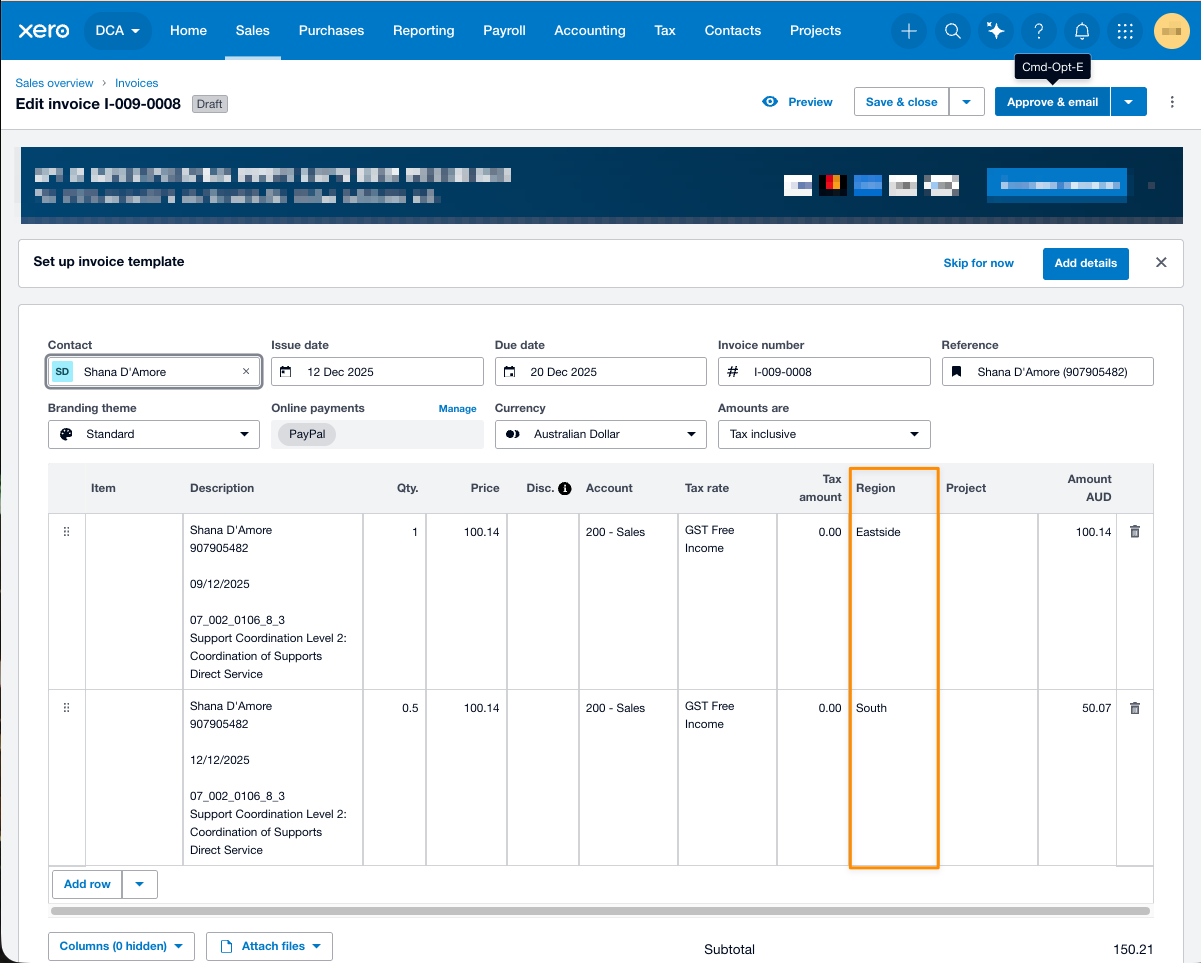
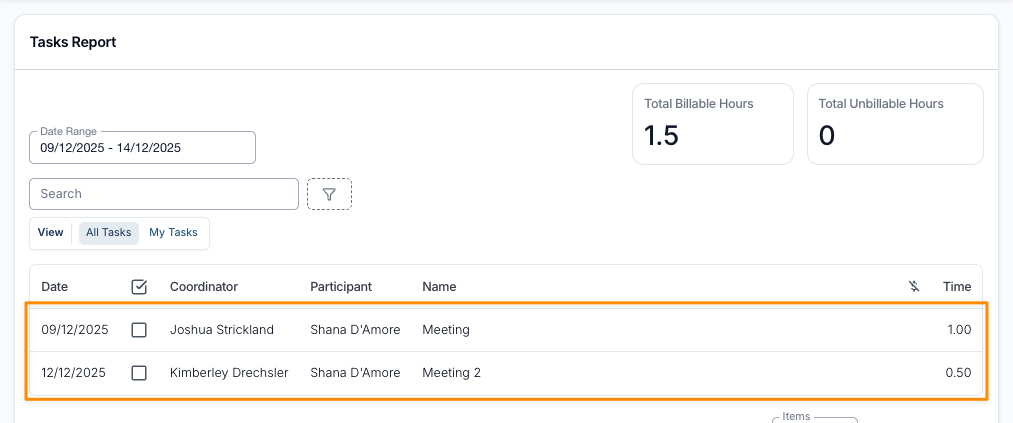
To demonstrate how tracking category information can flow from Astalty to Xero, the 2 users sit within different teams (Eastside and South). Both these users have created billable tasks.
Once invoiced, you can navigate to the invoice in Xero by selecting the View in Xero button from the Invoice in Astalty.
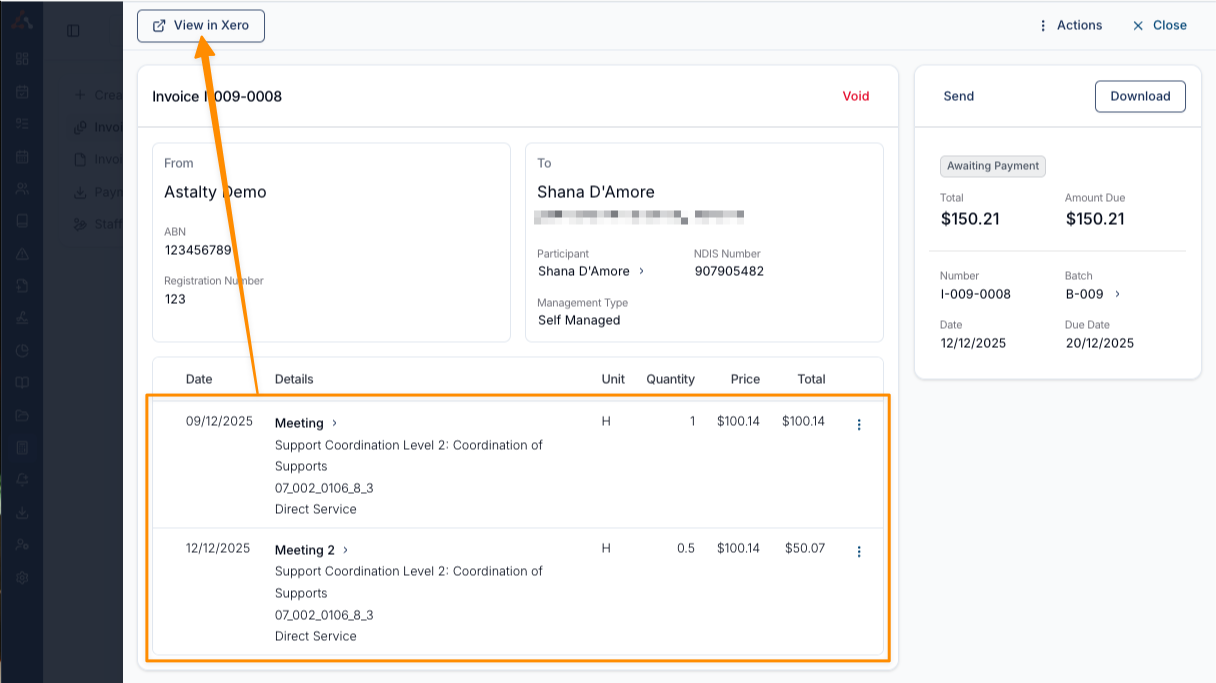
When viewing the invoice in Xero, each invoice line uses the resolved mappings above. In this example, the worker's team supplies the second tracking dimension, such as a region, because no cost code mapping overrides it.