Invoices
Overview
All Invoices in Astalty are generated via an Invoice Batch - if you would like to learn more about Creating an Invoice Batch - click here. Each participant Invoice is created per the management type assigned in the Service of the charge items that are billed.
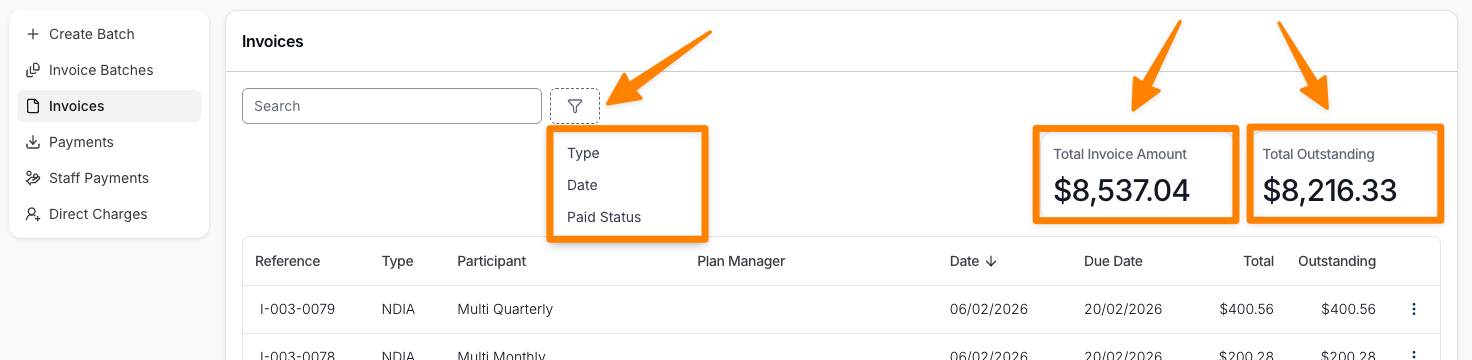
The Invoices page displays all generated invoices. You can easily refine the list using filters such as Type, Date, or Paid Status to find specific Invoices.
At the top of the page, summary totals show the Total Invoice Amount and Total Outstanding, updating automatically based on the filters you apply. This gives you a quick overview of your invoicing status at a glance.
Viewing the Invoice
Invoices can be viewed via:
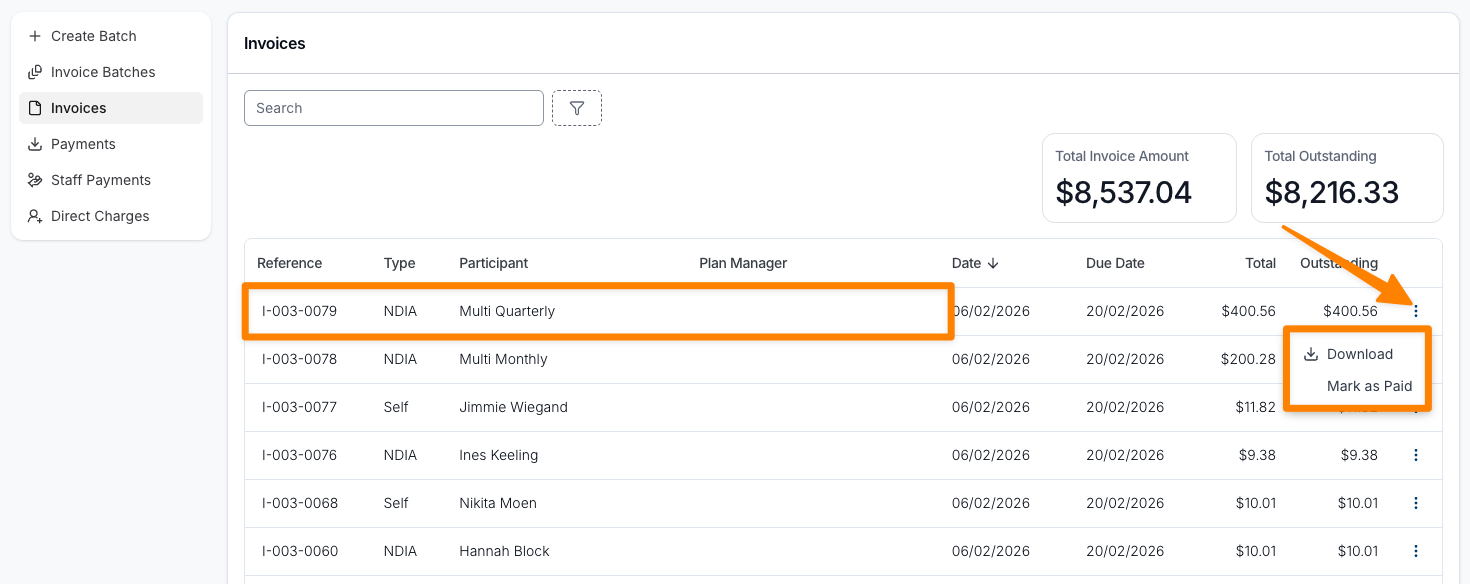
- The Invoices page within Finance — simply click on the relevant Invoice to open (you can also click on the three dot menu to Download or Mark as Paid)
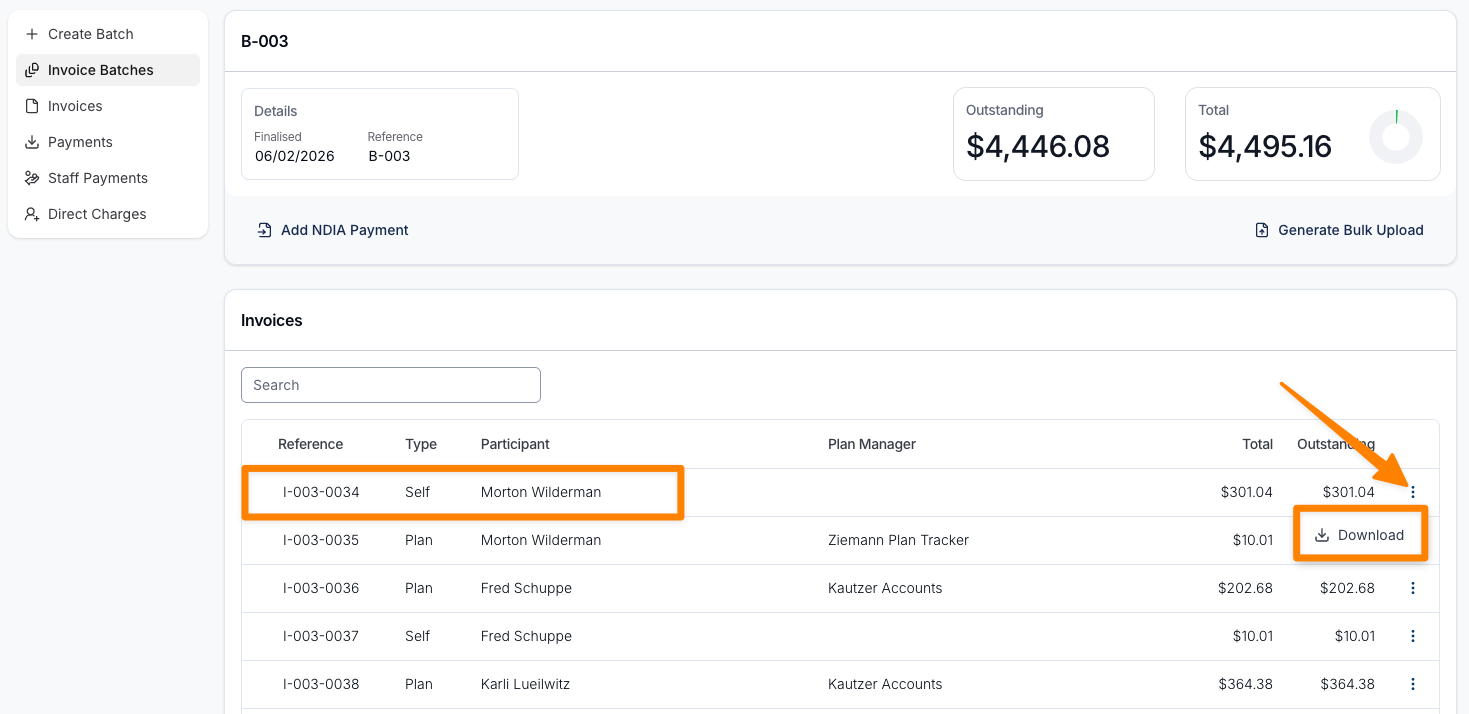
- The individual invoices within Invoice Batches — open the relevant Invoice batch and then click on the Invoice you want to view (you can also click on the three dot menu to Download)
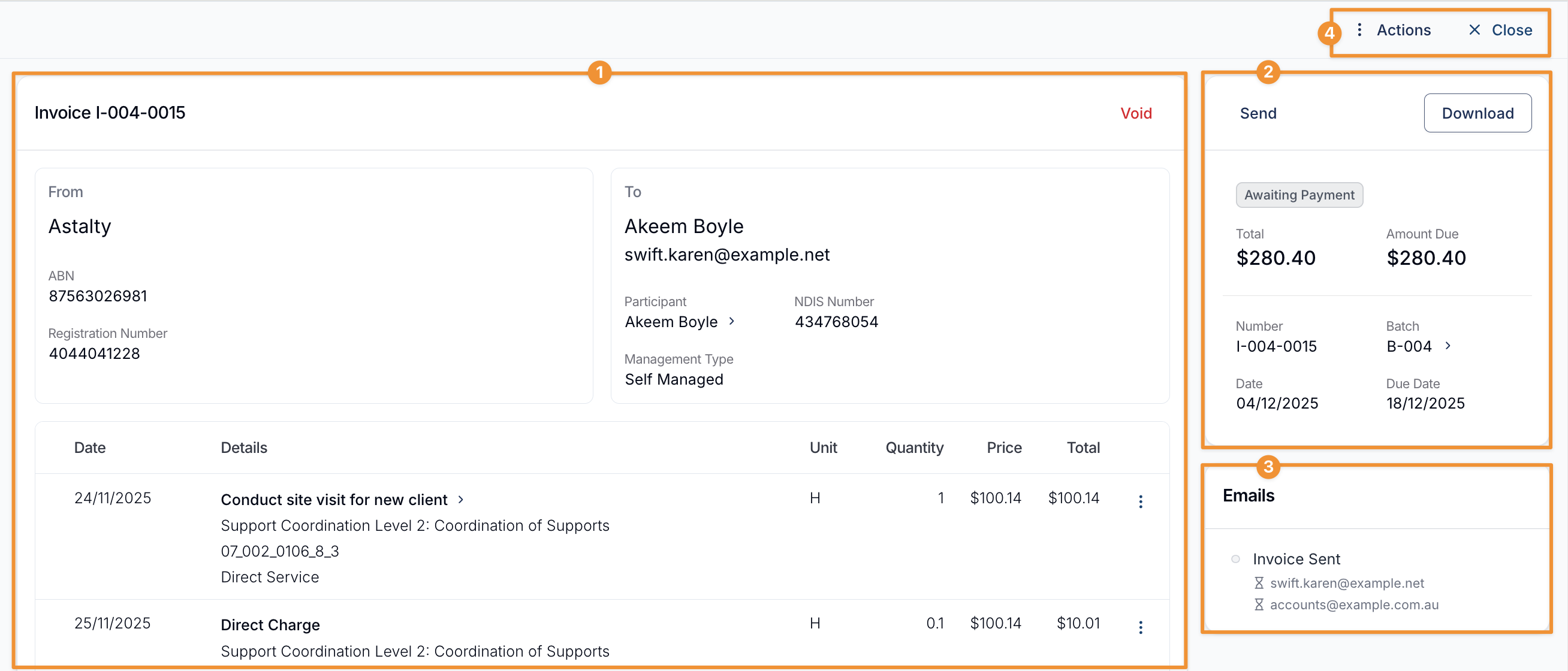
Once opened you can view:
- The details included in the Invoice:
- Invoice Number
- Void - the whole invoice, see our Voiding Invoices guide for more information.
- Invoice Details of who it was sent from and who it is addressed to.
- Charges included
- Invoice Control:
- Send - to a relevant stakeholder or someone else
- Download - download a copy of the invoice as a PDF
- Invoice Status - Awaiting Payment or Paid
- Invoice Amount - Total Invoice Amount
- Amount Due - Total Outstanding
- Dates of Invoice
- Due Date - of invoice
- Invoice Emails:
- Email of who the invoice was sent to (recipient)
- were they successfully received by the recipient:
- a green tick represents that the invoice was successfully received by the recipient inbox
- a red cross indicates that the email may be incorrect (if not please reach out to support@astalty.com.au
- Actions and Close
- Within Actions:
- Export Tasks & Notes
- includes support worker notes
- Disable Reminders
- Mark as Paid
- Export Tasks & Notes
- Use the Close button to exit the Invoice