- Scheduling
- App Notifications
App Notifications
Overview
The Astalty App provides push notifications for various actions that may have occurred to the shifts that are assigned to a support worker. This guide contains a brief overview of the current notifications that a support worker may receive.
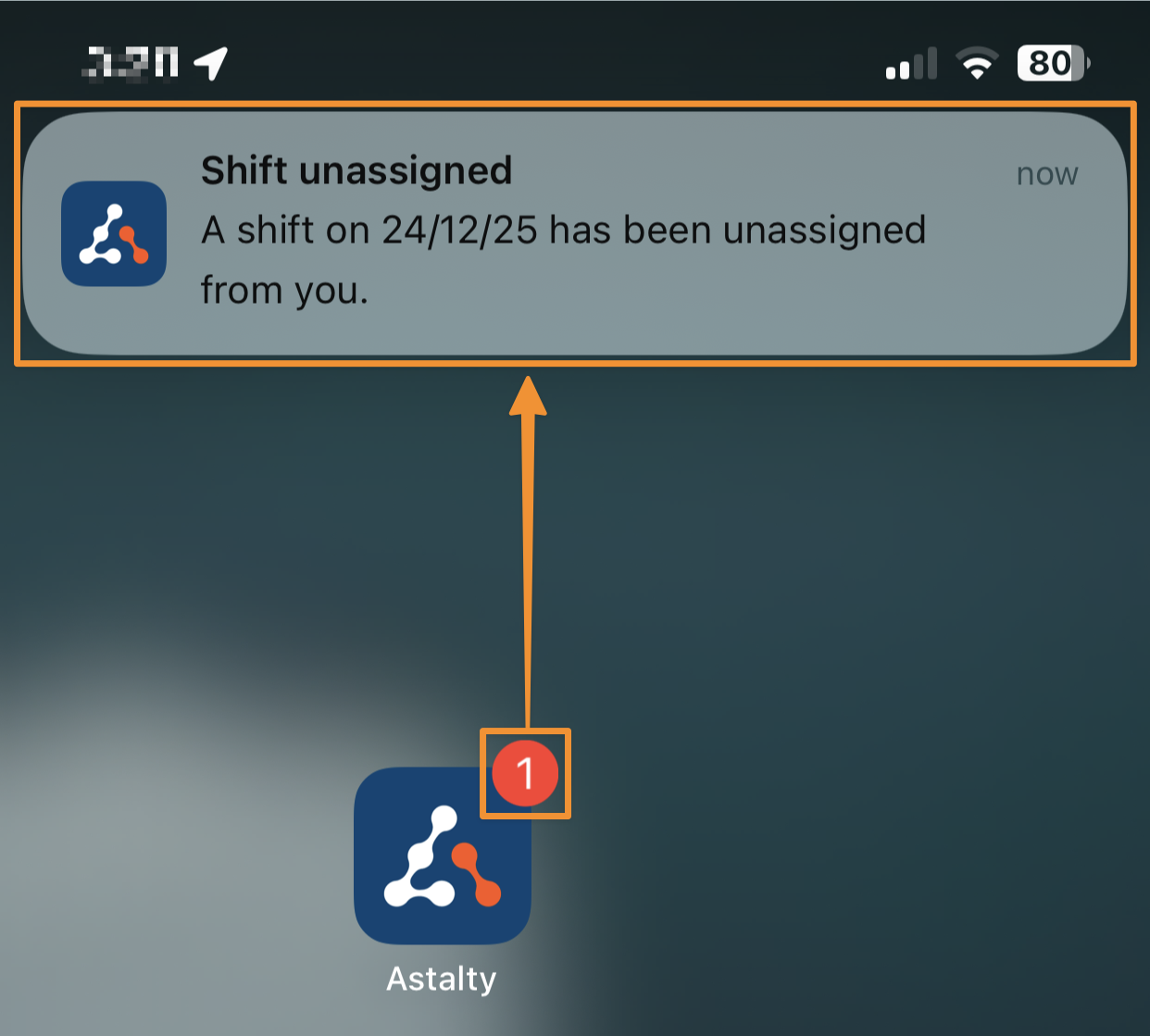
Viewing App Notifications
Open App Notifications
Notifications can be viewed in more detail by tapping on the notification that appears on your device. Doing so will navigate you to the appropriate page within the app relating to the notification that you tapped on. You can adjust where these notifications will appear on your device, based on your set up within your device's Notification settings.
App Notification Count
The Astalty app will display a badge count of the amount of unread app notifications on the app itself.
Notification Types
The Astalty app provides various app notifications whenever changes have been triggered. Here is a list of the different App Notification Types:
Availability approved
Your submitted availability (days/times you can work) has been reviewed and approved.
Missing support notes reminder
You have support notes that are required and haven’t been completed yet.
If a Missing Support Notes Reminder Notification has been set up by an Admin user, Support Workers may be sent a push notification every Monday morning for the 7 days prior of any missed support notes.
Shift assigned
You’ve been assigned or scheduled to work a specific shift.
Shift cancelled
A scheduled shift has been cancelled.
Shift clock in reminder
A reminder that it’s time (or almost time) to clock in for your shift.
Shift clock out reminder
A reminder that your shift is ending and you should clock out.
Shift deleted
A shift has been permanently removed from the schedule (not just cancelled).
Shifts published
New shifts or a new schedule have been released and are now visible to you.
Shift unassigned
You’ve been removed from a shift you were previously assigned to.
Shift updated
Details of a shift (such as time, location, or role) have changed. It's a great time to select this notification to view the changes.
Support document uploaded
A support-related document has been uploaded and is available for you to view or use.
Troubleshooting
Not Seeing App Notifications?
If you are not seeing these notifications, check your push notification settings on your device to ensure that Astalty App notifications are switched on to always show.
If after checking your notification settings are set up correctly the issue still persists, you may need to try logging out and then logging back into the Astalty app. And if that doesn't resolve it, please reach out to support@astalty.com.au