- Scheduling
- Adding Shifts
- Adding a Shift (Internal or Non‑support)
Adding a Shift (Internal or Non‑support)
Overview
Use Shift when you want something on a worker’s roster without directly billing a Participant. Handy for admin time, meetings, training, office duties, or other internal tasks. It shows on the roster and timesheets, but it does not create Participant charges.
How to add a Shift
Open Scheduling
Go to the Scheduling option on the left-hand side menu and click Add Shift in the top right.
Choose type
Select Shift.

Assign a worker
Select the Support Worker who will complete this shift.
Add details
Enter the Shift details text. Use this for what the task is, where, and any instructions.
Set time and date
Use the date and time picker to set the start and finish.
Repeat options
If needed, set it to repeat. You can repeat daily, weekly, fortnightly, or monthly, choose the days, and set an end date. Astalty allows repeating up to 12 months.
Create
Review and click Create to add the shift.
Cloning a Shift
You can clone a Shift to create a duplicate event for the same or another Support Worker. To do this, click on the Actions button, and select Clone Shift.
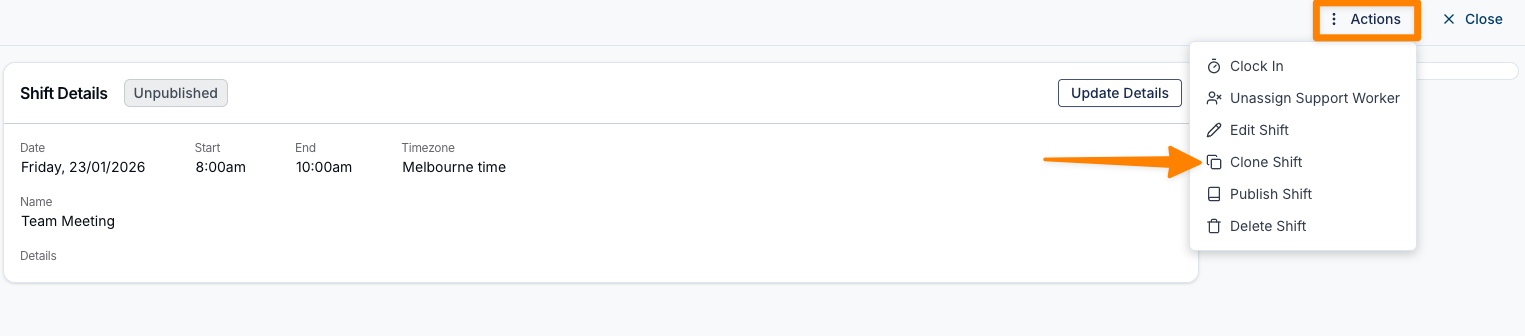
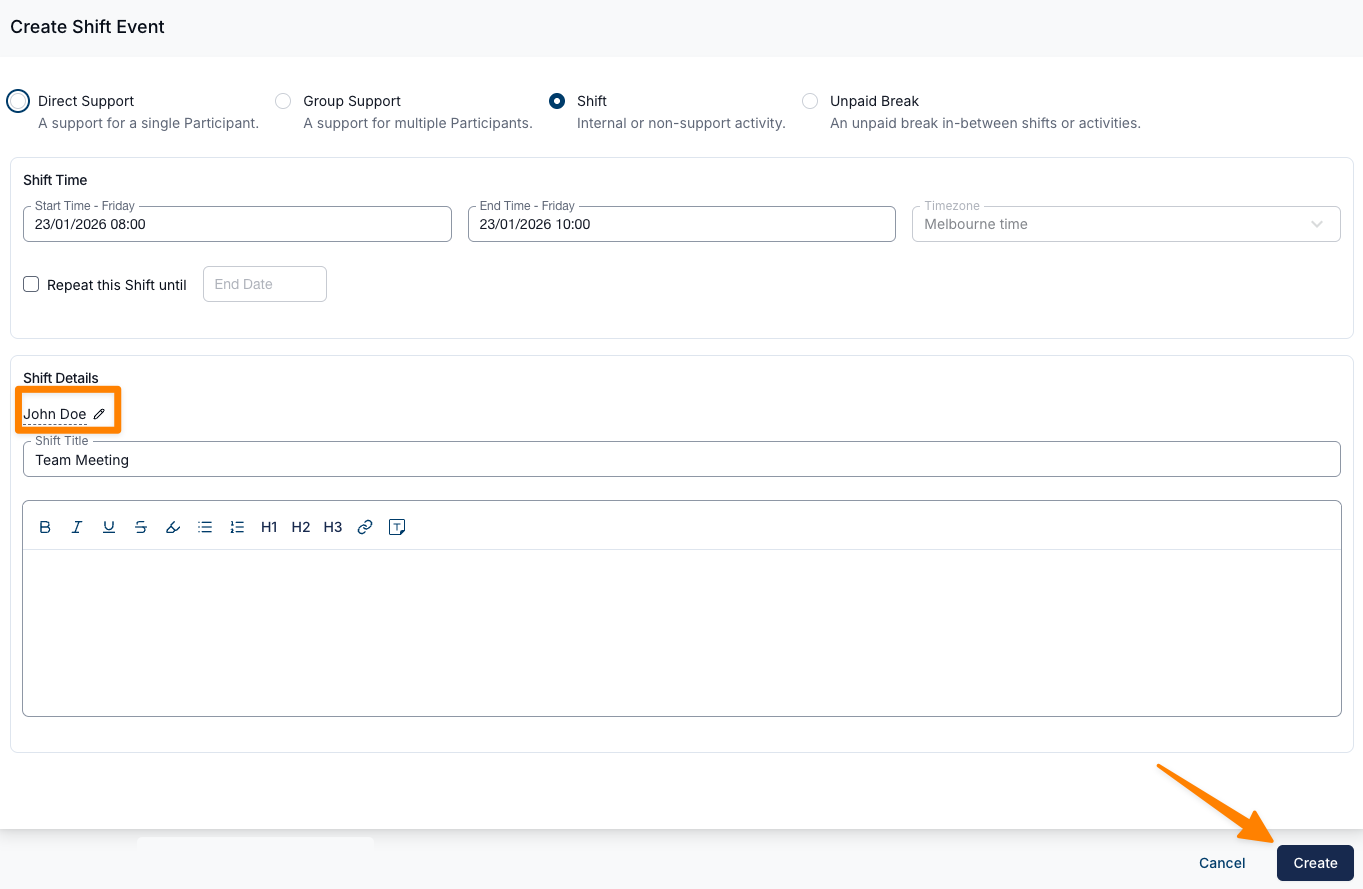
From there, you can update the details as required, and then click Create.
Extending a Shift
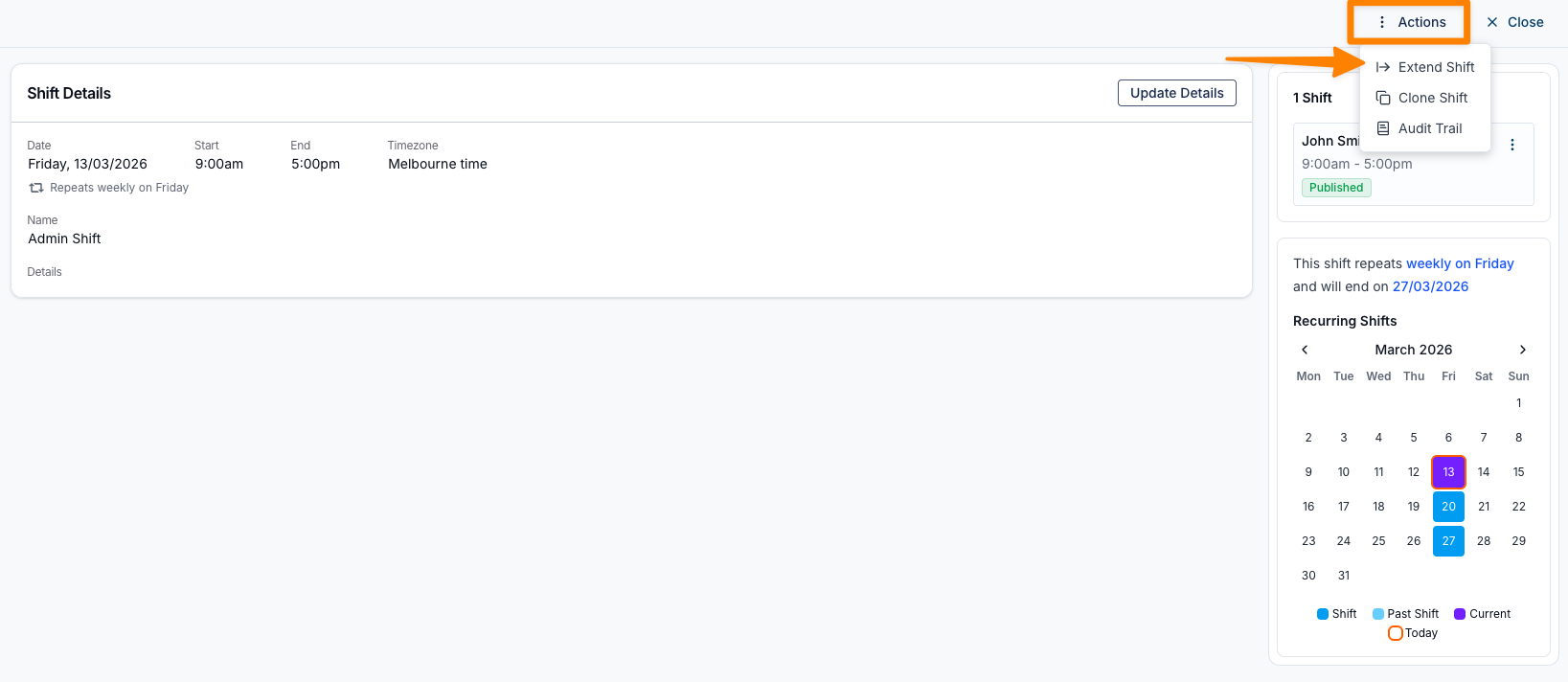
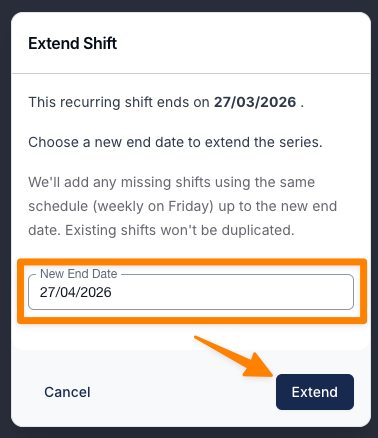
If you need to extend a recurring Shift beyond its current end date, you can do so from the Shift’s Actions menu. Select Extend Support, choose the new end date, and click Extend to apply the change.
Video Walkthrough on How to Add a Shift (Internal or Non‑support)
This video walks through how to add a shift support.