- Scheduling
- Schedule & Availability
- Shift Board - Support Worker App
Shift Board - Support Worker App
Overview
The Shift Board in the Support Worker app allows you to view shifts that are currently available and awaiting assignment.
From the Shift Board, you can:
- View available shifts
- Express your interest in a shift
- Decline a shift
- See shifts you have declined
- Track shifts that have been approved
At a glance, you can easily identify the status of your shift responses directly from the Shift Board.
Accessing the Shift Board
- Open the Support Worker app.
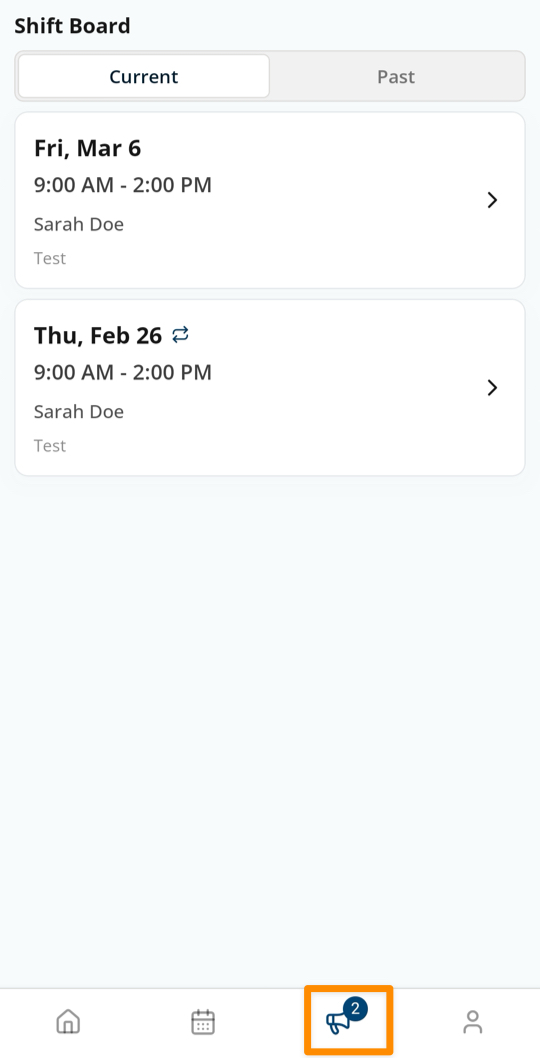
- Tap the Shift Board icon located at the bottom of the screen.
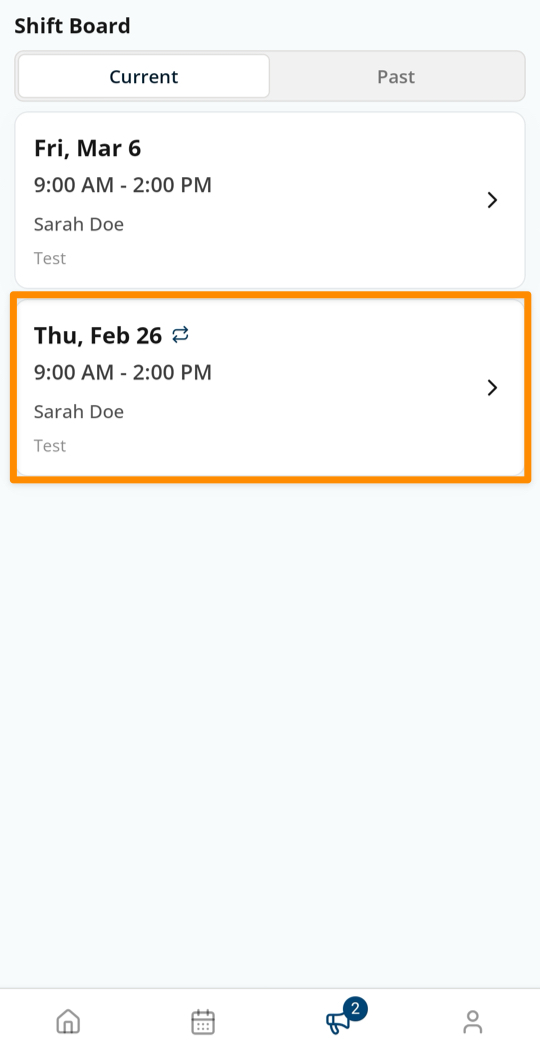
- By default, you will land on the Current Shifts tab, which displays shifts available to support workers.
Viewing Shift Details
To see more information about a shift:
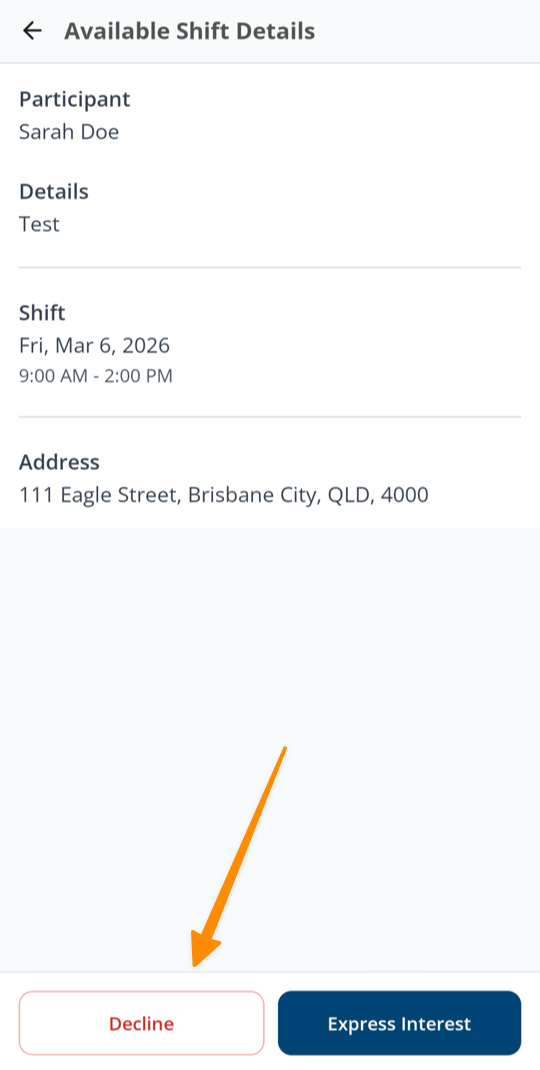
- Tap on the shift listing.
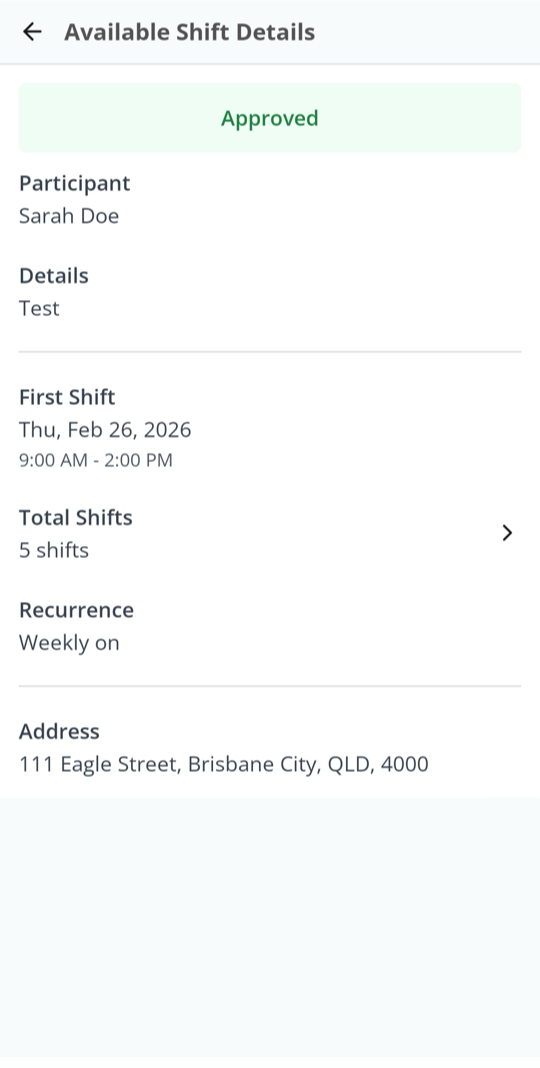
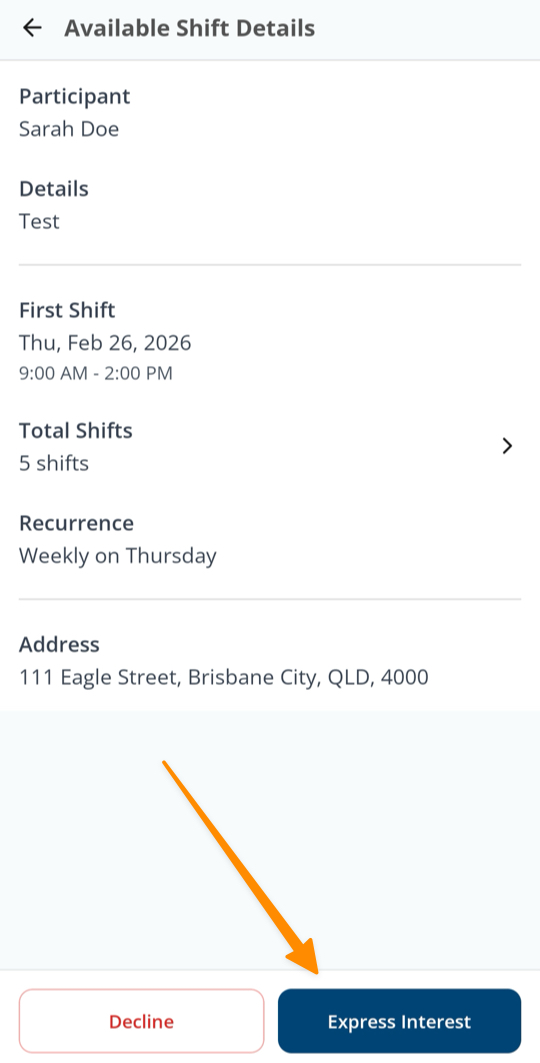
- You will be able to view:
- Participant name
- Participant details
- Shift information (date and time)
- Address of shift
From this screen, you can choose to Express Interest or Decline.
Expressing Interest in a Shift
- Tap Express Interest.
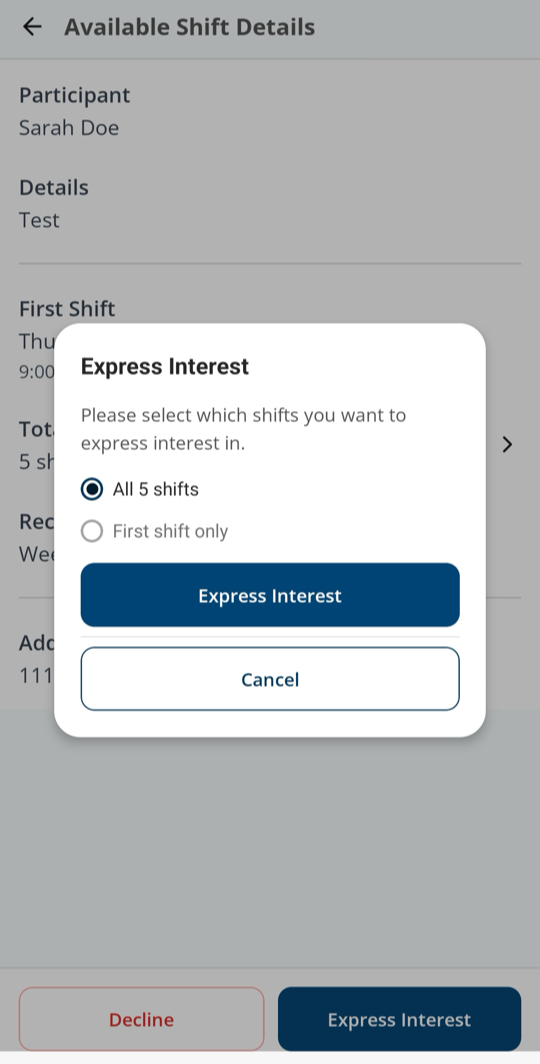
- If the shift is part of a recurring support series, you will be prompted to choose whether you would like to:
- Express interest in all shifts in the series, or
- Express interest in the first shift only.
- After making your selection, tap Express Interest to confirm.
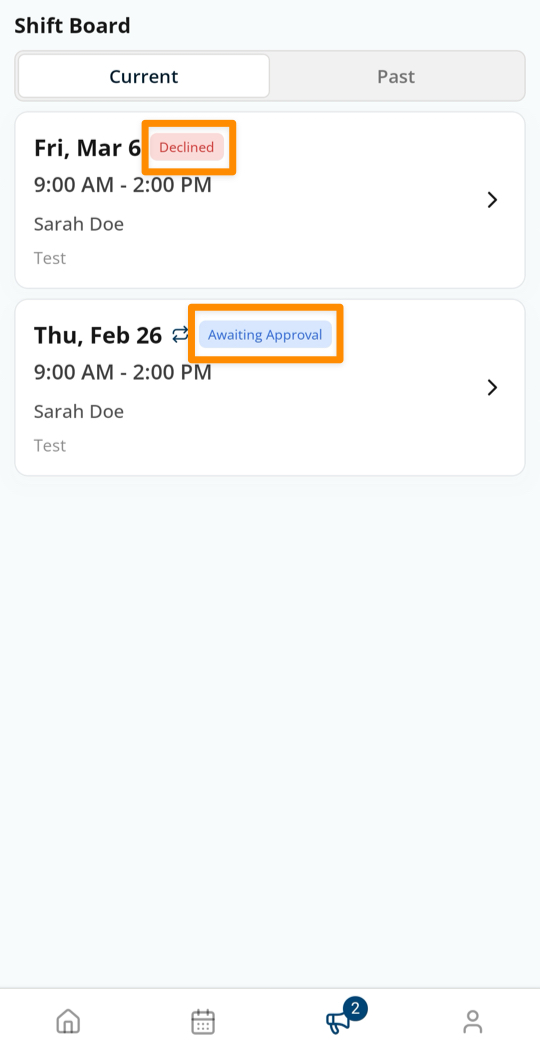
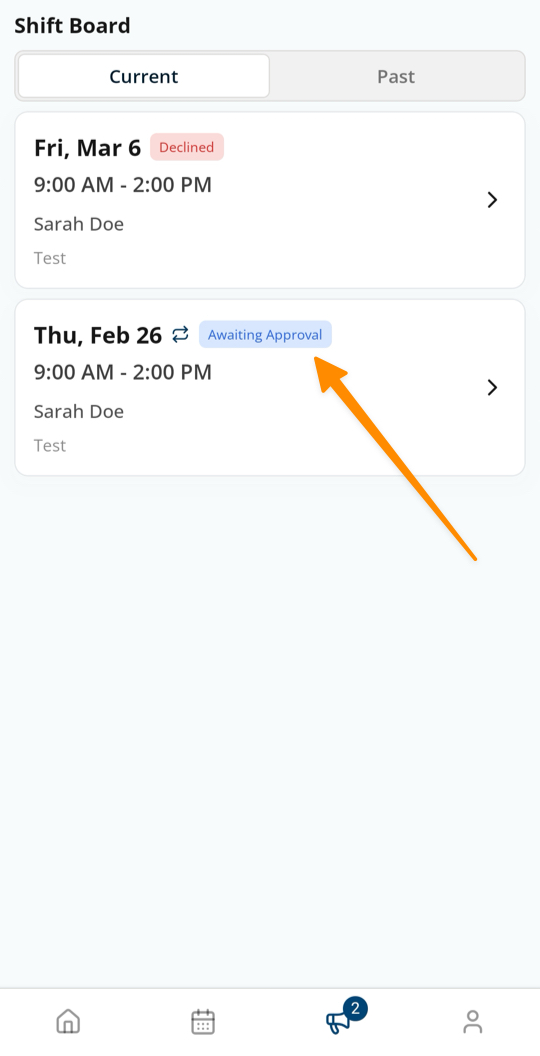
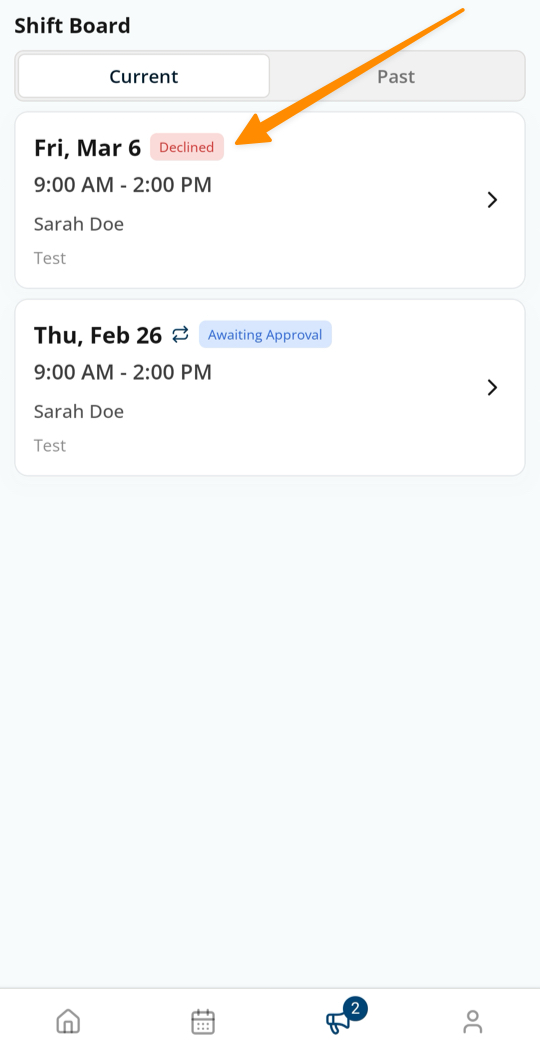
Shifts you have applied for will remain visible in the Current Shifts board and display an Awaiting Approval status chip until they have been allocated to a Support Worker. You can tap the shift at any time to review its details and status.
Declining a Shift
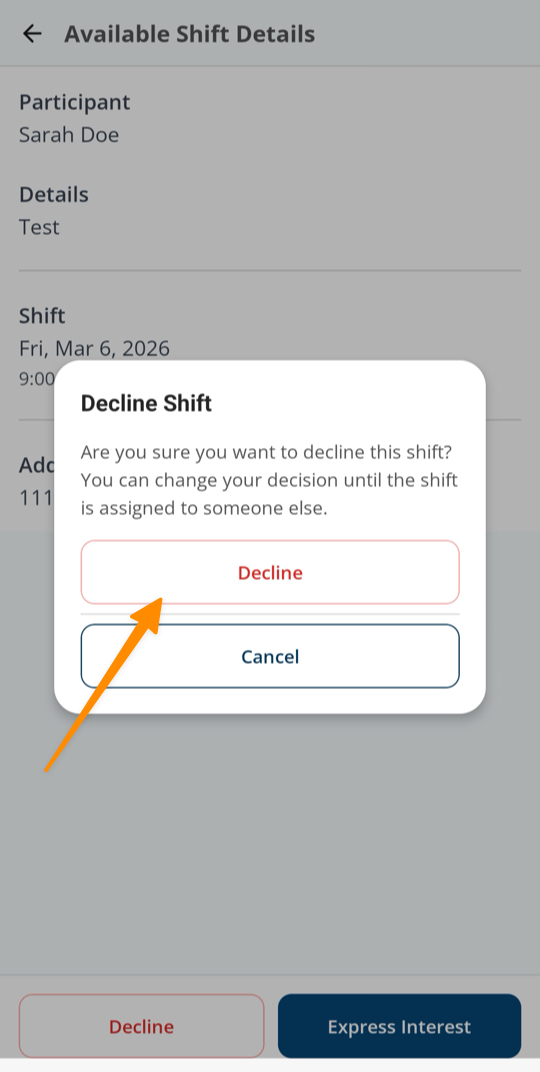
- Tap Decline.
- A confirmation prompt will appear asking you to confirm your decision.
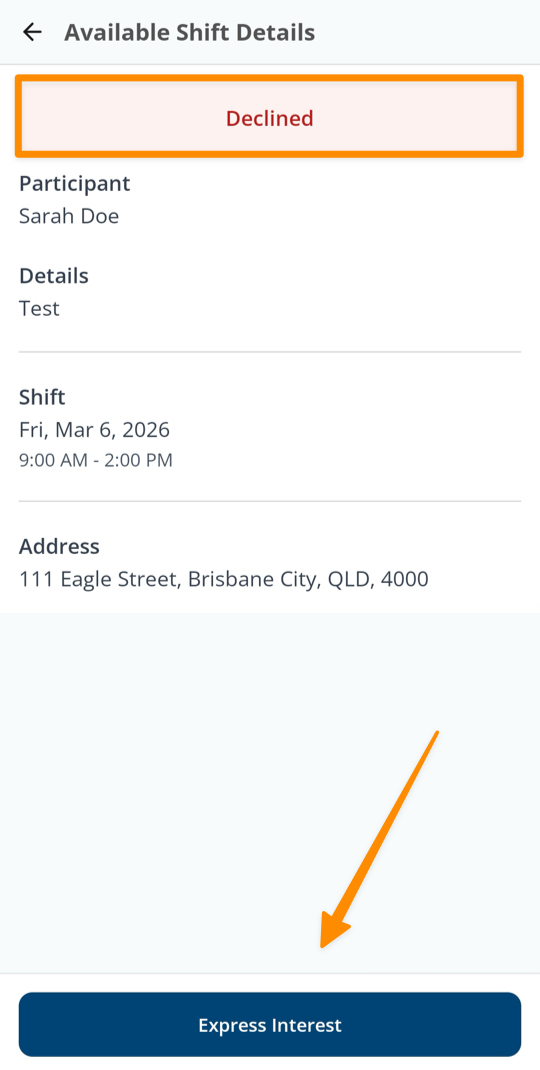
- You can change your decision at any time until the shift has been assigned to another Support Worker.
- Declined shifts will remain visible on the Current Shifts board until they are assigned to someone else.
You can tap the shift at any time to review its details and status.
Shift Status Updates
- Awaiting Approval: Your interest has been submitted and is pending review.
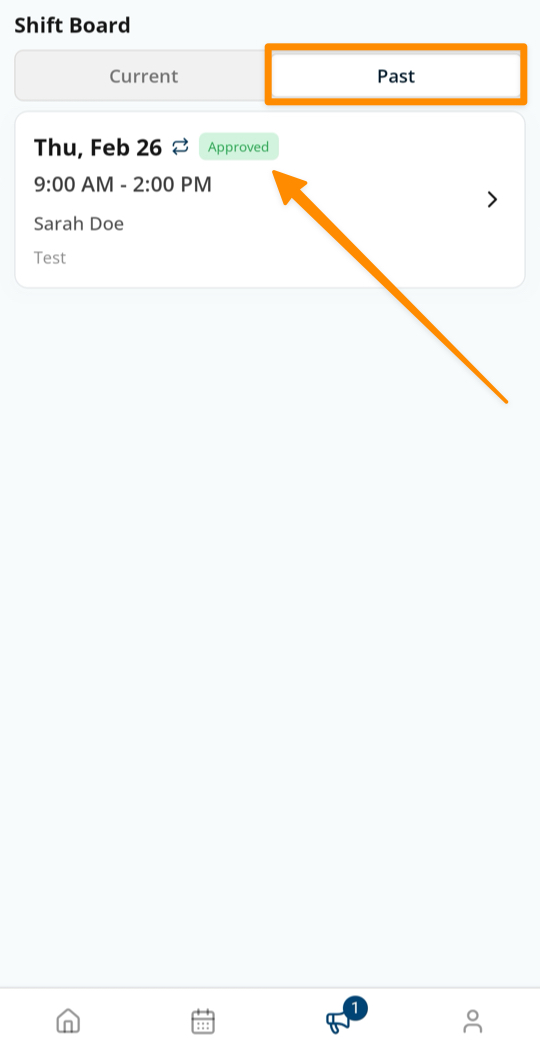
- Approved: The shift will move to the Past tab once it has been assigned to you. Once the shift has been published, it will appear on your Calendar.
- Unsuccessful: If your interest is not approved, the shift will be removed from your Shift Board.
To view more details about a declined or approved shift, simply tap on the shift to see the full information and current status.