- Scheduling
- Schedule & Availability
- Viewing Your Schedule in the Support Worker App
Viewing Your Schedule in the Support Worker App
Overview
The calendar in the Support Worker app allows you to view your upcoming schedule, see which days you have supports, and identify any incomplete shifts that need attention.
Steps to View Your Calendar
- On the bottom menu of the app, tap Schedule.
- This will open your schedule view.

- Use the arrows at the top of the page to toggle between weeks.
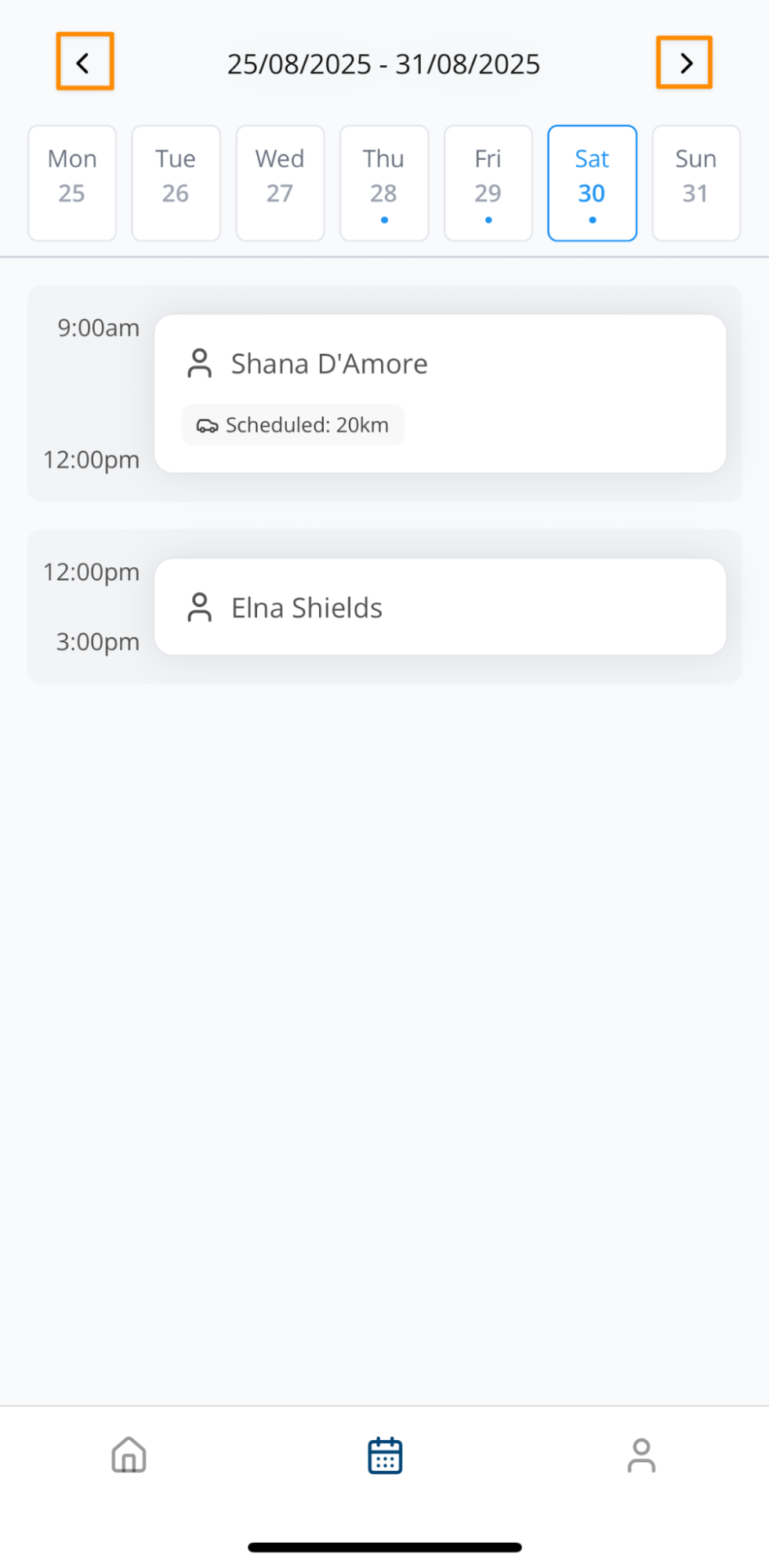
- Select a specific day to view supports scheduled for that date.
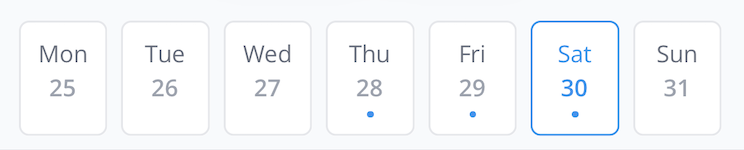
Calendar Indicators
- The current day is highlighted with blue text.
- A dot beneath the date indicates that you have one or more supports scheduled on that day
Additional Access via Home Screen
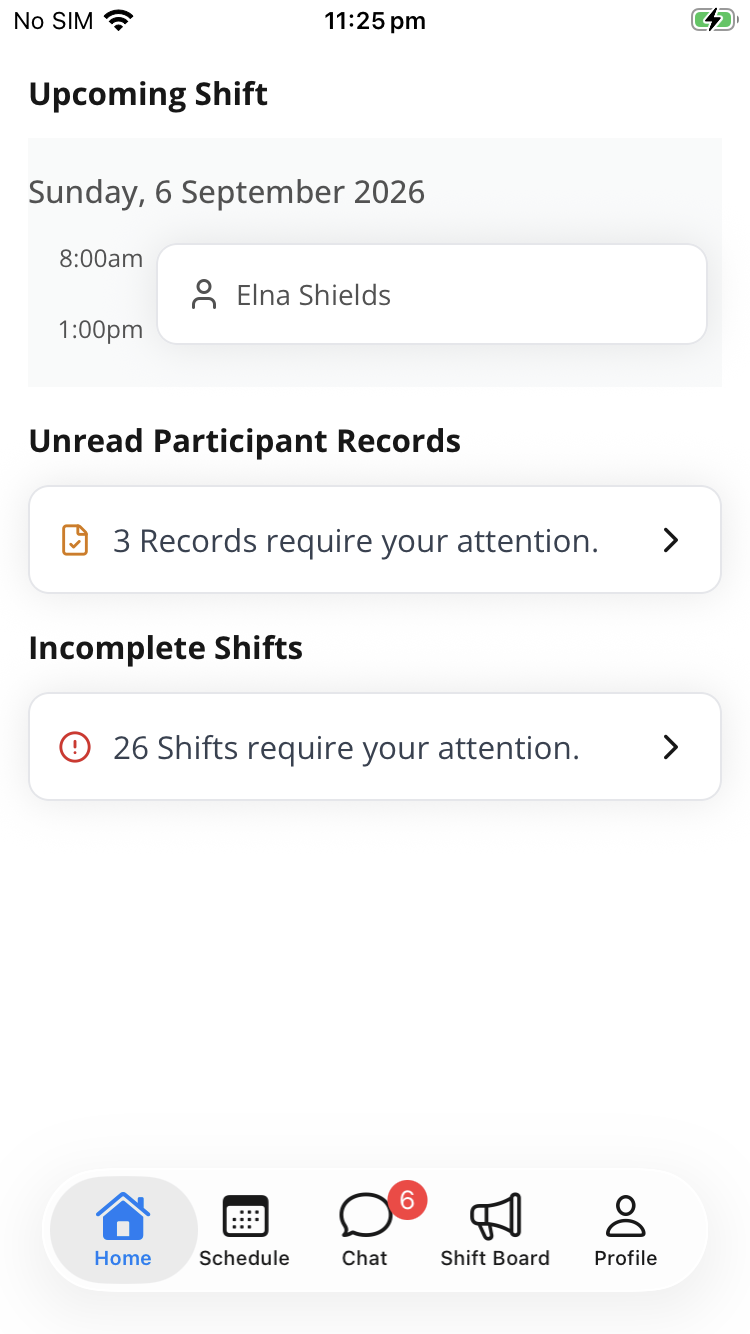
From the Home Screen, you can also see:
- Today's shift workflow and your next upcoming shift.
- Unread Participant Records - Participant Records that still need your acknowledgement.
- Incomplete Shifts - shifts with missing clock times, Travel During details, or a required support note.
- The notification bell and unread notification count.
Changes to your Schedule - Push Notifications
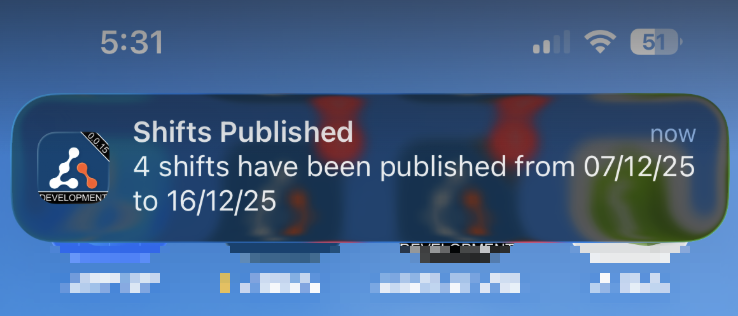
The app can send notifications when a shift is assigned, unassigned, updated, cancelled, deleted, published, or available on the Shift Board. A notification with a destination opens the related shift or Shift Board entry.
When multiple shifts are published together, a single notification can summarise the shifts assigned to you.
See App Notifications for the full list.