Availability Requests
Overview
Support Workers can submit two types of requests in the app:
- Unavailability can be once-off or recurring. It can also allow contact if the worker may still be available upon request.
- Leave is a once-off request for a selected Leave Type. It can cover one or multiple days and can include supporting documents.
Recurring requests are Unavailability, not Leave.
Submitting a Once-Off Request
A once-off request can cover one day or a range of consecutive days.
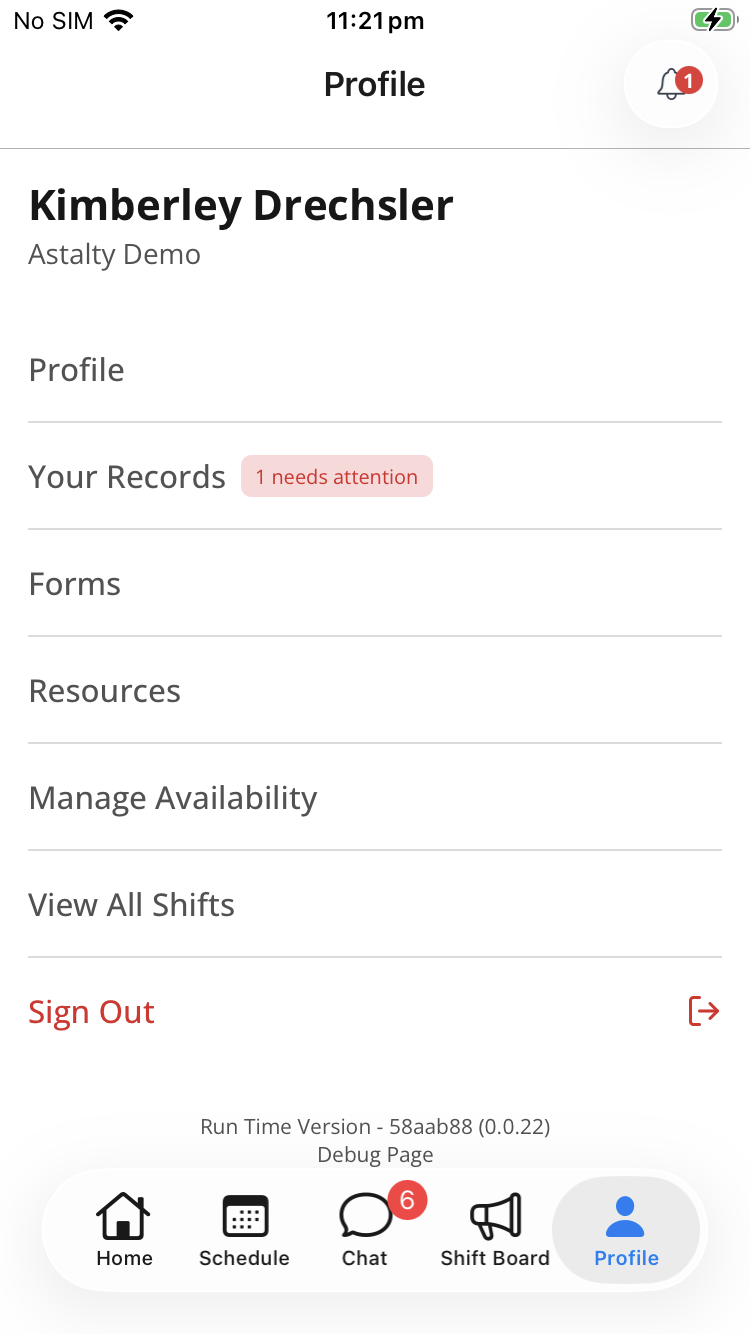
- Open Profile and select Manage Availability.
- Select + in the top-right corner.
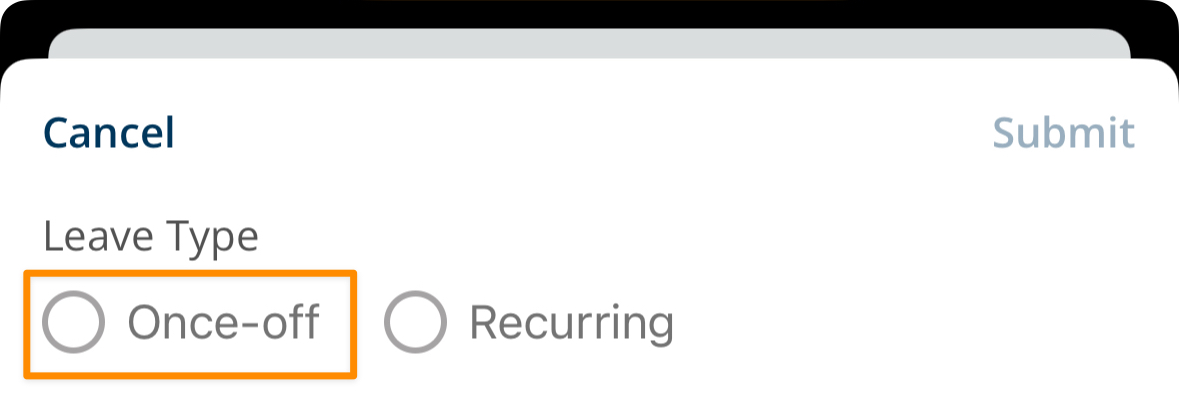
- Under Type, select Unavailability or Leave.
- For Leave, select a Leave Type. For Unavailability, set Frequency to Once-off.
- Select Single Day or Multiple Days and enter the date or date range.
- Select All Day, or enter From Time and To Time.
- For Unavailability, optionally select Available upon request.
- Enter a Reason.
- For Leave, optionally attach supporting documents from the camera, gallery, or device files.
- Select the tick in the top-right corner to submit.
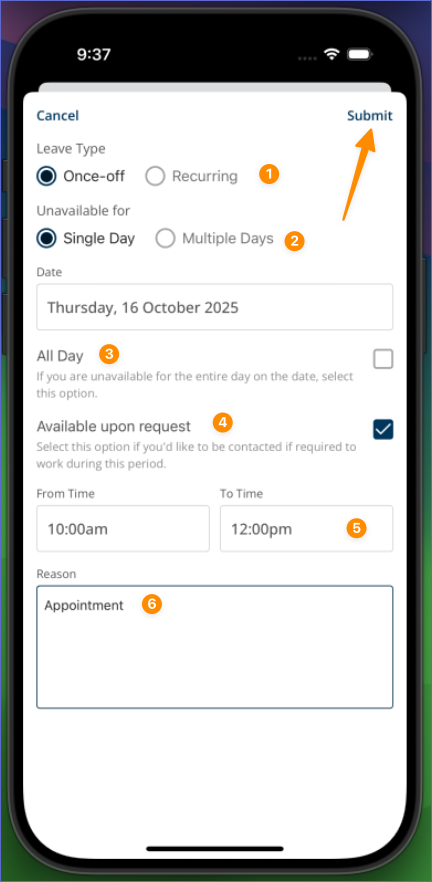
The request form shows your organisation's notice-period guidance and the timezone used to save the request. A request outside the allowed notice period cannot be submitted.
Submitting Recurring Unavailability
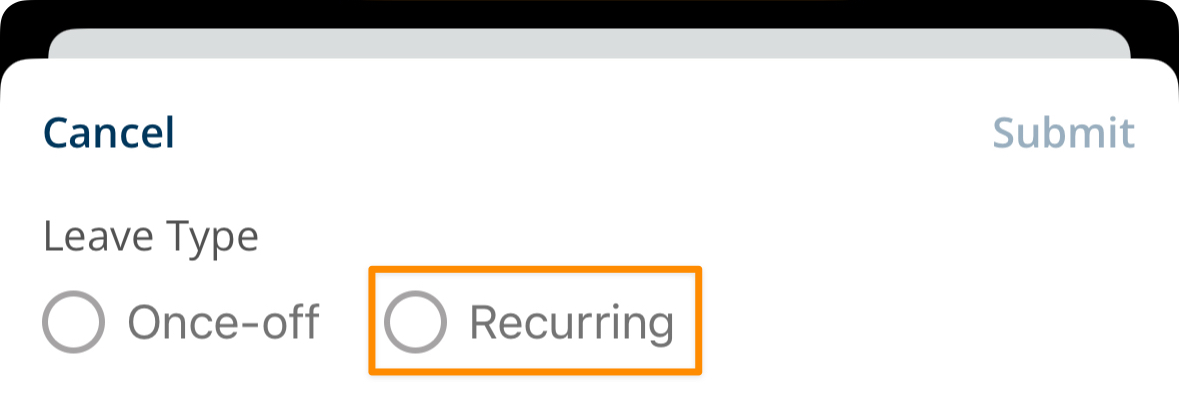
A recurring request records regular or ongoing Unavailability. Leave cannot be recurring in the app.
- Open Profile > Manage Availability and select +.
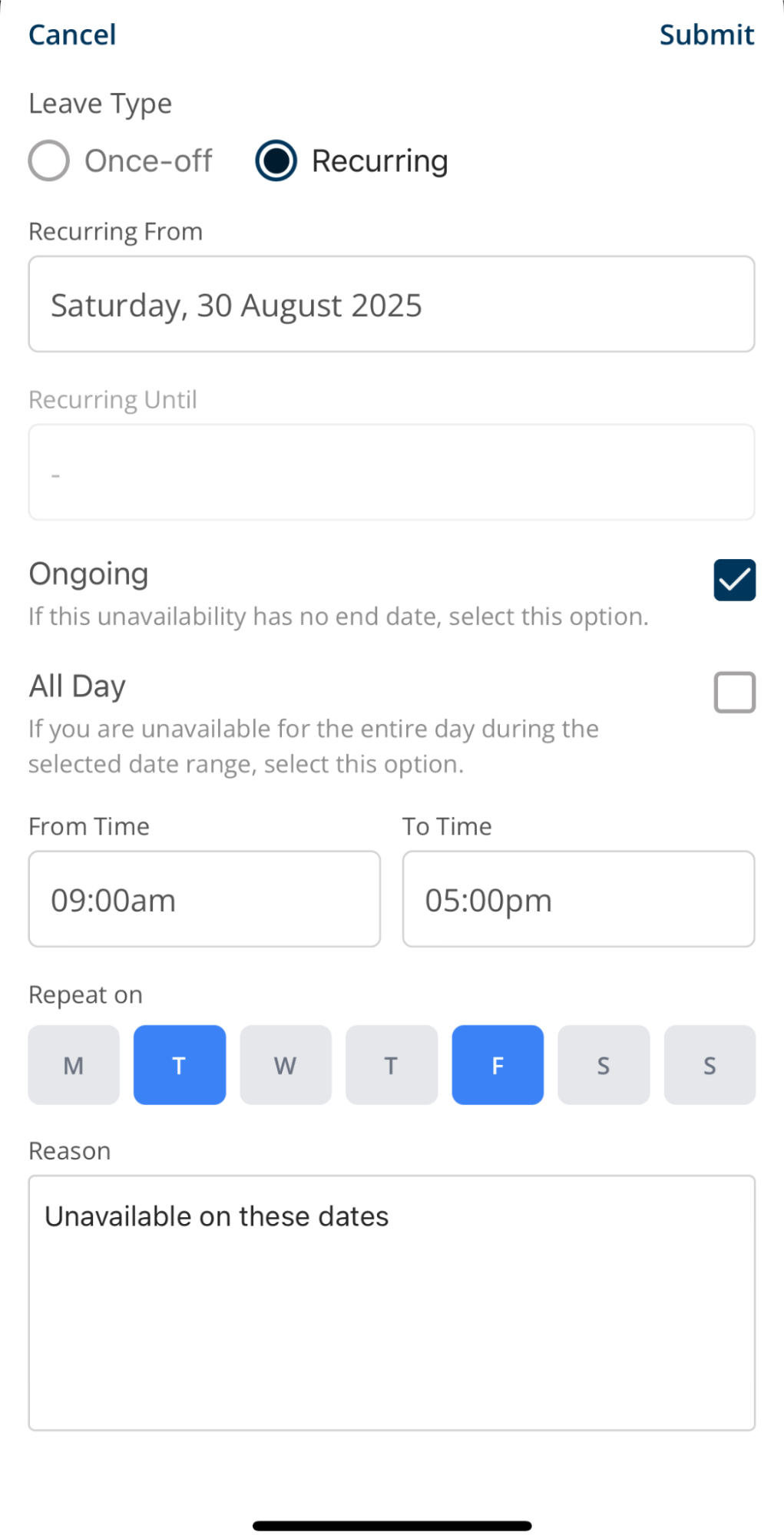
- Set Type to Unavailability and Frequency to Recurring.
- Select the start and end dates, or turn on Ongoing when there is no end date.
- Select All Day, or enter From Time and To Time.
- Set Repeat Every to Week or Fortnight, then select the days.
- Optionally select Available upon request.
- Enter a Reason, then select the tick to submit.
Request Notifications
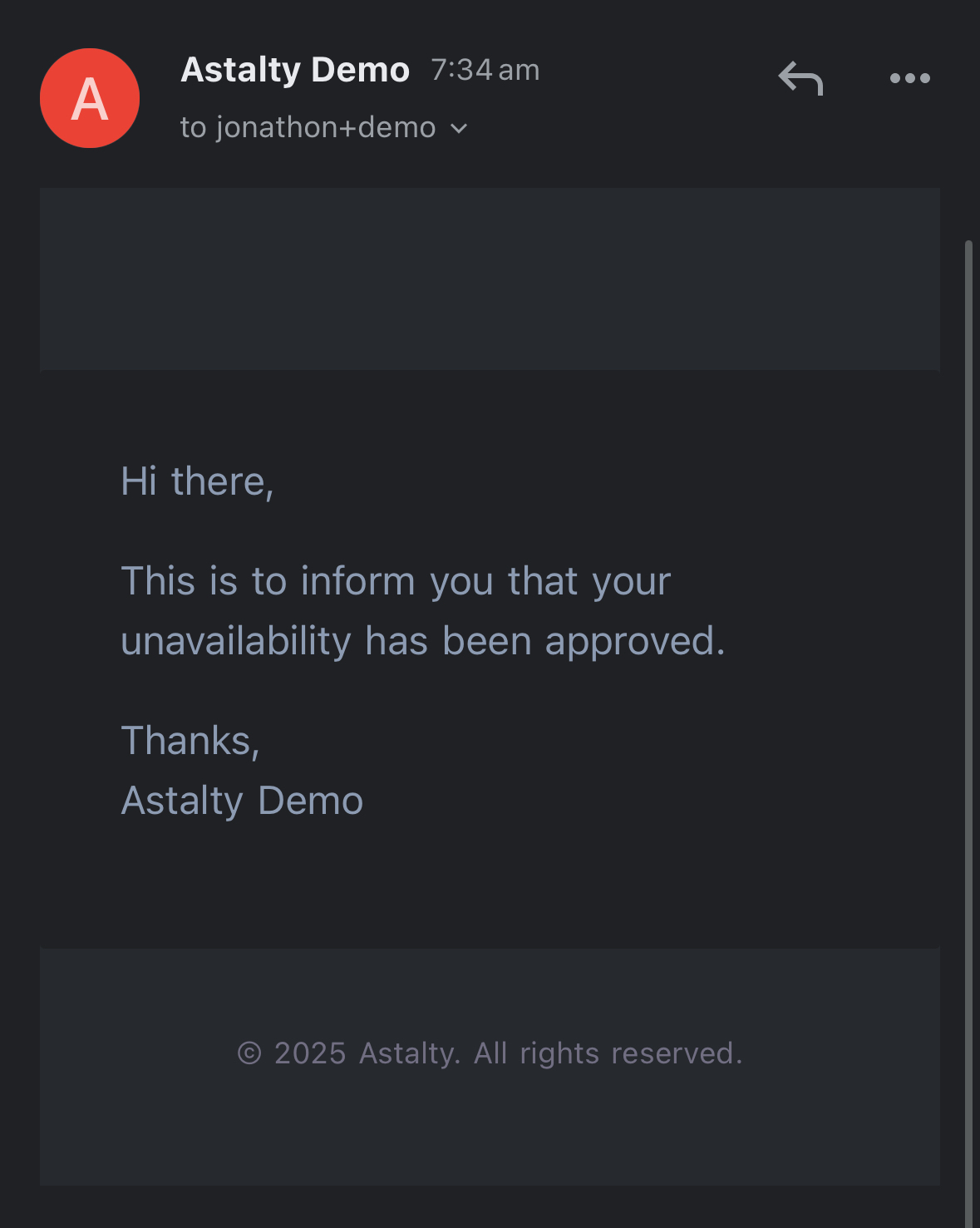
When a request is approved, the worker can receive an app notification and email according to the organisation's notification settings.
Viewing Availability Requests
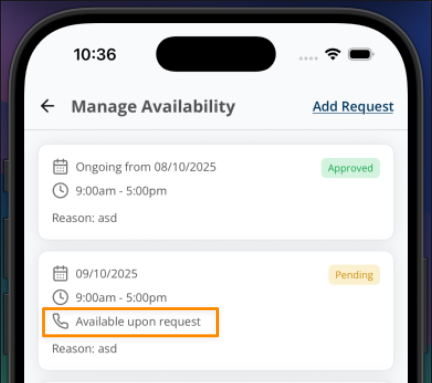
Submitted Unavailability and Leave requests appear under Manage Availability on your profile. Available upon request entries show a phone icon.
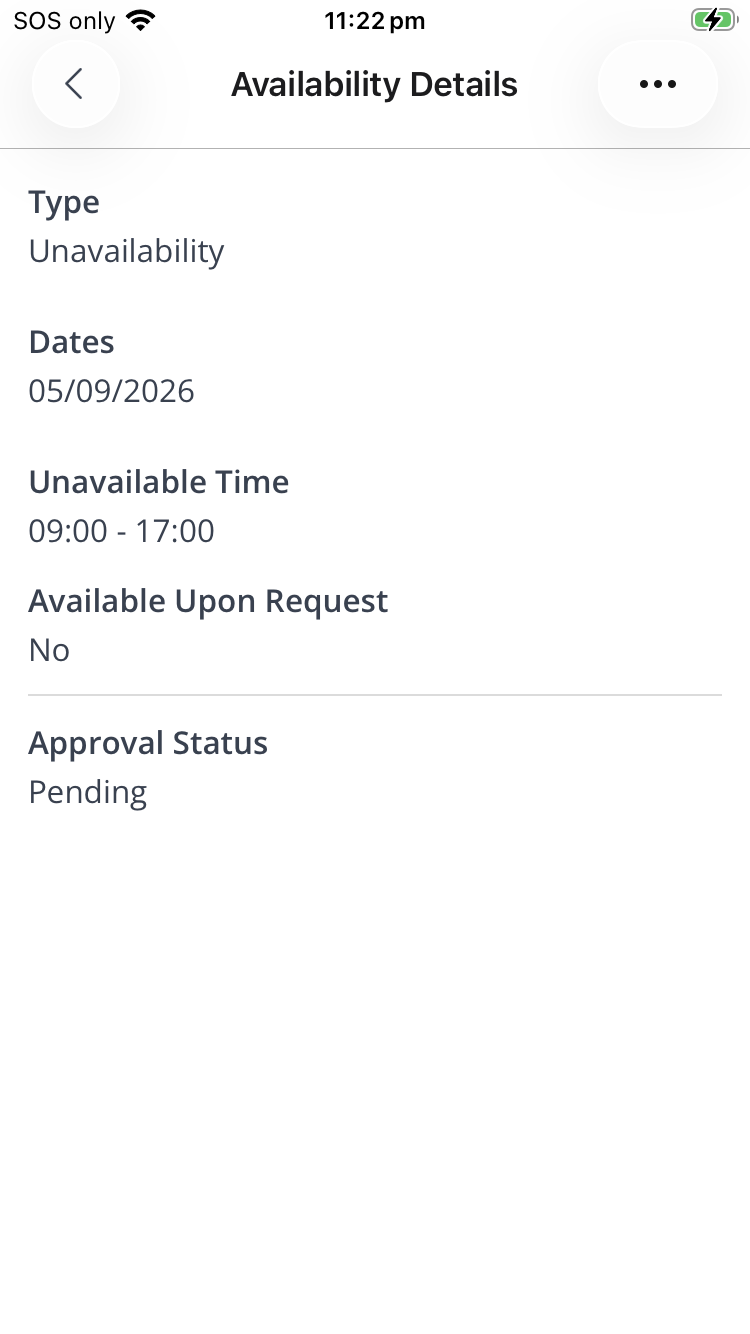
If opened, the full details of the request will be displayed, including the Type of request (Unavailability or Leave), the dates and times, and the Approval Status.
The status remains Pending until a manager reviews the request, then changes to Approved or Declined. The request also records who reviewed it and when.
Editing a Request
- Open Manage Availability and select the pending request.
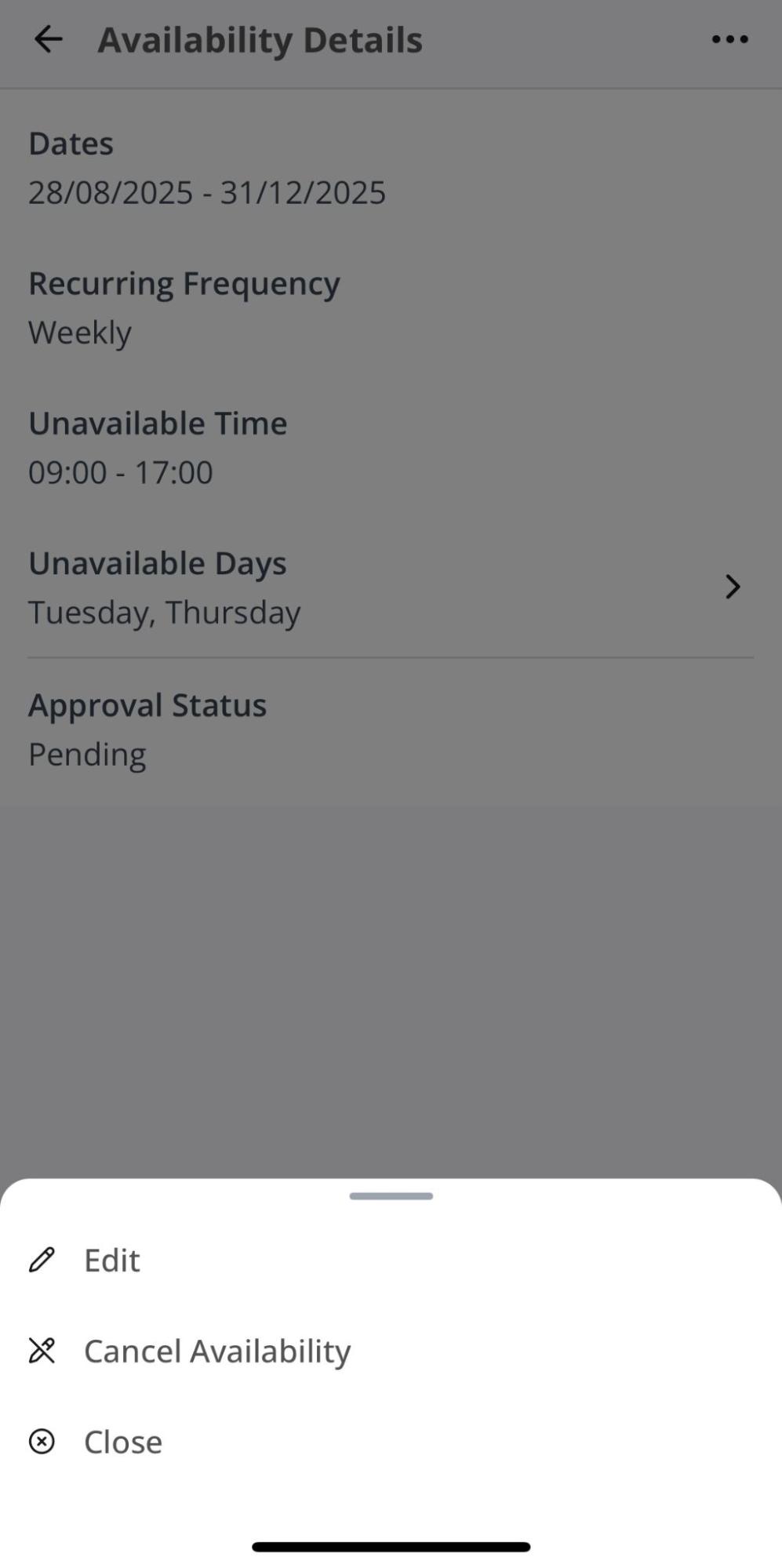
- Open the three-dot menu and select Edit.
- Make the changes and select the tick to submit them.
Only a pending request can be edited. When editing an existing Leave request, you can also add or remove supporting documents.
Cancelling a Request
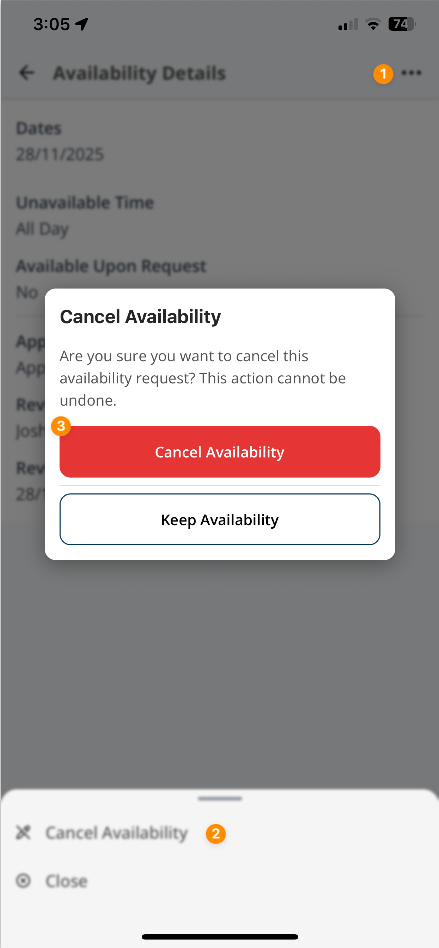
- Open Manage Availability and select the request.
- Open the three-dot menu and select Cancel Availability.
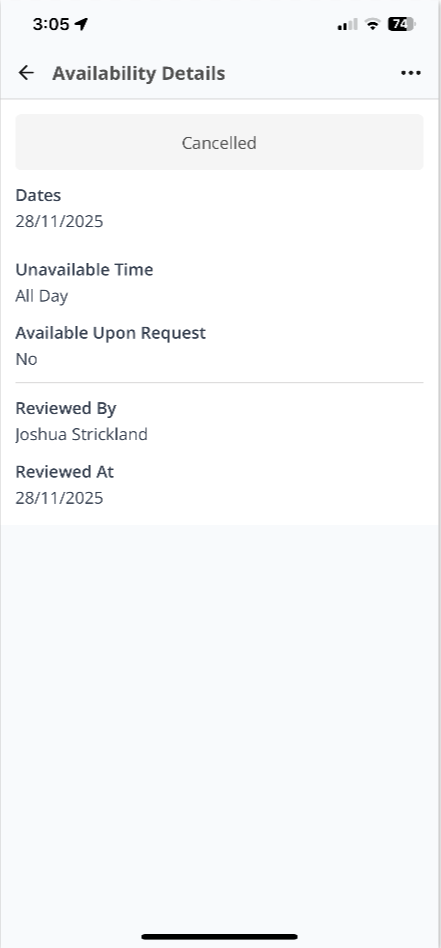
- Confirm Cancel Availability.
Any pending request, once-off or recurring, can be cancelled, and so can an approved once-off request. The action cannot be undone.
Ending Recurring Unavailability
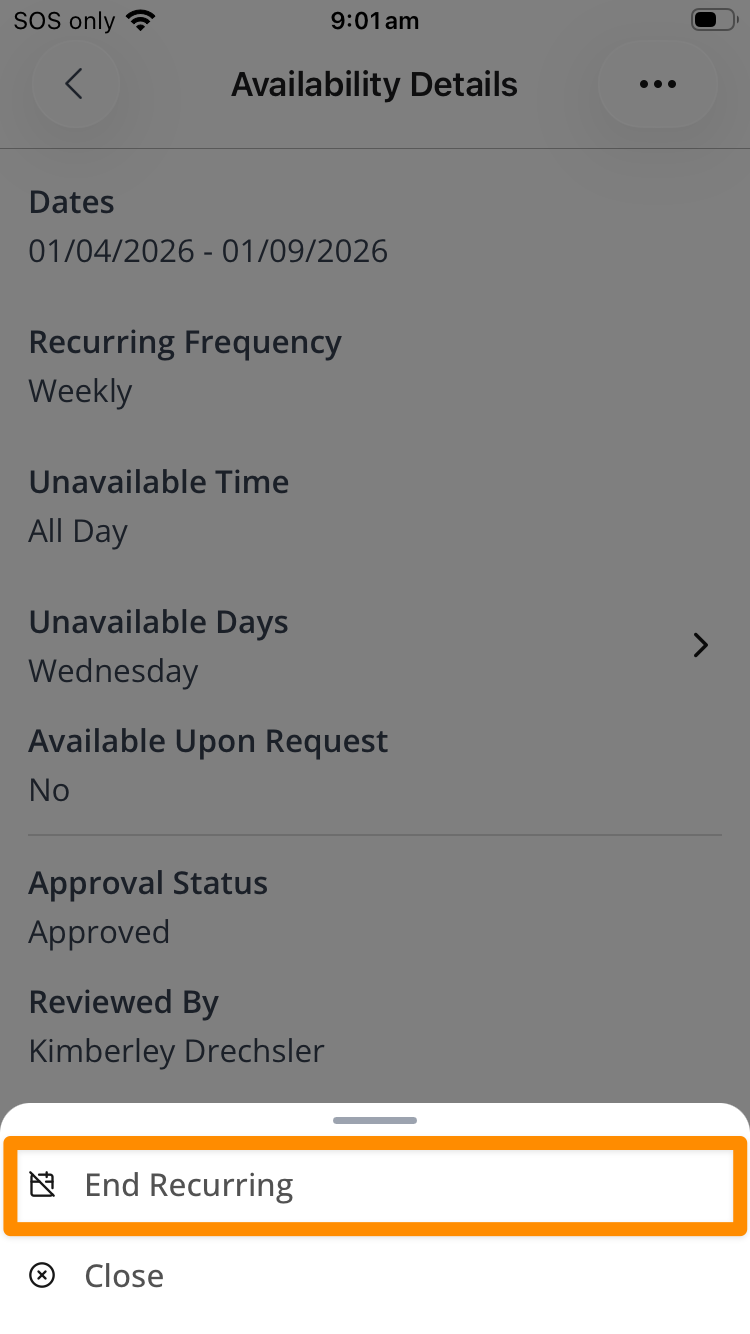
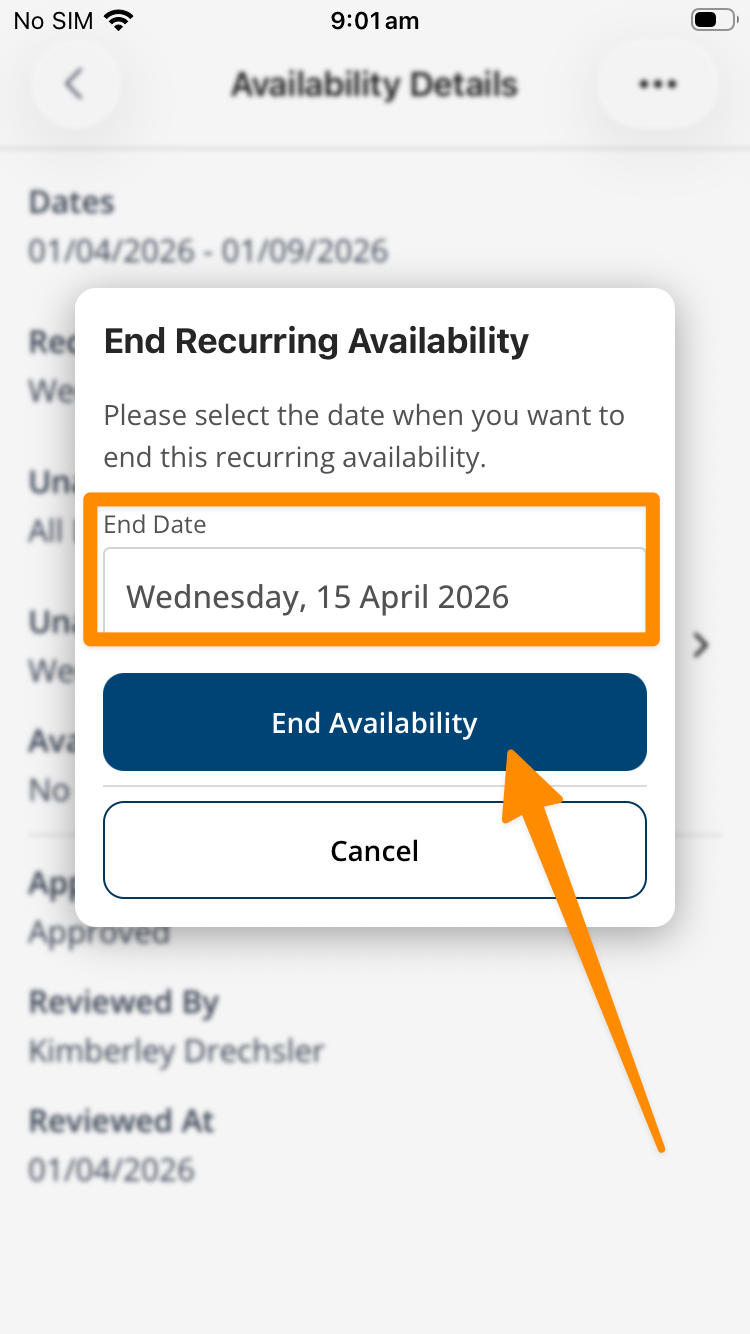
An approved recurring Unavailability request can be ended early:
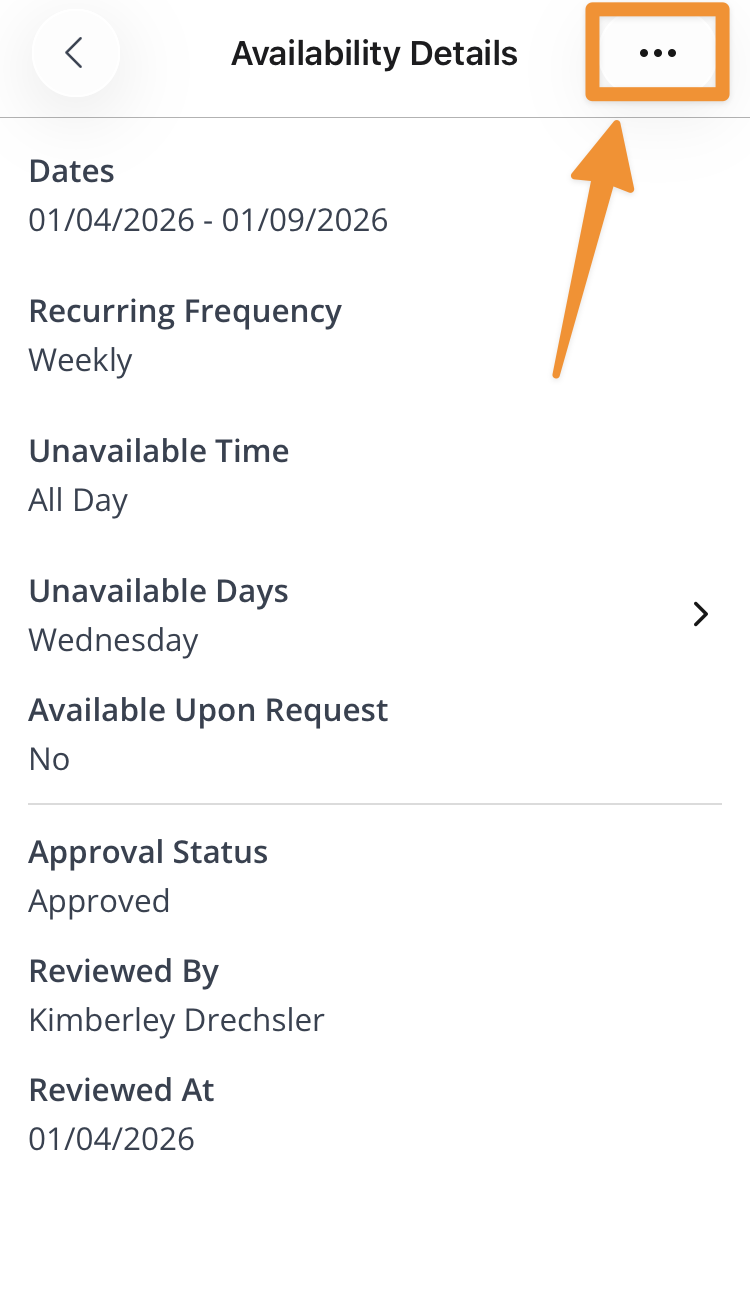
- Open Manage Availability and select the recurring request.
- Open the three-dot menu and select End Recurring.
- Select the end date and select End Availability.
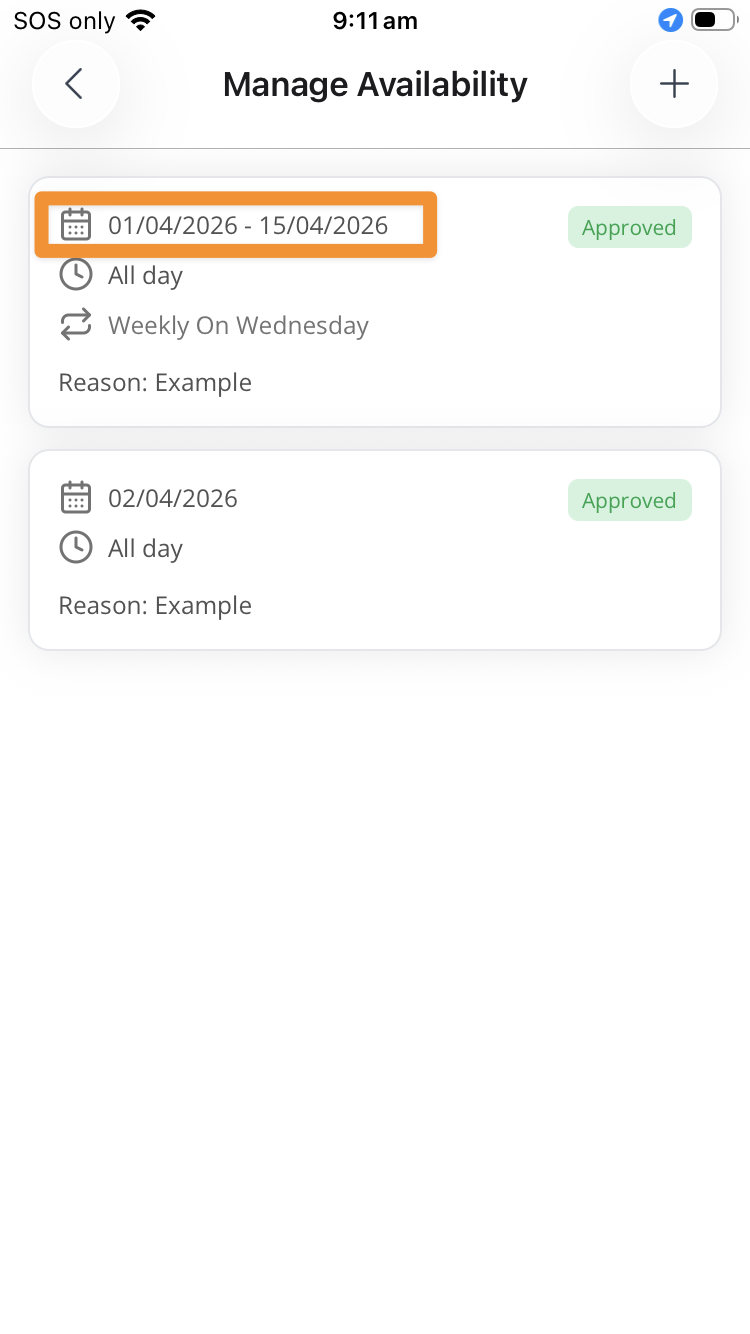
The request then displays the amended end date.
Video Overview
The following video walks through the availability function for Support Workers through the App.