Incomplete Shifts
Overview
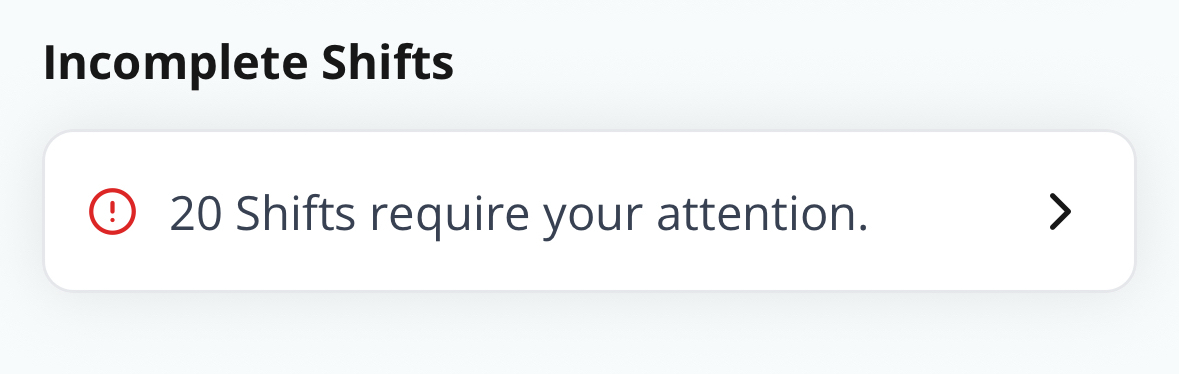
Incomplete Shifts helps Support Workers keep their records up to date. When a shift needs follow-up, the app's Overview tab shows a row such as 2 incomplete shifts under Needs attention. Select it to open the list of shifts that require follow-up actions.
How It Works
- A shift appears when its clock times, required Travel During details, or required support note are incomplete.
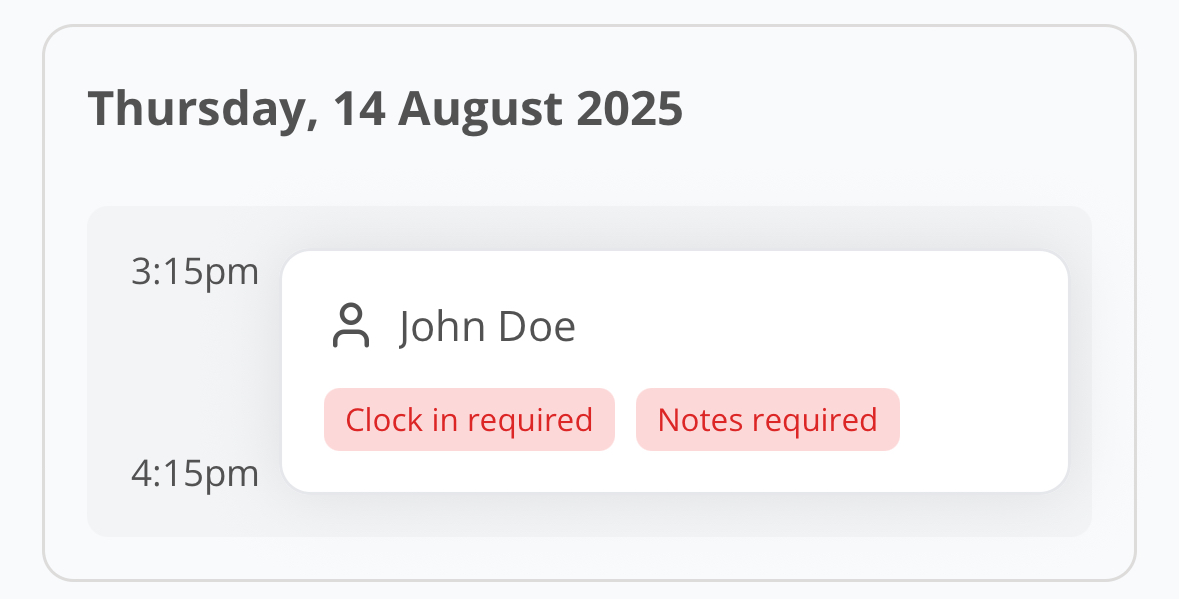
- Red status badges identify clock and note issues:
- Clock In Required
- Clock Out Required
- Notes Required
- A shift that is currently clocked in can also show action rows for Write Notes, Complete Forms, and Complete Schedule Tasks. Forms and task rows show the number of mandatory items remaining.
Completing Incomplete Shifts
- Select the shift under Incomplete Shifts.
- Review the status badges and action rows.
- Complete the missing clock time, Travel During entry, note, mandatory Form, or mandatory Schedule Task.
- Return to Incomplete Shifts. The shift is removed once all required completion items are satisfied.