- Scheduling
- Internal Event Notes
Internal Event Notes
Overview
Internal events - the internal or non-support shifts you use for admin time, meetings, training, or office duties - now include a Notes section. This gives workers a place to document non-Participant work that previously had nowhere to be recorded.
Because an internal event has no Participant attached, the notes belong to the event itself rather than to a Participant. Everyone rostered on the event shares one notes thread, so a note added by one attendee is visible to the others.
You can add notes to an internal event from both the web app and the Support Worker app.
Adding Notes in the Web App
- Go to the Schedule and open the internal event you want to document.
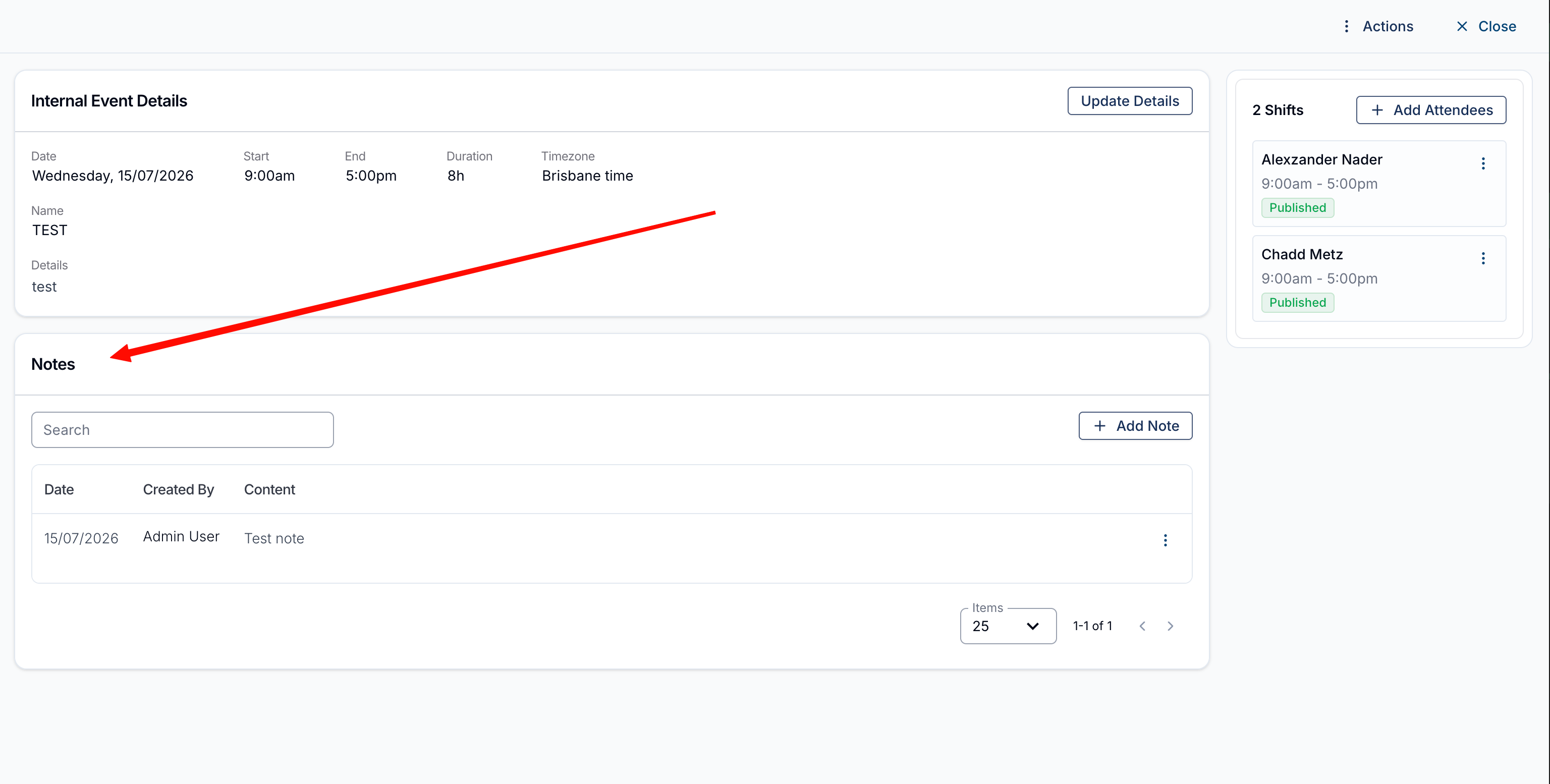
- In the Internal Event Details drawer, scroll to the Notes section.
- Click Add Note and enter the note content. It saves as you type - click Close when you are done.
Each note is listed with the Date, who it was Created By, and its Content. Use the Search box to find a note by its content, and the menu (⋮) at the end of a note's row to edit or delete it.
Once a note is saved, you can attach files to it - click the Upload Documents button at the bottom of the note. See Adding Documents to a Task for the accepted file types and size limit.
Adding Notes in the Support Worker App
- Open the internal shift from your schedule and go to Notes.
- Tap the compose button and enter your note. It saves as you type; tap the tick in the top right when you are finished.
Notes are tagged Shift note and show the date and time they were written, along with who wrote them. Tap a note to open it - if you wrote it, you can also edit it from here.
You can also attach photos or files to the note while writing or editing it - tap the photo icon to add a photo, or Attach to add a file. See Case Noting in the App for details.