- Scheduling
- During a Shift
- Clocking In and Out of a Shift
Clocking In and Out of a Shift
Overview
This section covers the basics of clocking in and clocking out of a shift in the Support Worker app
How to Clock In
- On the Home Page, under Shifts Today, you will see your next upcoming support.
- Tap the shift to open it.
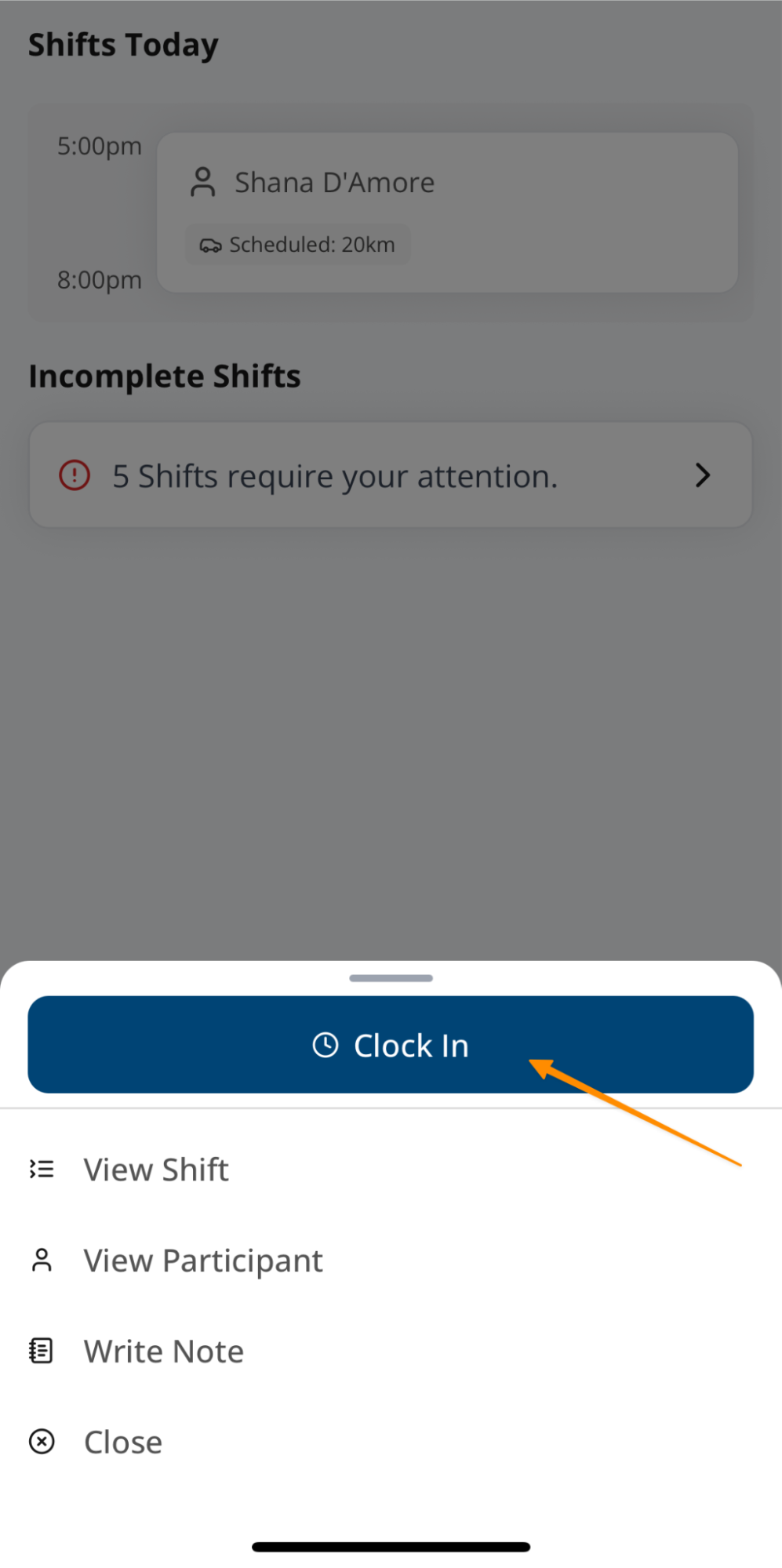
- The first button you’ll see will be Clock In.
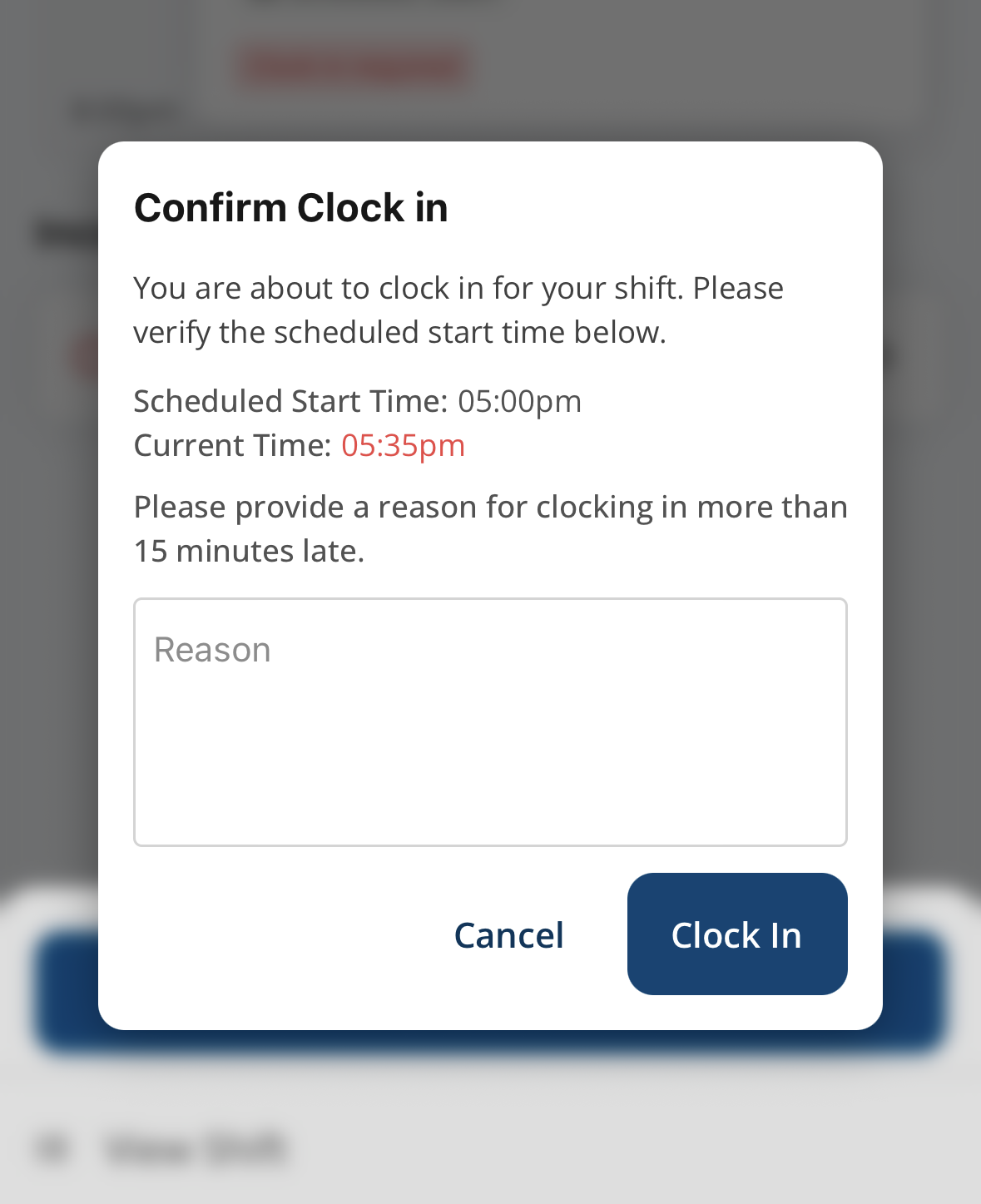
- If you are late, the app will prompt you to provide a reason before clocking in.
How to Clock Out
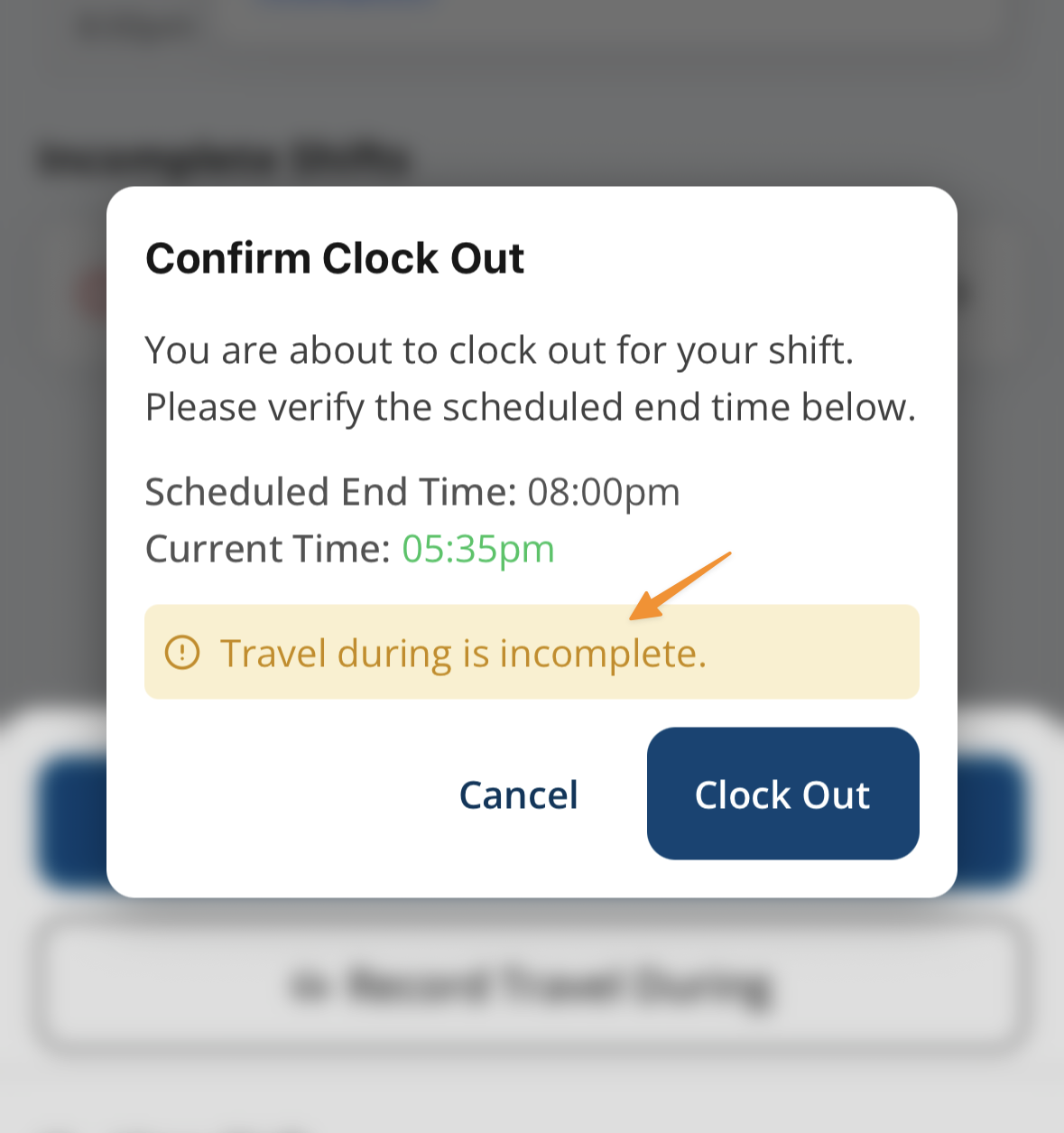
- At the end of the shift, tap into the shift and select Clock Out.
- If there are incomplete items (e.g., travel or case notes), the app will display a reminder to complete them before you can clock out.
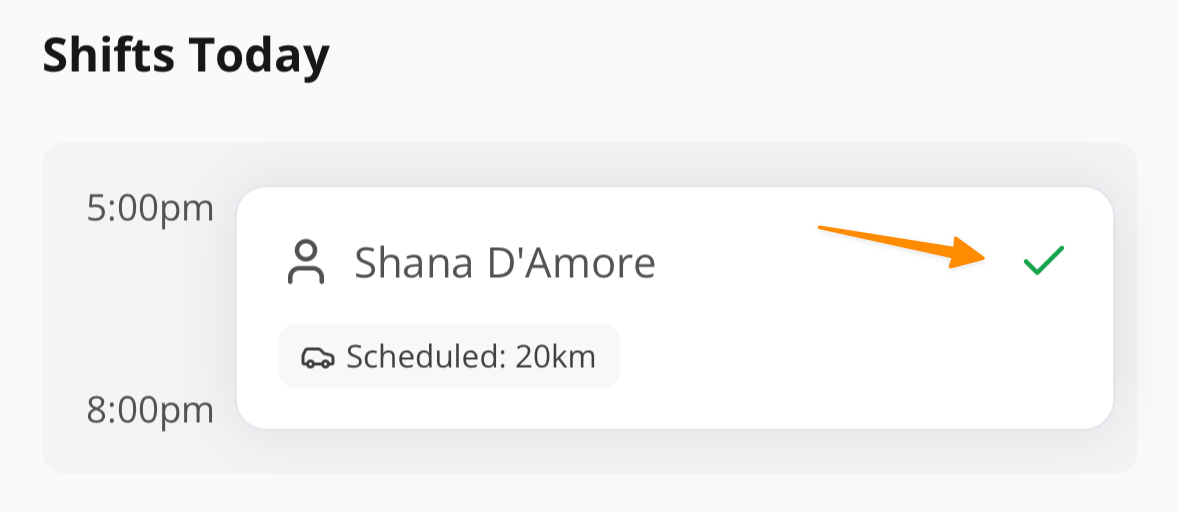
- Once everything is complete, a green tick will confirm that each item related to the shift is complete.
Clocking Out Early
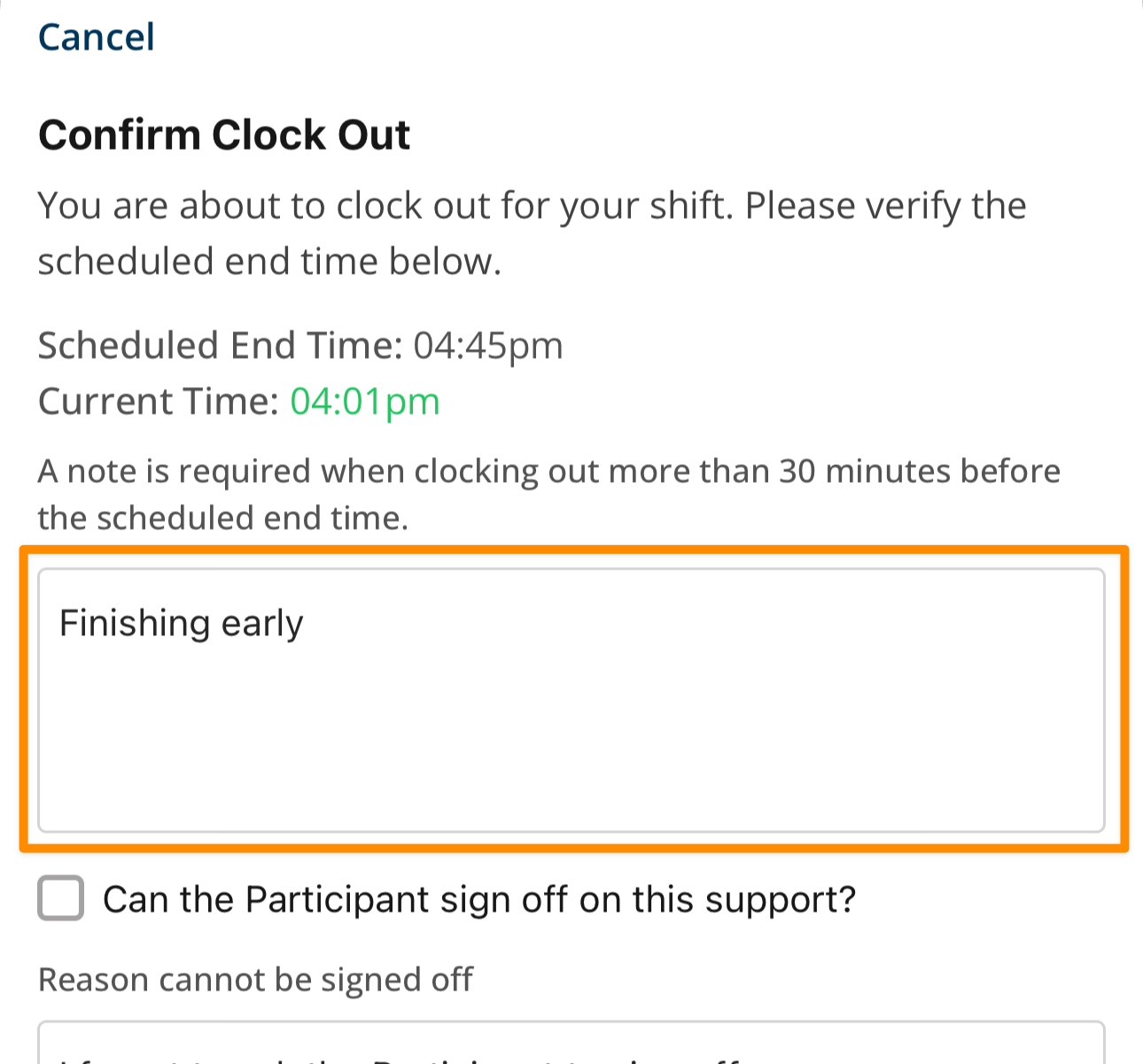
If you need to clock out before the scheduled end time, you may be prompted to provide a note detailing why before you can clock out.
Participant Sign-off Required
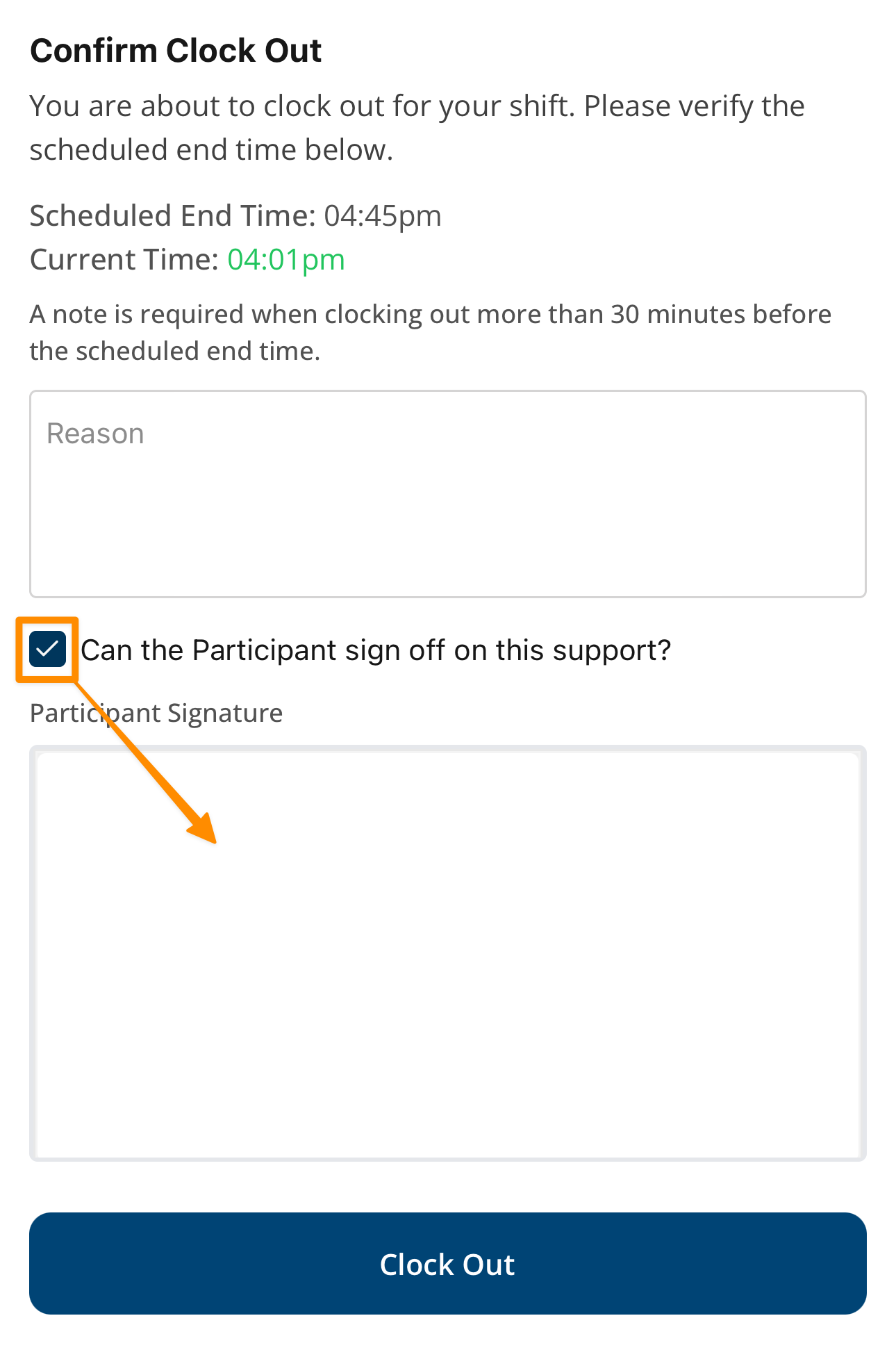
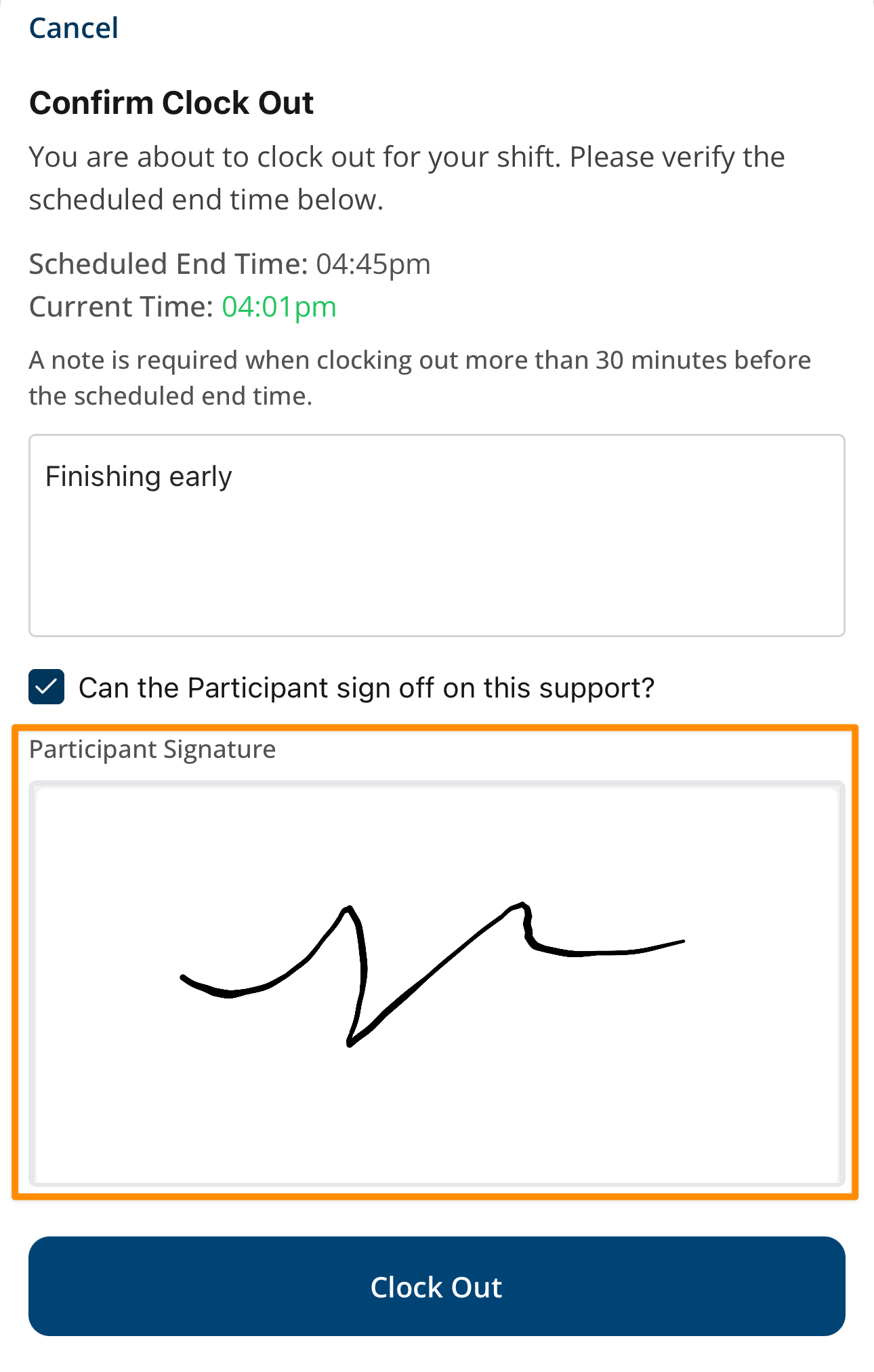
Where a Participant Sign-off is required, you will be prompted with the "Can the Participant sign off on this support" checkbox. If the participant can provide this, select the checkbox to reveal a Participant signature field for the Participant to sign. Once signed you can check out.
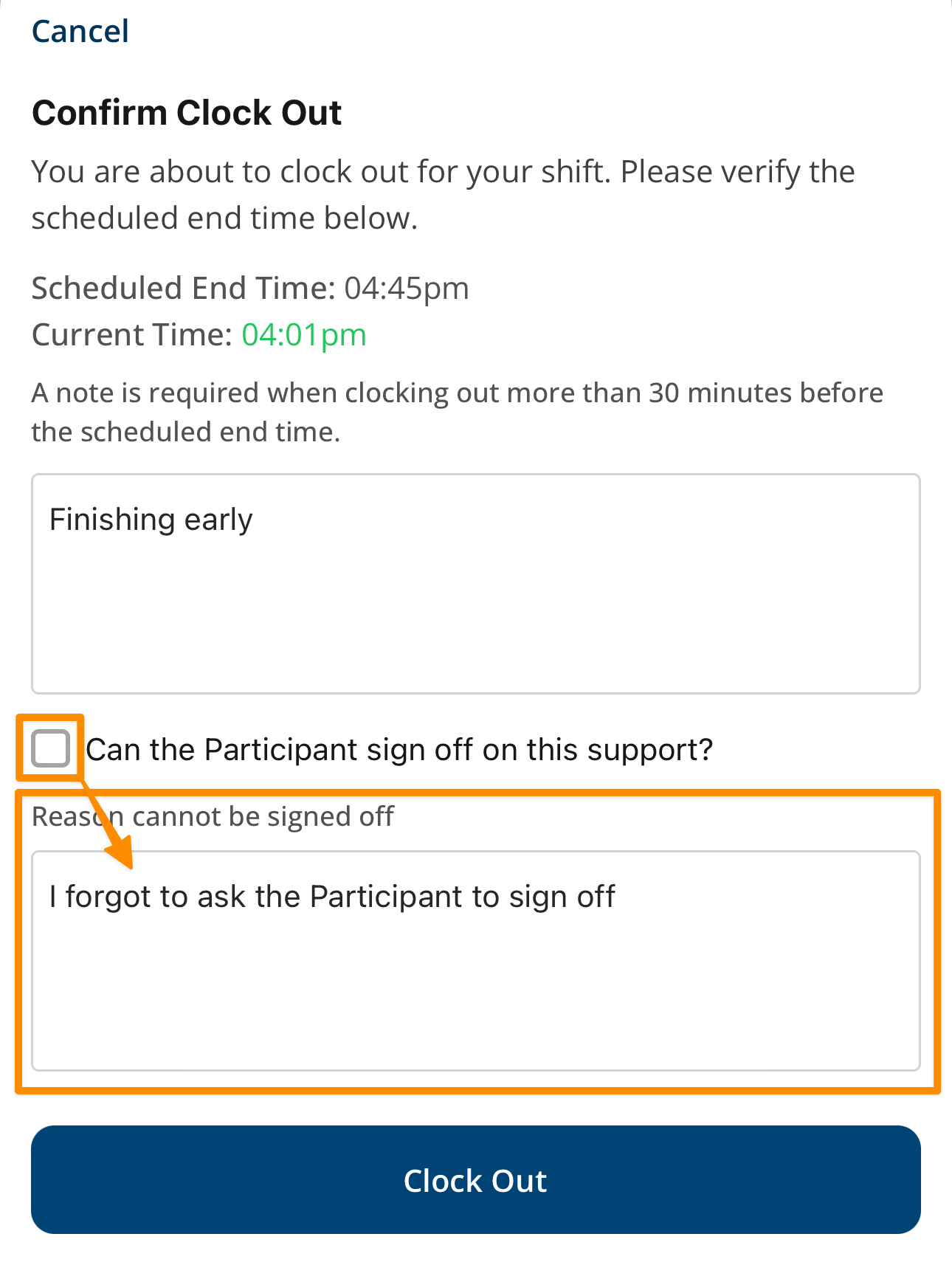
If you're unable to get a participant sign off, leave the checkbox unticked and provide the reason in the box provided.
Form Required
If a Form is required to be completed for your shift, you will be prompted to do this when you attempt to Clock Out.
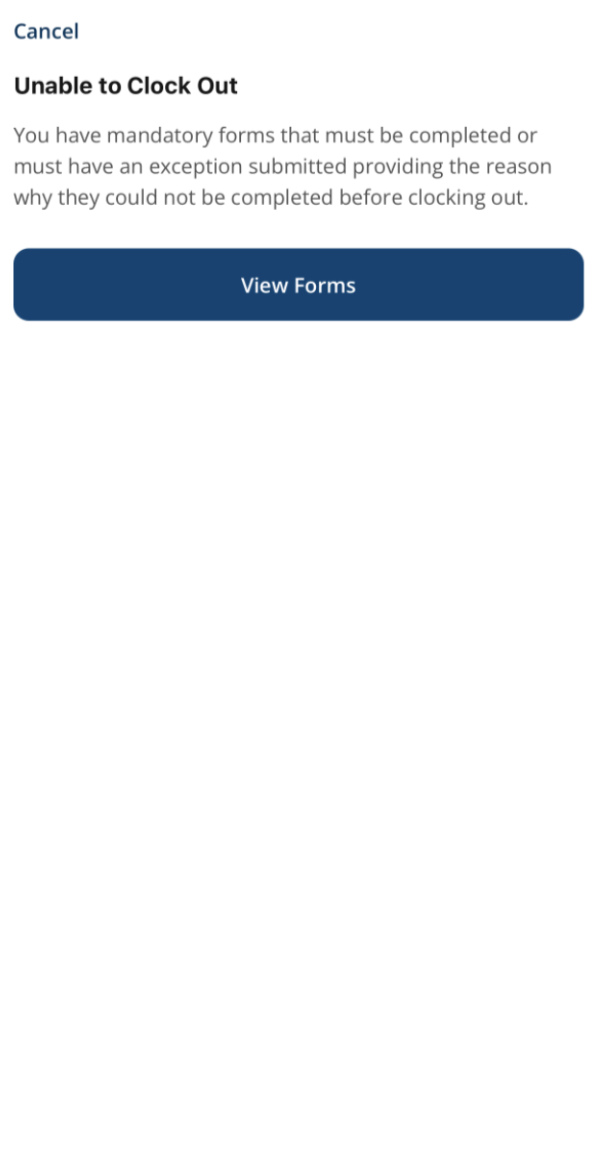
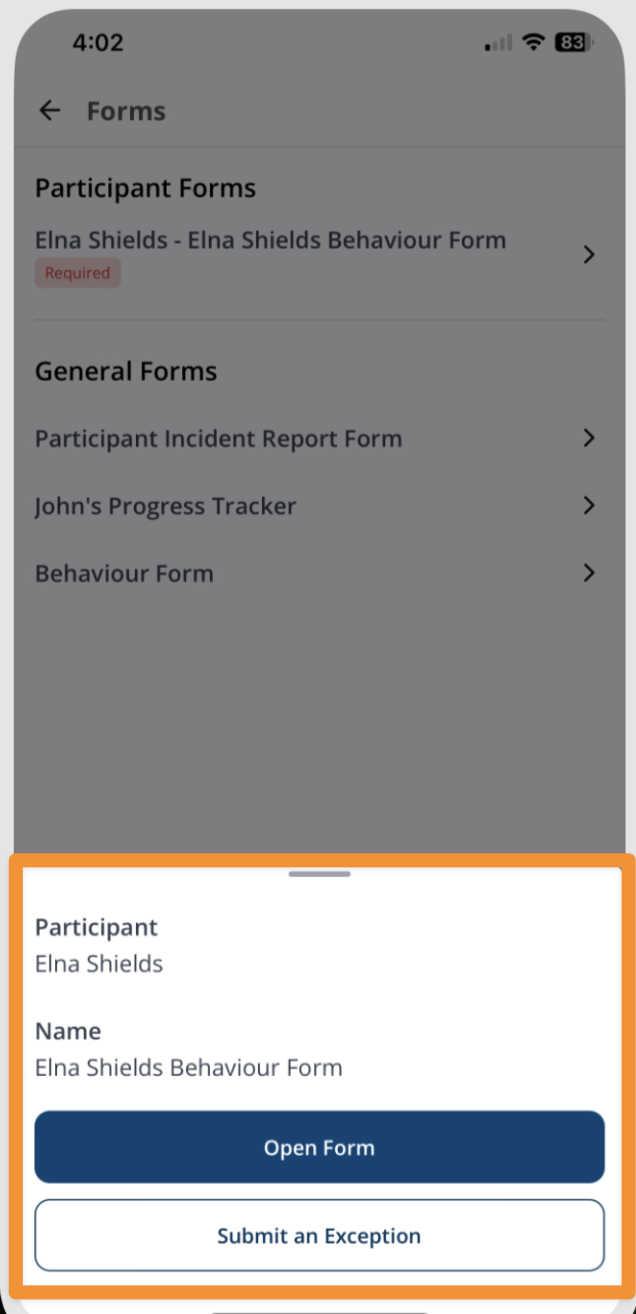
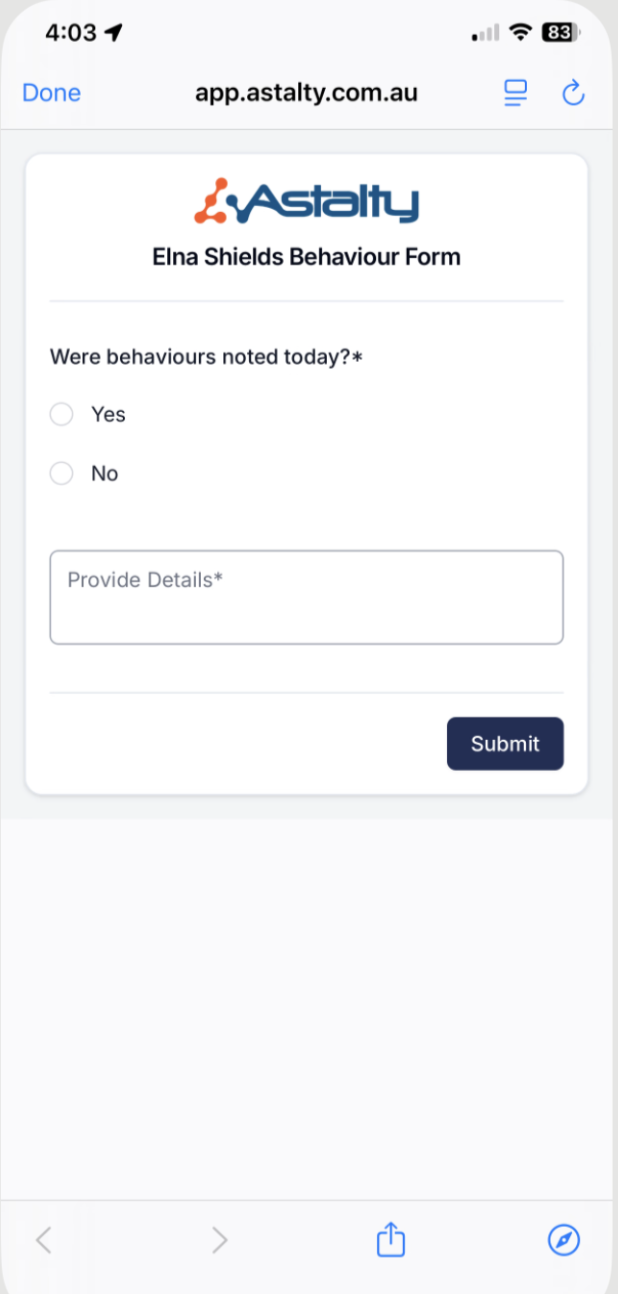
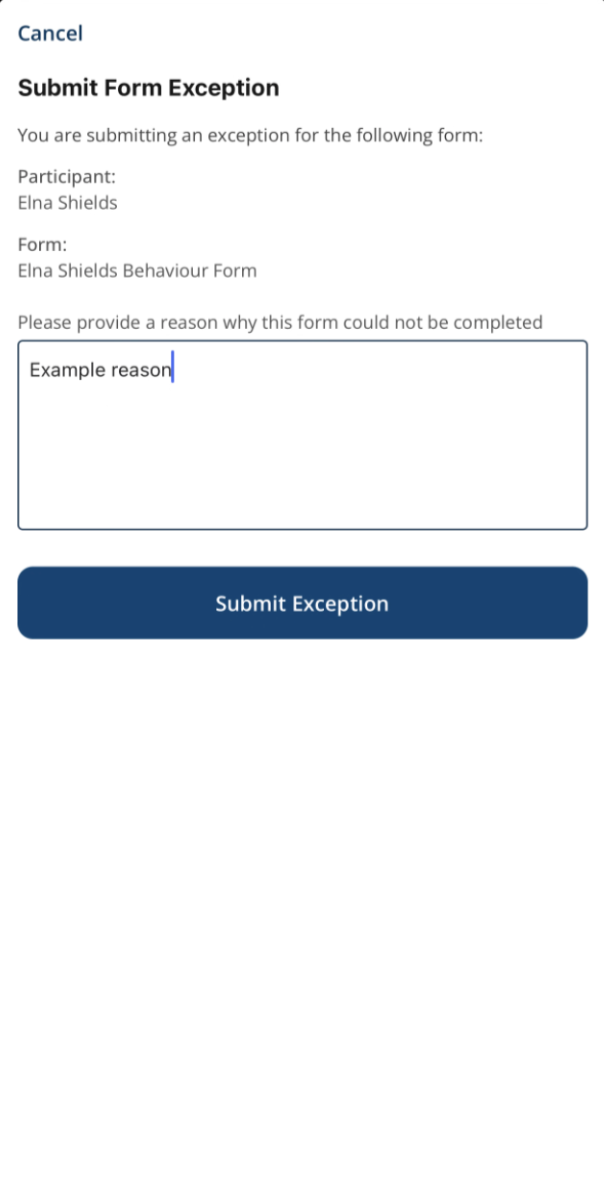
You can then either tap on Open Form to complete the relevant Form, or Submit an Exception if there is a reason the Form has not been completed.
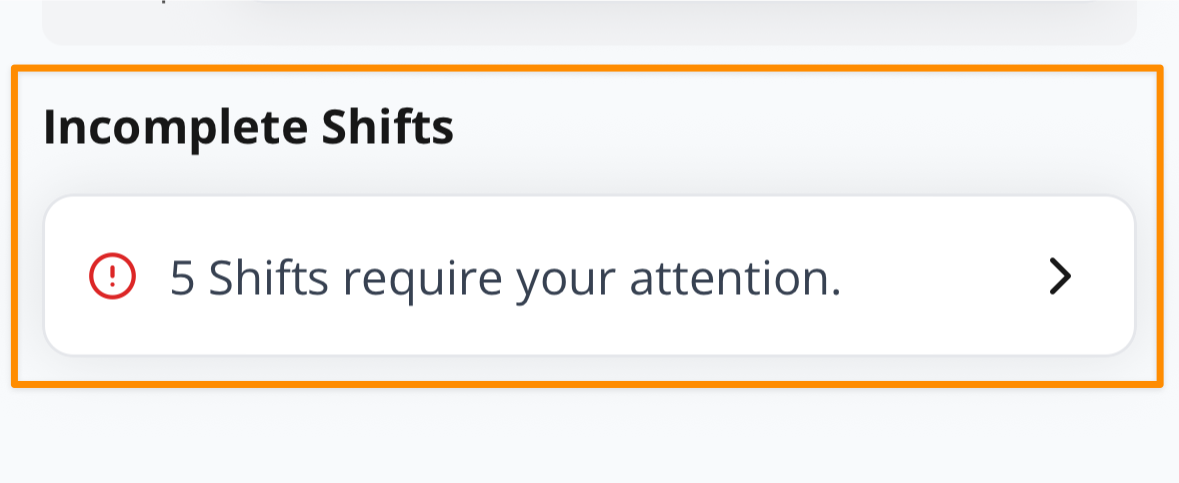
Incomplete Shifts
If you forget to clock in or out, the shift will appear under the Incomplete Shifts heading on the Home Page for follow-up.
Clocking in & Out in the App – Video Overview
The following video provides a walkthrough of how to clock in and out within the Support Worker app.