Completing Support Tasks
Overview
Use Schedule Tasks in the shift details to review, complete or skip the tasks assigned to that support. Mandatory tasks must be completed or skipped before clock-out.
How to View Shift Tasks
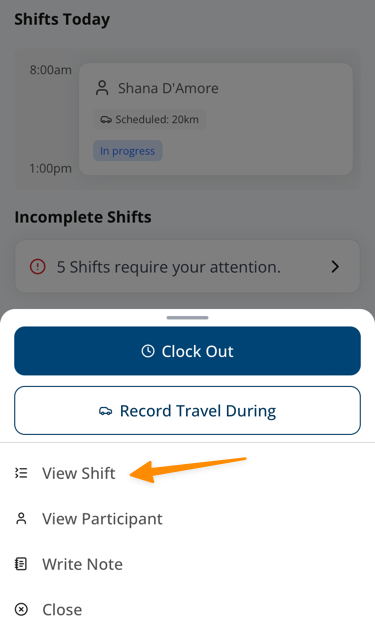
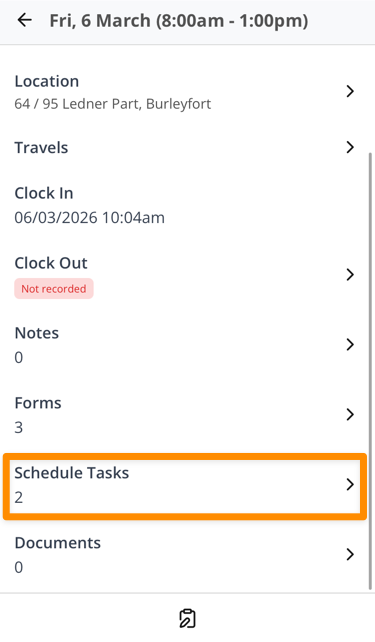
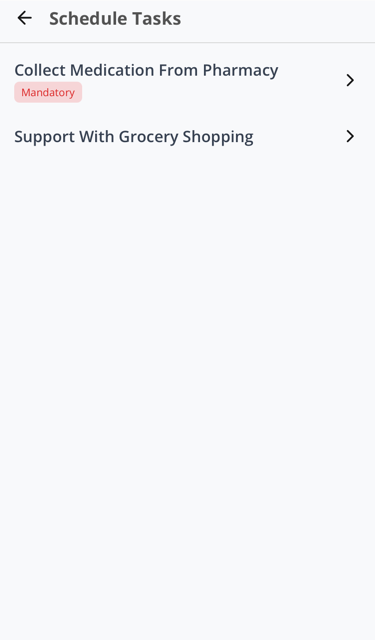
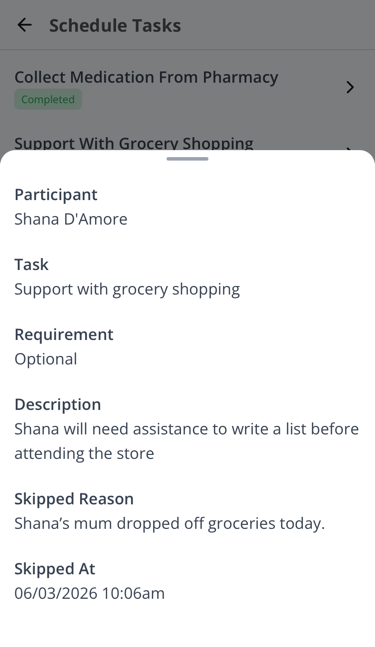
Open the relevant Shift, select View Shift, then select Schedule Tasks. Select a task to view its description, requirement level, and completion status.
How to Complete Shift Tasks
Select Mark Complete or Skip Task. Skipping requires a reason of at least 10 characters.
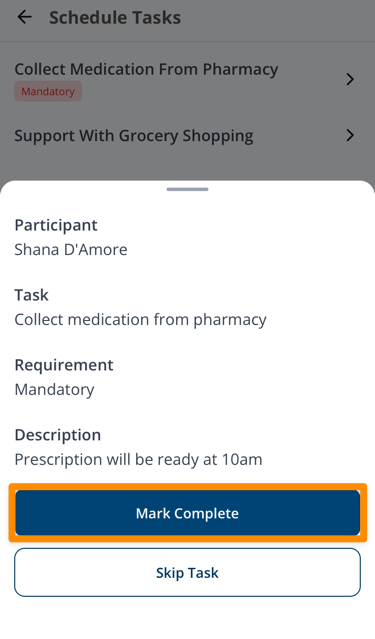
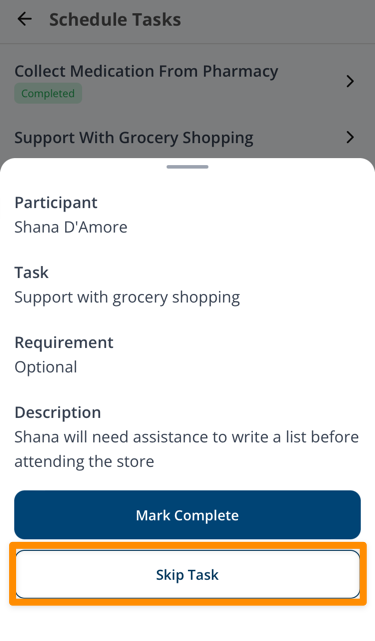
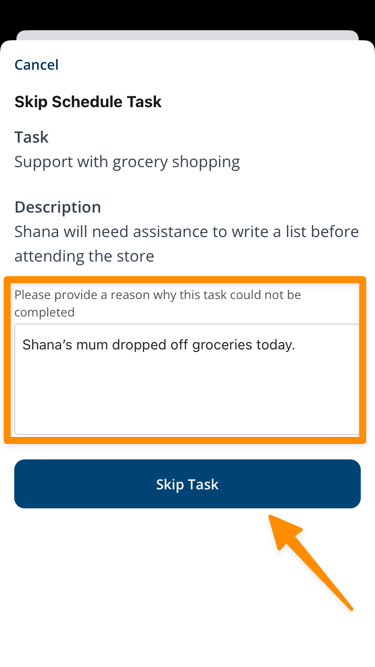
The task list shows the saved status. Select a task to review its details.
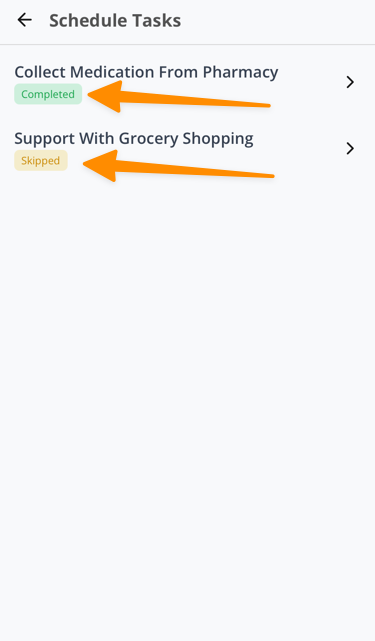
Clock-out and Saved Task Results
- Mandatory tasks block clock-out. A mandatory task must be completed or skipped before the Support Worker can clock out.
- Incomplete tasks appear in the workflow. Astalty does not send a separate task push notification. The worker sees them in the shift workflow and on the clock-out blocker screen.
- Skip reasons are required. The reason must contain at least 10 characters.
- A saved result does not change on a second attempt. The app reloads the list to show the existing complete or skipped status.
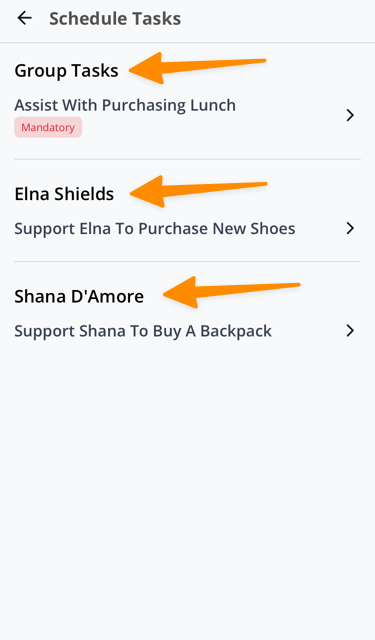
- Group support tasks can have different scopes. Astalty groups tasks for the whole Group Support separately from tasks for one Participant.