Adding an Active Overnight Period in the App
Overview
Record an Active Overnight Period when you are awake and providing support during a sleepover. Add the time, Participant and reason from the sleepover shift in the Astalty app.
Adding an Active Overnight Period
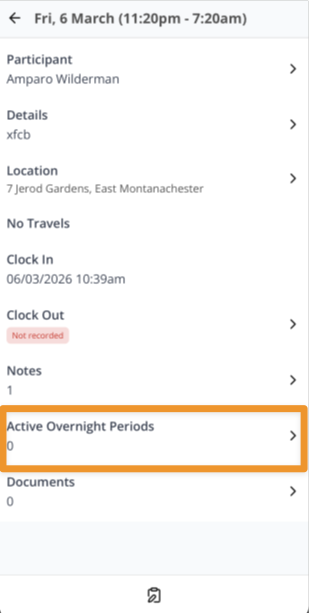
- Open your sleepover shift in the app and select View Shift.
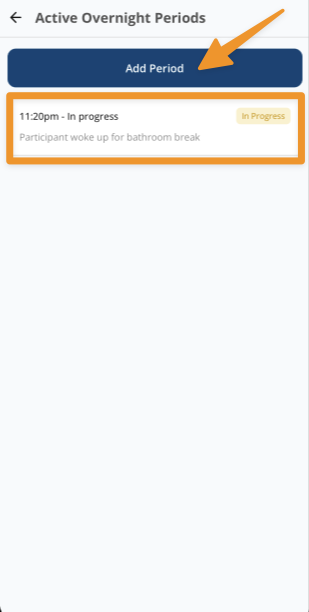
- Select Active Overnight Periods. If the shift has an explicit sleepover window, this option is available during that window. For a traditional sleepover without an explicit window, it is available during the shift.
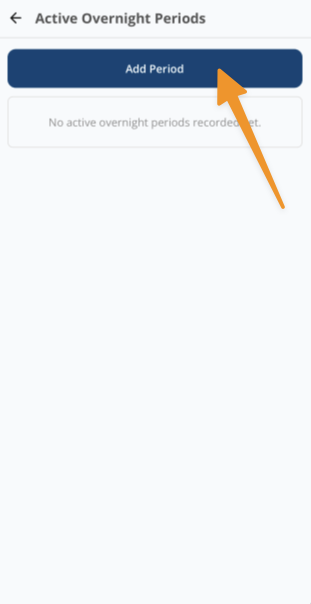
- Select the + icon in the top right.
- For a group support, select the Participant.
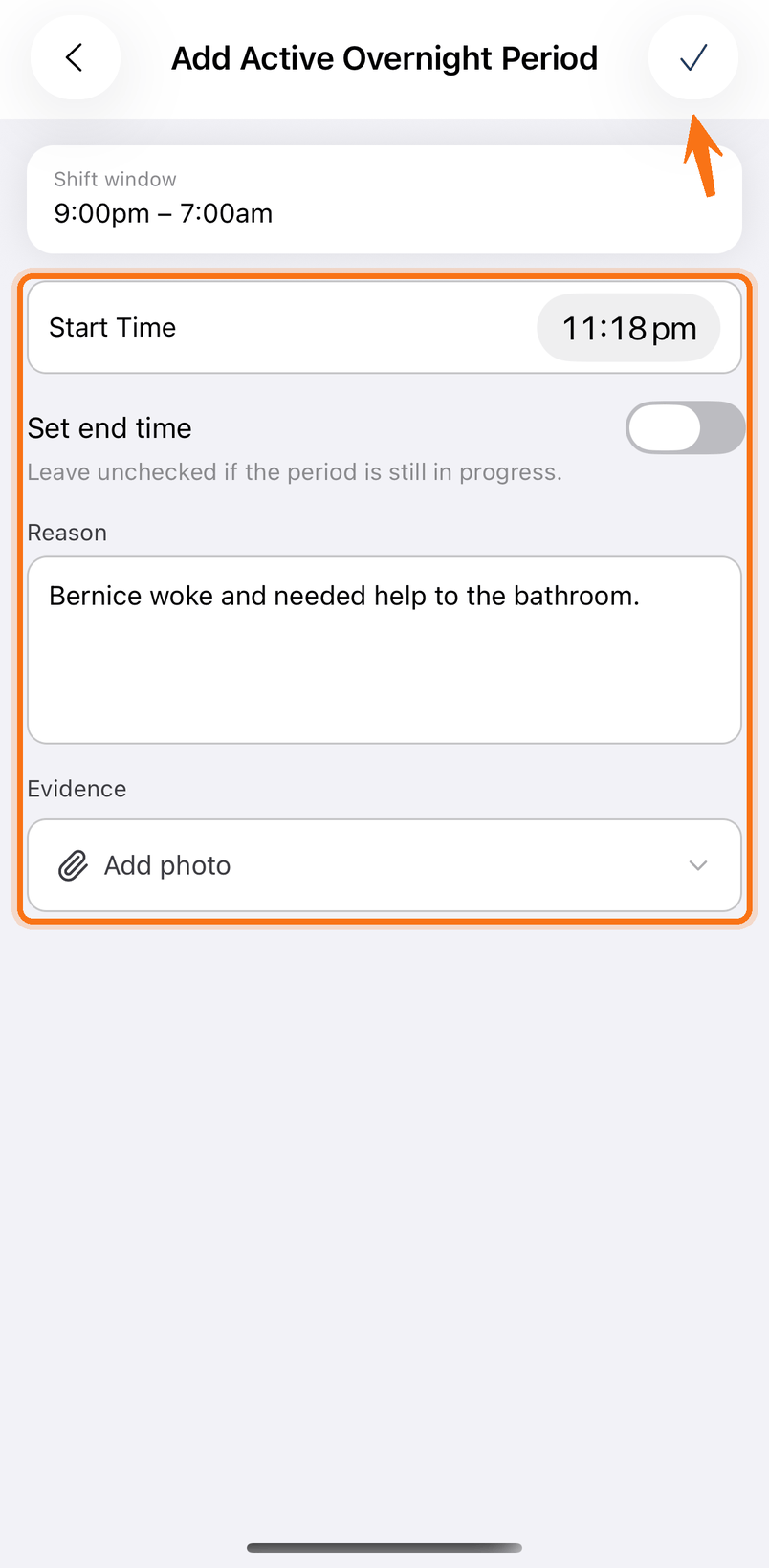
- Confirm or adjust Start Time. The time must be inside the explicit sleepover window, or inside the shift when no explicit window is set.
- Leave Set end time off to record an in-progress period, or turn it on and enter End Time. Start and end times cannot overlap another active overnight period.
- Enter a Reason.
- Optionally select Add photo and choose Photo Library or Take Photo.
- Select the tick in the top right.
You can add multiple active overnight periods within the same shift by repeating these steps.
Editing an Active Overnight Period
If you need to update an existing period:
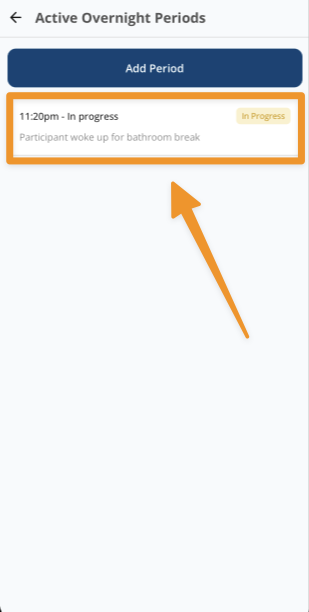
- Open Active Overnight Periods.
- Select the period.
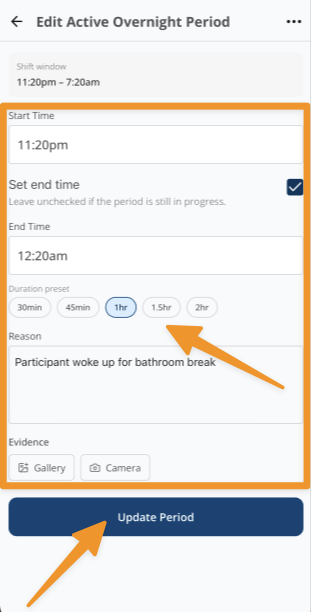
- Update the Participant, start time, end time, reason, or evidence as needed. You can also select a duration preset.
- Select the tick in the top right.
To remove a period, open it, select the ... icon in the top right, then Delete.
You cannot add a period after the shift enters a Timesheet Batch. You cannot update or delete an approved period or a period in a Timesheet Batch. You also cannot delete a period after its charge has been invoiced.
When Active Overnight Periods Can Be Recorded
- You can add a period during the explicit sleepover window. If no explicit window is set, you can add one during the shift. An in-progress period remains available to update after that time range ends, unless the period is approved or the shift enters a Timesheet Batch.
- Record periods as they occur and end an in-progress period when the active support finishes.
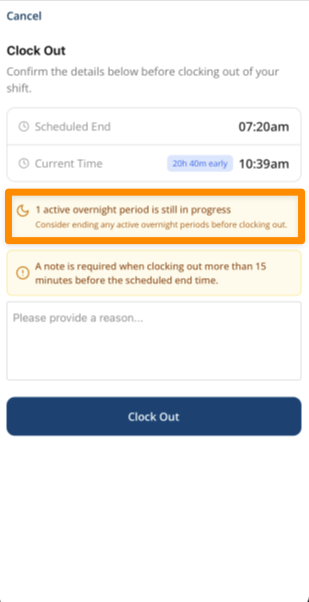
- Clock-out shows a warning when a period is still in progress. The warning does not block clock-out.