Referral Notifications
Overview
Referral Notifications alert the users and User Groups you choose as soon as a referral form is submitted and the new referral is created.
To manage Referral Notifications, head to the Notifications page in the main menu and click Referrals in the Forms group. Only Admins can manage these notifications. This can't be changed per user.
Creating an Referral Notification
Click Create Notification. Within Astalty and Email are both ticked on a new notification.
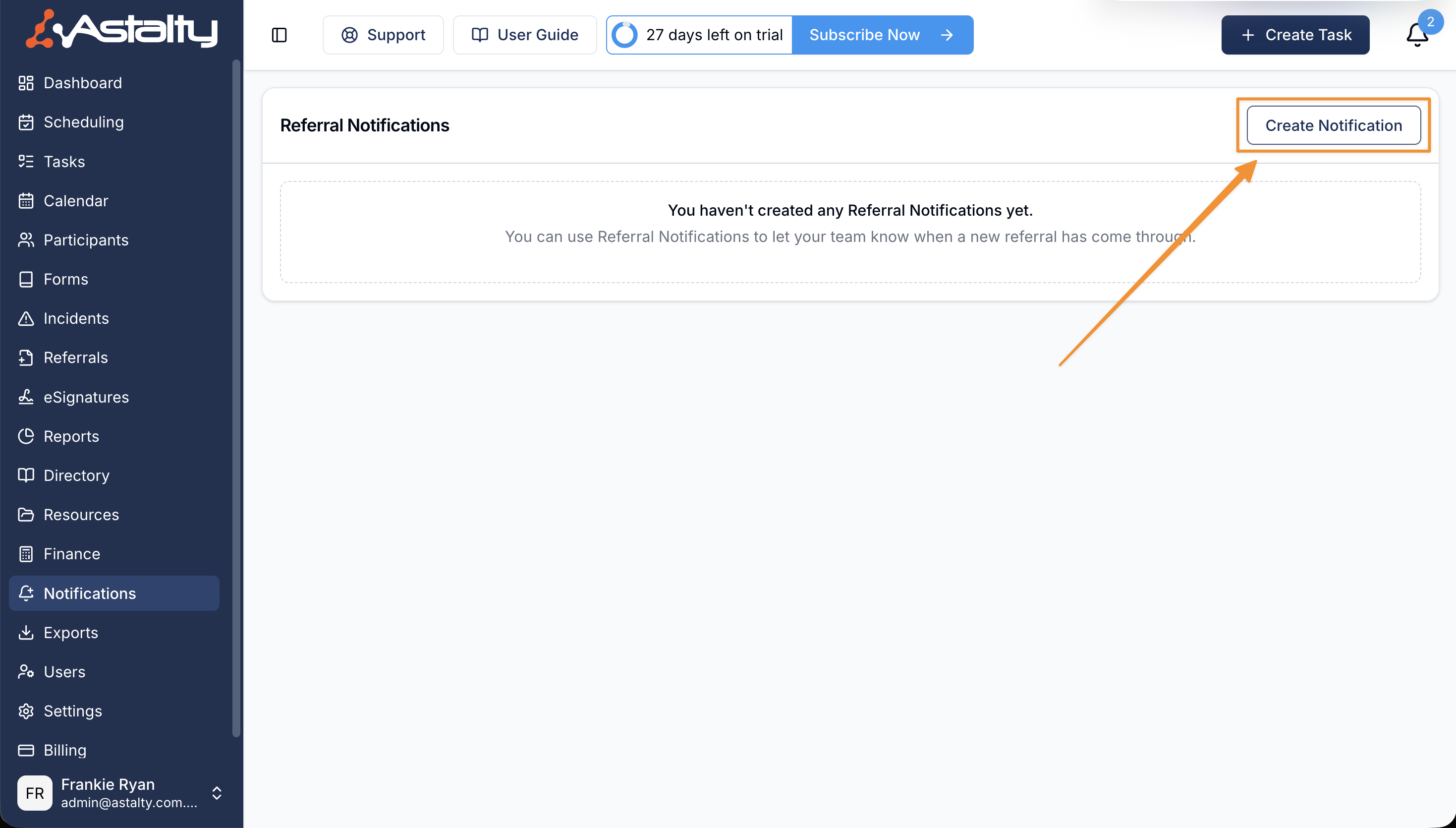
Notification Email Content
Add optional instructions for what recipients should do when a Referral arrives. This content appears in the email only.
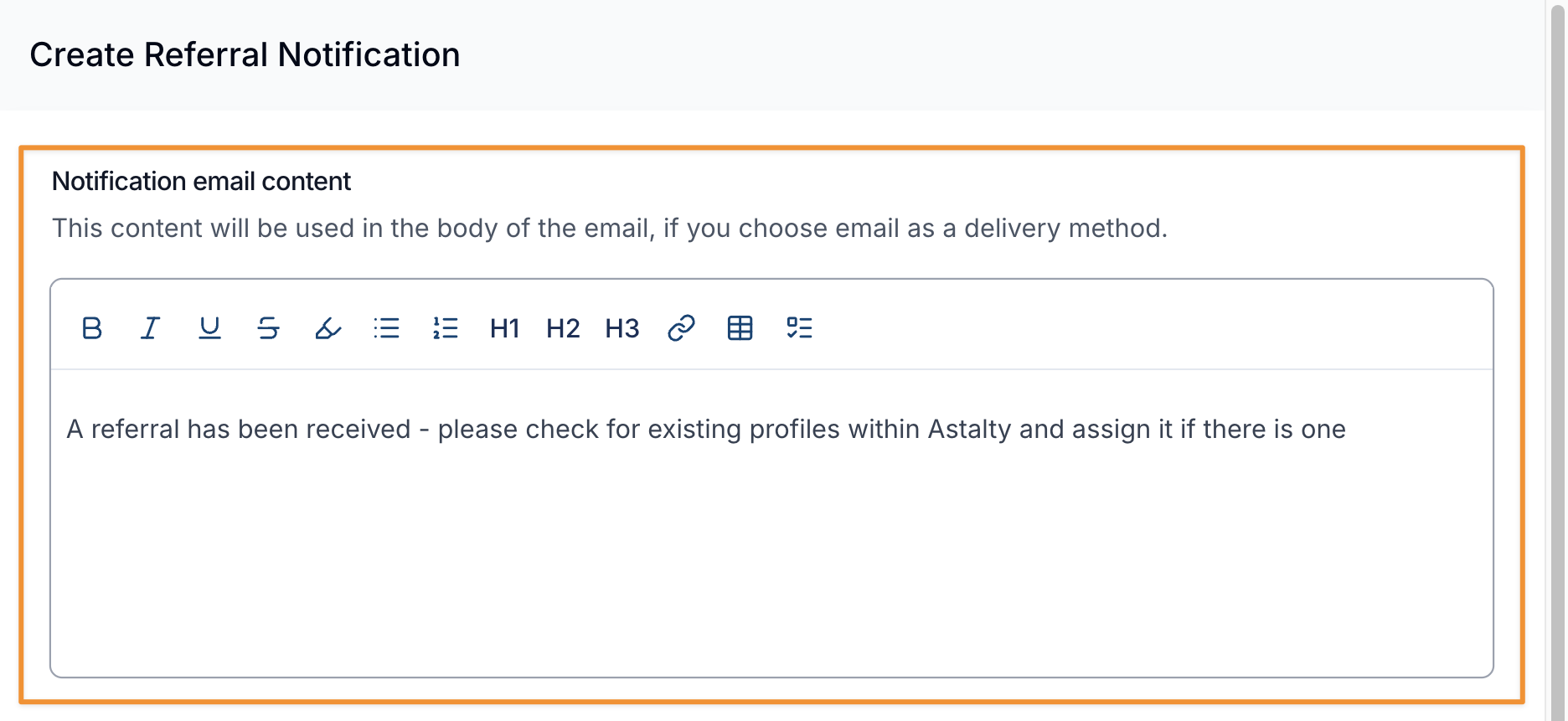
Notification Recipients
Select at least one User Group or user.
User Groups
Select one or more User Groups. Support Worker and All Users are not available here.
Users
Select individual users who should receive the notification.
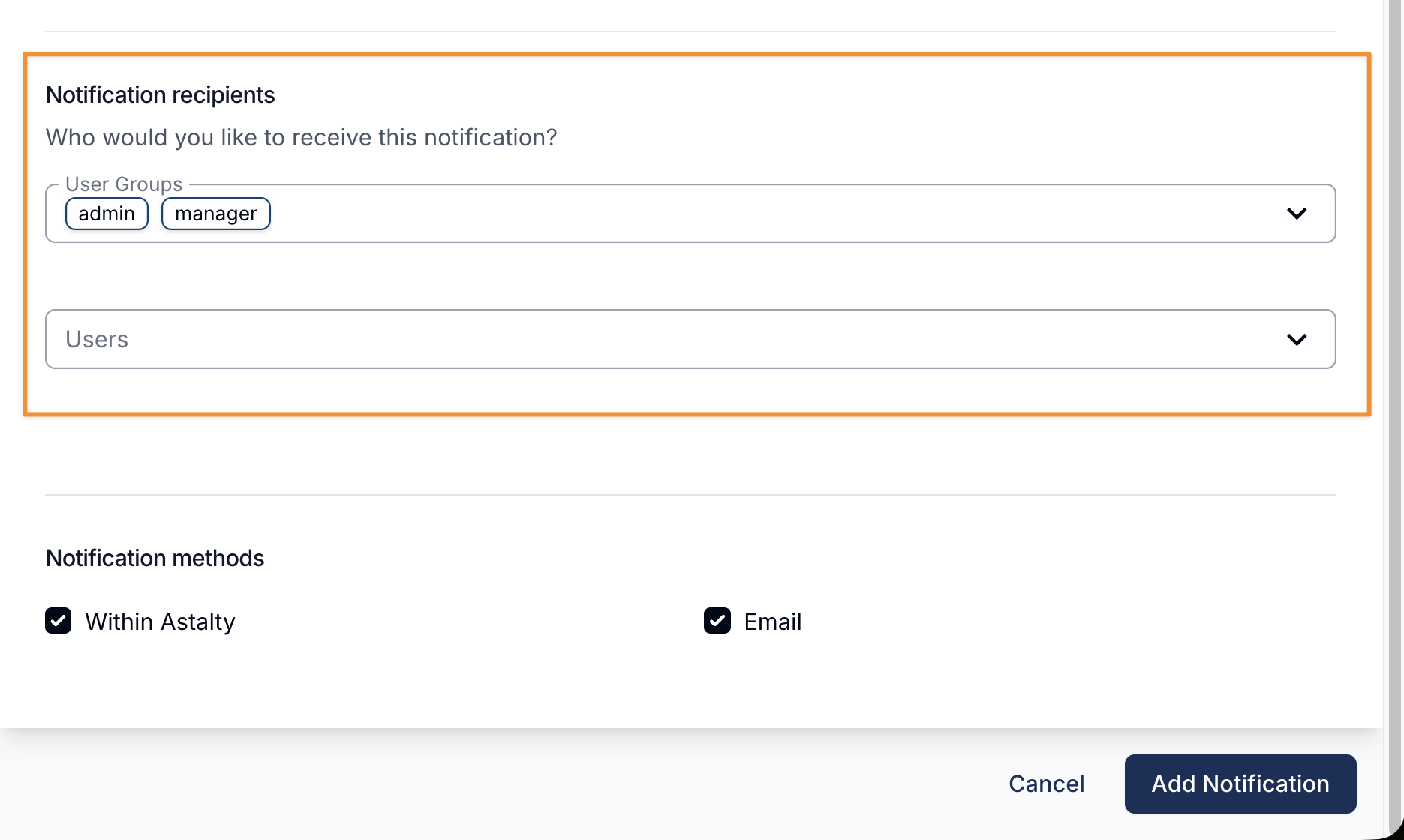
Notification Methods
Select at least one method.
Within Astalty
Recipients get an in-app notification titled New Referral Notification with a link to the Referral.
Recipients get an email.
Finalising Your Notification
Select Add Notification to save it.
The list shows each notification's Delivery methods and Recipients. Click a row to edit it, or use its actions menu to Edit, Clone or Delete it. If you create more than one notification, each one sends separately.
What the notification email includes
When a referral is submitted and the email notification method is enabled, recipients receive an email that leads with the referral reference and a summary of key details so staff can act without logging in.
Email subject
The email subject line includes the referral reference number, for example:
New referral received — REF-2026-00001
Referral details panel
The body of the email includes a details panel summarising the referral at a glance:
| Field | Description |
|---|---|
| Reference | The unique referral reference (e.g. REF-2026-00001) |
| Participant | The Participant's name |
| Form | The name of the referral form it was submitted through |
| Received | The date and time the referral was received, and who submitted it when Astalty knows (a public form submission has no submitter) |
| Status | The referral's status, which is New for a newly submitted referral |
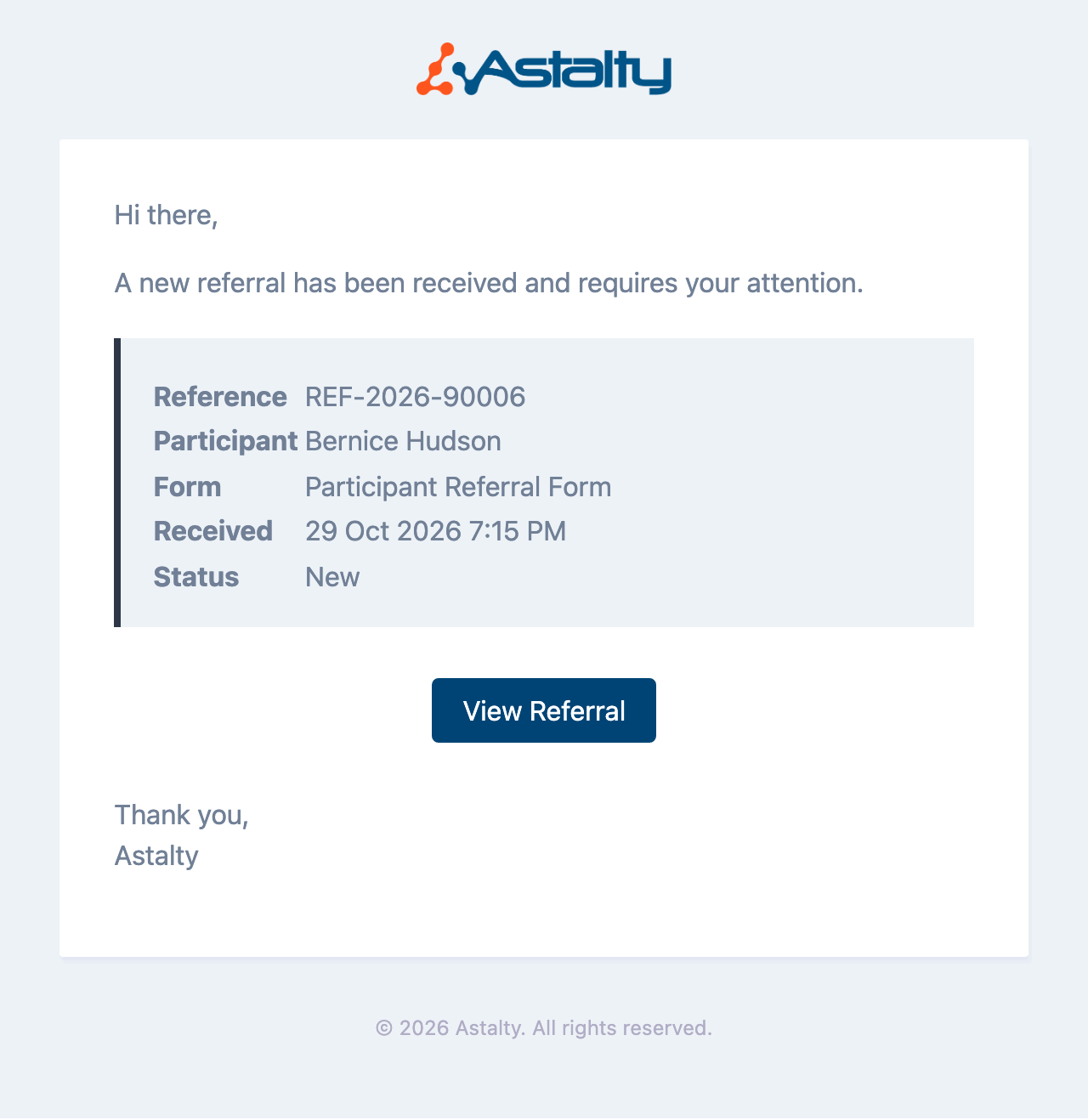
A View Referral button links directly to the referral in Astalty for further action.
Custom content
Any content added when configuring the notification appears above the details panel, so your organisation's procedures or expectations are shown alongside the referral summary.