- Insights
- Travel Charge Variance Report
Travel Charge Variance Report
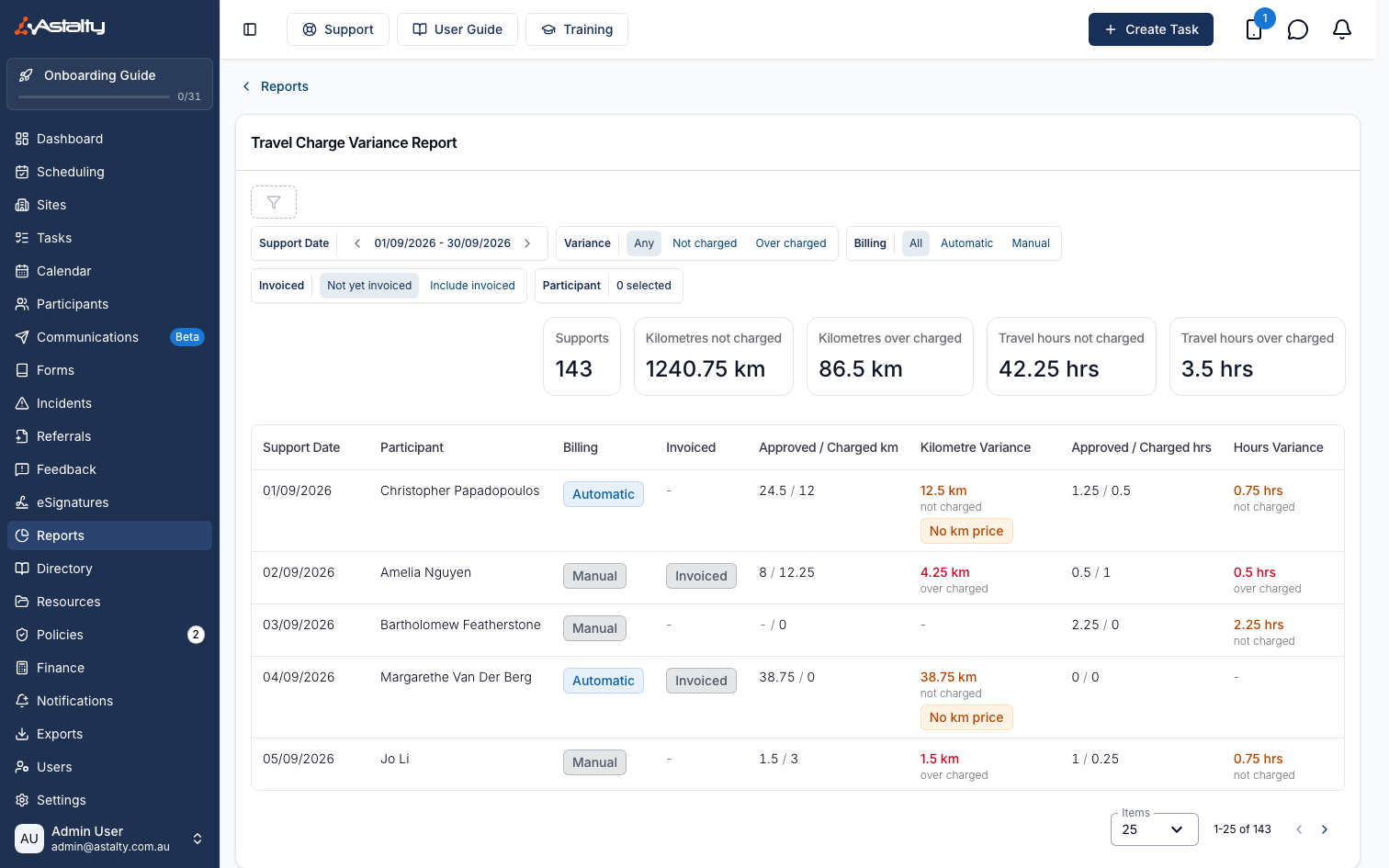
The Travel Charge Variance report lists supports where the travel approved for billing doesn't match the travel the Participant was charged for.
Overview
Astalty compares the kilometres and travel hours approved on a support's Travel against the transport charges raised for that support, and lists every support where the two differ. A positive variance is labelled not charged - travel was approved but the Participant wasn't billed for it. A negative variance is labelled over charged - the Participant was billed for more travel than was approved.
The report opens on supports that haven't been invoiced yet, because those are the ones still worth correcting.
Before You Start
- The report is part of Scheduling. Without Scheduling it does not appear in Reports at all.
- You need permission to view shifts for all users. Admins have it. Managers have it only when Can access Scheduling is turned on for them, which is off by default. Team Members and Support Workers can't open the report. See Roles & Permissions.
Where To Find It
- From the left-hand menu, select Reports.
- Under Scheduling, select Travel Charge Variance.
What Gets Compared
Approved figures come from the Travel recorded on the support:
- Kilometres - the approved distance on each trip whose Charge Behaviour is Kilometres only, Time & km or None.
- Travel hours - the approved duration on each trip whose Charge Behaviour is Time only, Time & km or None.
A trip set to None counts towards both comparisons, so approved travel that was set not to charge shows as not charged. A trip set to Time only is left out of the kilometre comparison, and Kilometres only is left out of the hours comparison.
On a support billed manually, every trip counts towards both comparisons regardless of its Charge Behaviour, since a person decides what to charge rather than the behaviour. Trips marked as not travelled are excluded, as are supports cancelled with a charge behaviour of no charge.
Charged figures come from the support's billable transport charges: kilometre charges for the kilometre comparison, hourly travel charges for the hours comparison. Voided and non-billable charges are ignored.
A variance is only calculated once every trip in that comparison has been approved. Until then that comparison shows a dash rather than a variance that isn't settled yet. A support is listed only when at least one of its two comparisons is fully approved and the approved and charged figures differ, rounded to two decimal places.
Filters
| Filter | What it does |
|---|---|
| Support Date | The date range of the supports included, matched against each support's scheduled start and including the whole of the end date. Defaults to the current month and can't span more than 366 days. |
| Variance | Any (the default), Not charged, or Over charged. |
| Billing | All (the default), Automatic, or Manual. |
| Invoiced | Not yet invoiced (the default) excludes any support that already has an invoiced charge. Include invoiced shows them all. |
| Participant | One or more Participants. |
Summary Statistics
Above the table, each of these appears when it is greater than zero:
- Supports - how many supports match the filters.
- Kilometres not charged / Kilometres over charged - the totals across those supports.
- Travel hours not charged / Travel hours over charged - the same for travel time.
Understanding The Results
| Column | What it shows |
|---|---|
| Support Date | The date of the support. Sortable. |
| Participant | The Participant on the support. |
| Billing | Automatic or Manual. |
| Invoiced | Invoiced when the support already has an invoiced charge. |
| Approved / Charged km | Approved kilometres against kilometres charged. |
| Kilometre Variance | Approved minus charged, labelled not charged or over charged. Sortable. |
| Approved / Charged hrs | Approved travel hours against travel hours charged. |
| Hours Variance | Approved minus charged, labelled not charged or over charged. Sortable. |
| Travel Charge Behaviour | Each trip's Charge Behaviour, listed by leg: To, During or From the support. |
| Travel Pay Behaviour | Each trip's Pay Behaviour, listed the same way. |
| Charge Item Set | The Charge Item Set applied to the support. |
Rows are sorted by the largest variance first until you sort by a column. Select a row to open the support on its Finance tab.
Things To Keep In Mind
- A dash in place of the approved figure in an Approved / Charged column means the support has no trip counted in that comparison, or not every such trip has been approved. The charged figure always shows, even when it is 0.
- Trips marked as not travelled are left out of the figures and of the Travel Charge Behaviour and Travel Pay Behaviour lists.
- Kilometres and hours are compared separately. A support can be over charged on kilometres and not charged on hours at the same time.
- There is no export of this report.