Incidents Export
Use the Incidents Export to download filtered Participant and staff incident data. Choose CSV for one summary row per incident or PDF for a detailed report for each incident.
Where to Find It
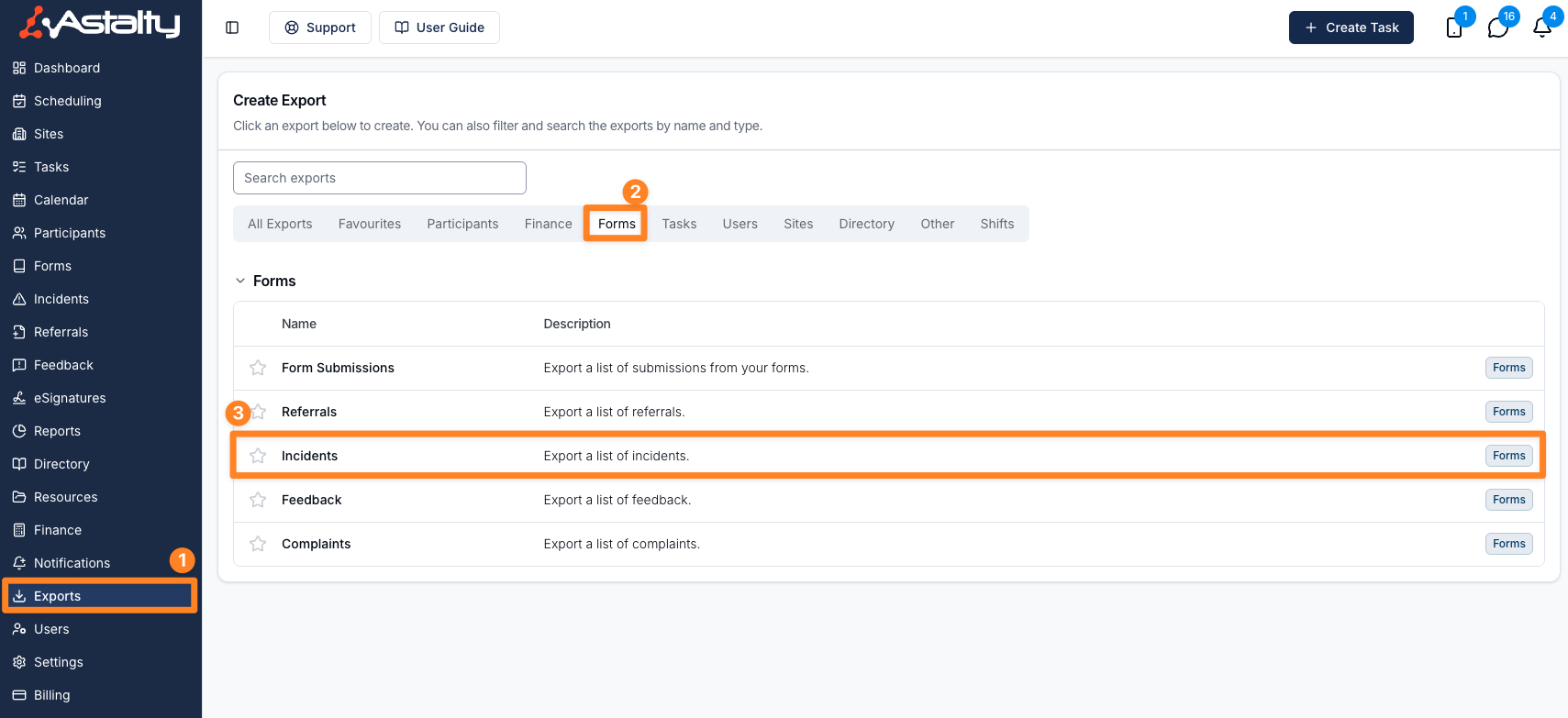
- Open Exports.
- Select Create Export.
- Under Forms, select Incidents.
Creating the Export
Use Export Filters to choose which incidents to include. All filters are optional. Leave them blank to export every incident.
- From and To limit the export by when the incident occurred.
- Incident Type selects Participant or Staff incidents.
- Status selects Reported, Under Review, or Resolved incidents.
- Reportable selects incidents recorded as reportable or not reportable.
- Participants selects one or more specific Participants.
- Participant Tags matches incidents for Participants with any selected tag. If Participants are also selected, an incident can match either filter.
- Team Members selects one or more team members. When combined with Participant filters, an incident must also match a selected Team Member.
- Categories selects one or more incident categories.
- Sites selects one or more Sites.
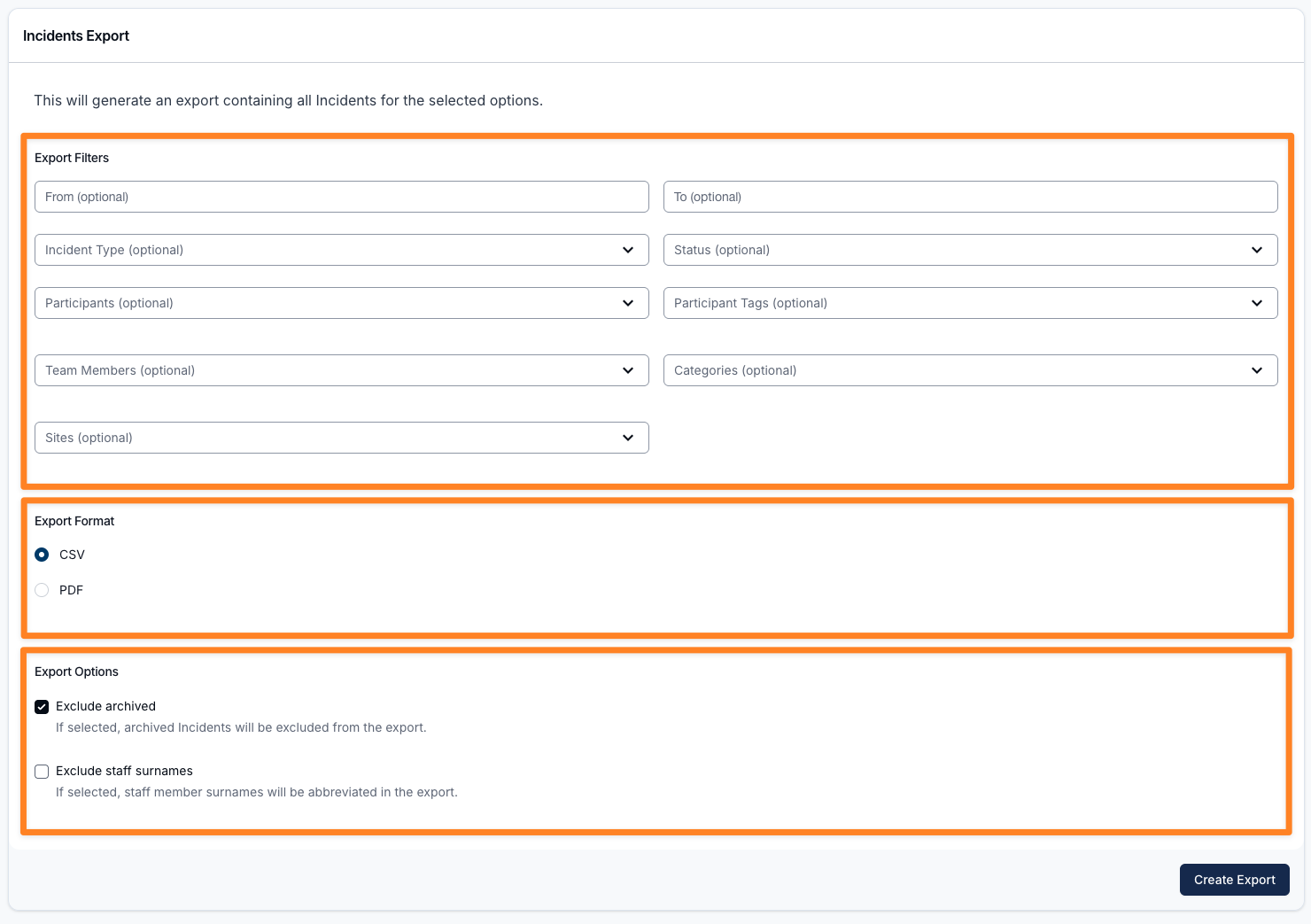
Under Export Format, choose CSV or PDF, then set your Export Options:
- Exclude archived is on by default, so archived incidents are left out.
- Exclude staff surnames is off by default. When selected, staff names are abbreviated to a first name and last initial.
- Include attachments is PDF only and off by default. It lists attached files in each incident report and includes those files in the ZIP.
- Include action plan is PDF only and on by default. It lists each incident's action items. This option appears when Action Items is enabled.
Select Create Export.
Downloading the Export
When the export is ready it will appear on the Exports page where you can click Download to save it to your device.
Understanding the CSV
The CSV is a summary export. Each incident appears as one row with these columns:
- Reference
- Type
- Date/Time
- Status
- Severity - Low, Medium, High or Extreme, or empty where no severity has been set
- Category
- NDIS Reportable
- Reportable Type
- Assignee
- Reported By
- Involvees
- Details
- Follow Up Details
- Site - included for providers with Scheduling turned on
Custom incident form fields are added after Follow Up Details, except fields backed by Astalty records. The CSV also omits Completed Date, Reported At, Reportable ID, the action plan and attachments. Choose PDF when you need those details.
Understanding the PDF
If you select PDF as the export format, Astalty generates a formatted PDF for each incident in your filtered selection - the same layout as the single-incident Incident Report PDF. When more than one incident is included, the PDFs are bundled together in a ZIP file for you to download.
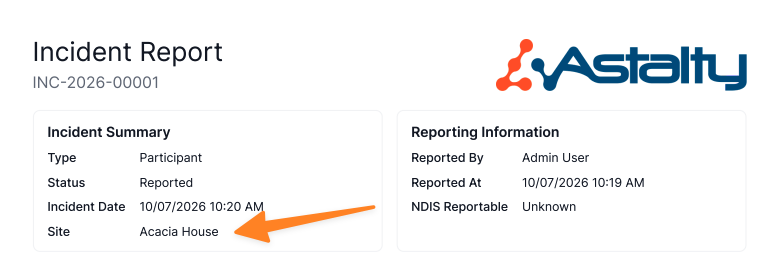
For providers with Scheduling turned on, the incident's Site appears in the Incident Summary section of each PDF report.
Permissions
You need the Exports permission and the Forms feature to see and create this export. The export covers provider incidents that match the selected filters. See Roles & Permissions for more on access.