Employment Details Report
Open Reports > Team > Employment Details.
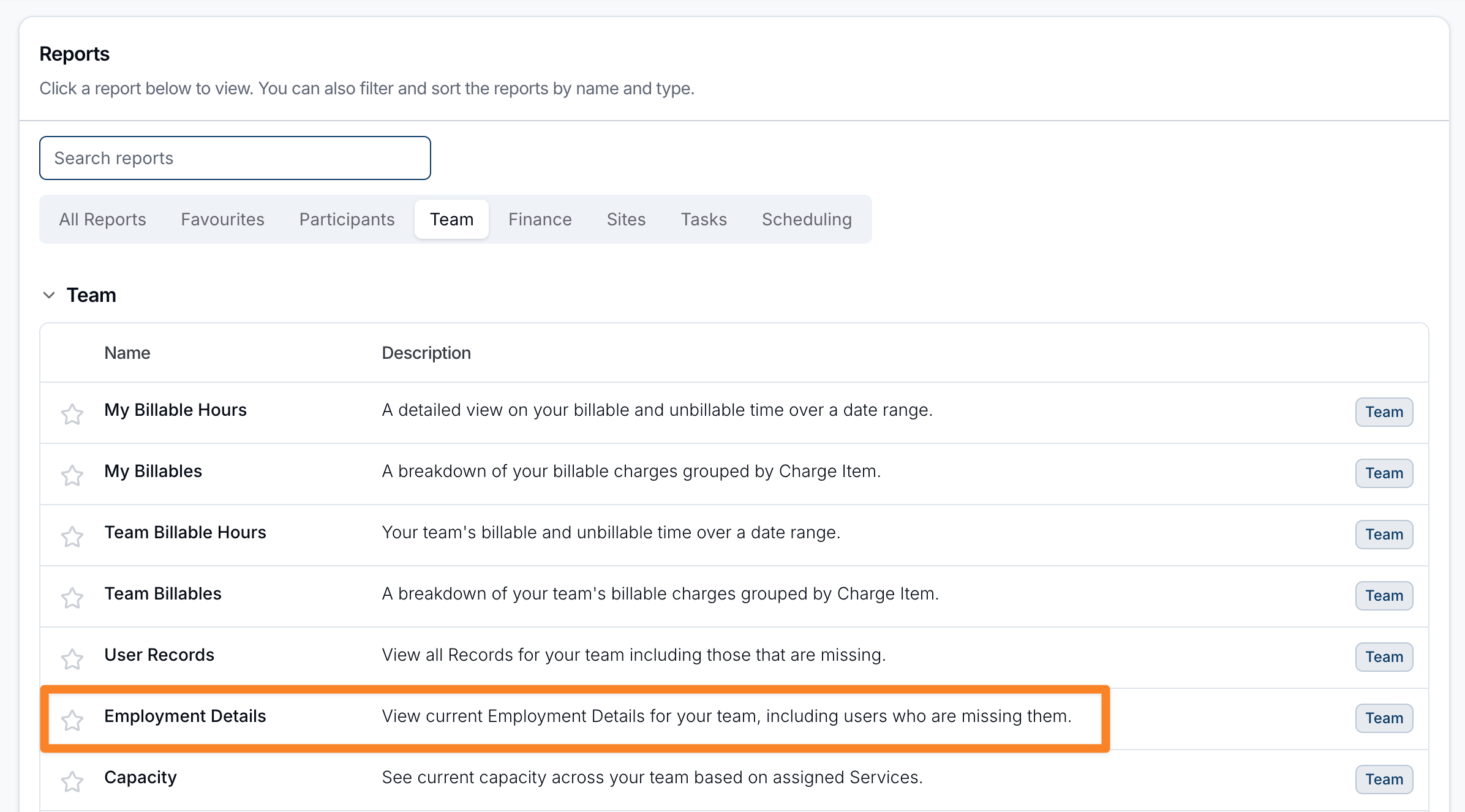
Report Overview
The Employment Details report lists every user who is not deactivated, including restricted and invited users, with their current employment details. Use it to find people whose employment details are missing. Every user appears on one page. For background, see Staff Contracted Hours.
Each user appears once, with one of three statuses:
| Status | Meaning | Details shown |
|---|---|---|
| Active | A set of employment details covers today: its start date is today or earlier, and its end date is today or later, or blank. | The details covering today. |
| Expired | No details cover today, but at least one set has ended. | The set that ended most recently. |
| Missing | No details cover today and none have ended. A user whose only details start in the future is also Missing until that start date. | None. |
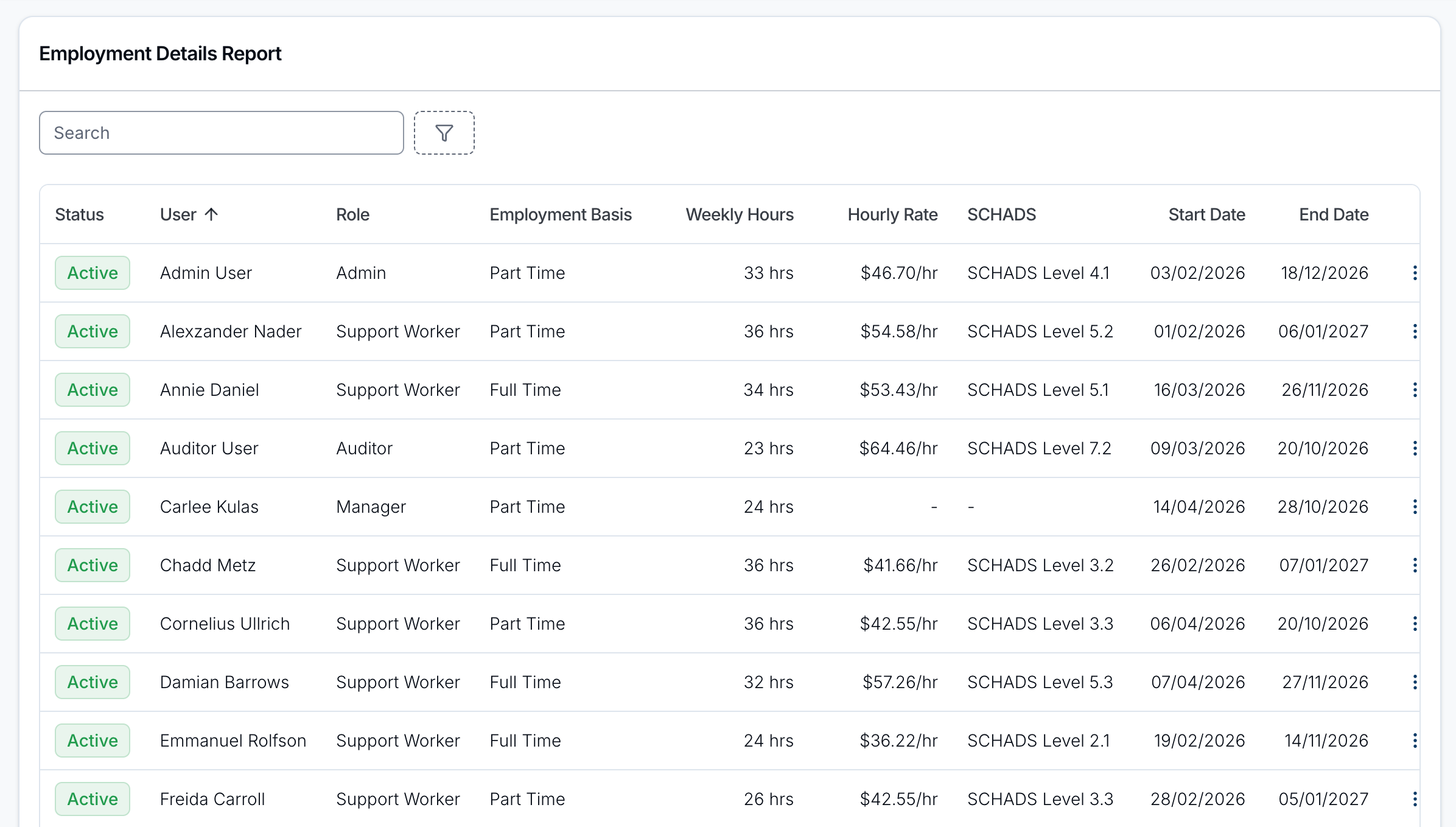
Report columns
- Status - Active, Expired or Missing, as above.
- User - the staff member's name.
- Role - the user's role in Astalty.
- Employment Basis - Full Time, Part Time, or Casual.
- Weekly Hours - the contracted weekly hours.
- Hourly Rate - the base hourly rate, or a dash where the details have no base rate.
- SCHADS - the SCHADS classification recorded on the details.
- Start Date - the start date of the details shown.
- End Date - the end date, or Ongoing where no end date is set.
Where a user is Missing, these columns show a dash (-). The table is sorted by User by default. Click Status, User, Role, Employment Basis, Hourly Rate, Start Date or End Date to sort by that column. Weekly Hours and SCHADS can't be sorted.
Search and filters
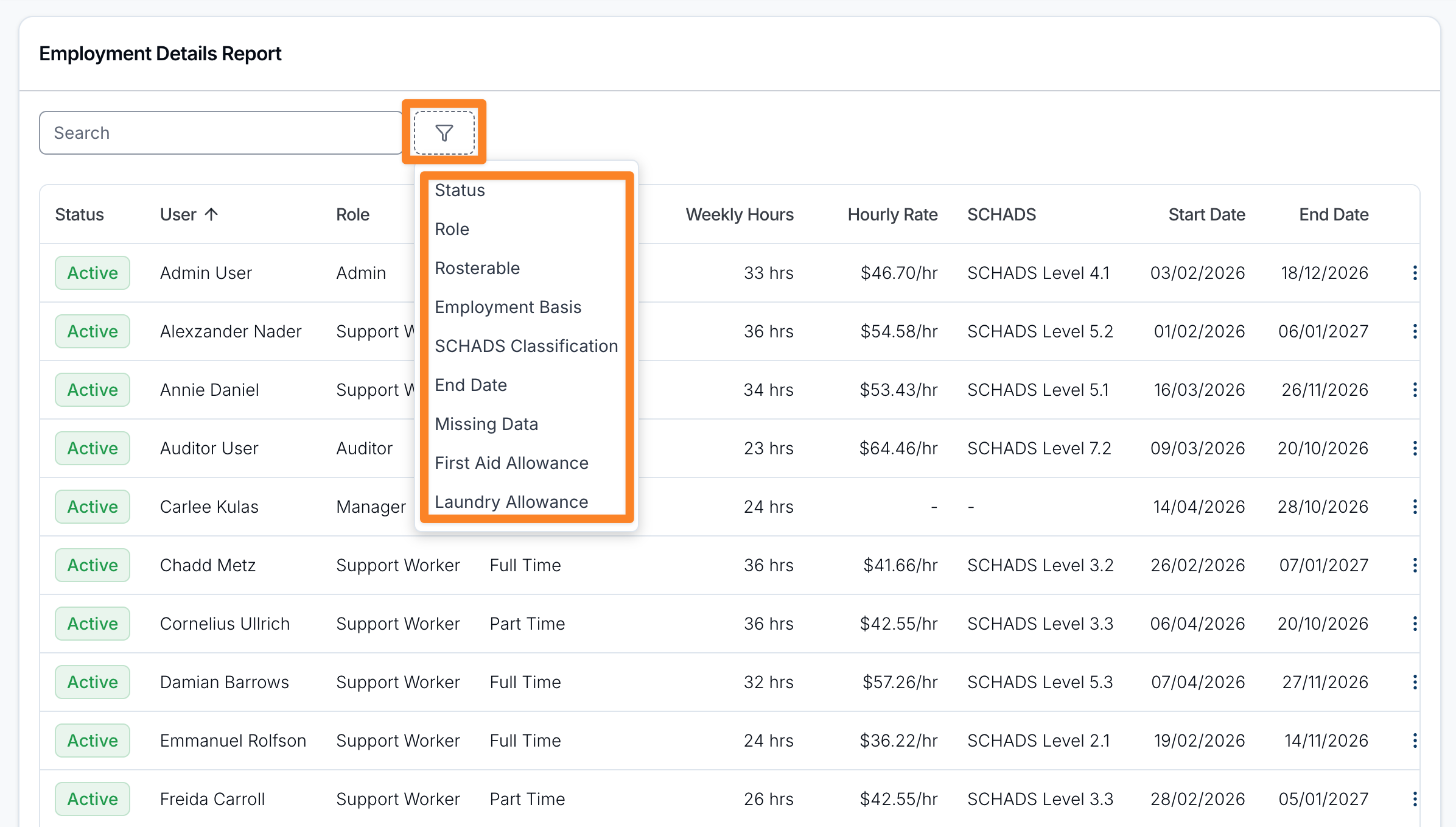
Use the search box to find a staff member by name, or the filter (funnel) icon to narrow the list by:
- Status - Active, Expired, or Missing.
- Role - Admin, Manager, Team Member, or Support Worker.
- Rosterable - whether the user can be scheduled for supports (Yes/No).
- Employment Basis - Full Time, Part Time, or Casual.
- SCHADS Classification - one or more of your configured SCHADS classifications.
- End Date - Ending in 30 days or Ending in 90 days shows details that end between today and that many days from today, inclusive. Ongoing shows details with no end date.
- Missing Data - users whose details have no Pay rate and/or no SCHADS classification.
- First Aid Allowance - whether the user is entitled to the first aid allowance (Yes/No).
- Laundry Allowance - whether the user is entitled to the laundry allowance (Yes/No).
Every filter except Status, Role and Rosterable checks the details shown in the row, so it only ever matches Active or Expired users. To find users with no details at all, filter Status by Missing.
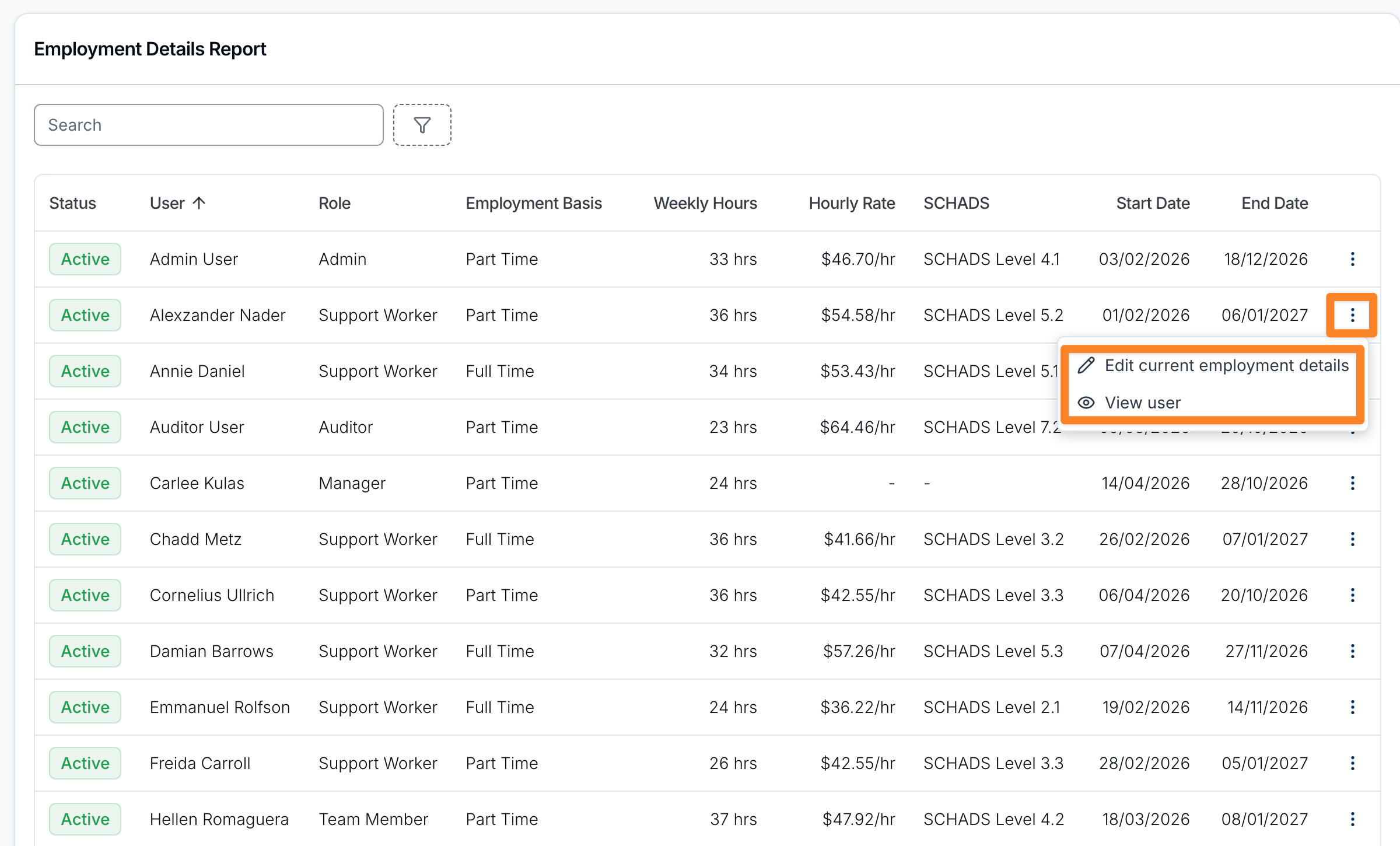
Actions
Use the actions menu (three dots) on each row to:
- Edit current employment details - update the active details. Shown for Active users.
- Add employment details - record details for a Missing user.
- Add new employment details - add a new set for an Expired user.
- View user - open the staff member's profile.
Checking Other Awards and Rate Changes
The SCHADS column and SCHADS Classification filter are specific to SCHADS. A blank value there does not establish that a Nurses, Aged Care or Health Professionals contract is incomplete. Open the worker's employment details to review the appropriate award and classification.
Use Maintaining Award Rates to check saved base rates after a rate change. This report is not a comparison against every current award minimum.