- Insights
- Award Pay Report
Award Pay Report
Overview
The Award Pay Report provides interpreted pay hours for every employee across a single pay period, broken down by rate and allowance type. Each worker is interpreted under the award on their employment contract - SCHADS, Nurses, Aged Care or Health Professionals. It gives you a quick way to review total hours per person and verify that pay lines are correct before exporting to payroll.
The report is available in two places:
- Reports > Scheduling > Award Pay Report - a standalone report where you choose the pay period.
- Timesheet Batches > Award Interpretation tab - the same breakdown scoped to the shifts in a specific batch.
On Employment Hero, PayCat and QuickBooks Payroll, your payroll platform calculates award pay itself from the timesheets Astalty sends, so what it pays can differ from these figures.
Accessing the Award Pay Report
- From the left-hand side menu, click Reports.
- Go to the Scheduling section.
- Select Award Pay Report.

Pay period selection
The date selector on this report is not a free date range - it is locked to the pay periods configured in your Scheduling Settings. You can only move backwards and forwards a whole pay period at a time; you can't pick an arbitrary start and end date. The report opens on the pay period that contains today.
- Weekly providers see a week-aligned picker following the configured pay period start day.
- Fortnightly providers see a fortnight-aligned picker anchored to the configured reference date.
Only complete pay periods (full weeks or fortnights) are selectable. Use complete periods so the interpreter can apply its period cap to all relevant hours. Also review work crossing the period boundary and the limitations on each award page; a complete period does not guarantee every entitlement is calculated.
Report layout
The report displays a summary row of stat cards above a table of all interpretable employees.
Stat cards
| Stat | Description |
|---|---|
| Employees | Total number of employees included in the report. |
| Ordinary hrs | Sum of all ordinary (non-overtime) hours across the team. |
| Overtime hrs | Sum of all overtime hours across the team. |
| Total hrs | Combined ordinary and overtime hours. |
| Kilometres | Total vehicle kilometres for the period. |
Table columns
Each employee row shows:
- Employee - The Support Worker's name.
- Basis - Employment basis (Full Time, Part Time, or Casual).
- Rate columns - Hours broken down by each applicable pay rate, interpreted under each worker's award. The possible rates are:
- Weekday daytime
- Early morning and early afternoon (Aged Care)
- Weekday afternoon
- Weekday night
- Saturday
- Sunday
- Public holiday
- 24-hour care (SCHADS) - 8 hours for each 24-hour care shift worked by a home care employee. Counted in Ordinary hrs
- Overtime first band - Monday-Saturday for SCHADS, Nurses and Health Professionals; Monday-Friday for Aged Care. Usually the first two hours, or three hours for full-time SCHADS Social, Community & Crisis Accommodation employees
- Overtime after the first band - also includes all Saturday overtime for Aged Care, which uses the flat double-time band
- Broken shift double time (Aged Care)
- Overtime Sunday
- Overtime public holiday
- Allowance columns - Units for each applicable allowance:
- Vehicle kilometres
- Sleepover (SCHADS) and Sleepover (Aged Care)
- First aid
- Laundry
- Uniform
- Meal allowance / Meal allowance (second)
- Broken shift (one unpaid break)
- Broken shift (two unpaid breaks)
- Total hours - The employee's combined ordinary and overtime hours for the period.
Rate and allowance column headings use short labels, for example OT Mon-Sat (1.5×) for the first overtime band, OT Mon-Sat (2×) for overtime after it, and Weekday early morning and Weekday early afternoon for the Aged Care early rates.
Columns that are empty for the entire period are hidden automatically to keep the view clean. A Totals row at the bottom sums all rate, allowance, and total-hours columns across the team.
Exporting to CSV
Select Export CSV, beside Expand All, to queue a CSV of every employee in the report for the selected pay period - including anyone hidden by the table's search or employment basis filter. State and Region selections are applied to the export. If your organisation requires a reason for exports, an Export reason box appears; enter at least 10 characters before selecting Create export.
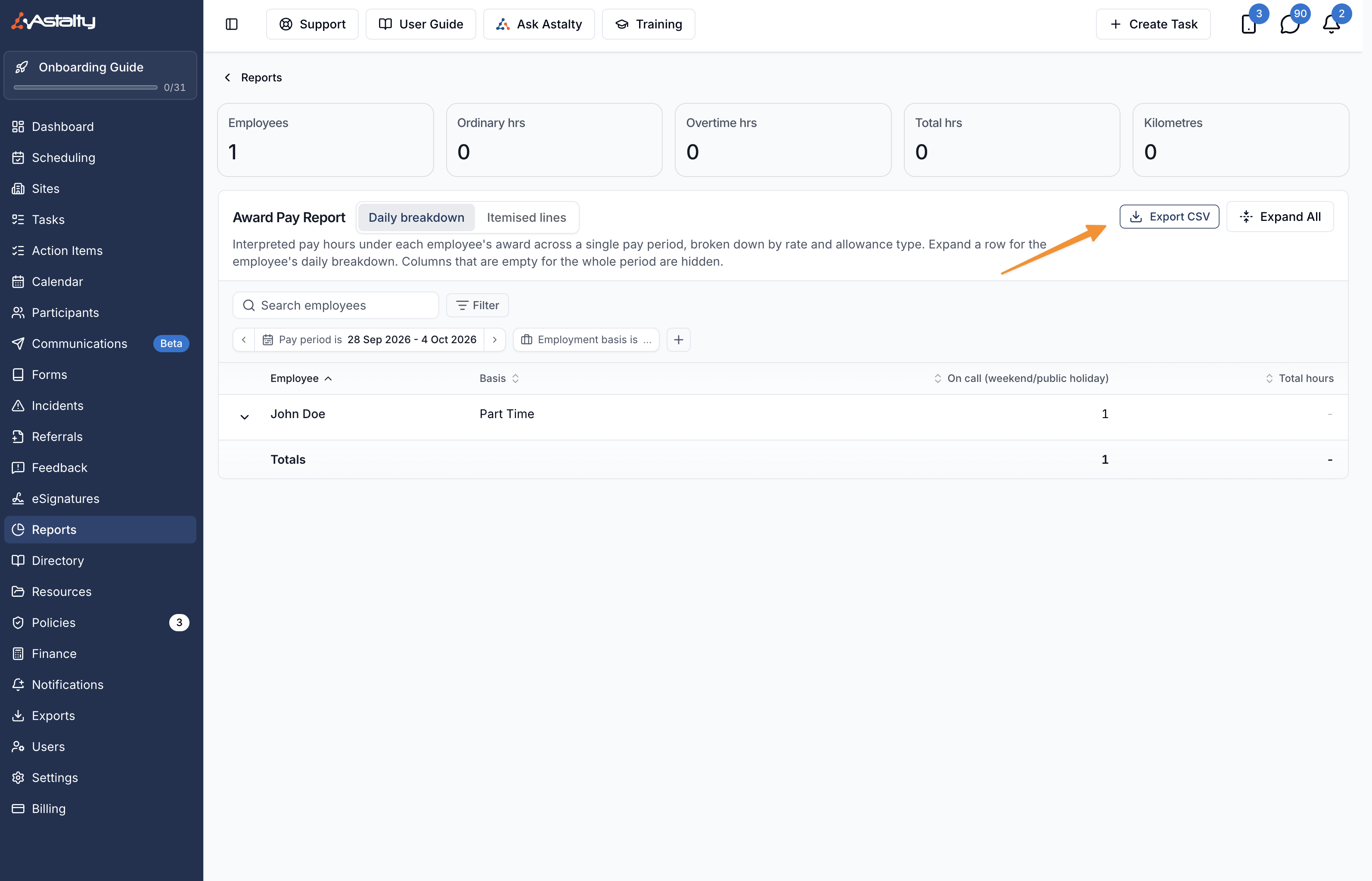
The file is queued in the background and appears on the Exports page as Award Pay Report Export followed by the reference date, where you can select Download.
The CSV has one row per employee, with the same rate and allowance columns as the table (empty columns omitted) plus Total Pay Hours. It also includes employees who couldn't be interpreted - see Excluded employees - as their own rows, with the exclusion reason and zero in every other column; these workers don't appear in the on-screen table.
Searching and filtering
You can narrow the report using:
- State - Limits the underlying report to employees whose own address is in one of the selected states. It doesn't look at where the shifts were worked.
- Region - Limits the underlying report to employees in the selected Regions, or to employees in no Region when you choose Unassigned. It appears when Regions are enabled and your access permits region selection.
- Search - Type an employee name to filter the table instantly.
- Employment basis - Use the filter to show only Full Time, Part Time, or Casual employees.
Stat cards and totals update to reflect the filtered results.
Expanding employee detail
Click any employee row to expand a detailed breakdown. Two view modes are available and can be toggled at the top of the table:
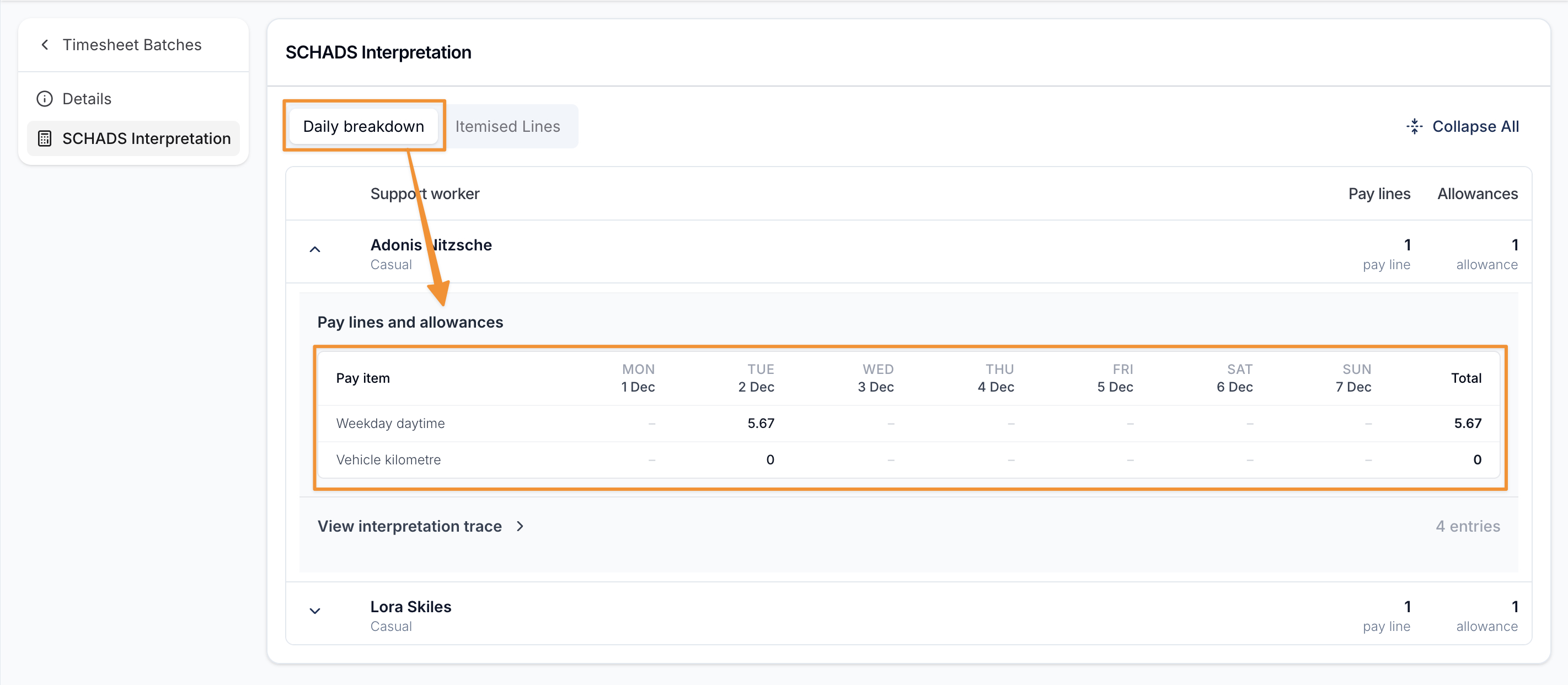
Daily breakdown
The daily breakdown shows a date-pivot matrix:
- Rows represent each pay rate and allowance.
- Columns represent calendar days across the pay period.
- A running total shows how hours accumulate day by day, making it easy to see when daily or period caps were reached.
Itemised lines
The itemised view shows two side-by-side lists:
- Pay lines - Date, pay rate, and hours for each interpreted pay line.
- Allowances - Date, allowance type, and units for each allowance line.
Each view also includes a collapsible interpretation trace that explains which award rules were applied, helping you understand why specific rates or allowances were triggered.
Excluded employees
If any employees cannot be interpreted for the selected period, they appear in a warning banner at the top of the report rather than causing the entire report to fail. Their shifts are left out of the stat cards, rows and totals until the issue is resolved. The reason shown is one of:
- No employment contract covering this pay period - The employee does not have an employment contract covering the dates in the report.
- No pay group assigned - The employee has not been assigned to a pay group.
- Could not be interpreted for this pay period - Something else stopped the interpretation for this employee.
For the first two reasons, the employee's name links to the HR page of their user profile, opened at the form that fixes it. Resolve these by updating the employee's employment details or pay group in their user profile, then refresh the report.
Approved versus scheduled hours
The report interprets approved times only. It never falls back to scheduled hours. A shift is included when all of these are true:
- it has a worker assigned and starts within the pay period
- it has already ended
- it has approved start and end times, and has been through Shift Approvals, including any travel and active overnight approvals it needs
- its support wasn't cancelled with no pay
- the worker's Timesheet Export Behaviour is set to include them. See Excluding a User from Timesheet Exports.
A shift that hasn't been approved yet is left out, so an employee's hours rise as their shifts are approved. Review the report after approvals are complete for the period. On the Award Interpretation tab of a timesheet batch, the shifts are those in the batch instead.
How public holiday hours are determined
A shift is paid at public holiday rates when it falls on a public holiday that applies to the support being worked:
- The holiday must match the state of the support's address.
- A statewide holiday (one without Public Holiday Groups) applies to all Participants in that state.
- A holiday scoped to Public Holiday Groups applies when a Participant on the shift belongs to one of the holiday's groups. For group supports, it applies when any Participant on the group support is in one of the groups.
Manually added local holidays - for example a regional show day assigned to a Public Holiday Group - flow through to employee pay automatically once the relevant Participants are in the group. There is no separate employee-side public holiday setup in Astalty. Review overnight public holiday flags, substitutions and unworked holidays separately.
The report shows interpreted quantities, not the final Xero pay-run amount. Check mapped rates, manual entitlements and excluded workers before payroll.
Related guides
- Scheduling Settings > Pay Period - Set the pay cycle that this report's date selector is locked to.
- SCHADS Interpretations in Astalty - Full reference of supported and unsupported SCHADS award rules.
- Nurses Award Interpretations in Astalty - Full reference of supported and unsupported Nurses Award rules.
- Aged Care Award Interpretations - Supported rules and manual checks.
- Health Professionals Award Interpretations - Supported rules and manual checks.
- Timesheet Batches - How to create batches and access the Award Interpretation tab.
- Scheduling Award Alerts - Award-based roster checks and their limits.
- Setup Pay Groups and Employees in Astalty - Set up pay groups and link employees for the Xero payroll integration.