Public Holiday Supports Report
Overview
The Public Holiday Supports Report lists every support and group support that falls on a public holiday within a date range. It gives you one place to review upcoming public holiday supports so you can decide which ones should go ahead - without checking each Participant's schedule individually.
This is especially useful because only some Participants are funded for public holiday supports. Many providers contact each Participant before a public holiday to check whether they still want their support. This report shows those supports together, and - where a Participant's policy requires it - lets you record that the support has been confirmed.
The report also flags a billing issue that is easy to miss: manual charges do not automatically pick up public holiday pricing. Where a support on a public holiday has manual charges that could be affected, the Manual Charges column tells you how many need checking. See Manual charges on public holidays.
By default, only Admins can open this report. A Manager can open it once Can access Scheduling is turned on for them. See Roles & Permissions.
Accessing the report
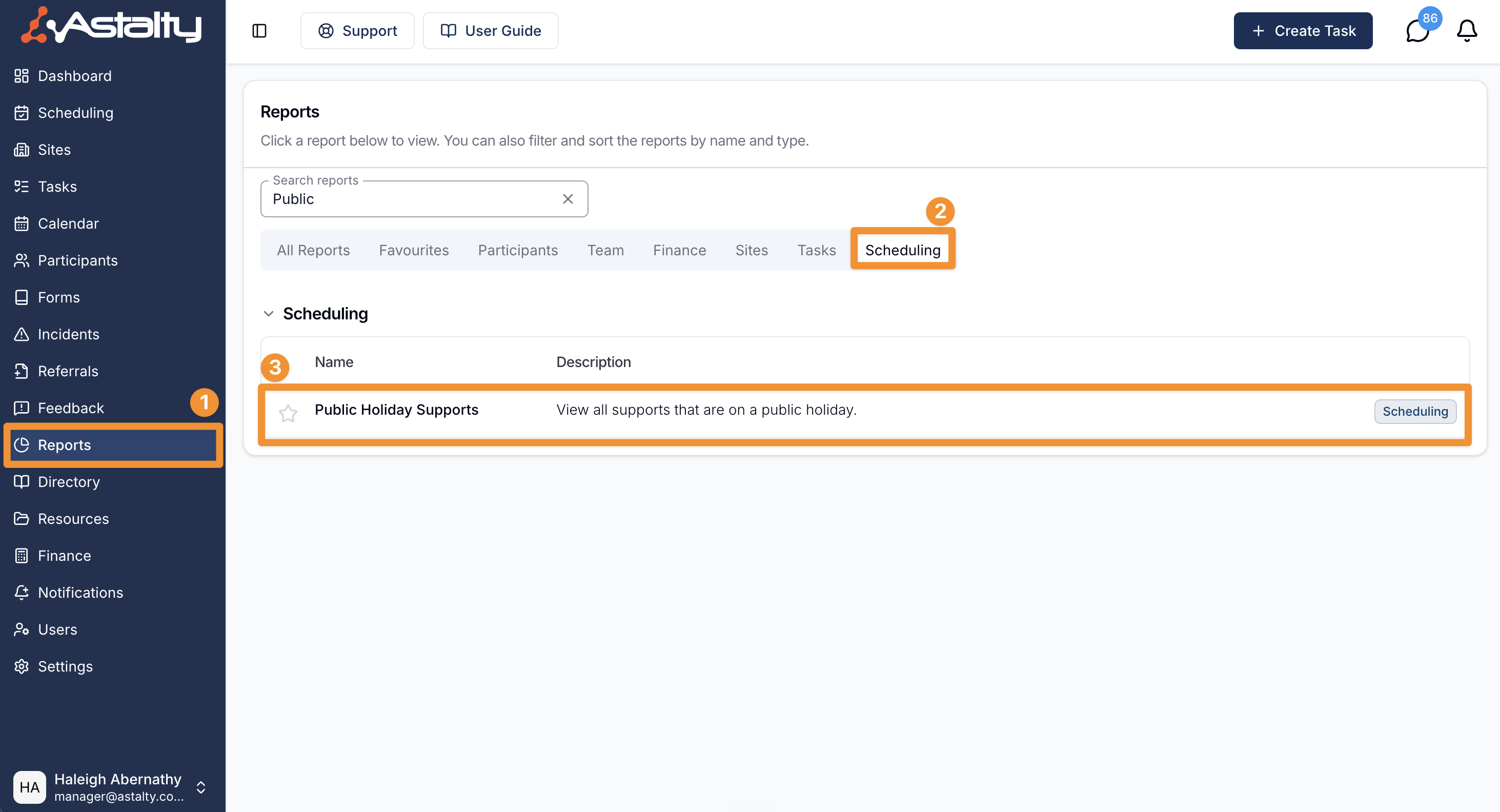
- From the left-hand side menu, click Reports.
- Select the Scheduling tab (or search for Public Holiday).
- Choose Public Holiday Supports.
Report layout
The report opens with the current month selected and lists each support that falls on a public holiday in that period.
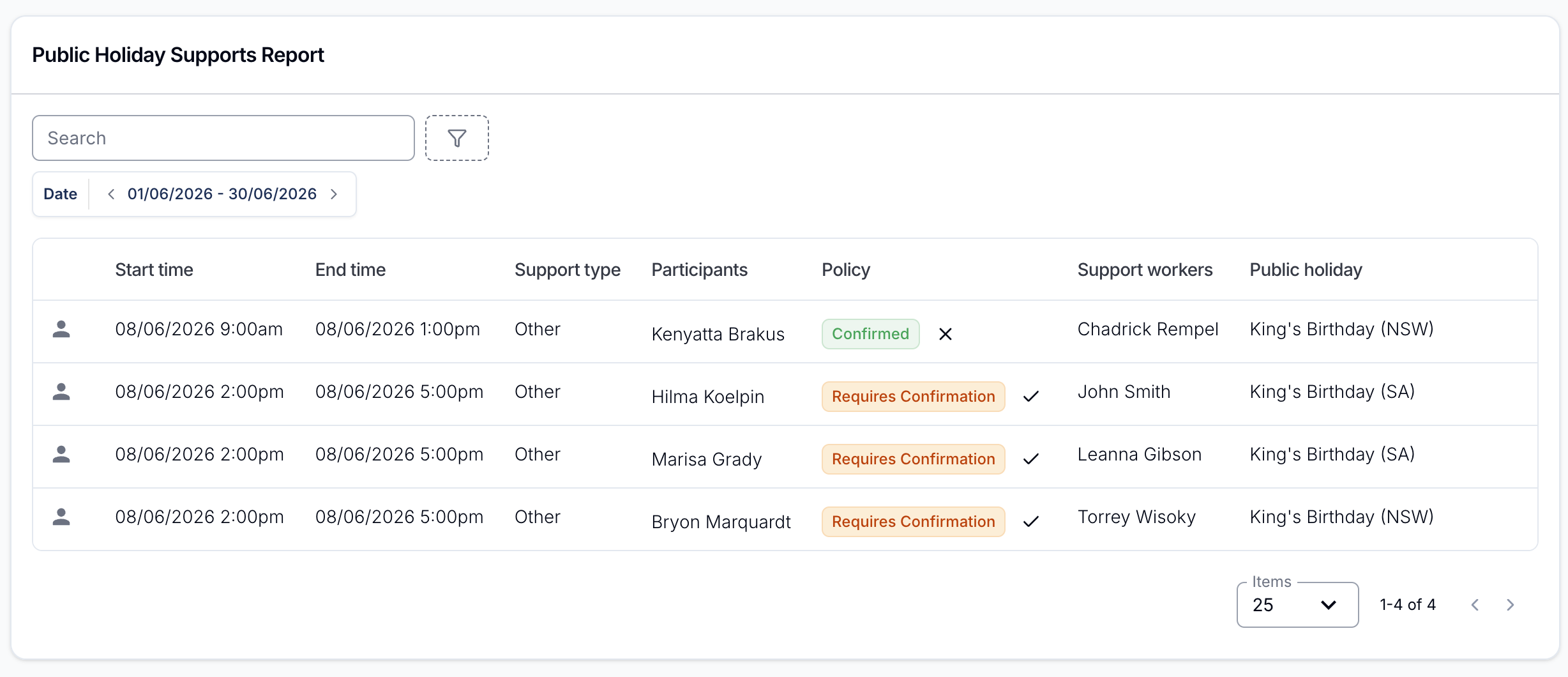
Each row shows:
- Type - An icon indicating whether the row is an individual support or a group support.
- Start Time / End Time - When the support starts and finishes.
- Support Type - The type of support scheduled.
- Participants - The Participant (or Participants, for a group support) receiving the support.
- Policy - Each Participant's public holiday support policy, or a Confirmed badge once their support has been confirmed. In a group support, a Participant the holiday doesn't apply to shows Holiday doesn't apply.
- Support Workers - The worker (or workers) rostered on the support.
- Public Holiday - The name of the public holiday and the state it applies to, for example King's Birthday (NSW).
- Manual Charges - A warning chip when the support has manual charges that may need public holiday pricing applied, or a dash (-) when there is nothing to check. See Manual charges on public holidays.
Rows are sorted by start time, earliest first.
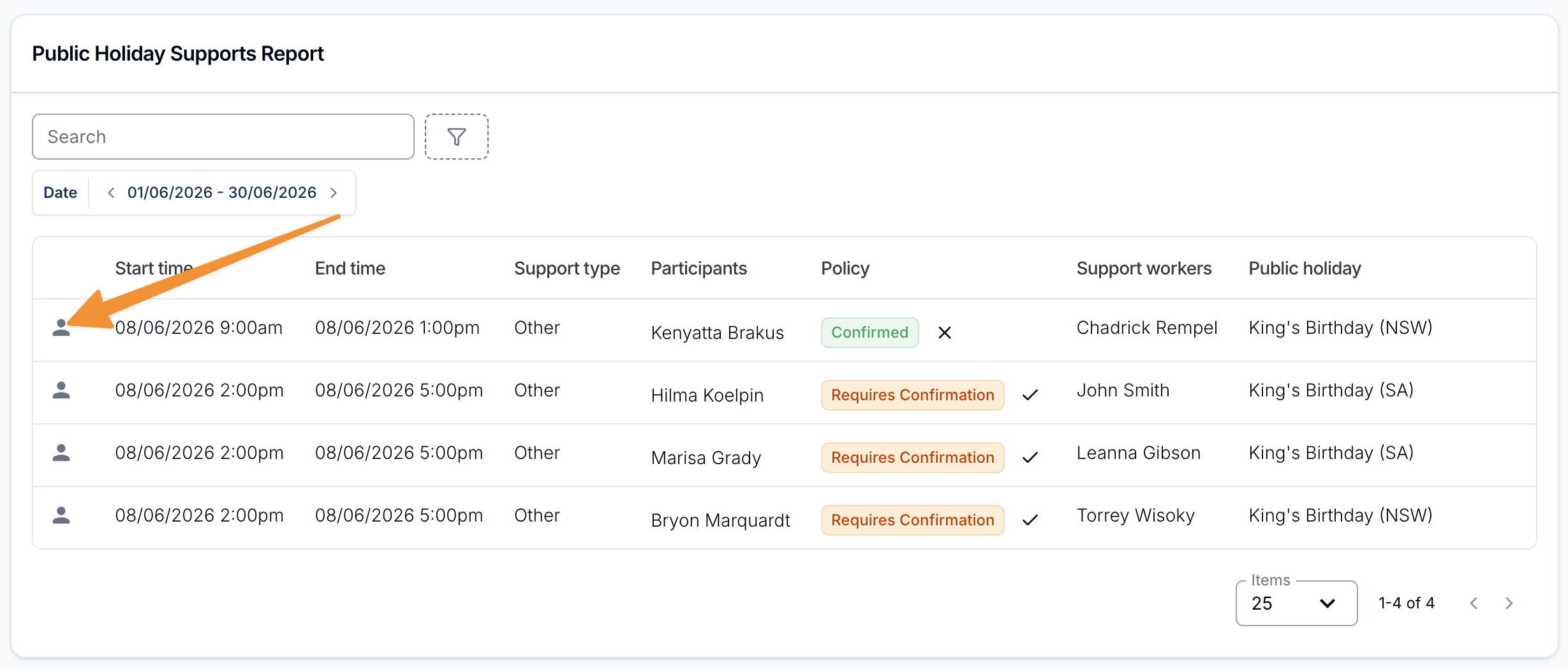
Click any row to open the support (or group support) if you need to view or edit its details.
Filtering and searching
- Date - The report defaults to the current month. Use the date filter to move to another period, including the Last, This and Next presets. A support is listed when it starts within the range and overlaps a public holiday that also starts within the range.
- Public Holiday - Filter to one or more specific public holidays. Each option shows the holiday name, state, and date.
- Manual Charges - Choose Yes to show only supports that have manual charges needing review, or No to show only supports that don't. Leave it unset to show everything.
- Search - Search the listed supports to quickly find a Participant, worker or group support by name.
How a Support Is Matched to a Public Holiday
A support is listed when all of these are true:
- It overlaps the public holiday's date.
- The state on the support's address matches the holiday's state. The Participant's own address is not used, so a support delivered interstate picks up that state's holidays.
- The holiday applies to the Participant. A holiday with no Public Holiday Groups applies to every Participant in its state; a holiday scoped to groups applies only to Participants in one of those groups. A state holiday never applies to a Participant in a group excluded from it.
A group support is listed when the holiday applies to at least one of its Participants. Cancelled supports are still listed. To check which groups each Participant is in, use the Public Holiday Group Assignments Report.
Public holiday support policy
The Policy column reflects each Participant's public holiday support policy, which is set on the Participant's Scheduling Settings. There are three policies:
| Policy | Meaning |
|---|---|
| Allow | Public holiday supports go ahead without any extra step. |
| Disallow | Public holiday supports should not go ahead for this Participant. |
| Requires Confirmation | The support needs to be confirmed before the public holiday. |
Supports for Participants set to Requires Confirmation show a warning badge until they are confirmed, making it easy to see what still needs to be actioned before the public holiday.
Confirming a public holiday support
When a Participant's policy is Requires Confirmation, you can record that the support has been checked and should go ahead. In a group support, each Participant is confirmed separately.
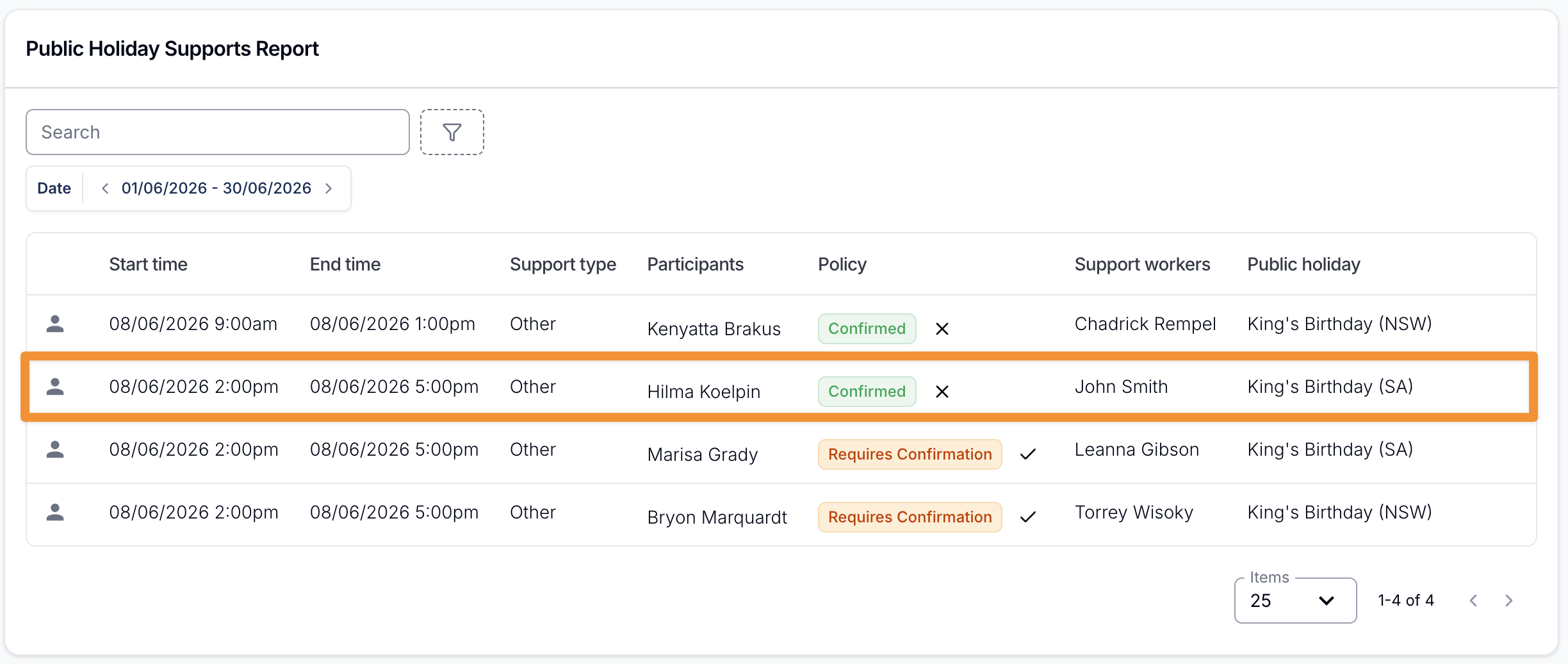
- Find the support in the report and click the tick icon next to the Requires Confirmation badge.
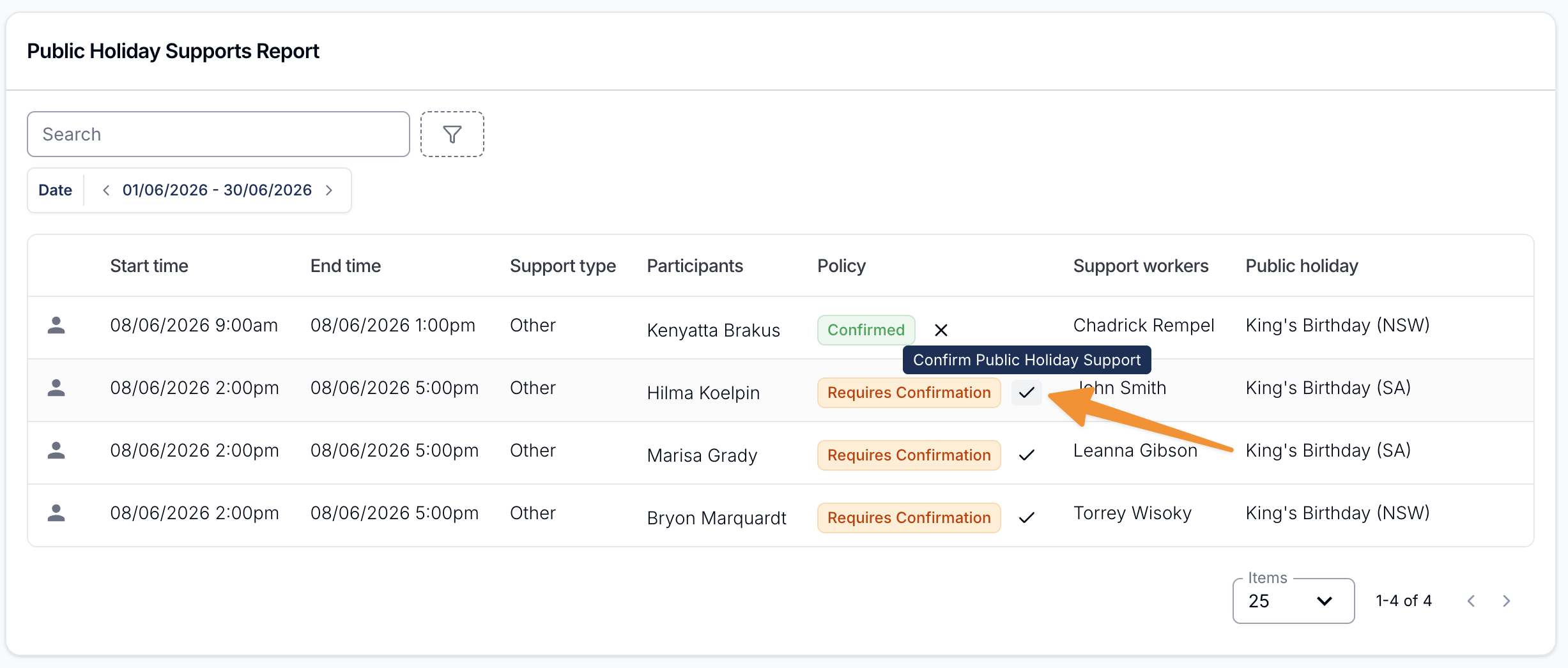
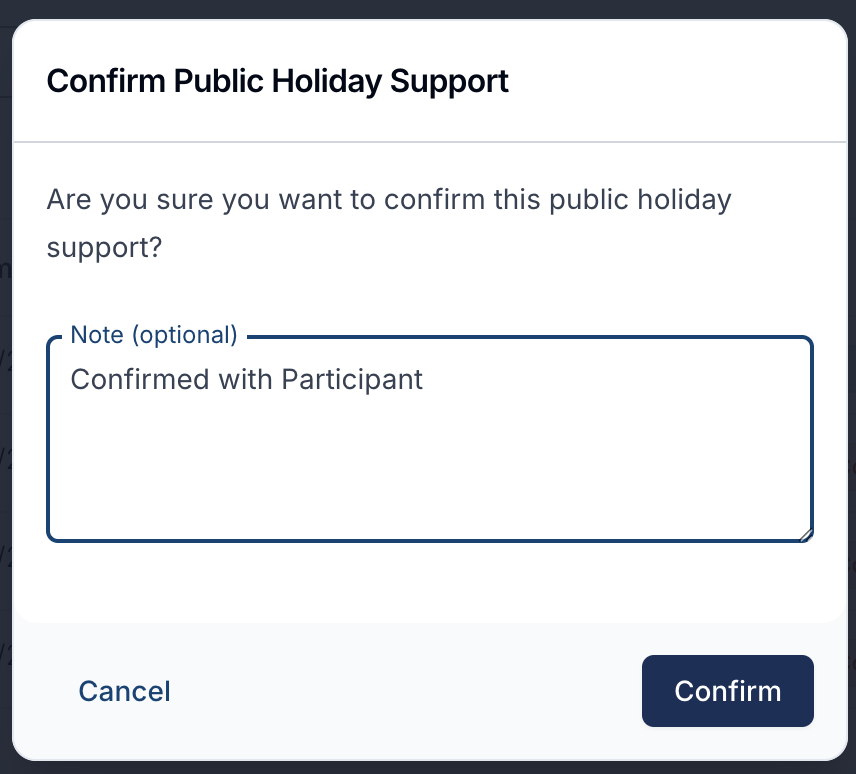
- In the Confirm Public Holiday Support dialog, add an optional note (for example, Confirmed with Participant) and click Confirm.
The policy badge changes to Confirmed.
Removing a confirmation
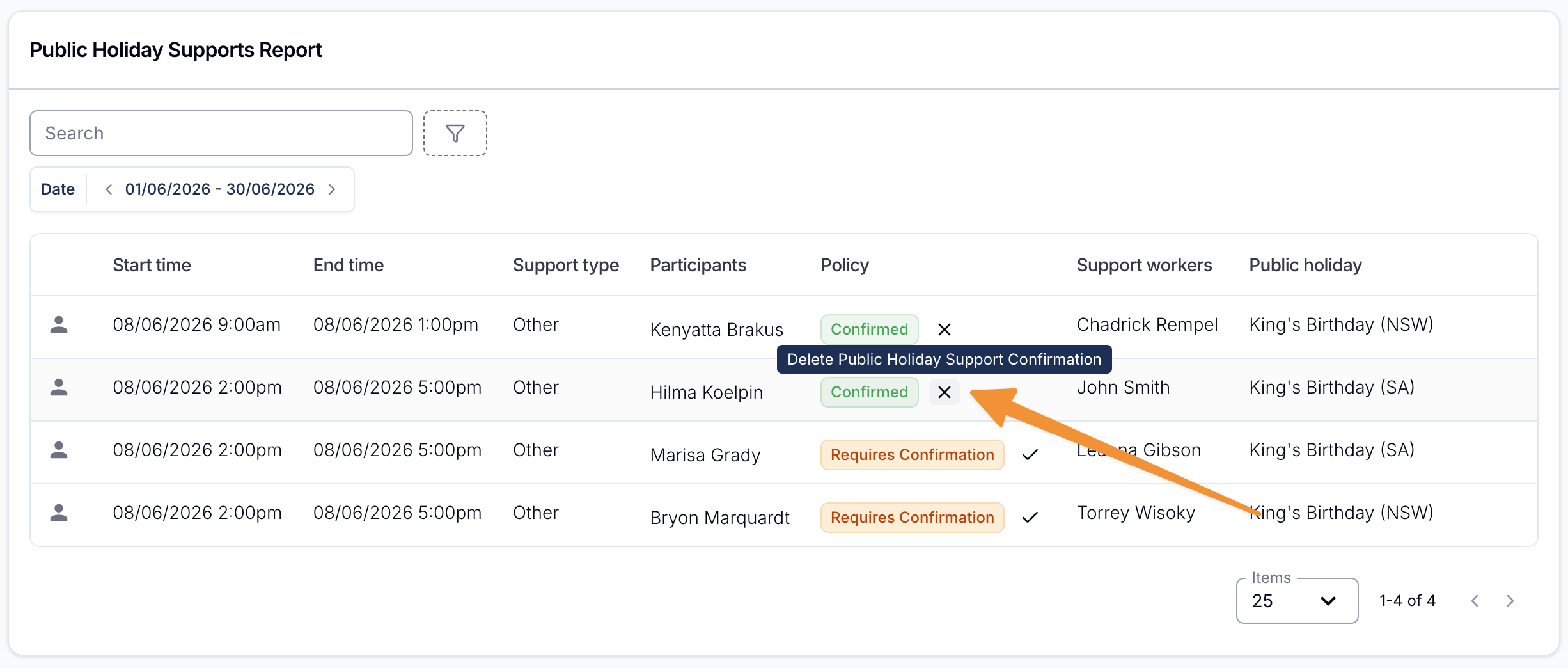
If you need to undo a confirmation, click the cross icon next to the Confirmed badge.
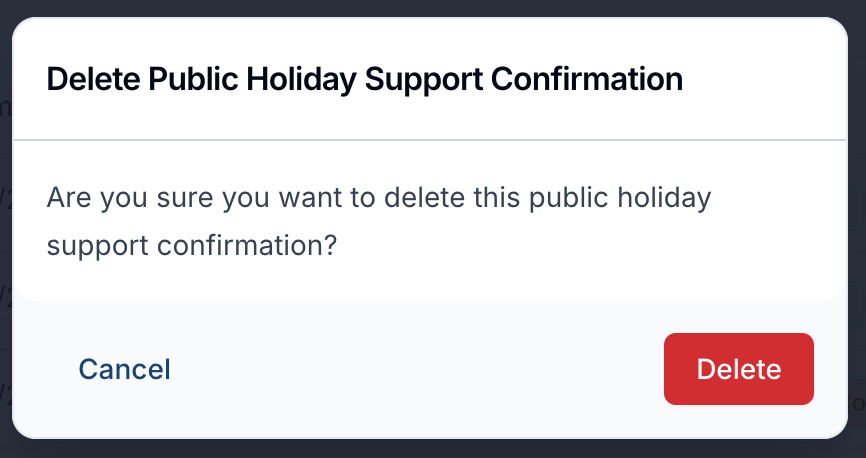
Then click Delete in the confirmation dialog. The support returns to Requires Confirmation.
Manual charges on public holidays
When a support bills automatically, Astalty applies the public holiday rate for you. Manual charges don't work that way - a charge you added yourself keeps whatever Charge Item you picked, and Astalty never swaps in the public holiday one. Unless you picked the public holiday Charge Item yourself, the charge bills at the ordinary rate even though the support falls on a public holiday.
The Manual Charges column exists to catch this. For each support on a public holiday, the report counts the charges that were added manually and use a Charge Item whose pricing varies on public holidays - under the NDIS Pricing Arrangements that means hourly and daily Charge Items. Charge Items billed per week, month, year, or each are not affected, so they're never counted.
Reading the column
| What you see | What it means |
|---|---|
| N to review (orange chip) | The support has N manual charges on a public-holiday-sensitive Charge Item. Open the support and check the rate on each one. |
| - (dash) | Nothing to check. Either the support has no manual charges on an affected Charge Item, or it's been cancelled with no charge. |
The chip counts every manual charge on an hourly or daily Charge Item, including any you have already set to the public holiday Charge Item. It is a prompt to check the rate, not a list of charges that are wrong.
Hovering the chip shows the guidance in full, naming the holiday in question - for example: "Manual charges don't automatically apply public holiday pricing. Check the King's Birthday rate on these charges."
Click the row to open the support, then review the Charge Items and rates against the public holiday pricing for that day.
Group supports
A group support shows a single chip rather than one per Participant. Astalty rolls the individual Participants' alerts up by public holiday, picks the holiday with the most affected charges, and shows the total for that holiday.
That matters when a group support spans Participants matched to different public holidays - the chip names only the busiest holiday, and its count covers just that holiday's charges. Open the group support to see every Participant's charges.
Related guides
- Public Holidays - How Astalty applies state public holidays and how to add local ones, including public holiday groups.
- Public Holiday Notifications - Get reminded before a public holiday, with a link straight to this report.
- Public Holiday Group Assignments Report - Check and change which Public Holiday Groups each Participant belongs to.
- Managing Manual Charges - How manual charges work on a support, and how to review and adjust them.
- Supports Report - View all supports for your Participants across a date range.