- Insights
- Public Holiday Group Assignments Report
Public Holiday Group Assignments Report
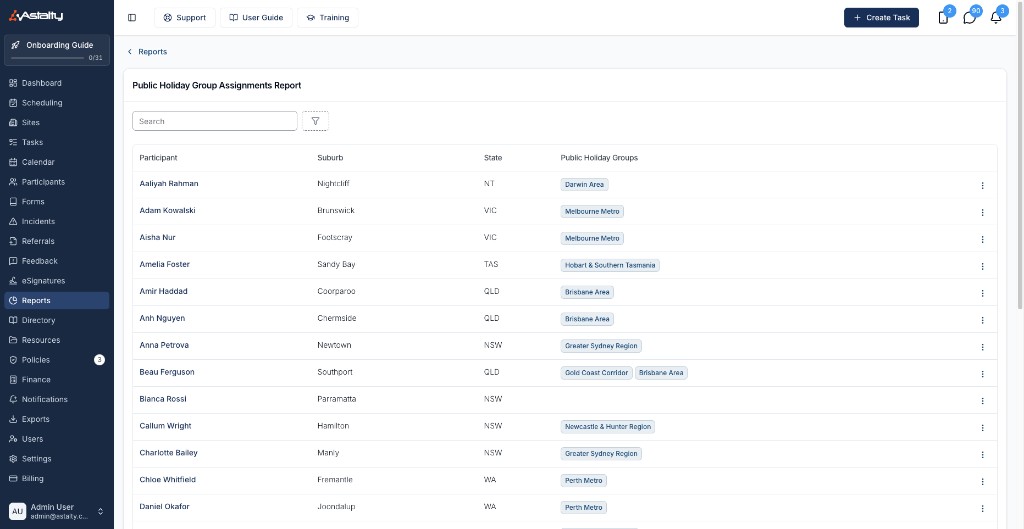
The Public Holiday Group Assignments Report lists every Participant alongside the Public Holiday Groups they belong to, and lets you change those groups from the report.
Overview
A Participant's Public Holiday Groups decide which public holidays apply to them. A holiday with no groups applies to everyone in its state; a holiday scoped to a group applies only to the Participants in that group. A state holiday never applies to a Participant in a group excluded from it. Get the assignment wrong and a Participant's supports are charged and paid at the wrong rate on the day.
Until now the only way to check an assignment was to open a Participant's Scheduling Settings one at a time. This report puts all of them on a single list, so you can confirm a whole region at once and fix anything that looks wrong on the spot - particularly useful after adding a new group, or before a local holiday such as a regional show day.
Before You Start
By default, only Admins can open this report. A Manager can open it once Can access Scheduling is turned on for them. See Roles & Permissions.
Where to Find It
- From the left-hand menu, select Reports.
- Under Scheduling, select Public Holiday Group Assignments.
Understanding the Results
One row appears per Participant, sorted by name from A to Z. Archived Participants are left out.
| Column | What it shows |
|---|---|
| Participant | The Participant's name. |
| Suburb | The suburb on their primary address. Blank when they have no primary address. |
| State | The state on their primary address. Blank when they have no primary address. |
| Public Holiday Groups | Every Public Holiday Group the Participant belongs to, one chip each. Empty when they belong to none. |
Suburb and State are there to help you spot the mistakes worth chasing: a Participant in Cairns sitting in a Brisbane group, or a row in Western Australia with no group at all.
Filters
- Search - Find a Participant by name.
- Suburb - Narrow to one or more suburbs, taken from the Participants' primary addresses.
- State - Narrow to one or more Australian states.
- Public Holiday Group - Narrow to one or more groups. The first option, Not assigned, returns Participants who belong to no group at all.
Not assigned combines with the groups rather than excluding them, so choosing Not assigned together with Brisbane Area returns Participants in Brisbane Area plus every Participant with no group.
Changing a Participant's Public Holiday Groups
- On the Participant's row, open the actions menu (⋯).
- Select Update Public Holiday Groups.
- Add or remove groups in the Public Holiday Groups field. Removing a group takes the Participant out of it.
- Select Save.
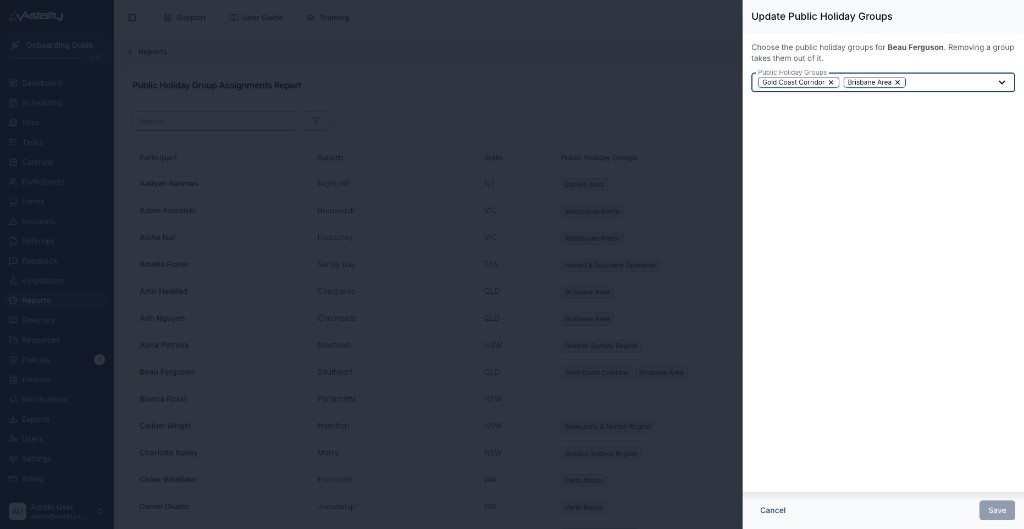
Save stays unavailable until you actually change the selection. Once saved, the row updates and Astalty confirms which groups the Participant is now in.
This is the same setting as the Public Holiday Groups field on the Participant's Scheduling Settings - changing it here changes it everywhere. Nothing else on their Scheduling Settings is touched, including their public holiday support policy.
The other option in the menu, View Participant, opens their profile in a new tab so you can keep your place in the report.
Things to Keep in Mind
- This report shows assignments, not coverage gaps. It tells you which groups a Participant is in today. It does not check those groups against upcoming public holidays, or warn you that a holiday you have added reaches nobody.
- Suburb and State are for spotting mistakes only. They come from the Participant's primary address. Holidays are matched to each support using the state on the support's address, so a Participant whose supports are delivered in another state picks up that state's holidays.
- Participants only. Public Holiday Groups apply to Participants, so no Support Workers appear here. Pay rates on a public holiday follow from the Participant's supports - see How Public Holidays Affect Charging and Pay.
- No sorting and no export. The columns are fixed in name order and there is no download button. Use the filters to narrow the list instead.
Related Guides
- Public Holidays - Create Public Holiday Groups, add local holidays, and set a default group for new Participants.
- Public Holiday Supports Report - Review the supports that fall on a public holiday and confirm the ones that need checking.