User Records Export
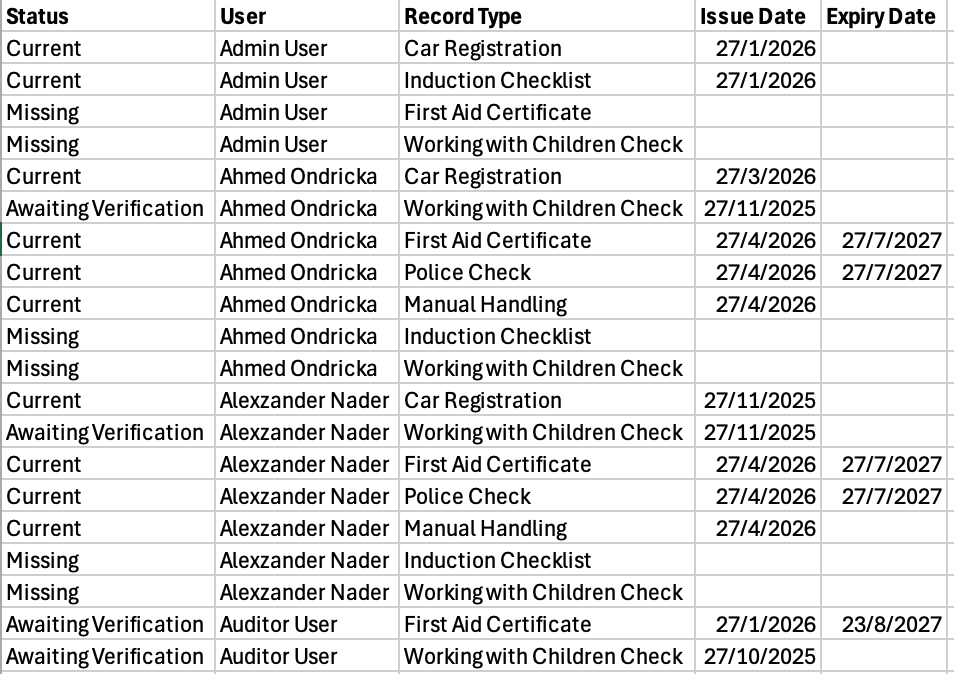
The User Records export lets you download a CSV of all user records across your team, including any required records that are missing.
Finding the User Records export
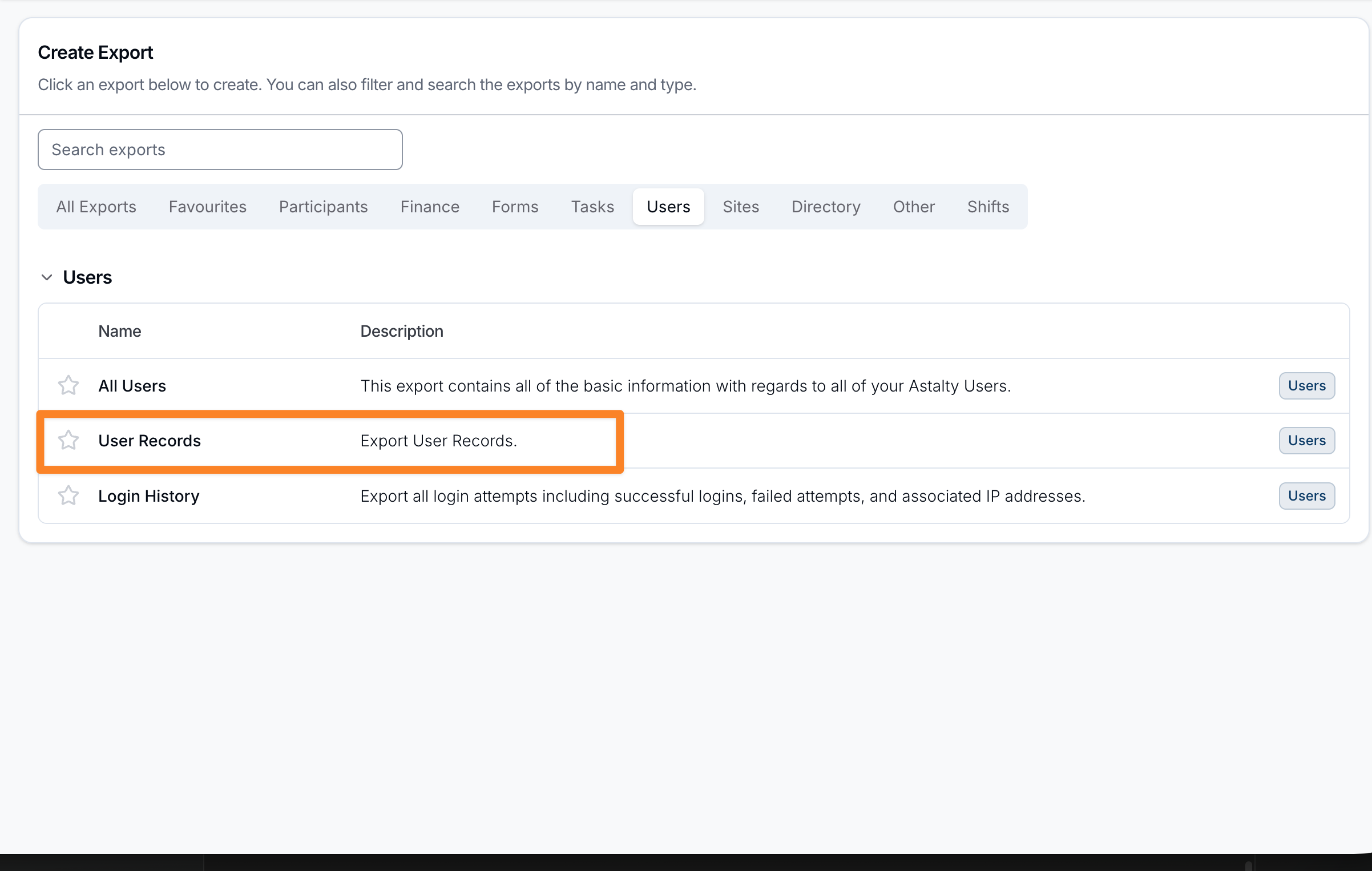
Open Exports, select Create Export, then select User Records under Users.
Creating the export
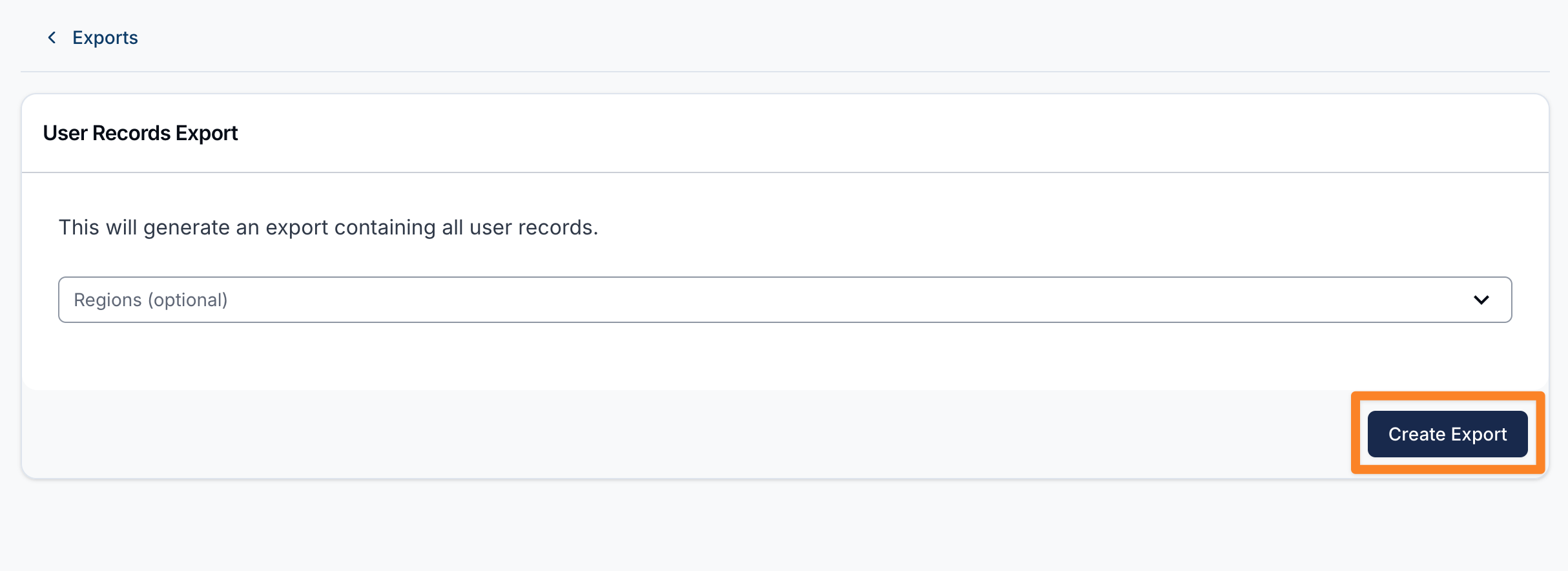
On the User Records Export page, select Create Export. The export includes users you can view, except deactivated users. It includes their current, expired, awaiting verification, declined, and archived records, plus required records that are missing.
If Regions are enabled, you can optionally narrow the export by one or more Regions. You can also include users who are Unassigned. Leave the filter blank to include users from every Region.
Downloading the export
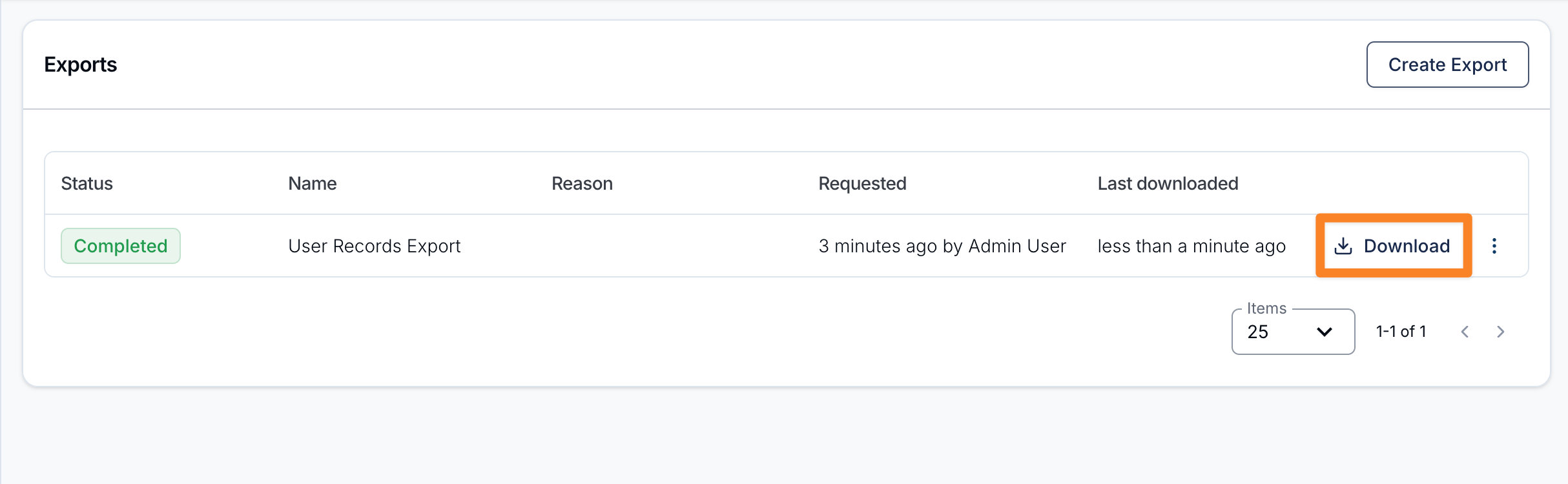
When the export is ready it will appear on the Exports page where you can click on Download to save it to your device.
Exported fields
The CSV file contains the following columns:
- Status: the record's current status, including Current, Expired, Missing, Awaiting Verification, Declined, or Archived
- User - the user's full name
- Record Type - the name of the record type
- Issue Date - when the record was issued (blank for missing records)
- Expiry Date - when the record expires (blank for missing or non-expiring records)