Completed Shifts Export
Overview
The Completed Shifts Export provides a CSV file of all Support Worker shifts that have been completed, filtered by date range. This export offers a clear overview of all scheduled work that has been completed, helps identify variations in what has been rostered vs what actually occurred, and can be customised to include missed clock ins/outs.
Accessing the Completed Shifts Export
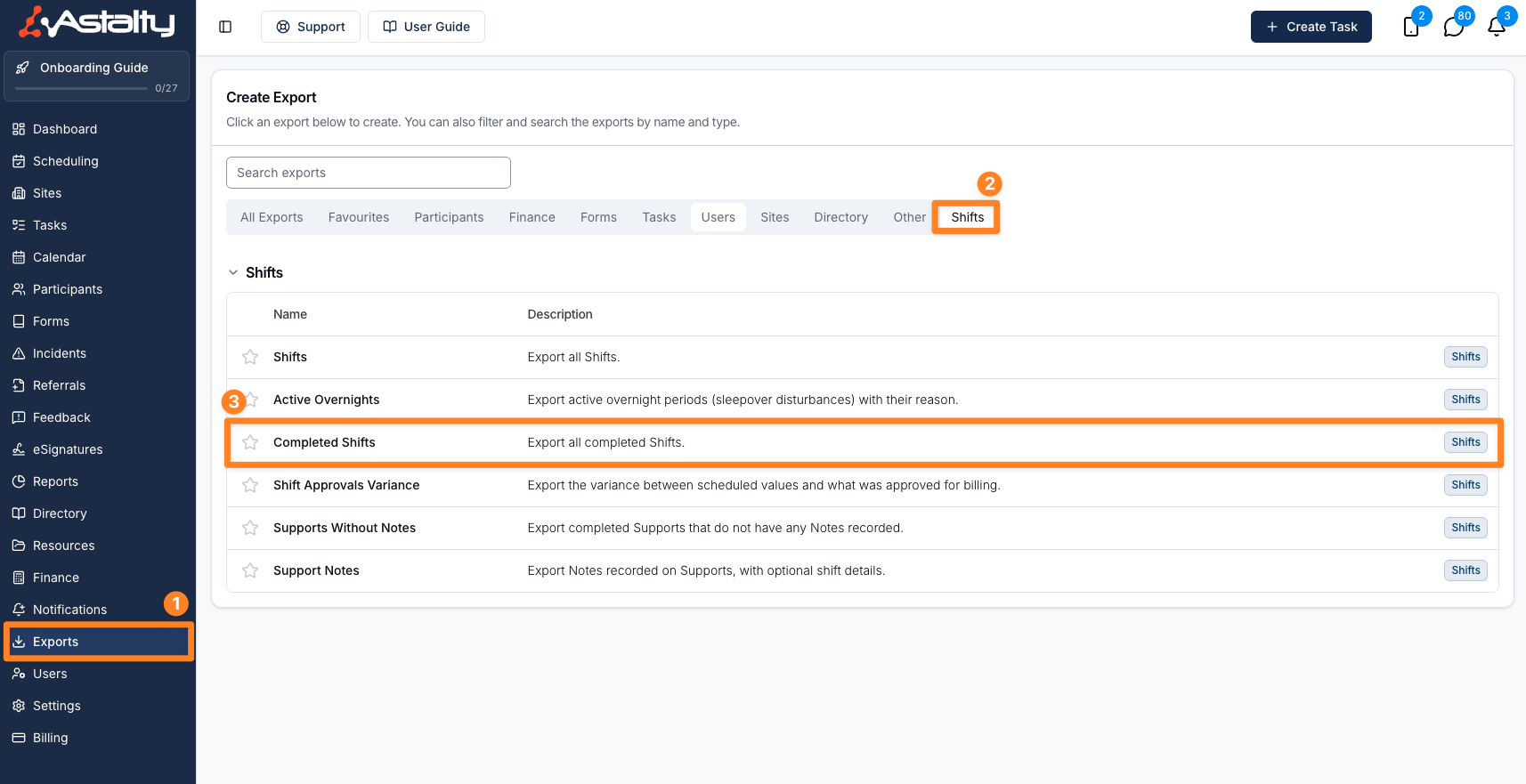
- From the left-hand side menu, click Exports.
- Select the Shifts category.
- Select Completed Shifts.
Configure the Export
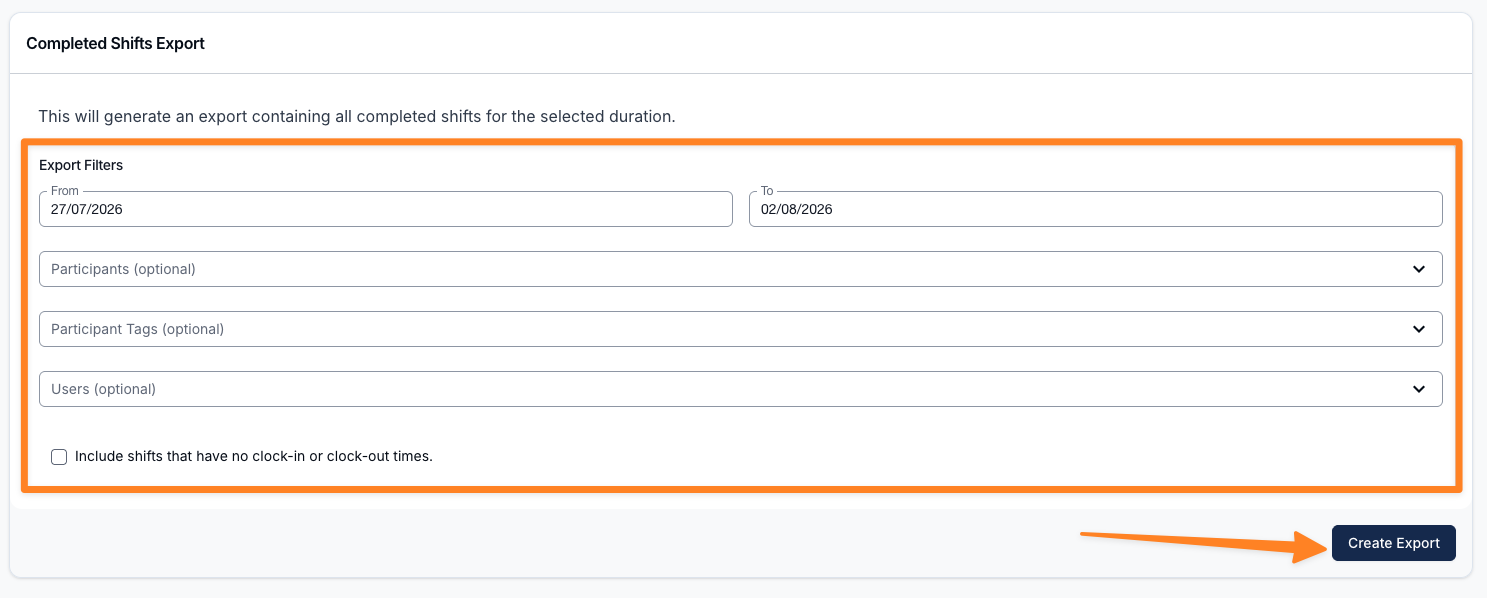
Before selecting Create Export, use the available options to configure the export.
Set the Date Range
This will generate an export containing all completed shifts for the selected duration. You can also use the This week, Last week, Last month, and Last quarter shortcuts to set the range quickly.
A shift is exported when it starts inside the range and has already finished. A support running 4:00 PM Sunday to 9:00 AM Monday is exported for a range ending on the Sunday, but only once it has ended. One still running when you create the export is left out until the next time you run it. See Date Ranges and Overnight Supports.
Typing the To date and picking a shortcut give the same result: either way the range covers the whole of that final day.
Participants
This field is optional. If left blank, the Export will include completed Shifts for all Participants within the selected date range, subject to the Users selection. You may select one or multiple Participants to limit the results to specific individuals.
Participant Tags
This field is optional. Select one or more Participant Tags to include all Participants who have any of the selected tags. You can combine tags with individually selected Participants - the export covers everyone matched by either selection, with no duplicates. If left blank, the export uses your Participant selection (or all Participants if none are selected).
Users
This field is also optional and allows you to further refine the Export based on the Users involved in the completed Shifts. If left blank, the Export will include completed Shifts for all Users within the selected date range, subject to the Participant selection.
Include Incomplete Shifts
By default, the export only includes shifts with both a clock-in and a clock-out. Turn on Include incomplete shifts to also include finished shifts with no clock-in or no clock-out time.
Generating the Export
Click on the Create Export button.
Downloading the Export
When the export is ready it will appear on the Exports page where you can click on Download to save it to your device.
Exported Fields
The export displays key details for each shift, including:
- Support Worker
- Row Type - Whether the row is the shift itself (Shift) or one of its travel records (Travel Duration or Travel Distance). See the note below on how travel appears.
- Shift Type - Distinguishes each shift as a Support Shift, Group Support Shift, Internal Shift, or Unpaid Break.
- Cost Code - The cost code assigned to the shift. This column only appears when cost codes are enabled in your scheduling settings.
- Custom Allowances - The names of the shift's custom allowances, separated by commas. This column only appears when your account has shifts with custom allowances and your role can see them.
- Rostered Start Time
- Rostered End Time
- Clock In Time
- Clock Out Time
- Timezone - The shift's timezone, shown as the city name (for example Sydney or Perth). This column only appears when Multi-Timezone Scheduling is enabled.
- Rostered Duration (minutes) - The rostered length of the shift, as a whole number of minutes. A two-hour shift shows as
120. - Actual Duration (minutes) - The clocked length of the shift, as a whole number of minutes.
- Rostered Travel Time (minutes)
- Actual Travel Time (minutes)
- Rostered Travel Distance (km)
- Actual Travel Distance (km) - Calculated from the odometer readings recorded against the travel.
- Approved Travel Distance (km)
- Participant Signed Off - If the Participant has signed off on the shift, Yes will be displayed in this column.
