- Scheduling
- Participant Details App View
Participant Details App View
Overview
Support Workers can access key Participant information directly in the Astalty app when viewing their scheduled supports. The information displayed is determined by what has been made visible to support workers in the system.
To update visibility for Support Workers, view the following links for more information:
- Making Risks Visible to Support Workers
- Making Information Items Visible to Support Workers
- Making Records Visible to Support Workers
- Making Forms Visible to Support Workers
How to View Participant Information
- Open the Schedule in the App

- Select a Support from the list.
- If its a Direct Support tap View Participant, or
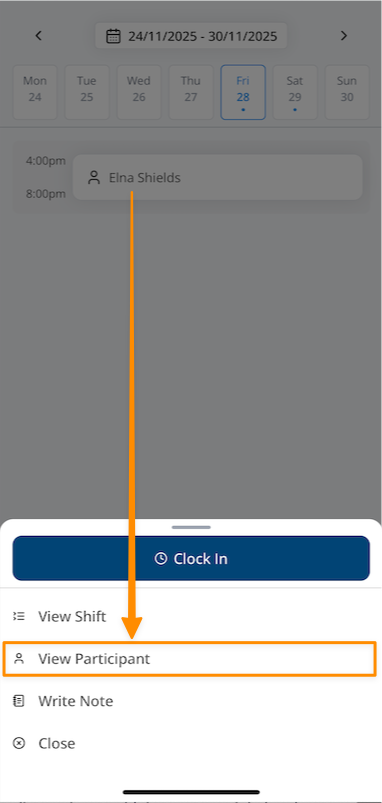
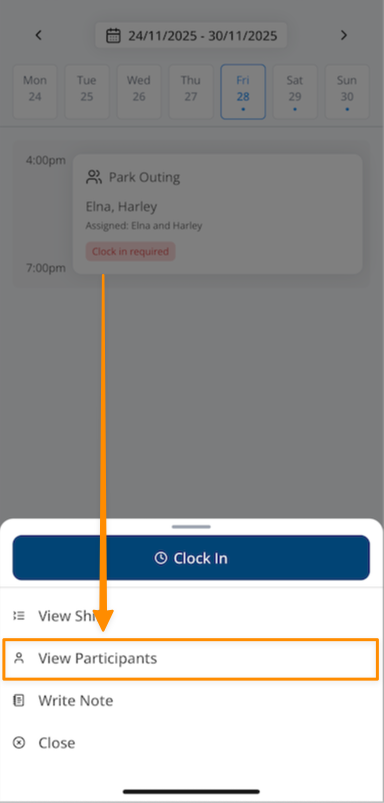
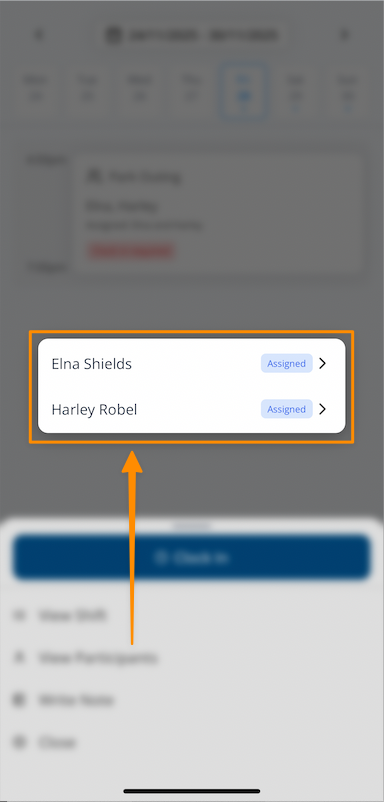
- If its a Group Support tap View Participants :
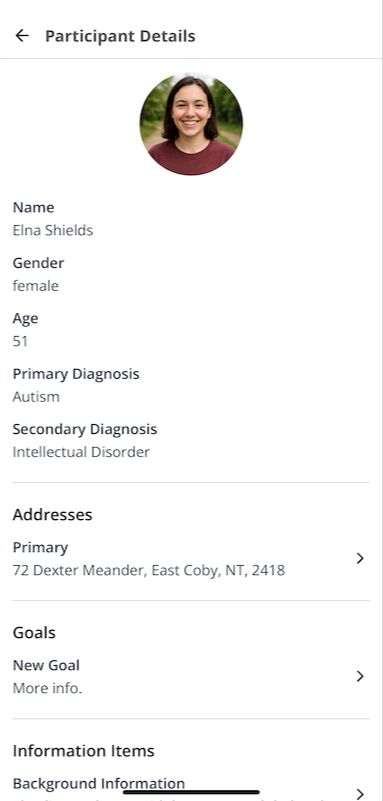
- then select the participant’s Profile.
App Privacy - Screenshots
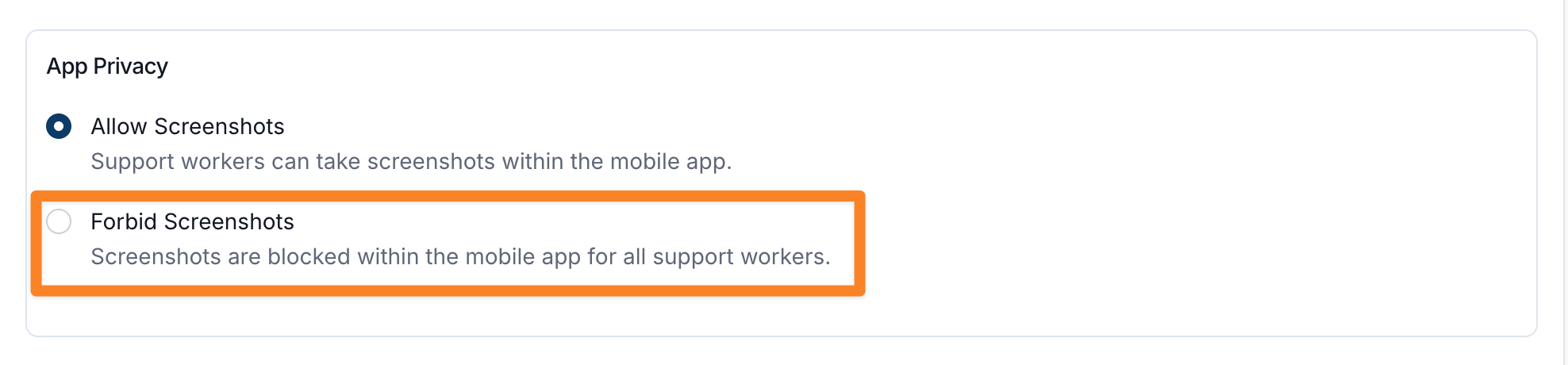
The App Privacy setting allows administrators to control whether support workers can take screenshots or record video within the Astalty mobile app. This setting is found within Scheduling Settings and can be updated by any user with permission to manage Scheduling Settings.
How to Configure App Privacy
- From the left-hand menu, navigate to Settings.
- Select Scheduling Settings.
- Scroll to the App Privacy section.
- Choose one of the following options:
Allow Screenshots – Support workers can take screenshots within the mobile app.
Forbid Screenshots – Screenshots and video recording are blocked within the mobile app for all support workers.
How it Works
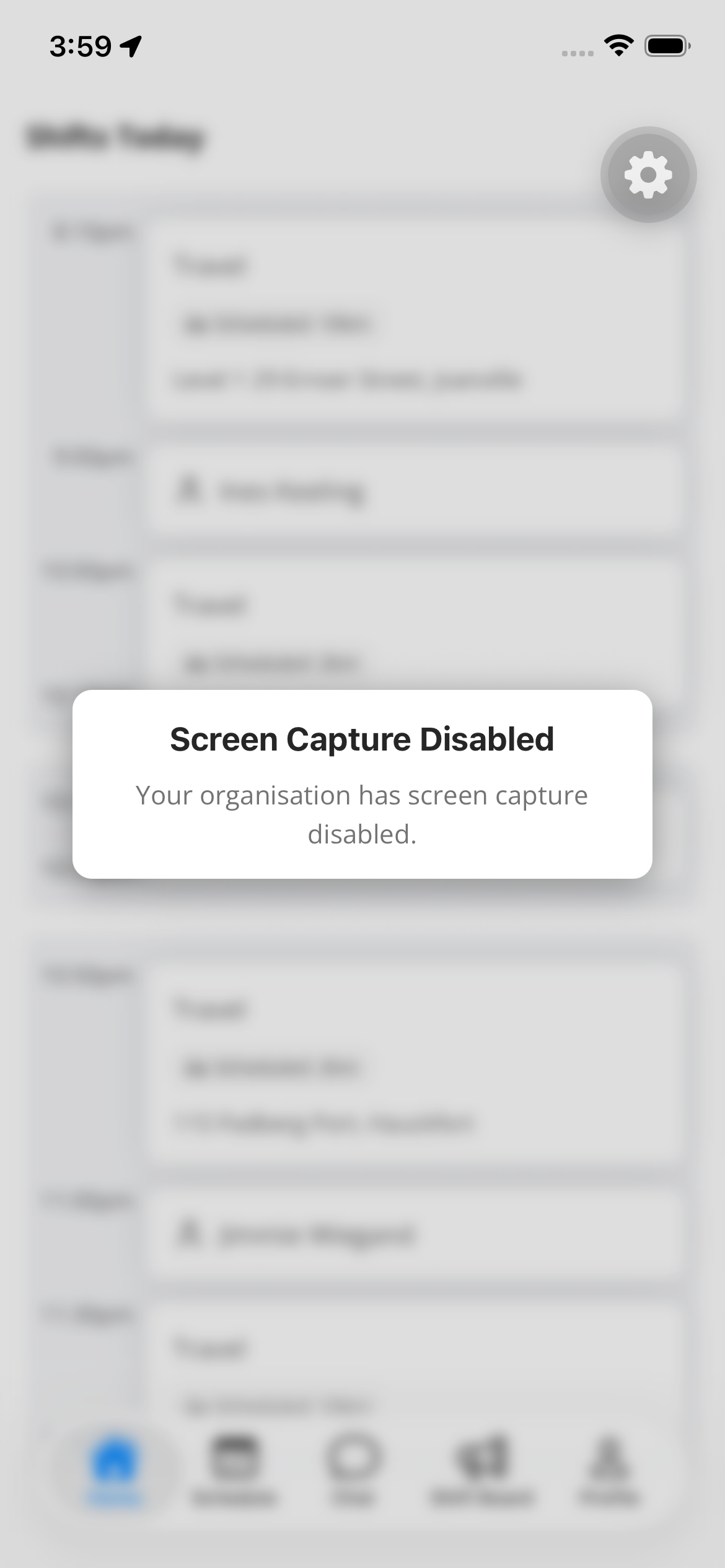
When Forbid Screenshots is selected, support workers will see a Screen Capture Disabled notification if they attempt to take a screenshot within the app. The screen will appear blurred, and any file or video created will be black rather than capturing the app content.
Information Available
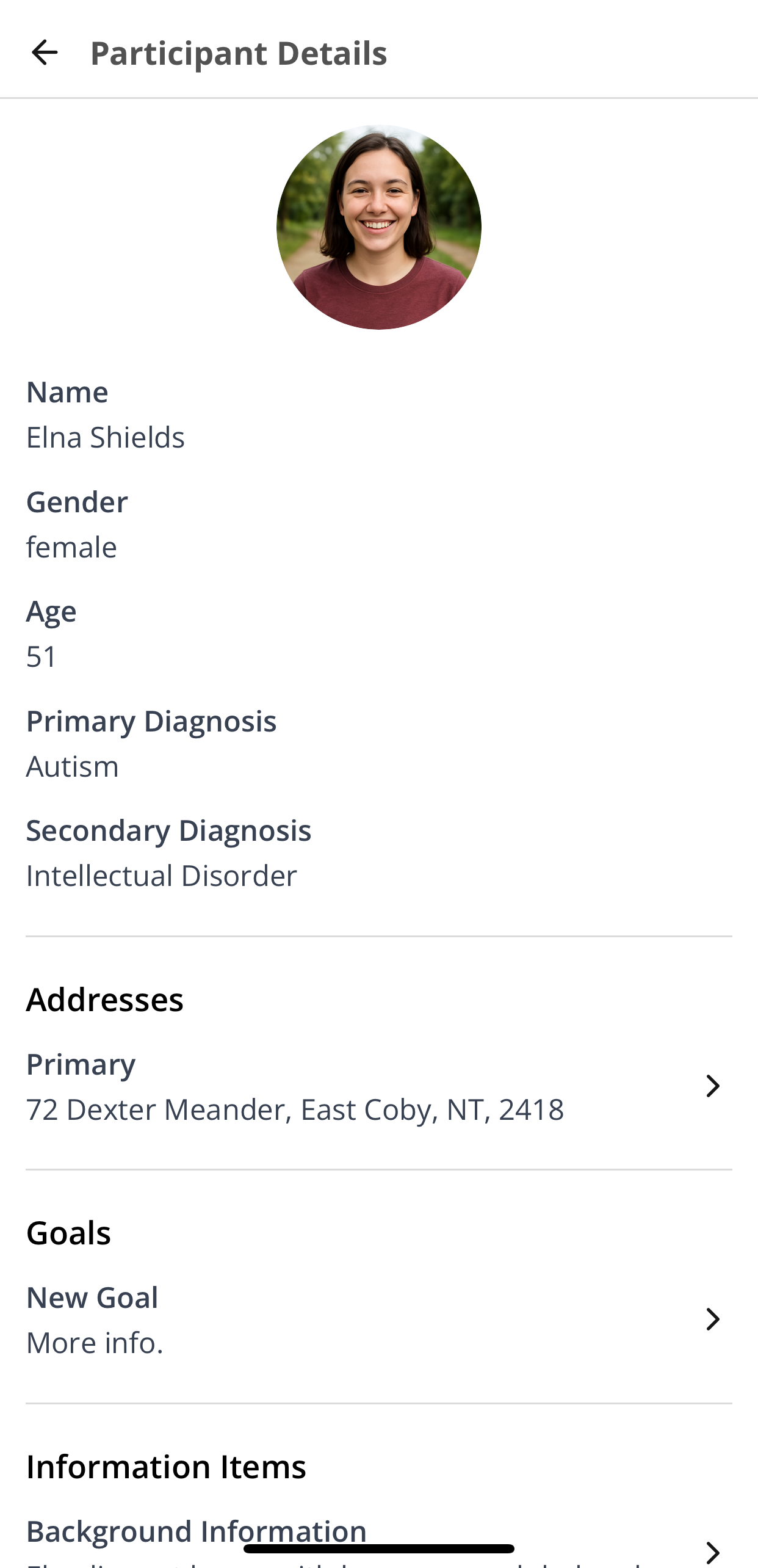
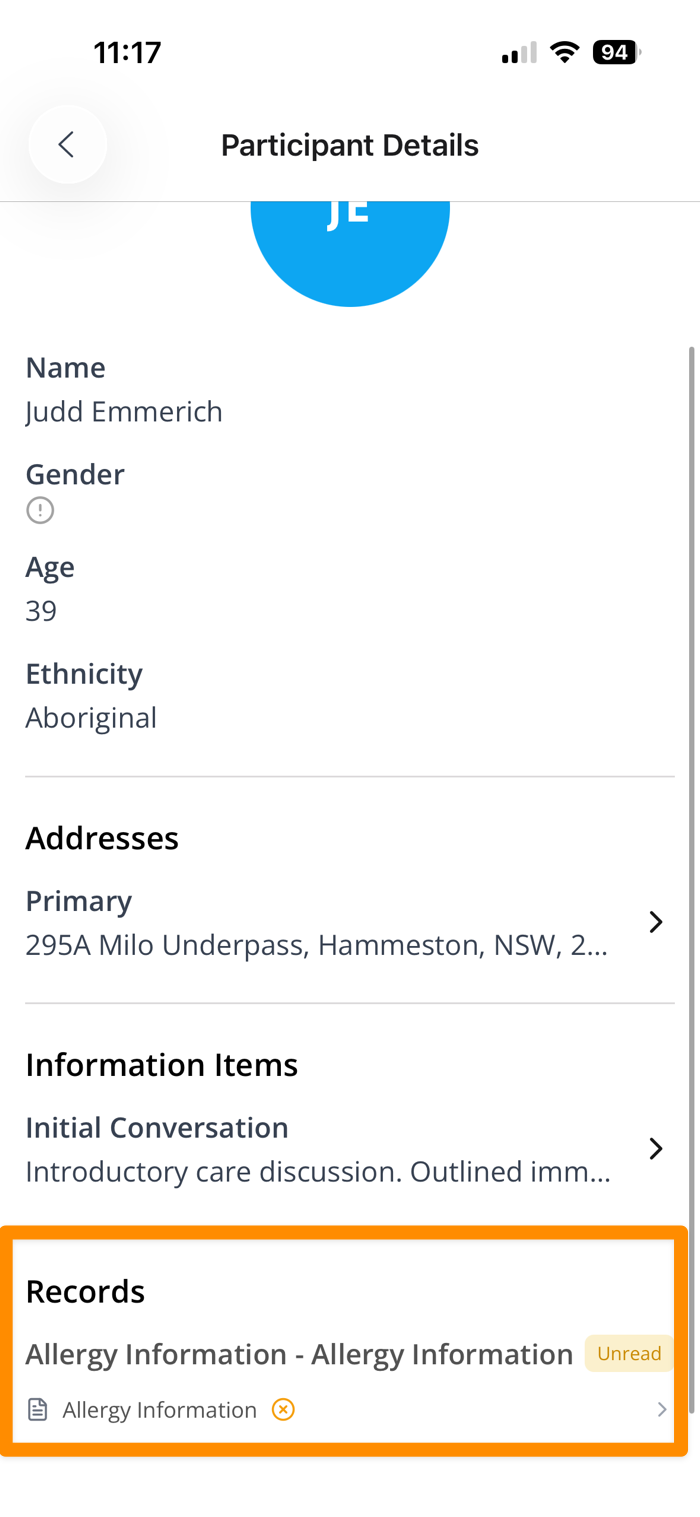
From the profile, Support Workers can view:
- Name
- Gender
- Age
- Primary diagnosis
- Secondary diagnosis
- Primary Address - selecting this will navigate you to your default map app on your device.
- Goals
- Risks marked as visible to Support Workers
- Information items marked as visible to Support Workers
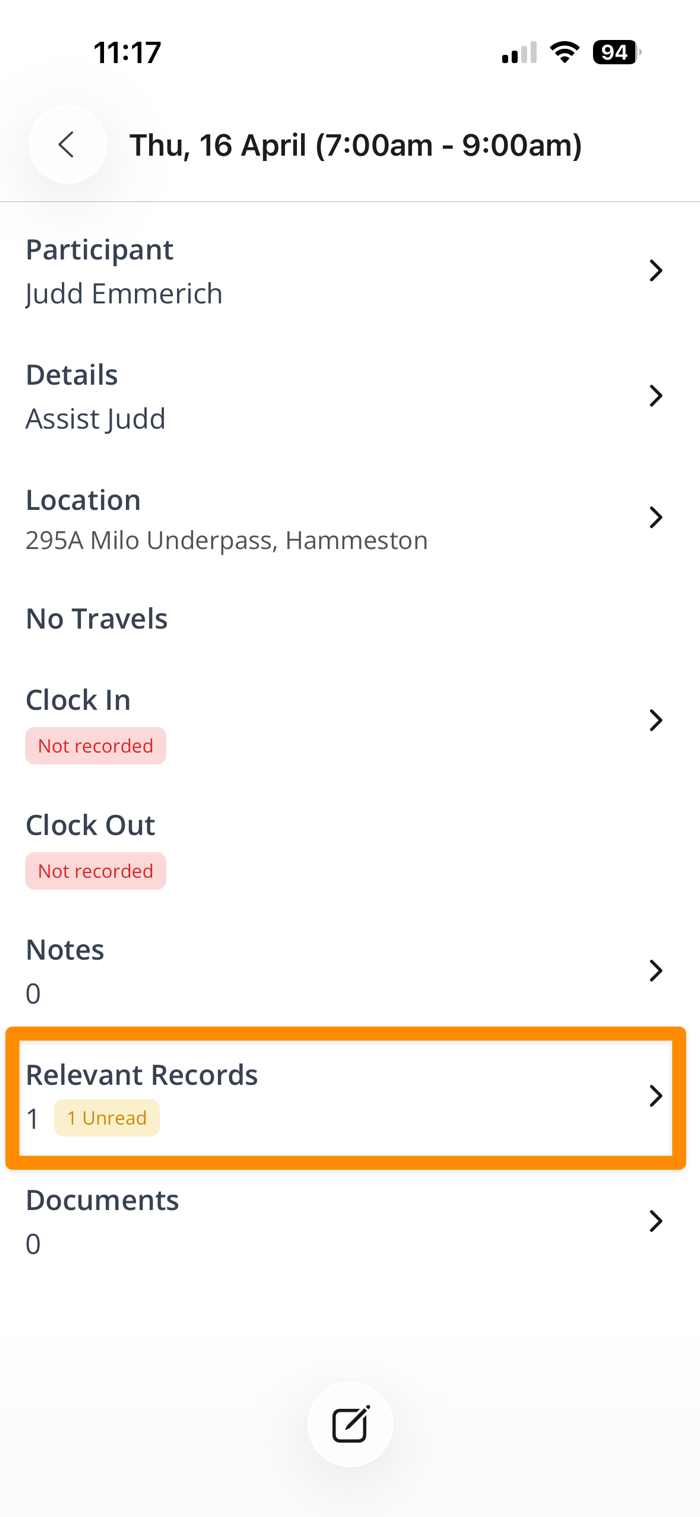
- Records and Documents marked as visible to Support Workers
Risks
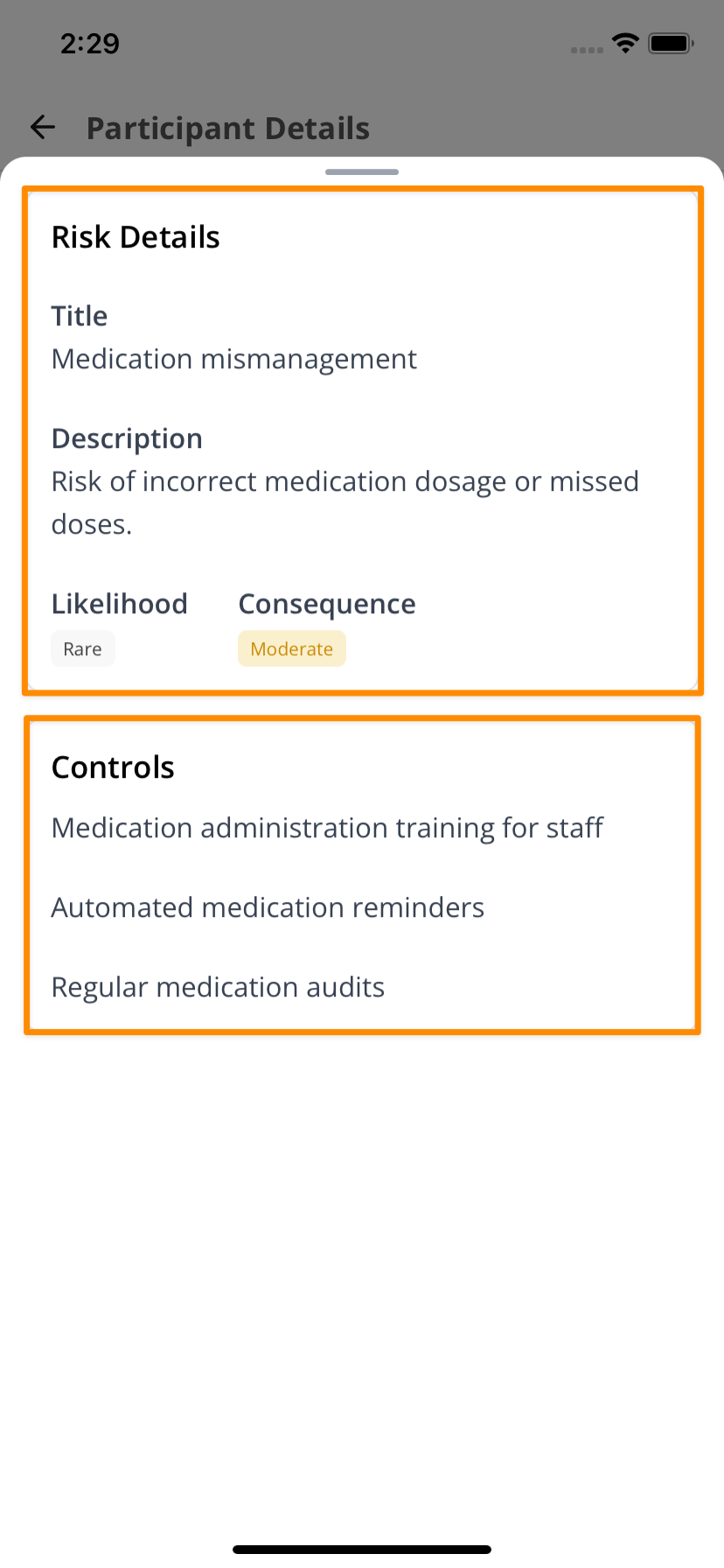
Where Risks have been identified as having the potential to impact on direct support, you will see these listed under the heading Risks within the Participant's profile.
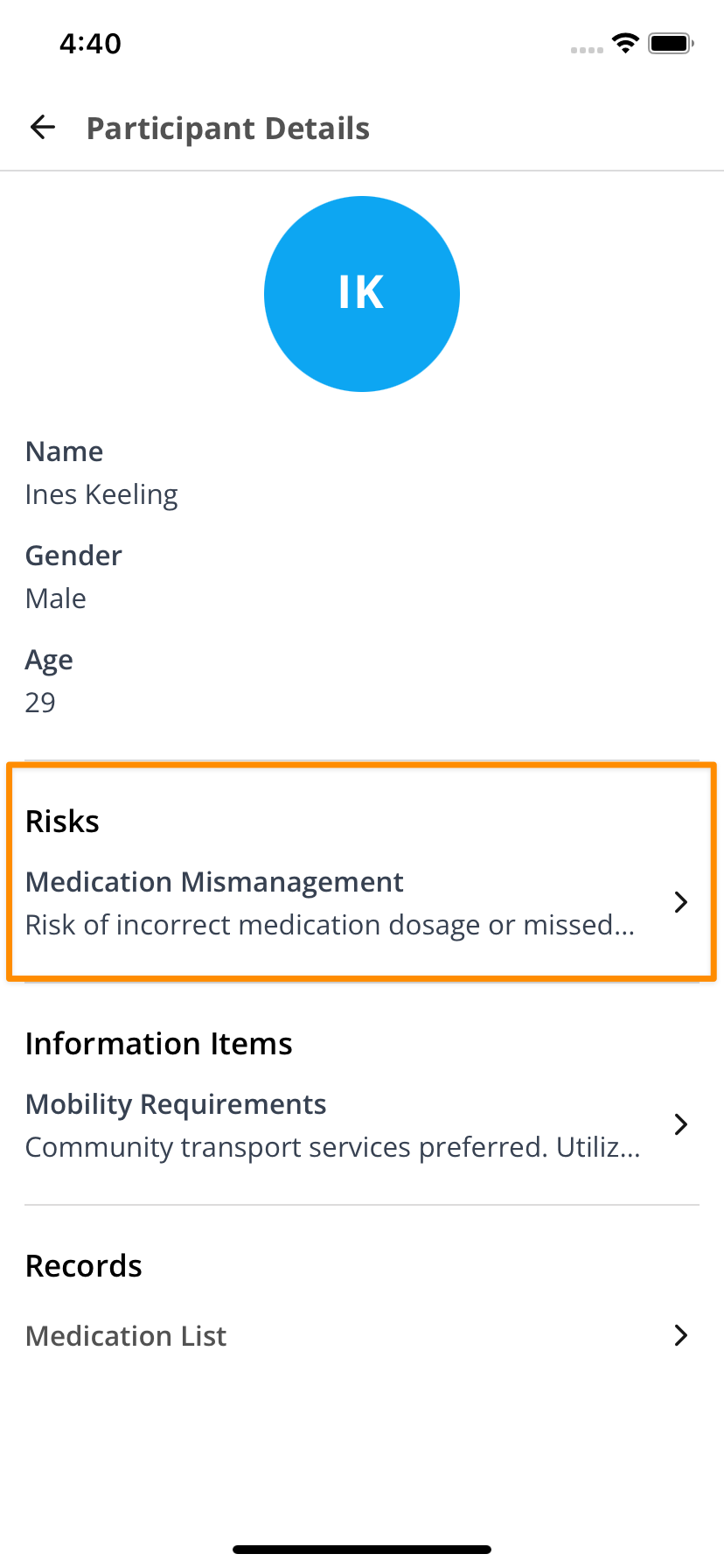
Click on the Risk to view the relevant Risk Details — including the Likelihood and Consequences — along with the Controls that have been put in place.
- For more information on making Risks visible to Support Workers, click here.
Information Items
- When you select an information item, a card slides up from the bottom of the screen with more detail.
- The content shown depends on what your organisation has chosen to make visible.
- For more details on Information Items and making them viewable to Support Workers click here.
Records and Documents
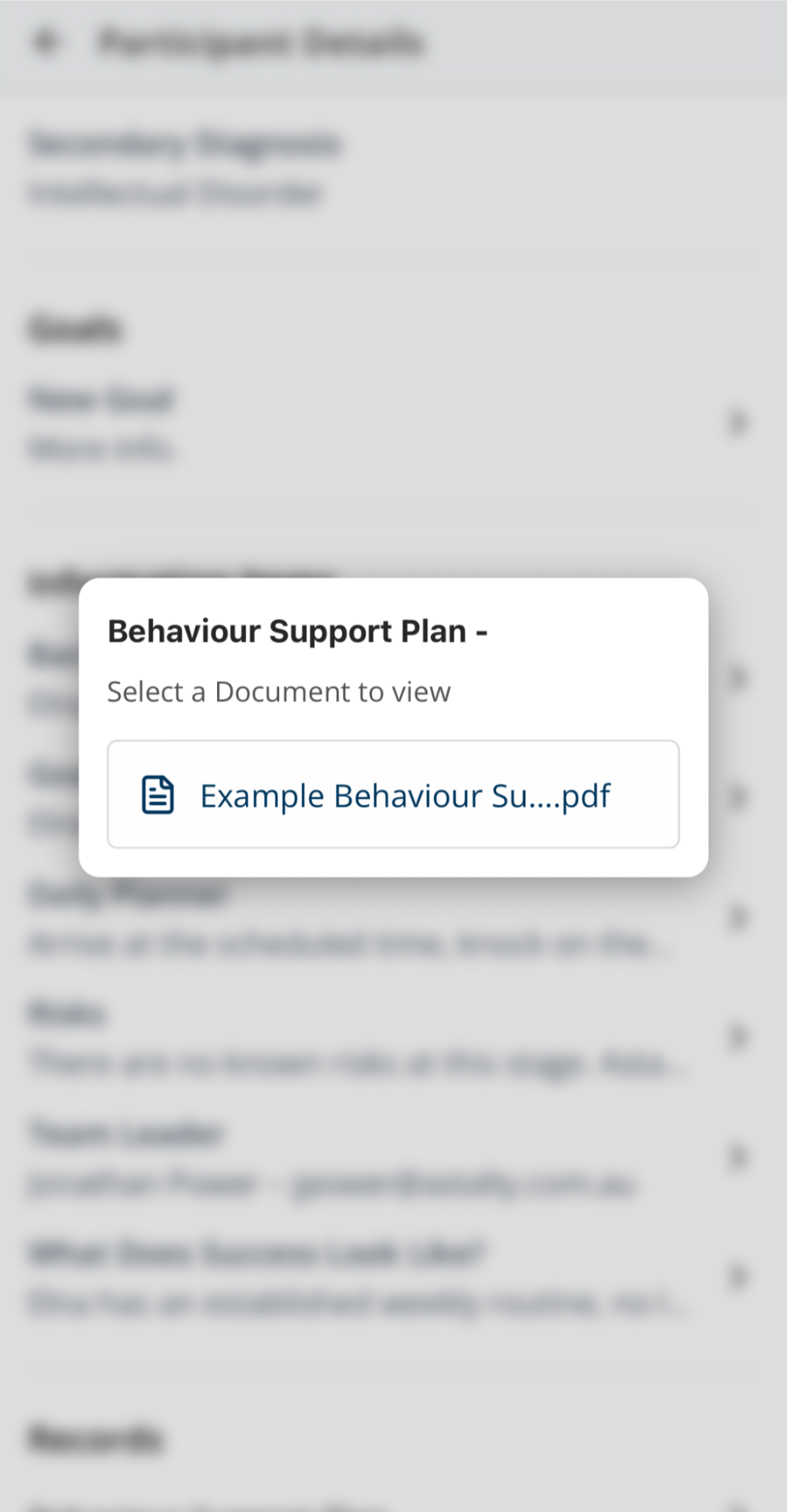
- Records can also be set as Visible to Support Workers.
- This may include documents such as a Behaviour Support Plan, ensuring workers have access to critical information at the point of support.
- For more information on making Records visible to Support Workers, click here.
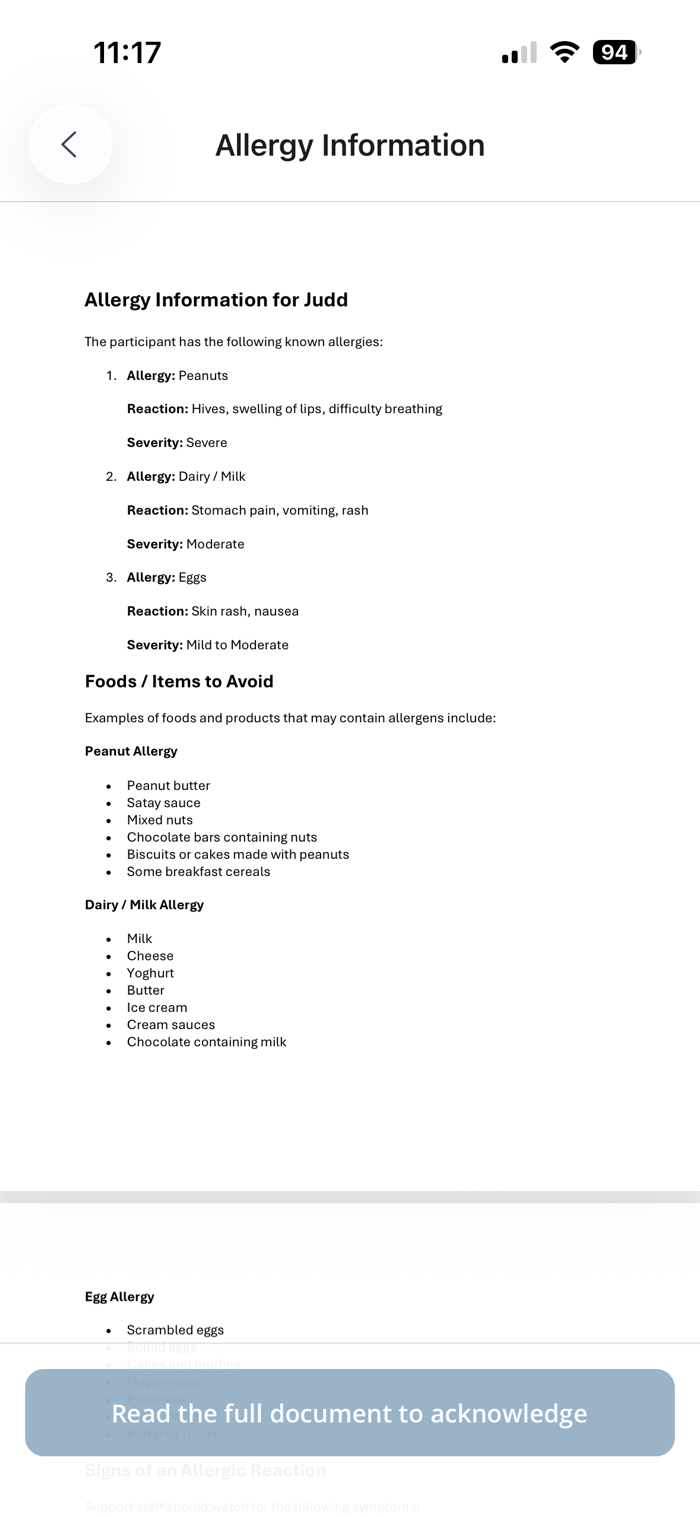
- Depending on the settings applied to the Record, Support Workers may also be required to Acknowledge Records.
Forms
If a Form is required for you to clock out of your shift, you will be prompted to complete this when you are clocking out. To see more on this, click here.
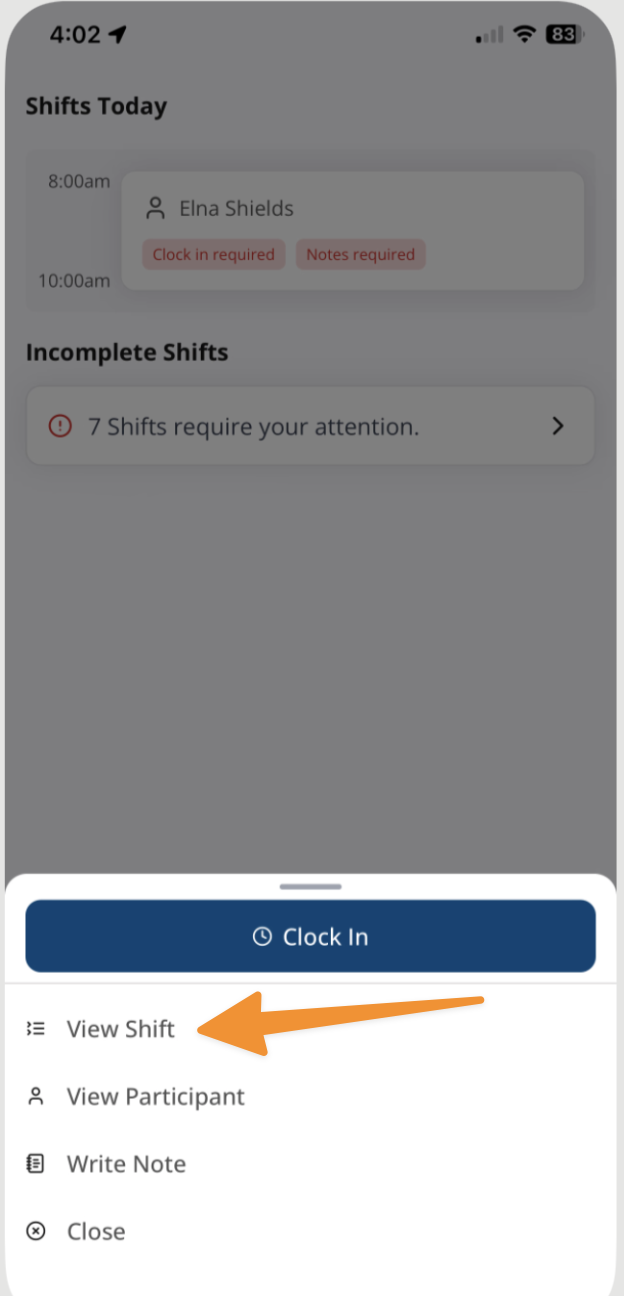
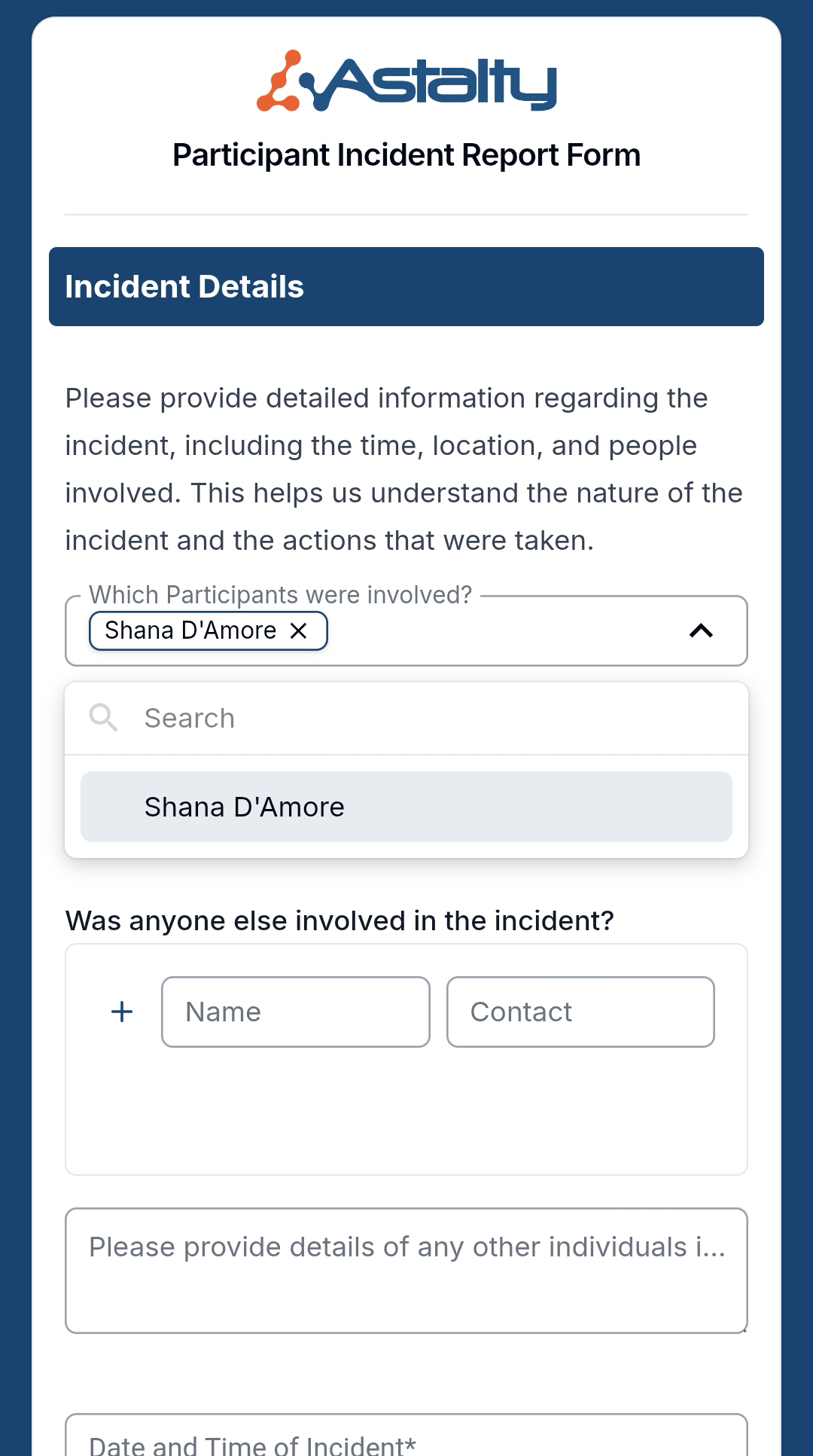
If you need to complete an Incident Report for a Participant (or any other Form that has been made available to you), open the Shift from your calendar, and select View Shift.
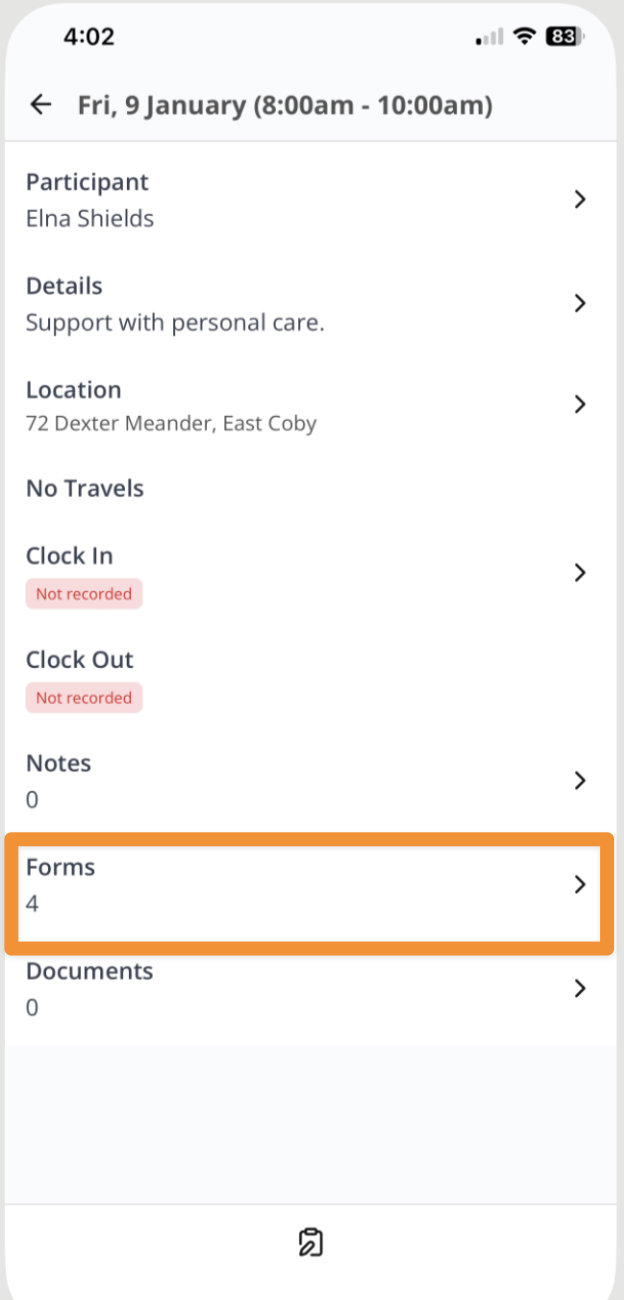
Tap on Forms, and then select the appropriate Incident Report Form (any required Forms for the Shift can also be completed from this section before clocking out).
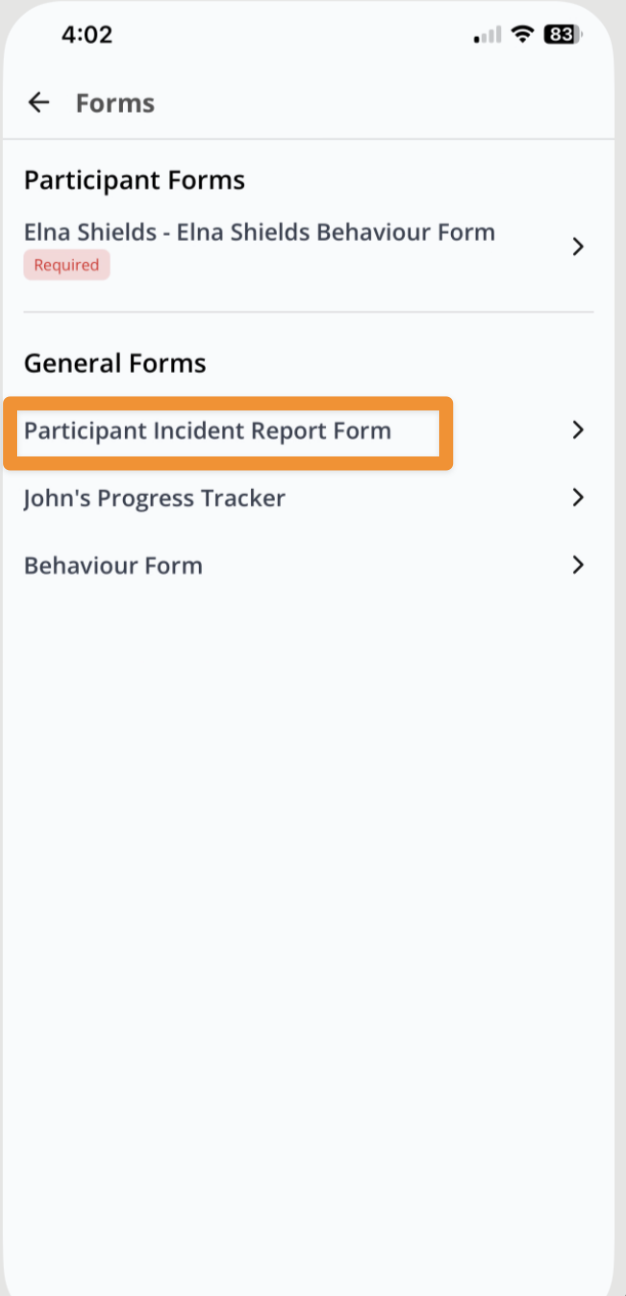
You can then complete the Incident Form for submission.
Participant Details App View Video Overview
The following video provides a walkthrough of Participant Details in the Support Worker app.