- Scheduling
- What Support Workers See
- Support Worker Case Note Templates
Support Worker Case Note Templates
Overview
Support Worker Case Note Templates let you standardise how case notes are created and recorded across your organisation. By setting up a template, you can guide Support Workers on what information to include, ensure consistency in reporting, and save time by pre-filling common sections. Templates can be customised with headings, prompts, or instructions, and once published, they appear in the Astalty application for Support Workers to use when writing their case notes.
Support Worker Case Note Templates
Similar to other note templates, you can create a Support Worker case note template to standardise how notes are recorded.
To create one:
- Go to Settings > Tasks and Notes.
- Select Create Note Template.
- Enter a Note Template Name.
- Set the Usage Type to Support Notes.
- Add any further details or instructions.
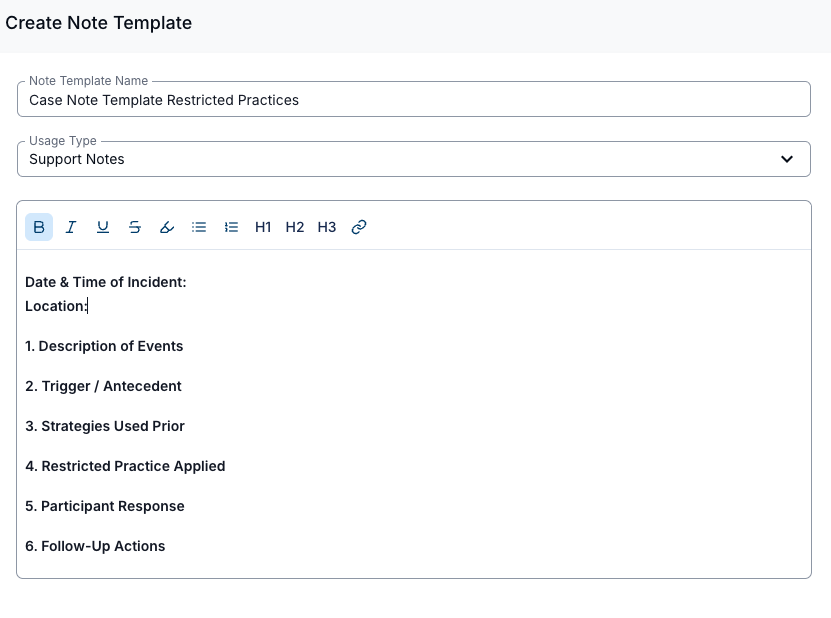
Once saved, this template will appear in the Astalty application for Support Workers, allowing them to write case notes using your standard format.
Minimum Character Count for Case Notes
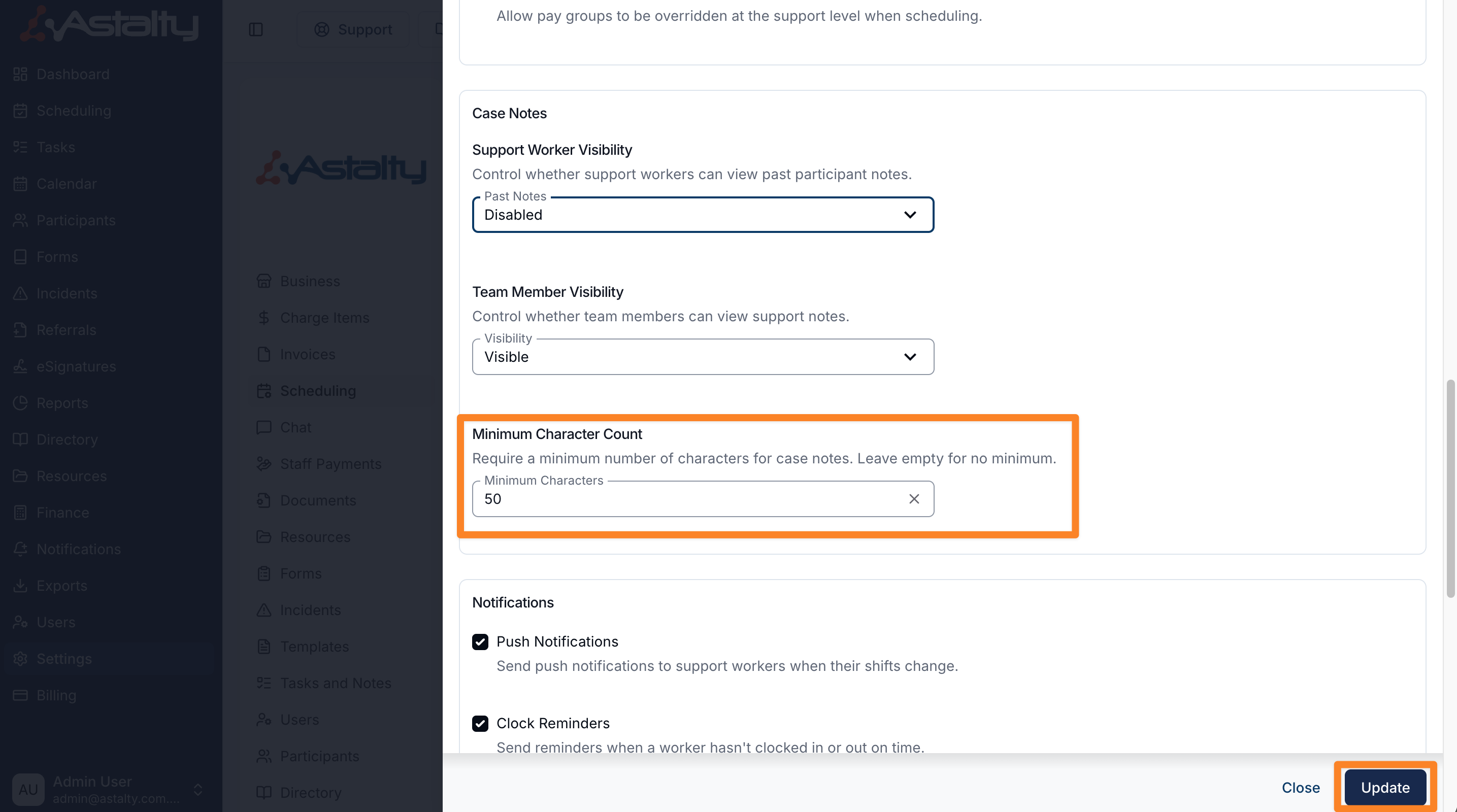
You can set a minimum character count for support worker case notes to ensure a sufficient level of detail is recorded before notes can be saved.
How to set a minimum character count
To configure this setting:
- Go to Settings
- Select Scheduling
- Click Edit (top right)
- Enter a value in the Minimum Character Count for Case Notes field
Note: Leave this field empty if you do not want to enforce a minimum character count
How it works
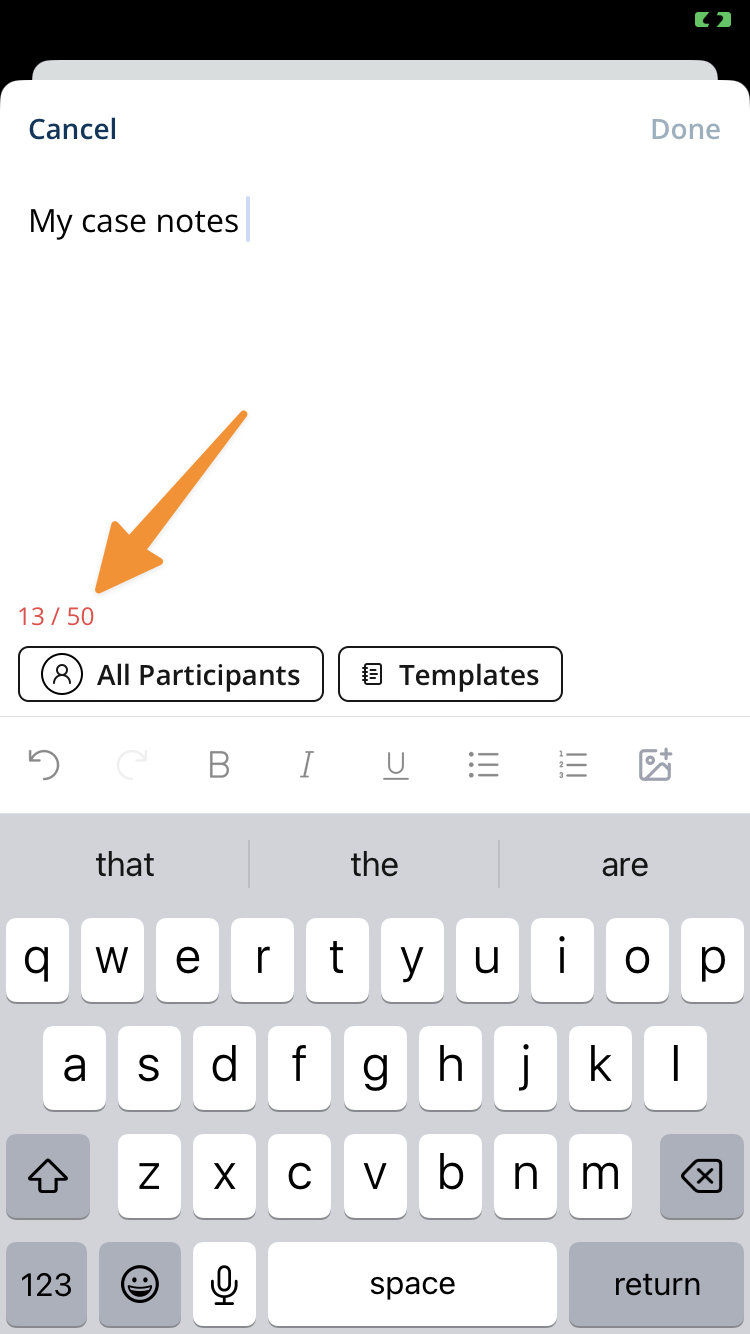
- Support workers will be required to meet the minimum character count before they can save a case note
- If the requirement is not met, the note cannot be submitted
Support Worker Templates In Action
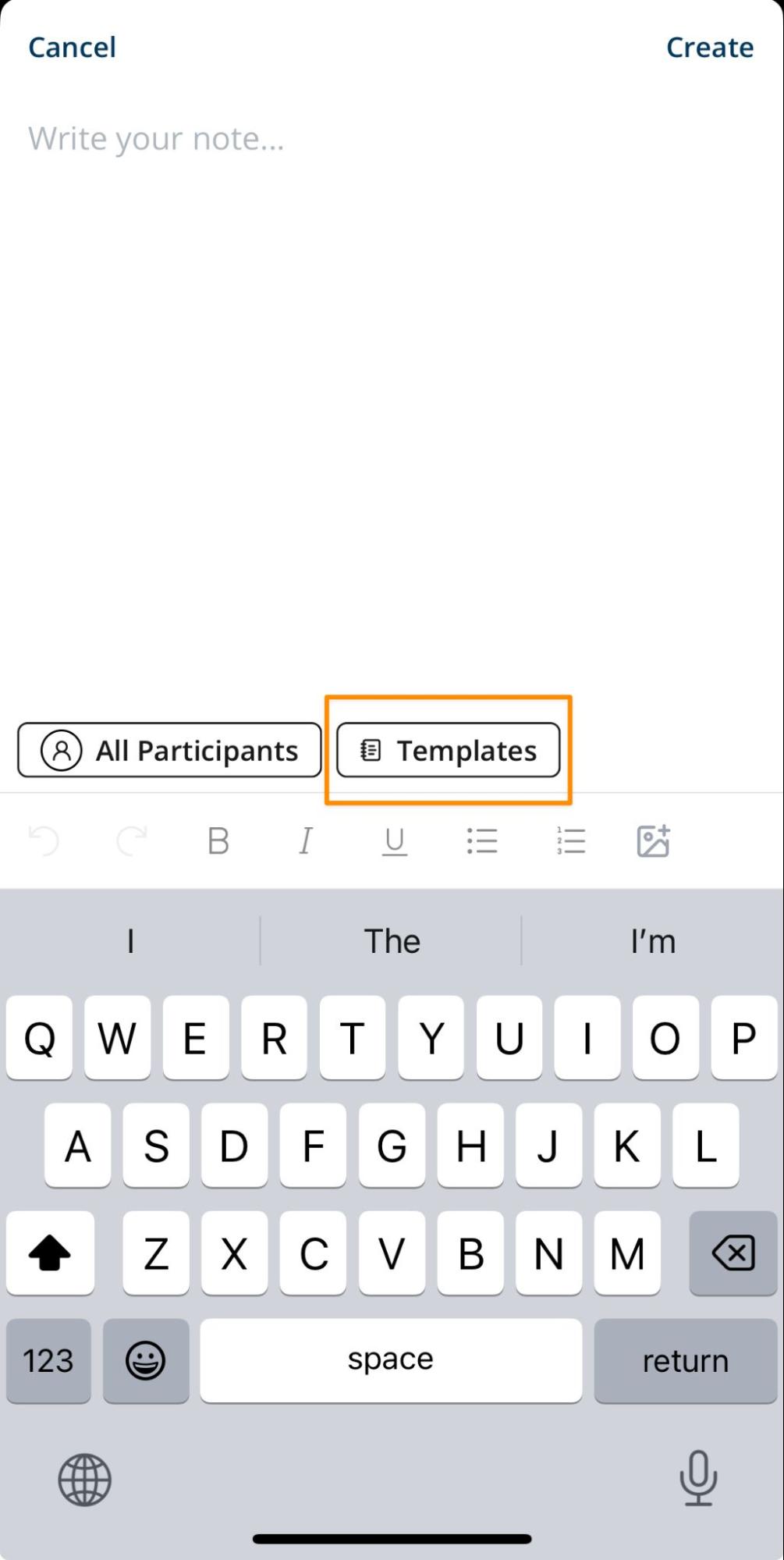
To use a template, open the support you’ve been scheduled for and tap Write Note.
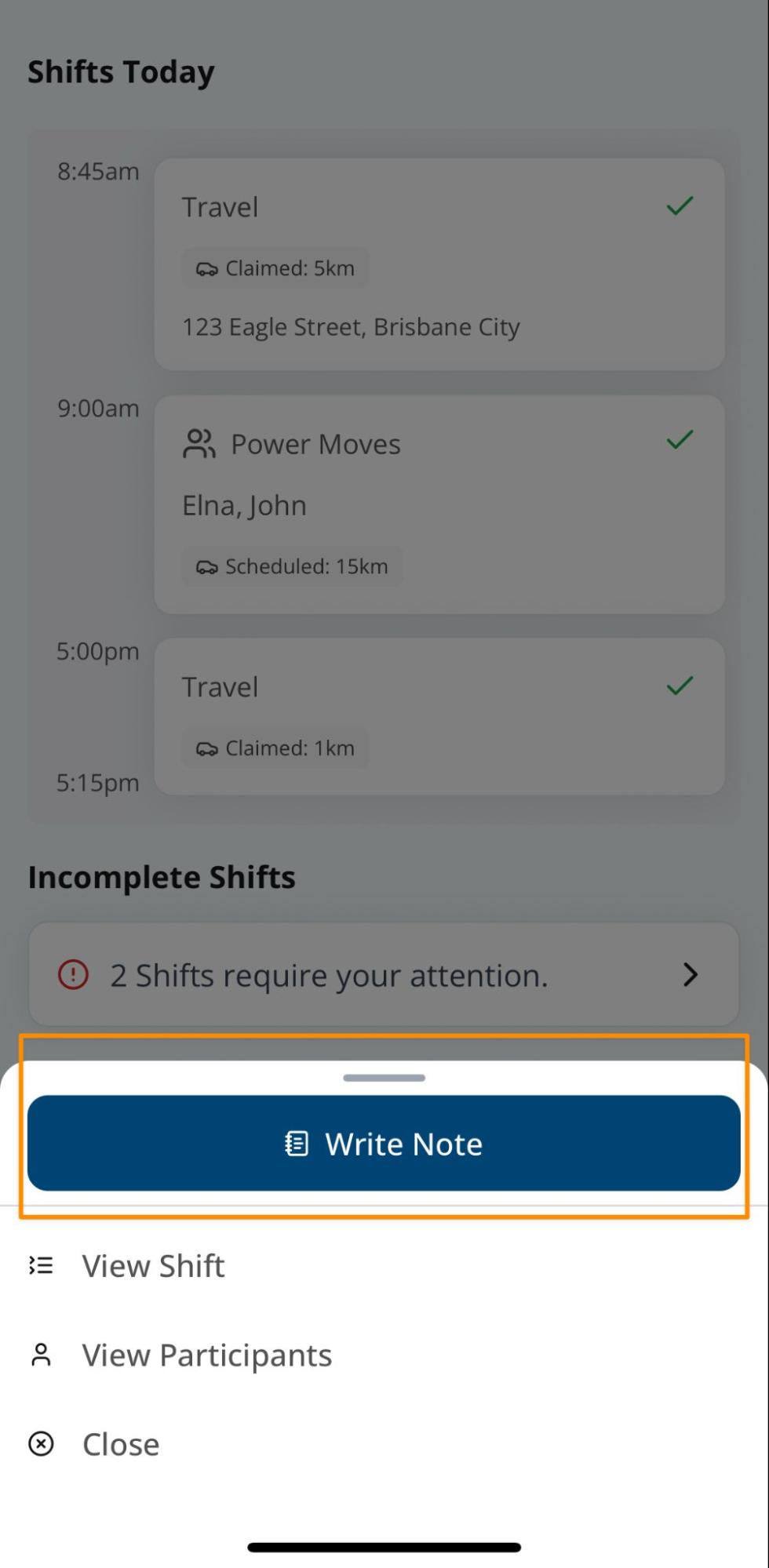
Scroll to the bottom of the note entry screen and select Templates. Choose the relevant template, it will load directly into your note entry. Fill in any additional details, then tap Create to save your case note.