Support Worker Case Note Templates
Overview
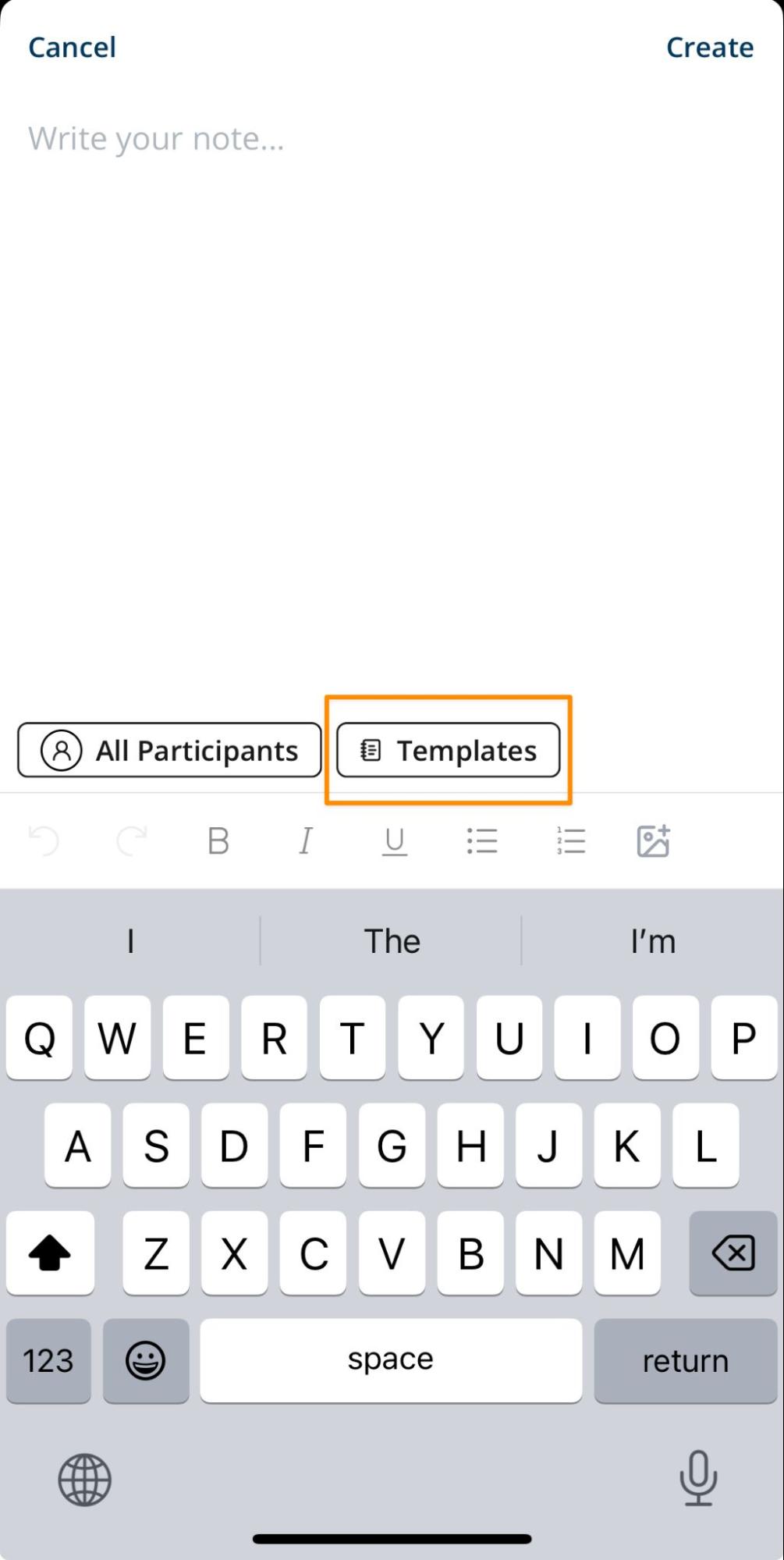
Support Worker Case Note Templates provide reusable headings, prompts, or instructions for case notes. Available templates appear in the Astalty app when a Support Worker writes a note. Selecting a template appends its content after any text the worker has already entered.
Support Worker Case Note Templates
Similar to other note templates, you can create a Support Worker case note template to standardise how notes are recorded.
To create one:
- Go to Settings > Tasks and Notes.
- Select Create Note Template.
- Enter a Note Template Name.
- Under Usage Type, select Support Notes.
- Add the template content, then save the template.
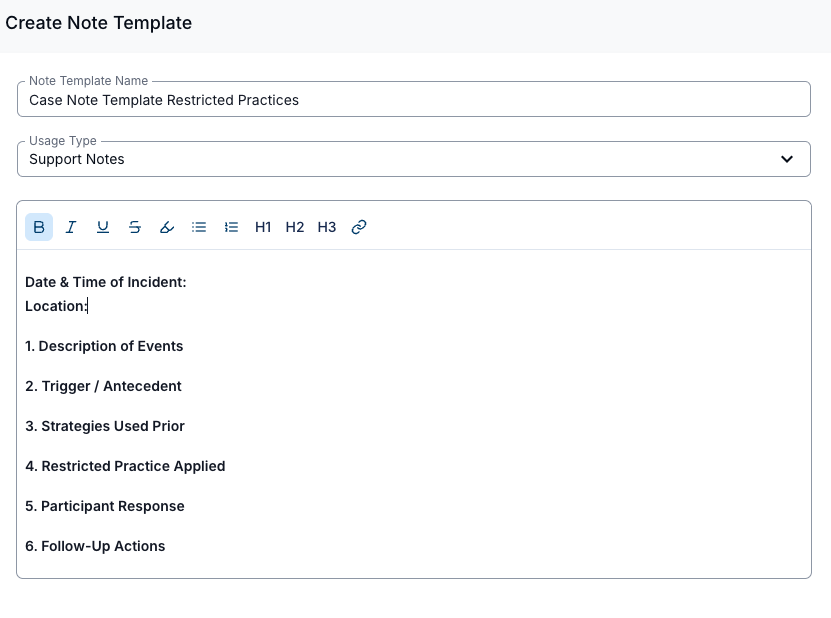
Once saved, this template will appear in the Astalty application for Support Workers, allowing them to write case notes using your standard format.
Minimum Character Count for Case Notes
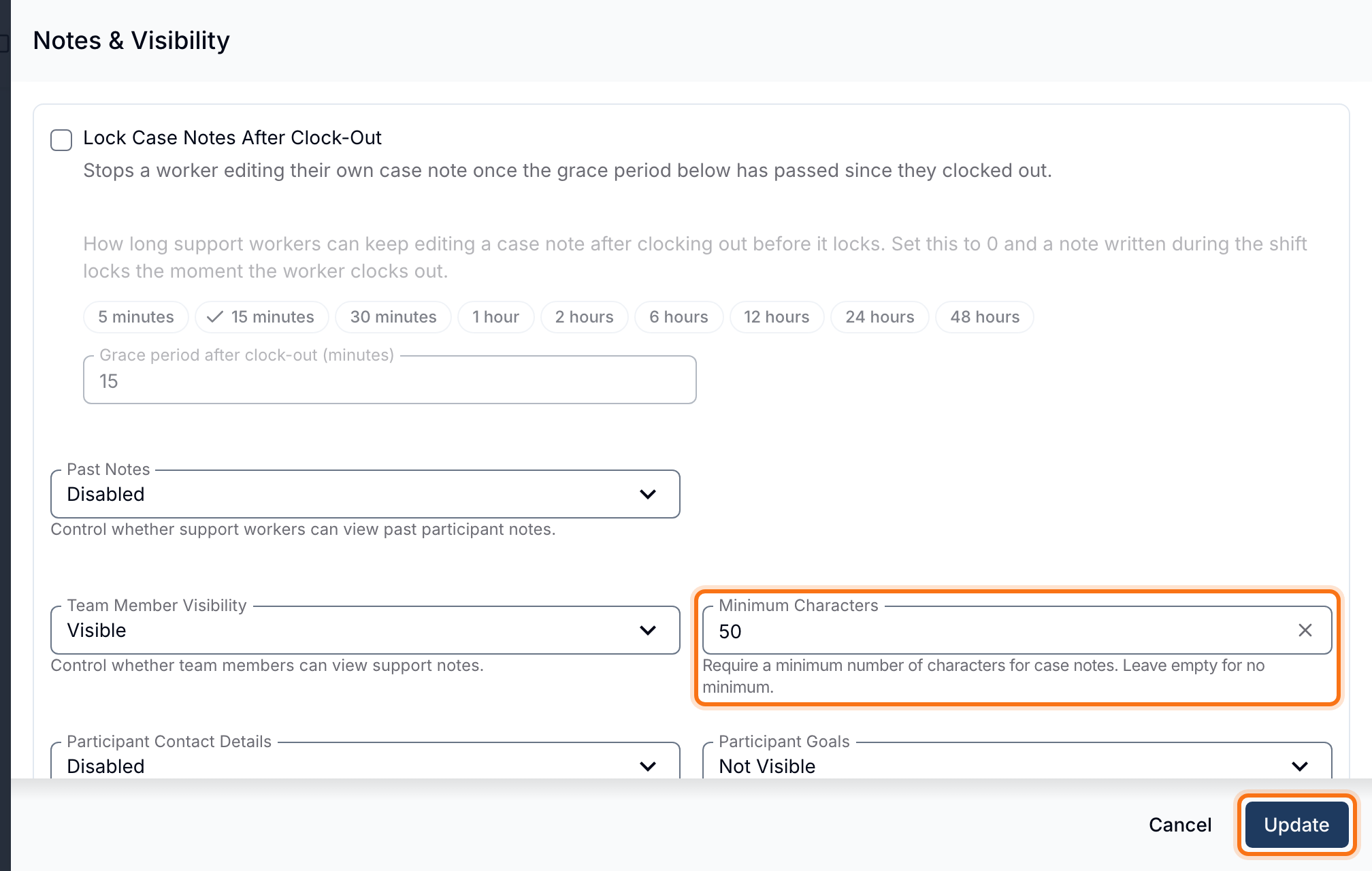
You can set a minimum character count for Support Worker case notes to ensure a sufficient level of detail is recorded before notes can be saved.
How to Set a Minimum Character Count
To configure this setting:
- Go to Settings > Scheduling.
- Select Edit on the Notes & Visibility card.
- Enter a value in Minimum Characters.
- Select Update.
Leave the field empty if you do not want to enforce a minimum character count.
How It Works
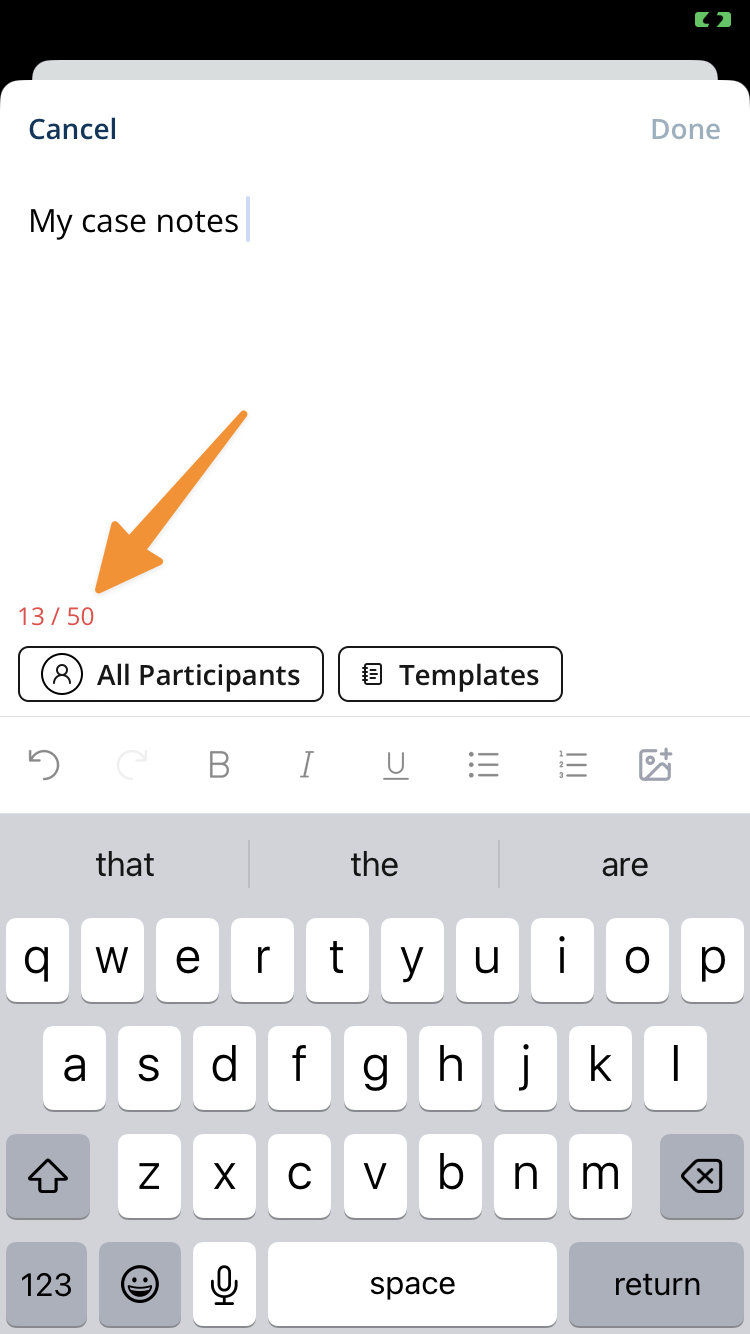
- Support Workers must meet the minimum character count before they can finish a case note.
- A note below the limit cannot be submitted.
Support Worker Templates In Action
- Open the scheduled support and select Write Note.
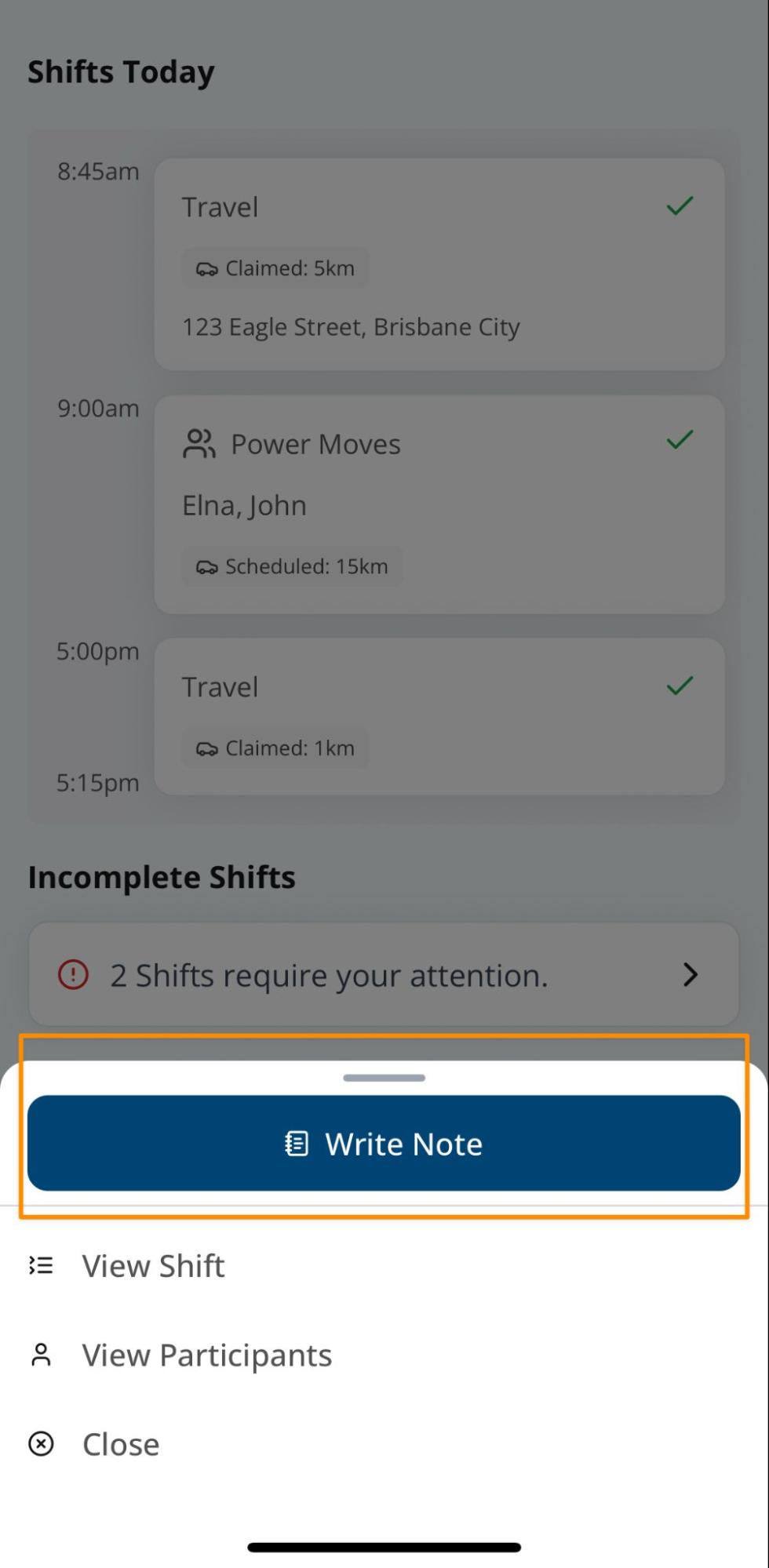
- Select Templates at the bottom of the note entry screen.
- Select a template. Its content is added to the note after any content already entered.
- Complete the note, then select the tick in the top-right corner.