- Scheduling
- Workers
- Enabling a User to be Scheduled on Supports
Enabling a User to be Scheduled on Supports
Overview
In Astalty, you can control which users are eligible to be scheduled on supports. This can be set either when inviting a new user or by updating an existing user’s profile.
Method 1: Invite a New User as a Support Worker
- From the left-hand side menu, go to Users.
- Click Invite User.
- Select Support Worker as the role.
- Tick This User can be Scheduled for Support.
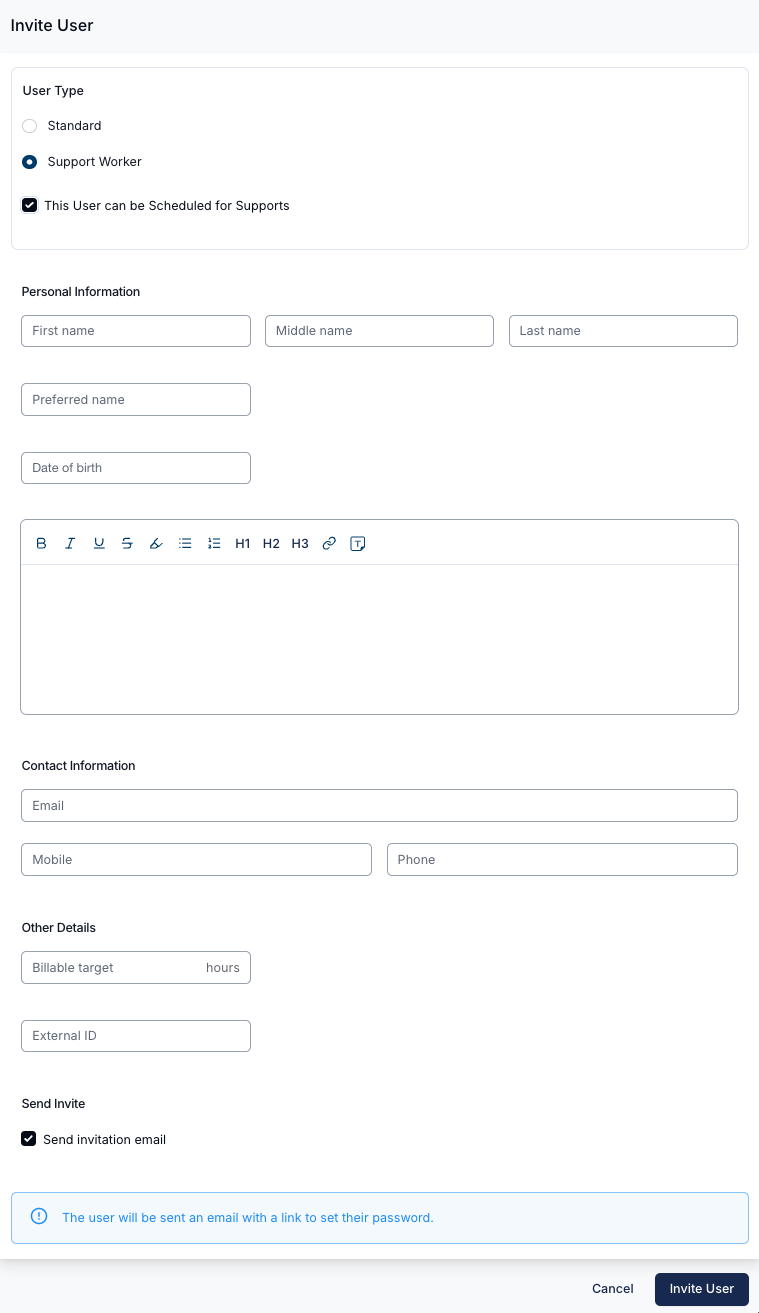
- Fill in the required information.
- Scroll to the bottom of the page and Invite User.
Method 2: Update an Existing User
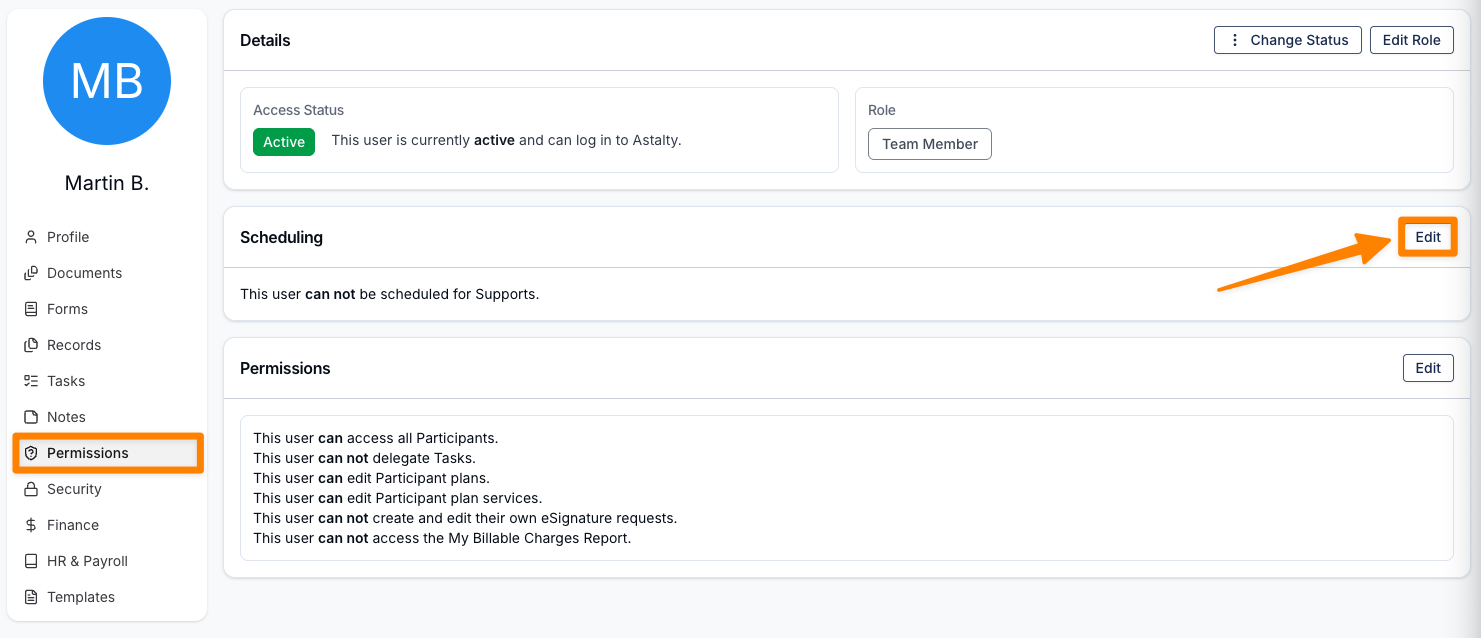
- Go to the Users section and open the profile of the team member that you want to schedule for support.
- Head to their Permissions page, and click on Edit in the Scheduling section.
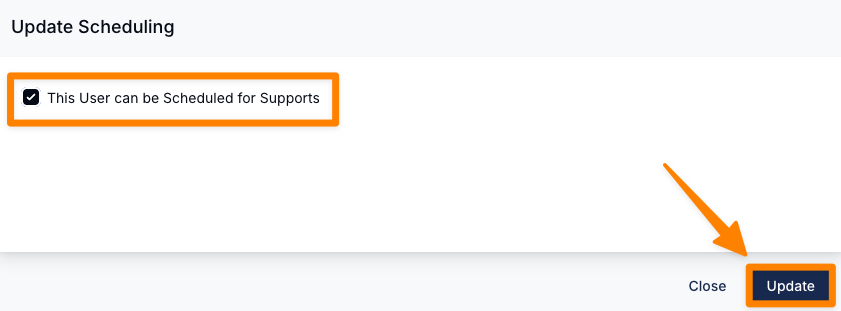
- Tick the option: This User can be Scheduled for Supports. Click Update.
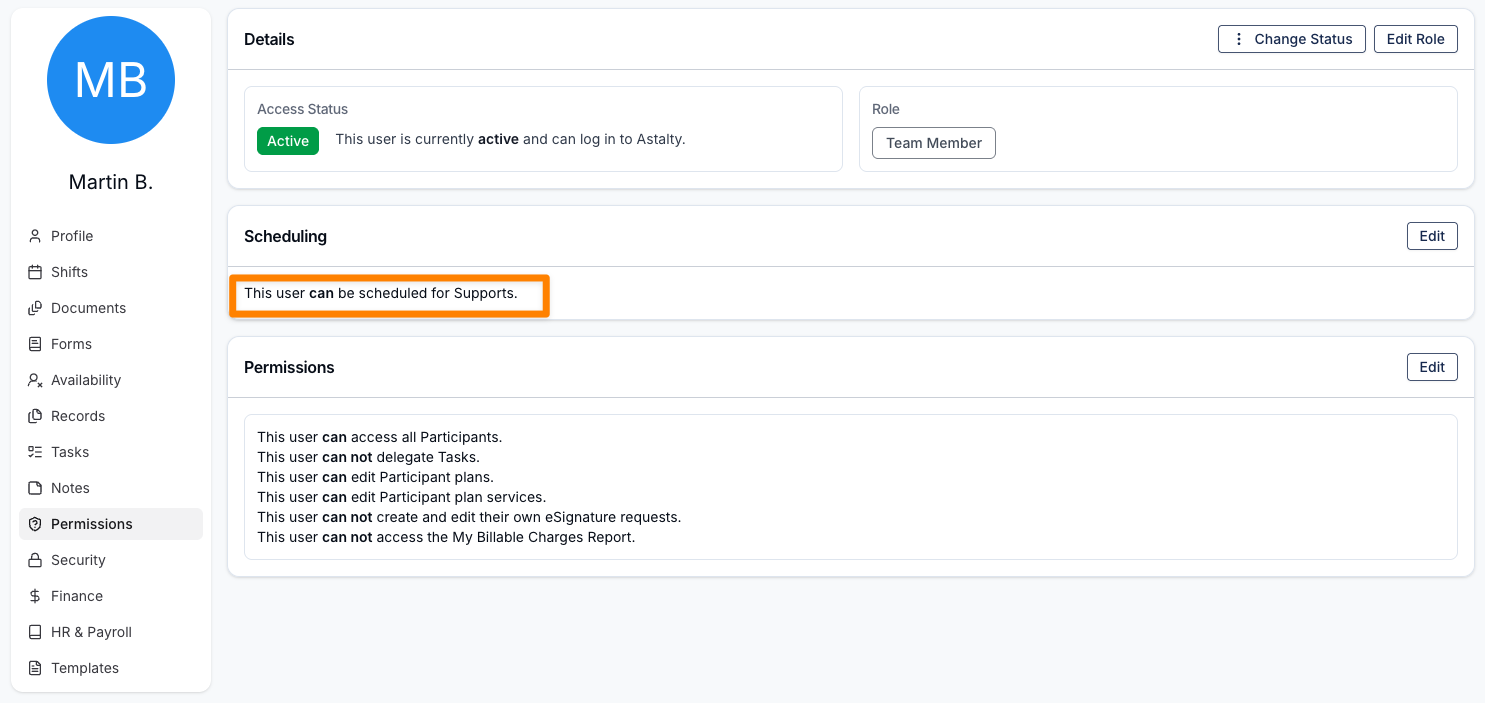
This change will be reflected on the Users Permissions page.
Inviting a Support Worker Video
The following video outlines how you can invite a Support Worker into Astalty.