- Scheduling
- Charges
- Managing Manual Charges
Managing Manual Charges
Overview
Manual Charges allow you to control exactly what is billed for a support rather than relying on automatic charge calculations. This is useful in situations where charges need to be reviewed or adjusted manually before invoicing.
This guide explains how to manage Manual Charges that are selected when creating Supports. For step-by-step instructions on creating Supports, refer to the Adding a 1:1 Shift or Adding a Group Shift guides.
When to Use Manual Charges
Manual Charges may be used when:
- Charges need to be manually verified before invoicing.
- You want to control billing items separately from the automatic shift calculations.
- You are delivering two types of support during the shift, such as Community Access and Personal Care.
Adding Manual Charges to a Support
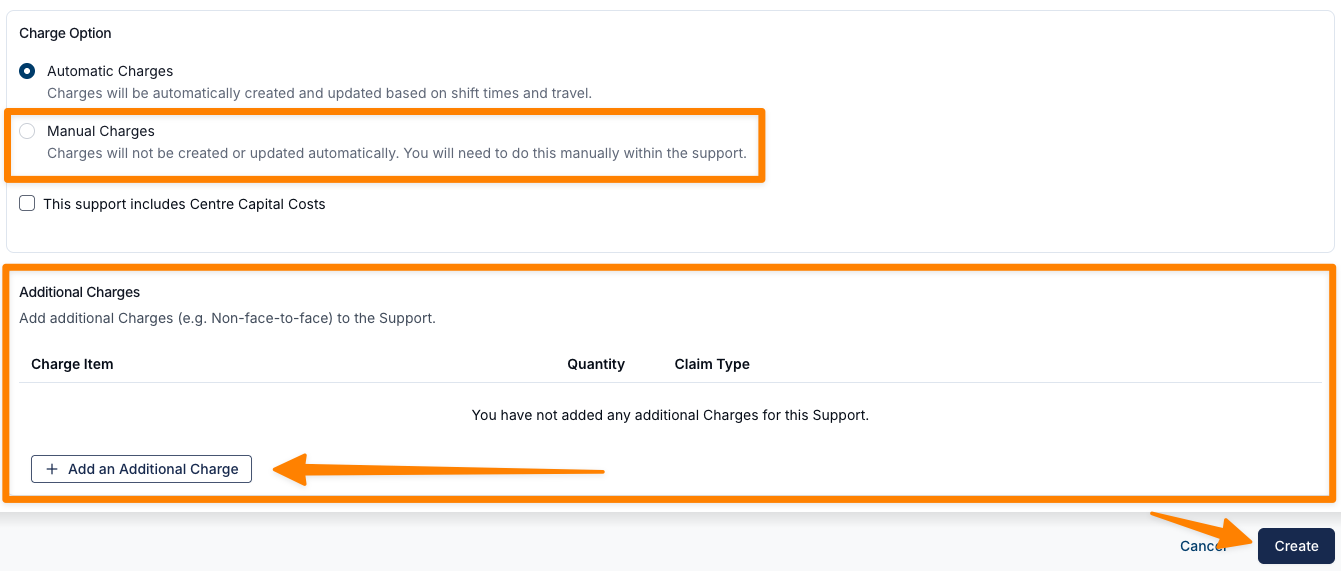
To apply Manual Charges to a Support, scroll to the Charge Option section near the bottom of the form.
By default, Automatic Charges will be selected. Change this to Manual Charges, then add the required Charge Items in the Additional Charges section at the bottom of the form.
Adding Travel to the Shift
Even when using Manual Charges, you should still record travel in the shift so the Support Worker can report the actual distance travelled.
- Navigate to the Travel tab in the support.
- Add the planned travel details.
- The Support Worker can then update the kilometres travelled through their app during the shift.

Reviewing Manual Charges During Shift Approvals
Before approving shifts for payroll and invoicing, Manual Charges should be reviewed.
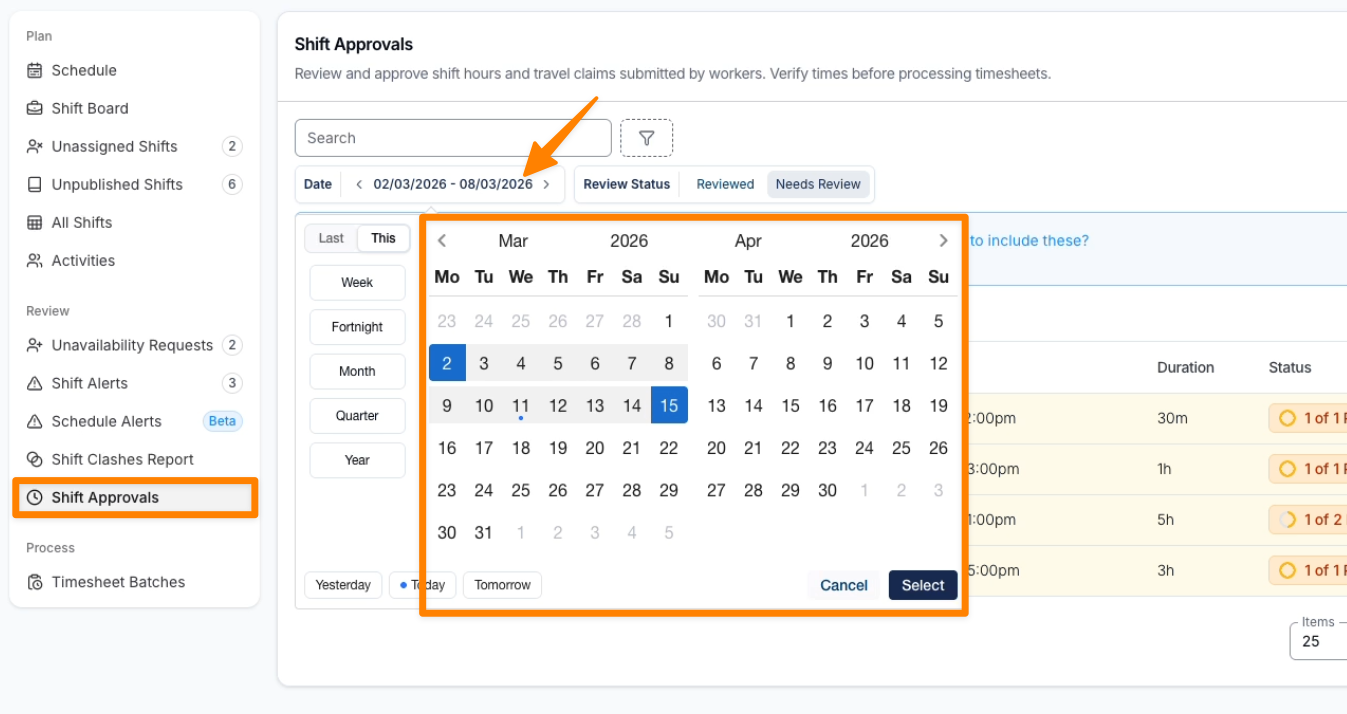
Step 1: Open Shift Approvals
- Go to Shift Approvals.
- Select the date range for the payroll/invoicing period you are processing.
- Click Select.
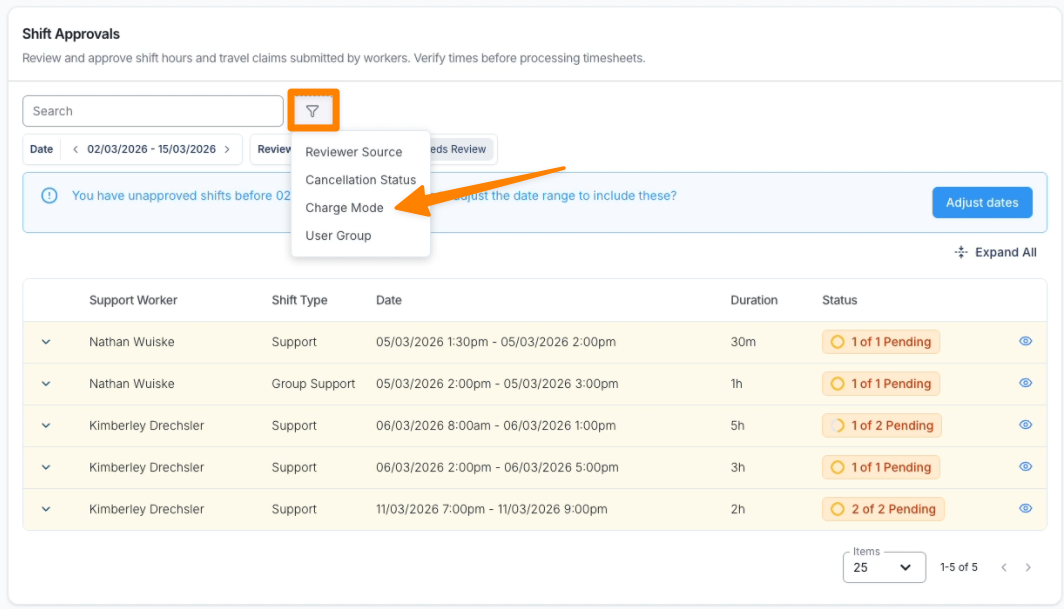
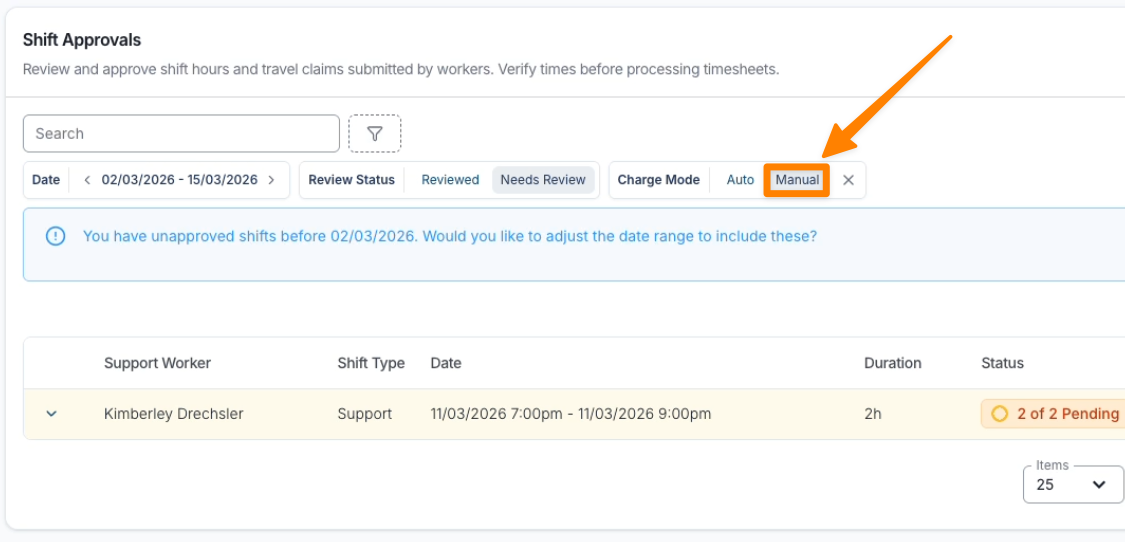
Step 2: Filter Manual Charges
- Locate the Charge Mode filter.
- Select Manual.
This allows you to review shifts that require Manual Charge validation.
Step 3: Confirming Worked Hours
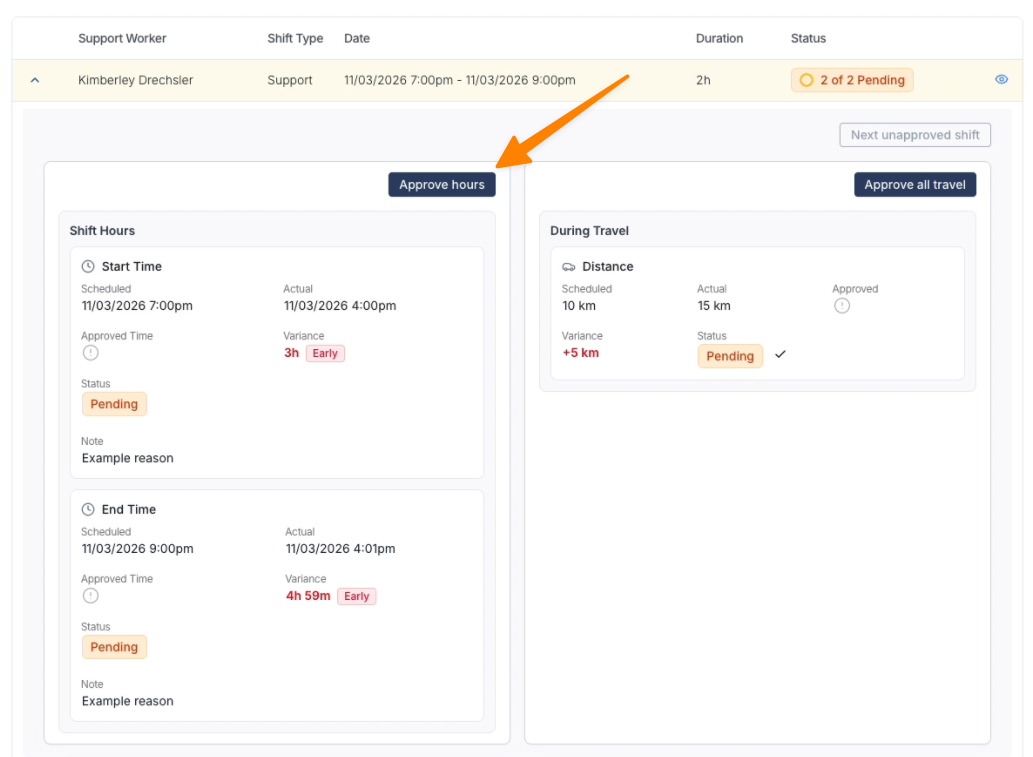
- Open the shift using the dropdown menu.
- Review the scheduled hours.
- Click Approve Hours.
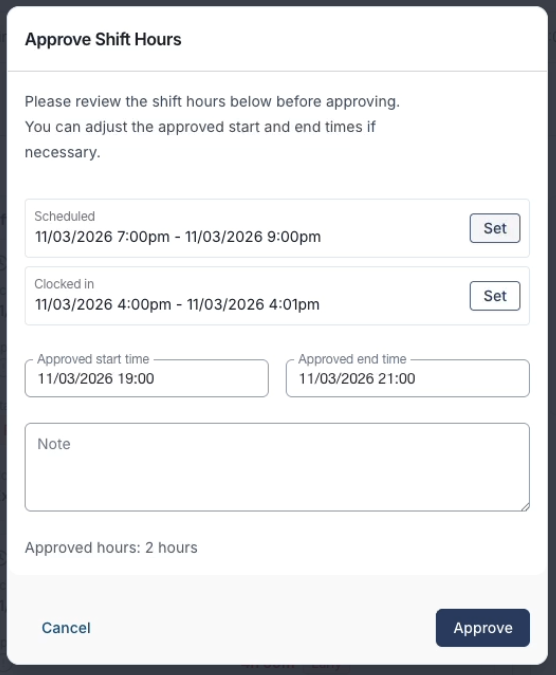
- Confirm or adjust the worked hours.
- Click Update.
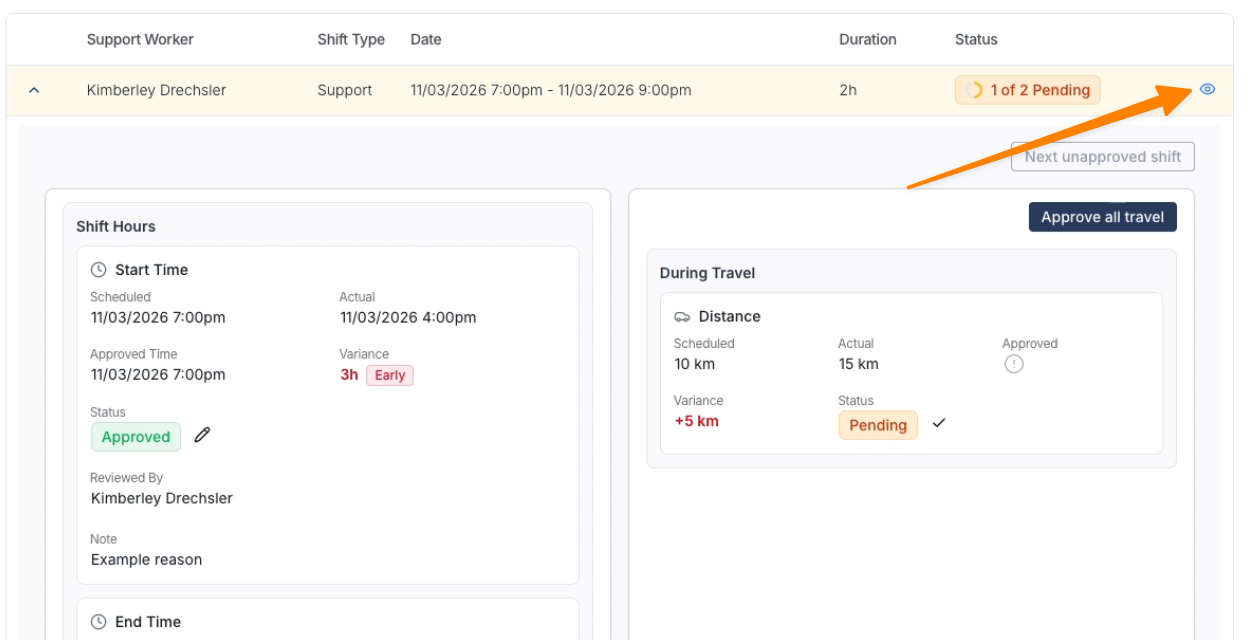
To confirm the billed hours:
- Click the View Shift icon.
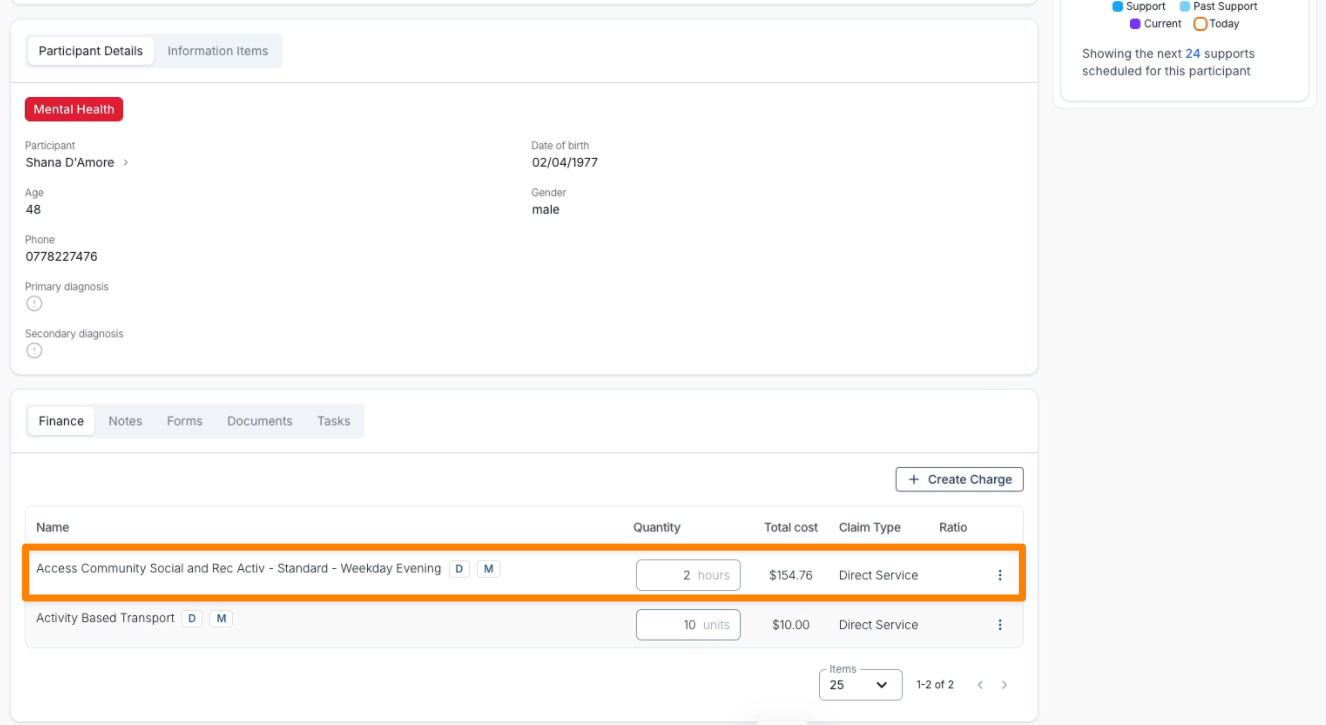
- Scroll to the Finance section.
- Verify the correct number of hours is allocated to the support.
Step 4: Updating Travel Charges
If the Support Worker recorded different travel than originally scheduled, you must update the Manual Charge.
Example:
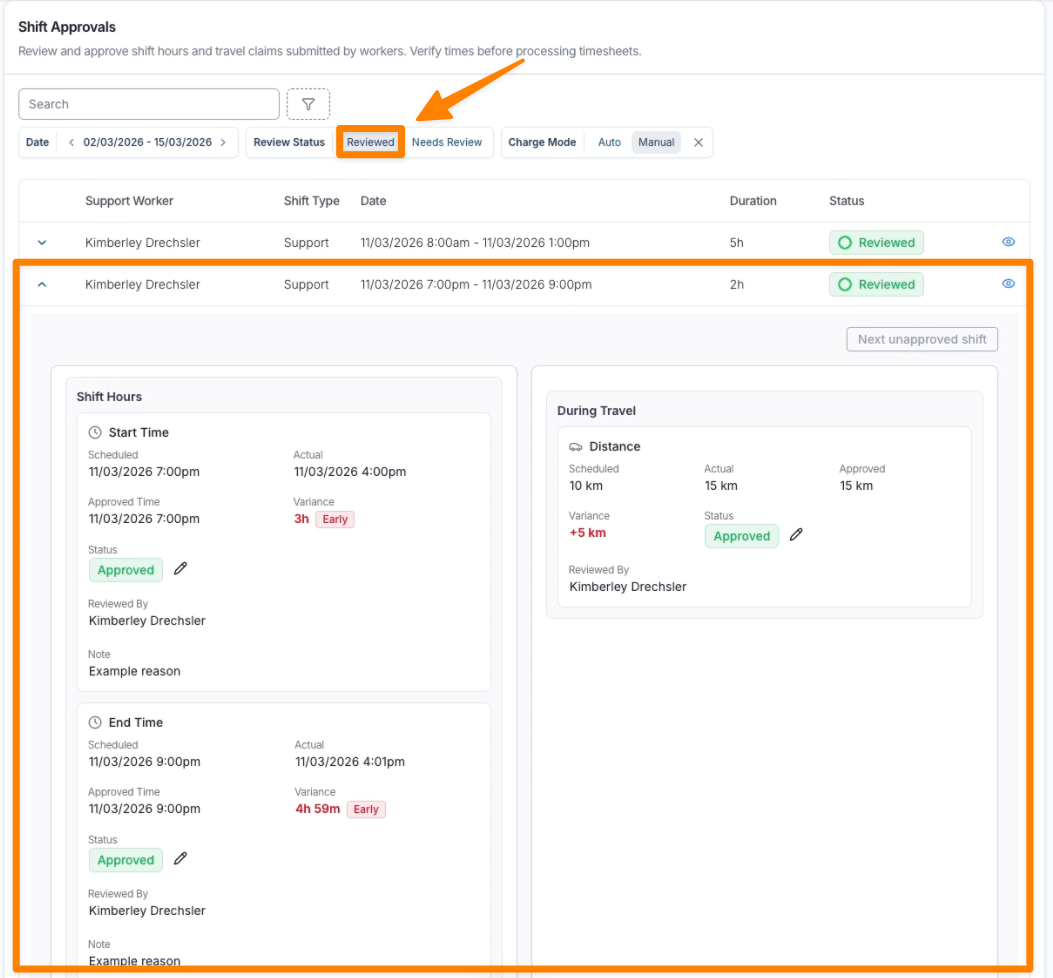
- Scheduled travel: 10 km
- Actual travel reported by worker: 15 km
To update the charge:
- Open the shift using the View icon.
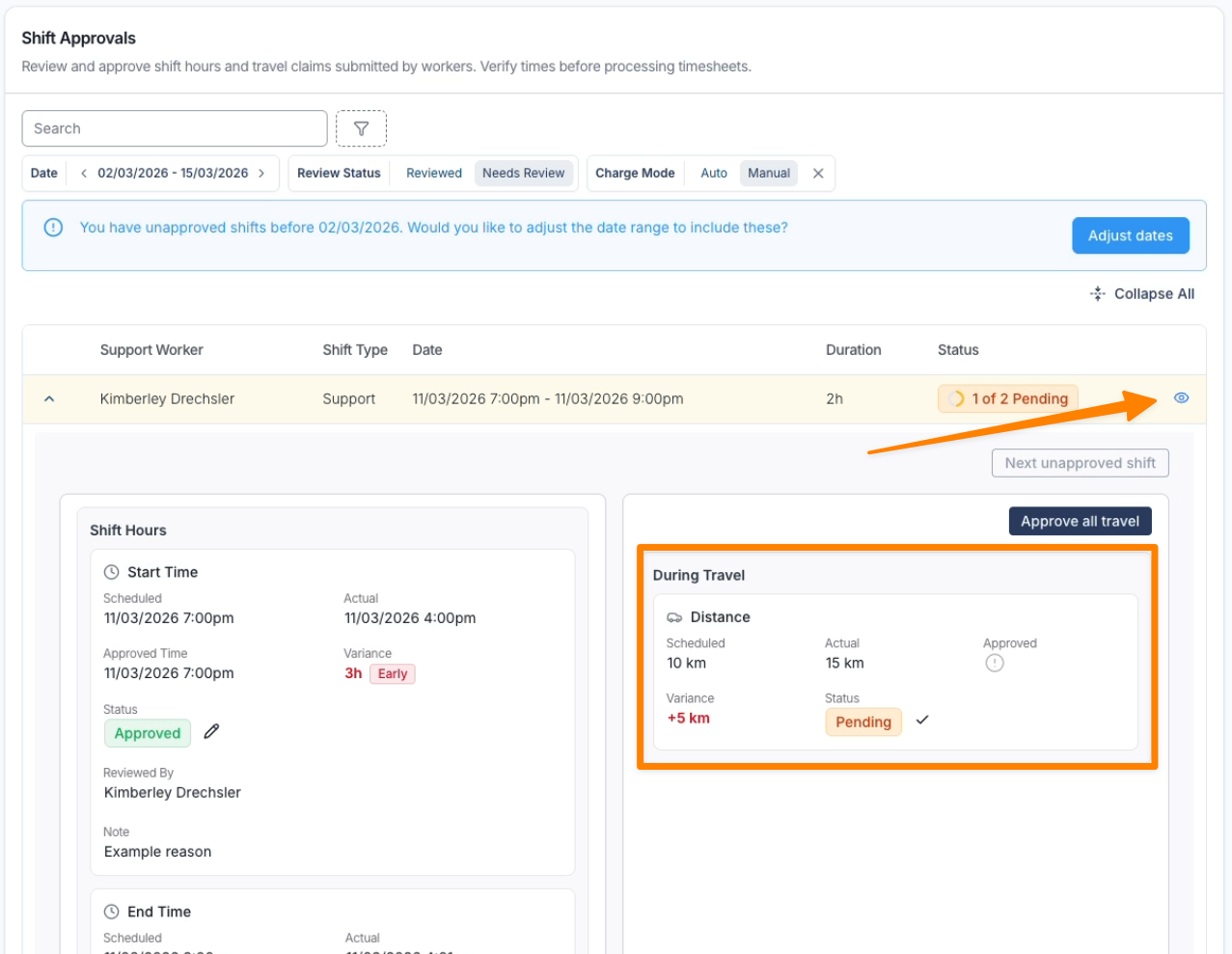
- Scroll to the Finance section.
- Locate the travel charge item.
- Update the units from 10 to 15.
- Save the change.
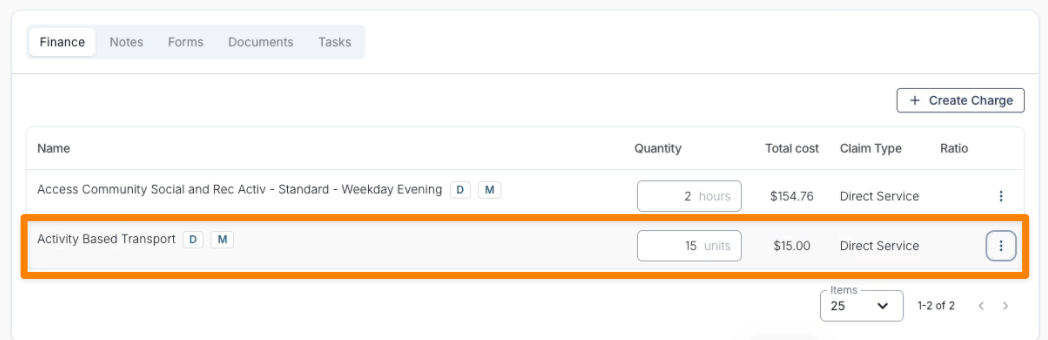
This updates the amount that will be billed to the Participant.
Step 5: Approving the Shift
Once hours and charges have been reviewed:
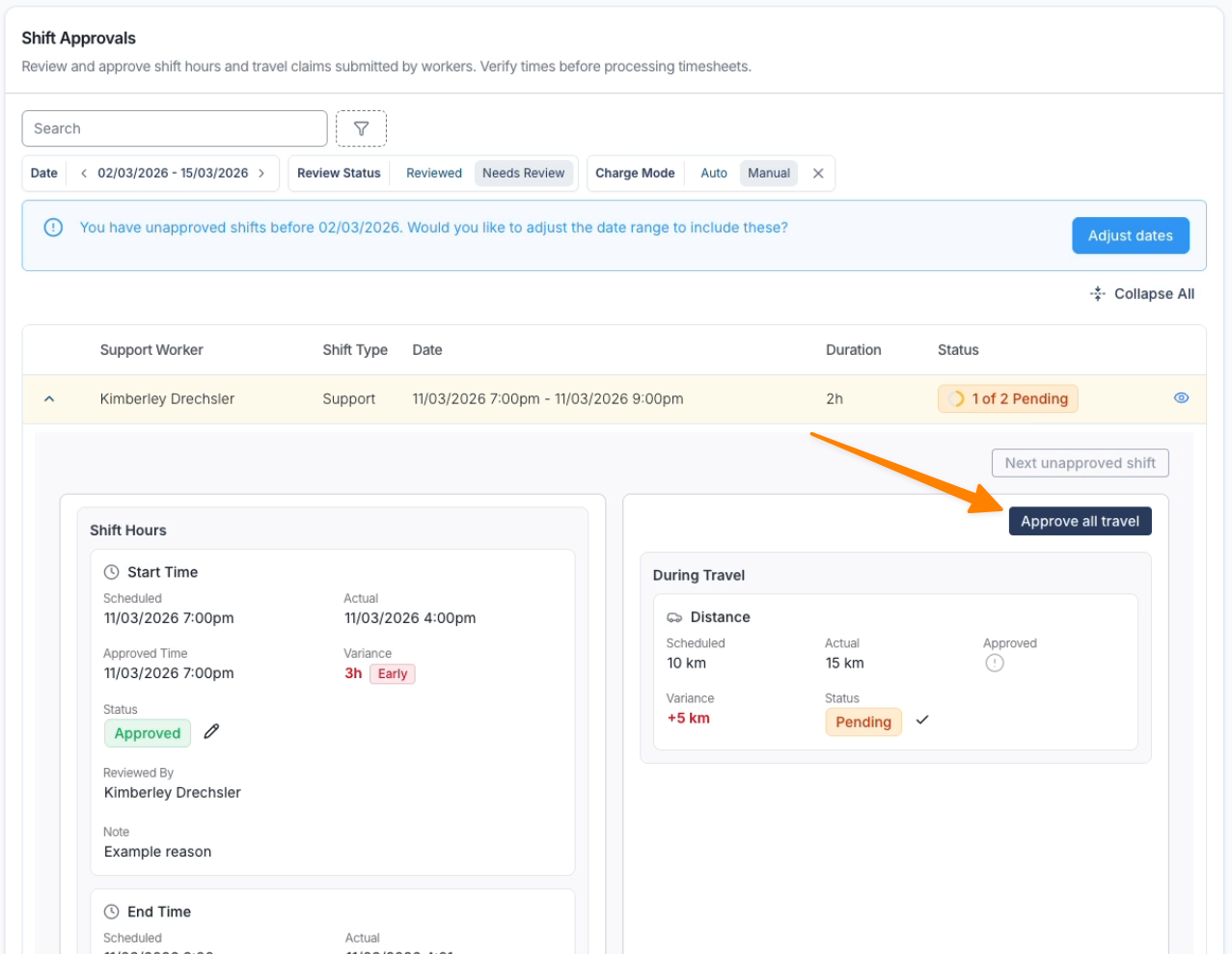
- Return to Shift Approvals.
- Approve the travel.
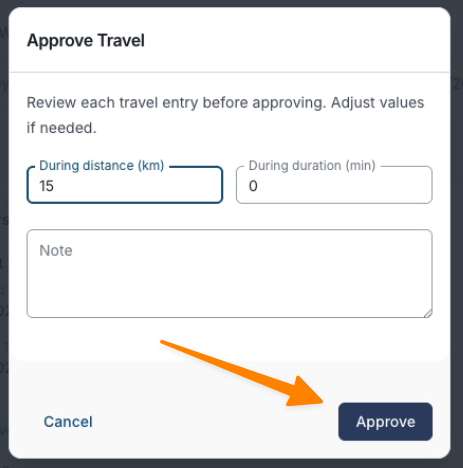
- The shift will move to the Reviewed section.
Next Steps
After you have reviewed all supports within the Shift Approvals page, you can proceed with:
- Processing Timesheet Batches for payroll.
- Generating invoices for the support.
Reviewing Manual Charges during approvals ensures that Timesheet Batches and Participant billing remain accurate.
Shift Alerts should also be reviewed and resolved prior to commencing with the Shift Approvals process. You can find more information on Shift Alerts here.