Managing Manual Charges
Overview
Manual Charges allow you to control exactly what is billed for a support rather than relying on automatic charge calculations. This is useful in situations where charges need to be reviewed or adjusted manually before invoicing.
This page covers the Manual Charges selected when creating Supports. For the full creation workflow, see Adding a 1:1 Shift or Adding a Group Shift.
When to Use Manual Charges
Manual Charges may be used when:
- Charges need to be manually verified before invoicing.
- You want to control billing items separately from the automatic shift calculations.
- You are delivering two types of support during the shift, such as Community Access and Personal Care.
Adding Manual Charges to a Support
To apply Manual Charges while creating a Support, use the Service & Billing section. On an existing Support, use Update Details, then the Charge Option section.
By default, Automatic Charges will be selected. Change this to Manual Charges, then add the required Charge Items in the Additional Charges section at the bottom of the form.
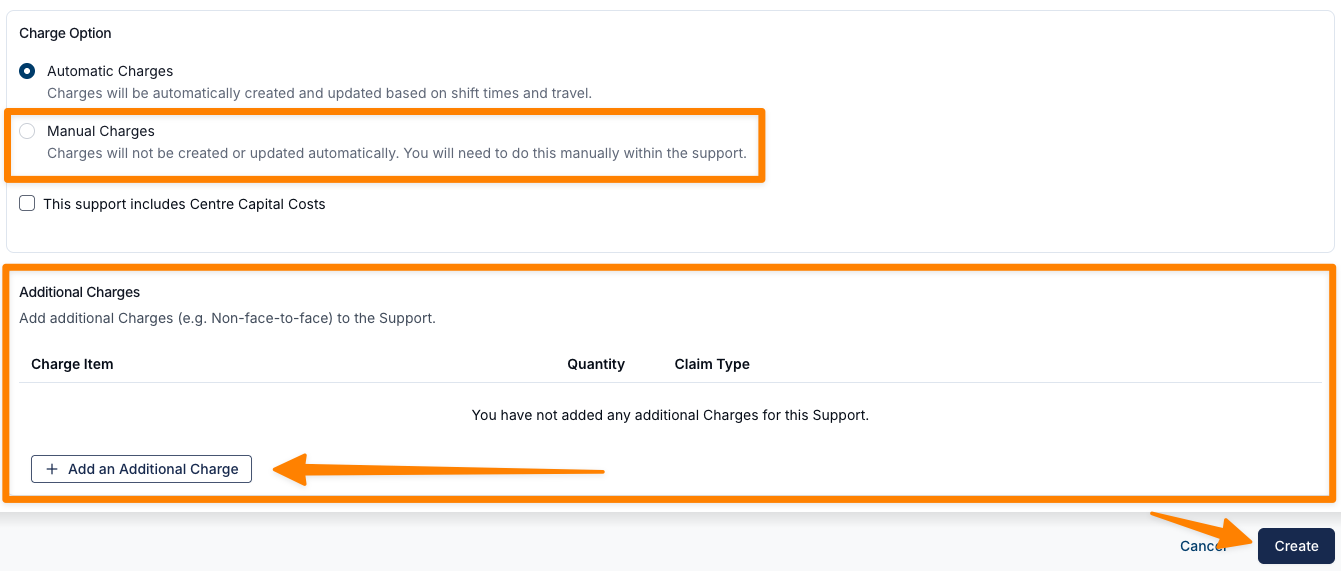
Adding Travel to the Shift
Even when using Manual Charges, you should still record travel in the shift so the Support Worker can report the actual distance travelled.
- Open the support's Travel tab.
- Add the planned travel details.
- The Support Worker can then update the kilometres travelled through their app during the shift.

Reviewing Manual Charges During Shift Approvals
Before approving shifts for payroll and invoicing, Manual Charges should be reviewed.
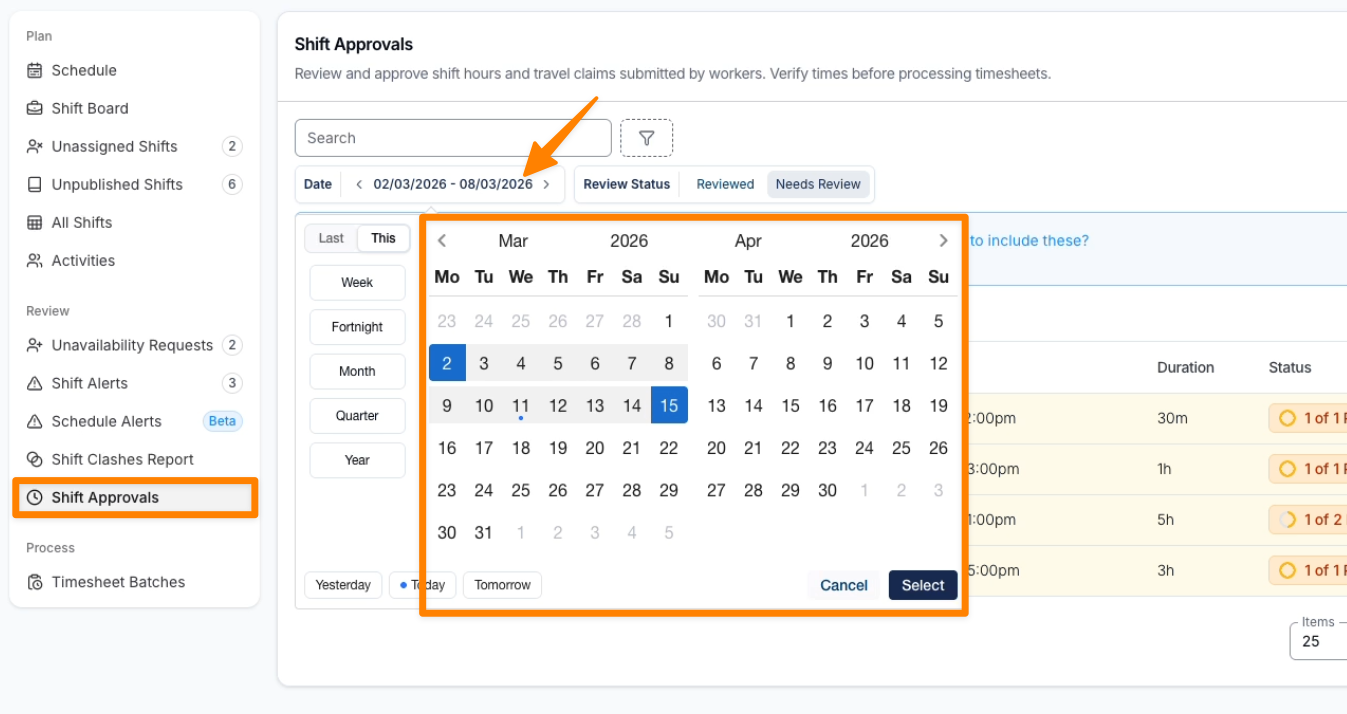
Step 1: Open Shift Approvals
- Go to Shift Approvals.
- Select the date range for the payroll/invoicing period you are processing. It applies as soon as you pick it.
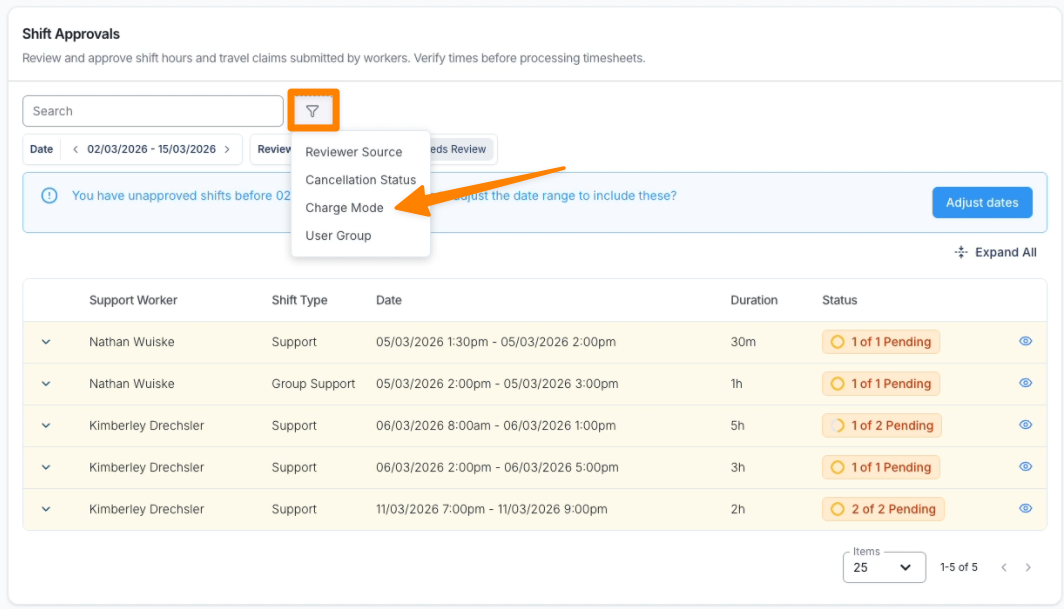
Step 2: Filter Manual Charges
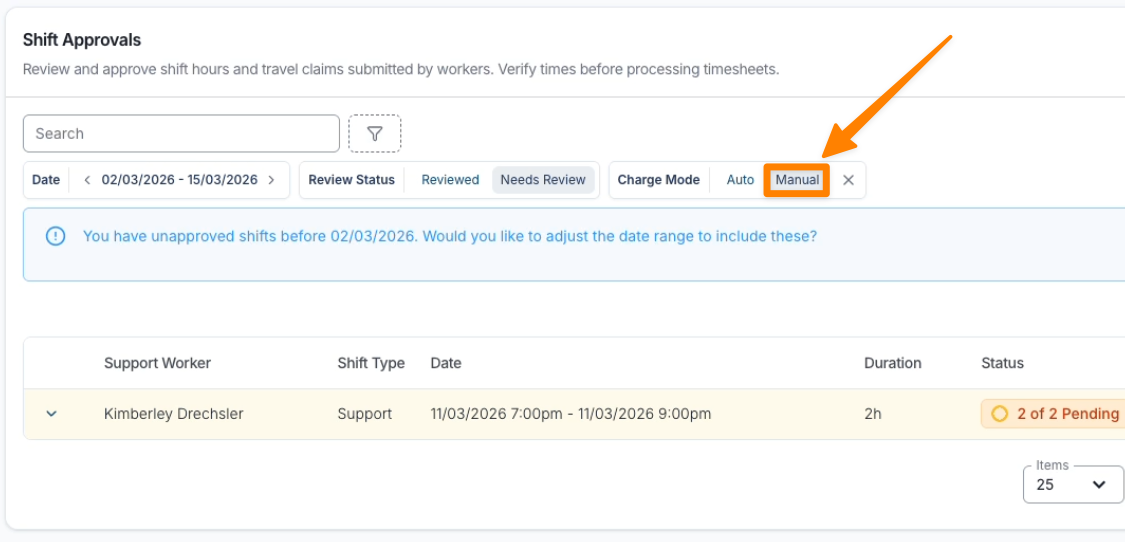
- Locate the Charge Mode filter.
- Select Manual.
The list now shows shifts that require Manual Charge validation.
Step 3: Confirming Worked Hours
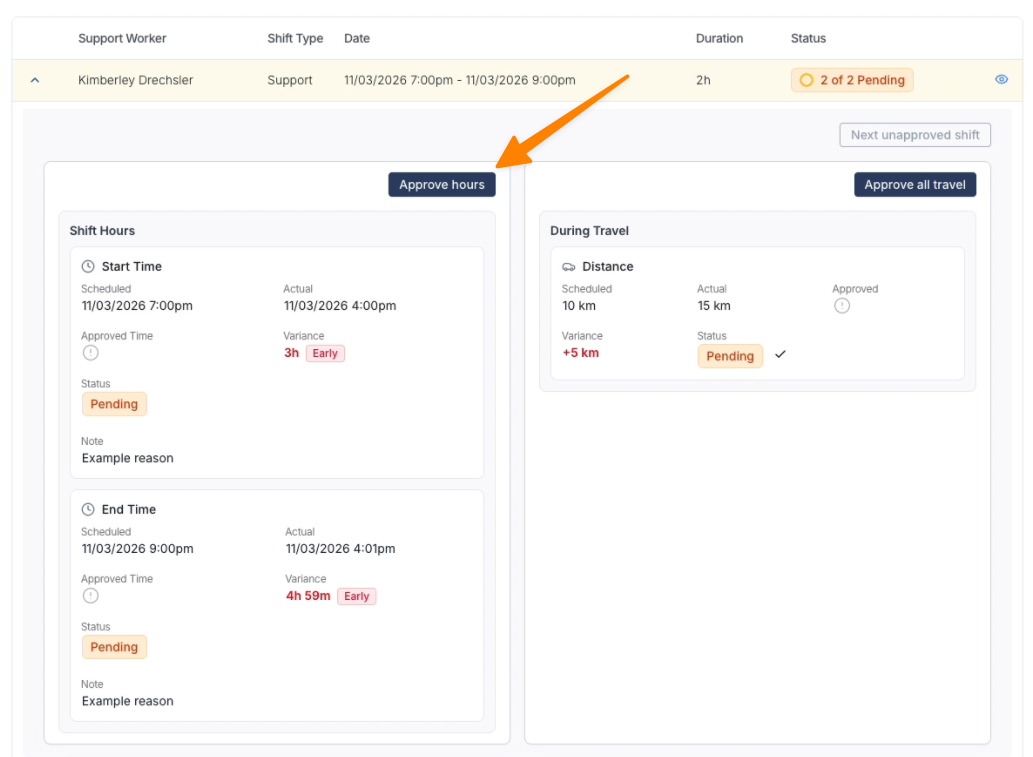
- Open the shift using the dropdown menu.
- Review the scheduled hours.
- Click Approve Hours.
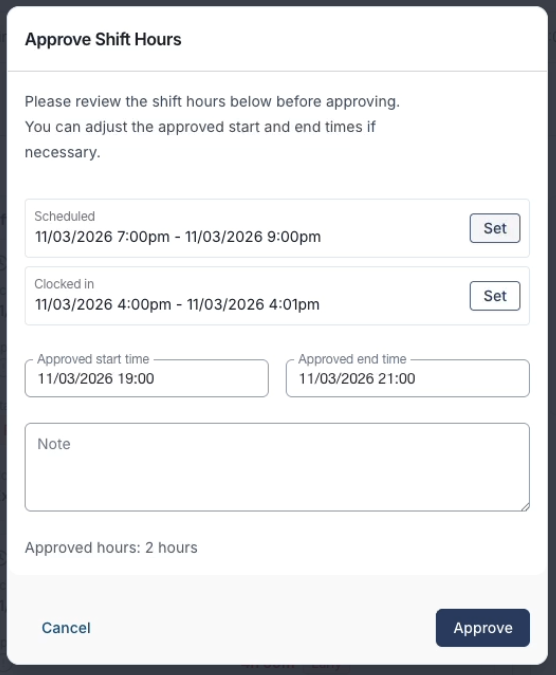
- Confirm or adjust the worked hours.
- Click Approve.
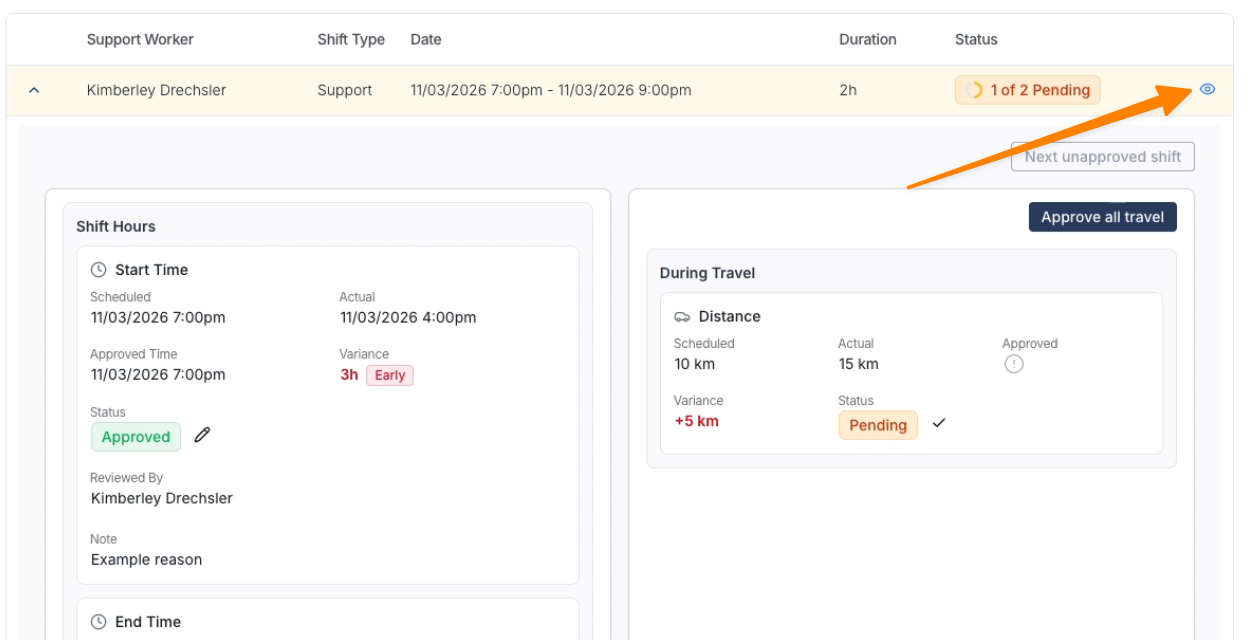
To confirm the billed hours:
- Click the View Shift icon.
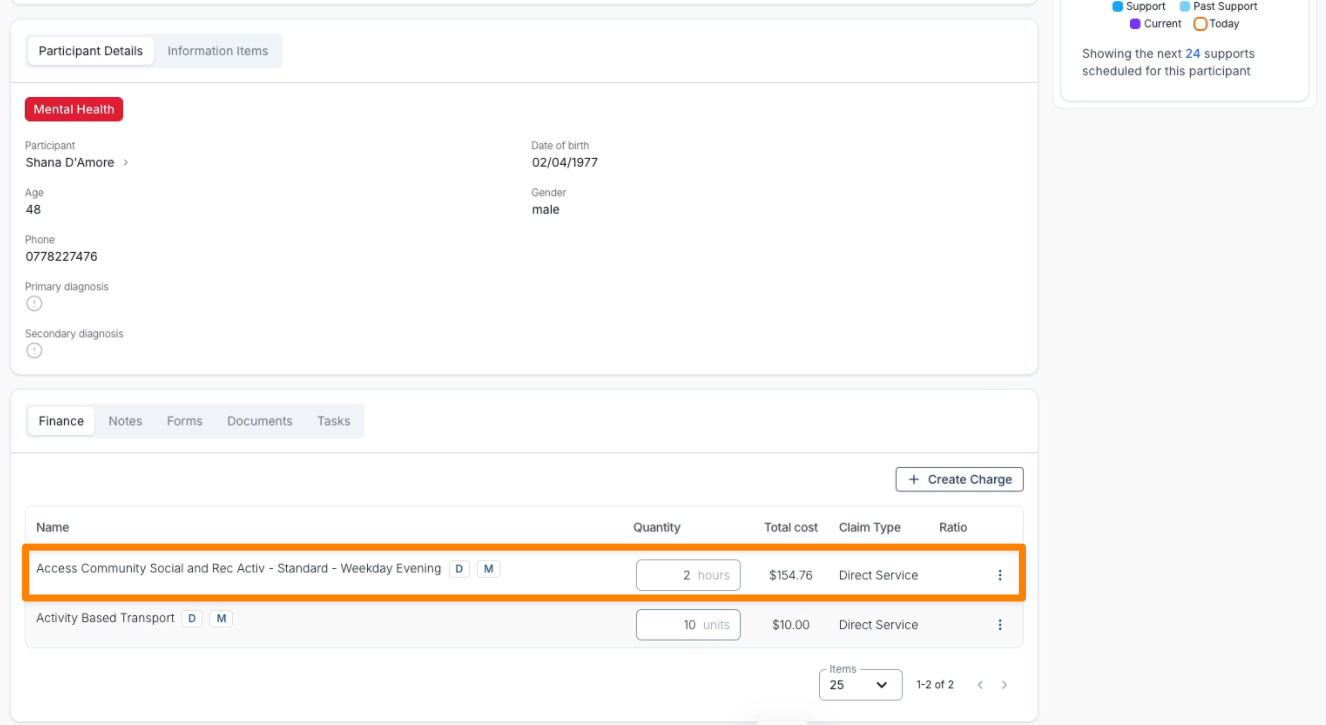
- Scroll to the Finance section.
- Verify the correct number of hours is allocated to the support.
Manual Charge Variance Alerts
You don't have to spot these differences yourself. When a support uses Manual Charges, Astalty compares the values you are about to approve for the Support Worker against the manual charges sitting on the Participant's support. If they don't match, an alert appears in the approval dialog before you approve.
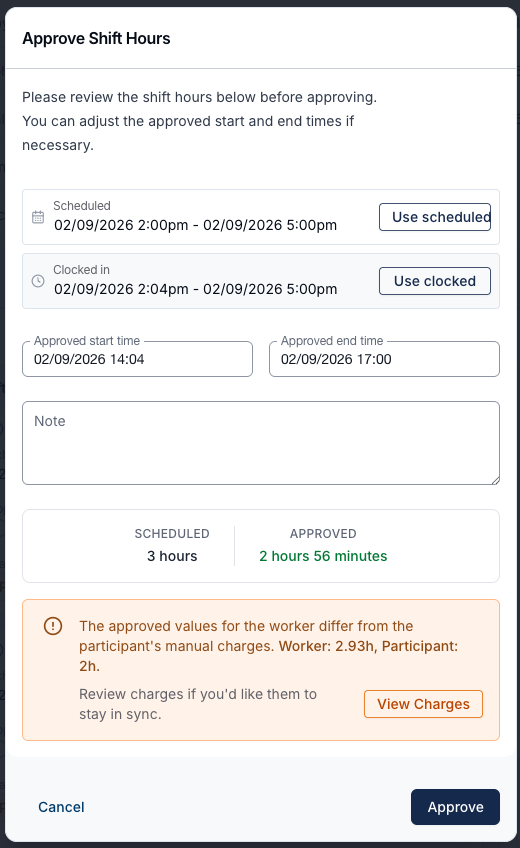
The alert reads "The approved values for the worker differ from the participant's manual charges", followed by the two figures side by side - for example Worker: 2.93h, Participant: 2h.
Astalty checks three values, and lists each one that doesn't match:
| What you're approving | Compared against |
|---|---|
| Approved shift hours | Total hours on the support's manual hourly charges with the Direct Service claim type |
| Approved travel kilometres | Total kilometres on the support's manual charges with the Provider Travel claim type |
| Approved travel duration | Total hours on the support's manual hourly charges with the Provider Travel claim type |
Because of this, the alert can appear in any of the approval dialogs - Approve Shift Hours, Approve Travel Distance, Approve Travel Duration, and Approve All Travel. It also recalculates as you type, so if you adjust the approved start or end times the figures update immediately.
Click View Charges to open the support's Finance tab in a new browser tab. This lets you correct the manual charges without losing your place in the approval dialog.
Step 4: Updating Travel Charges
If the Support Worker recorded different travel than originally scheduled, you must update the Manual Charge.
Example:
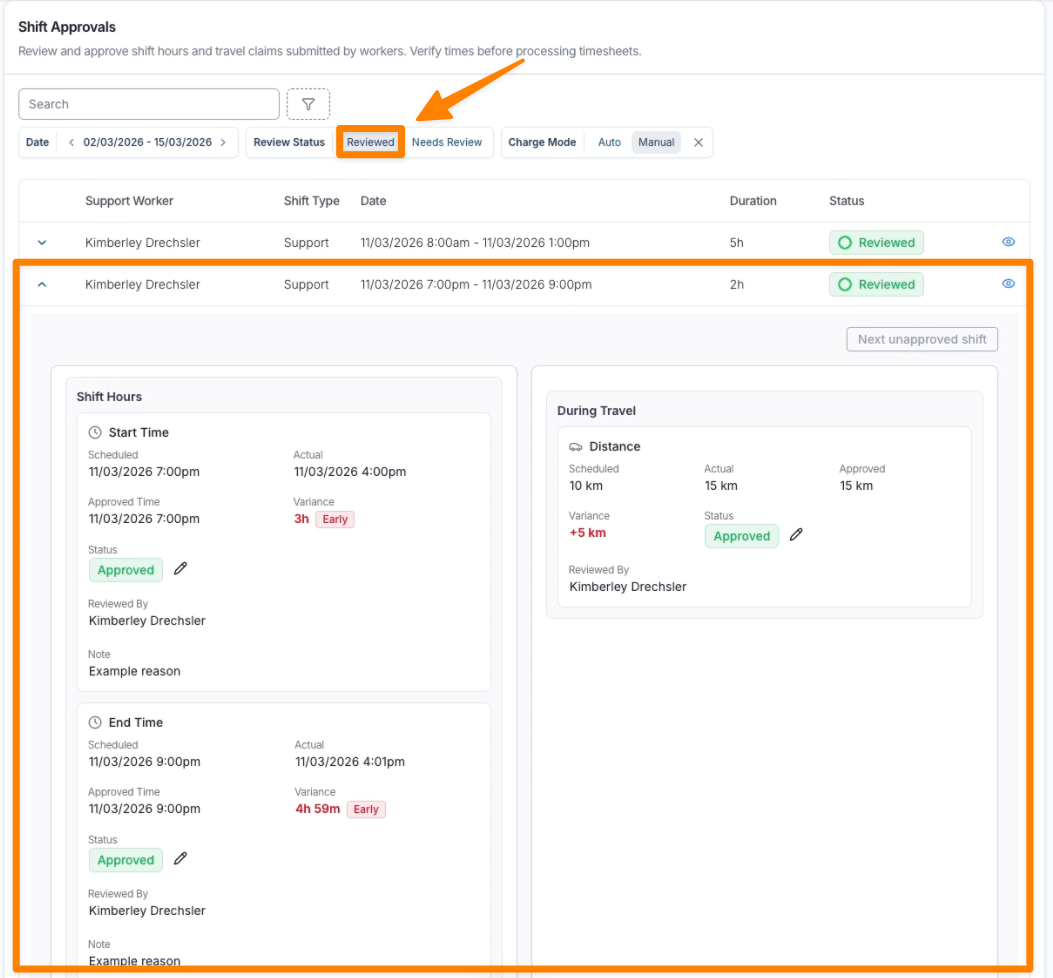
- Scheduled travel: 10 km
- Actual travel reported by worker: 15 km
To update the charge:
- Open the shift using the View icon.
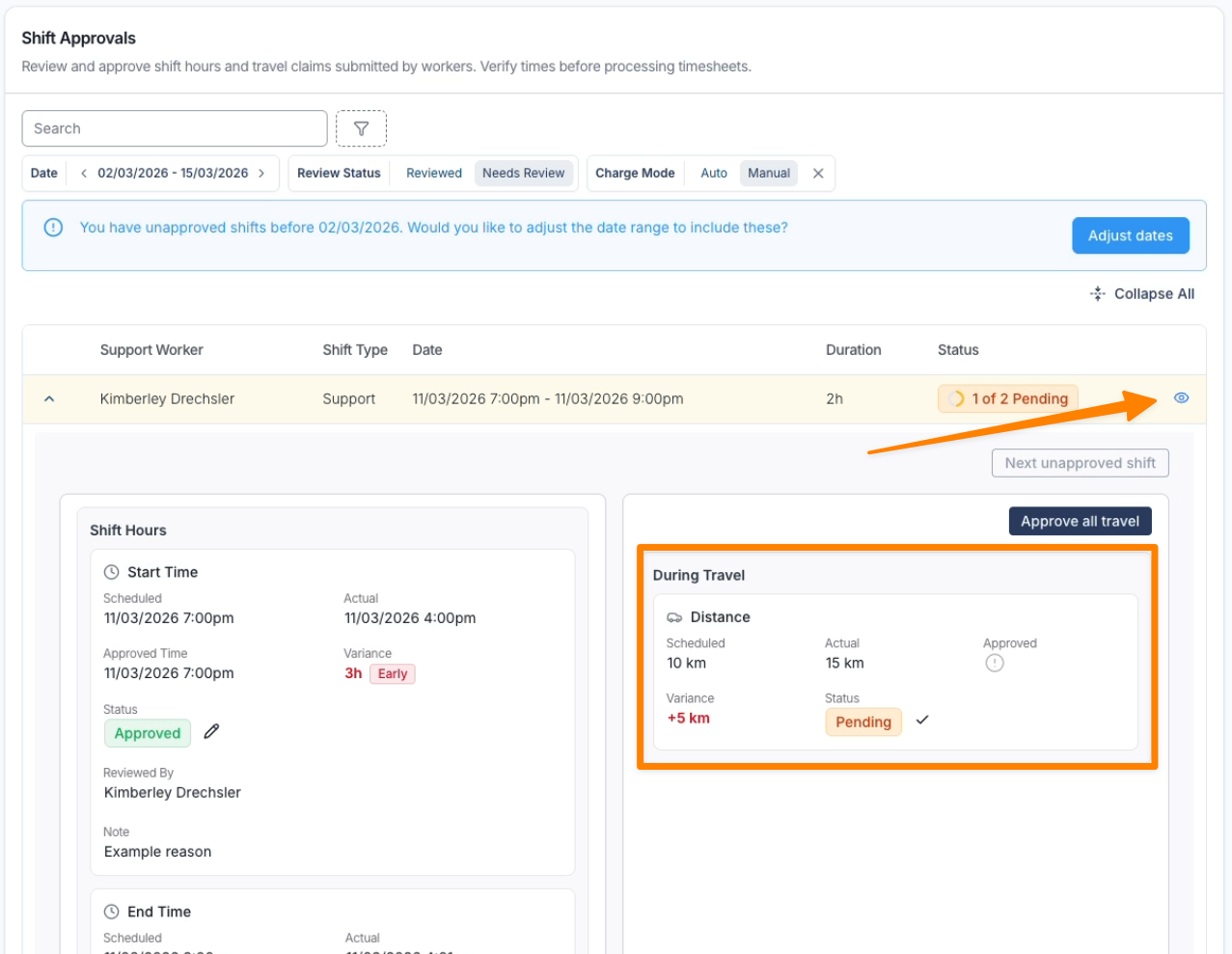
- Scroll to the Finance section.
- Locate the Travel Charge Item.
- Update the units from 10 to 15.
- Save the change.
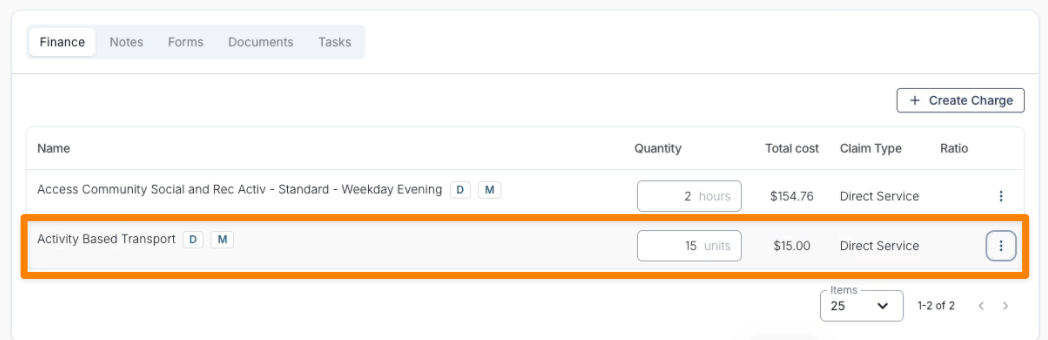
This updates the amount that will be billed to the Participant.
Step 5: Approving the Shift
Once hours and charges have been reviewed:
- Return to Shift Approvals.
- Approve the travel.
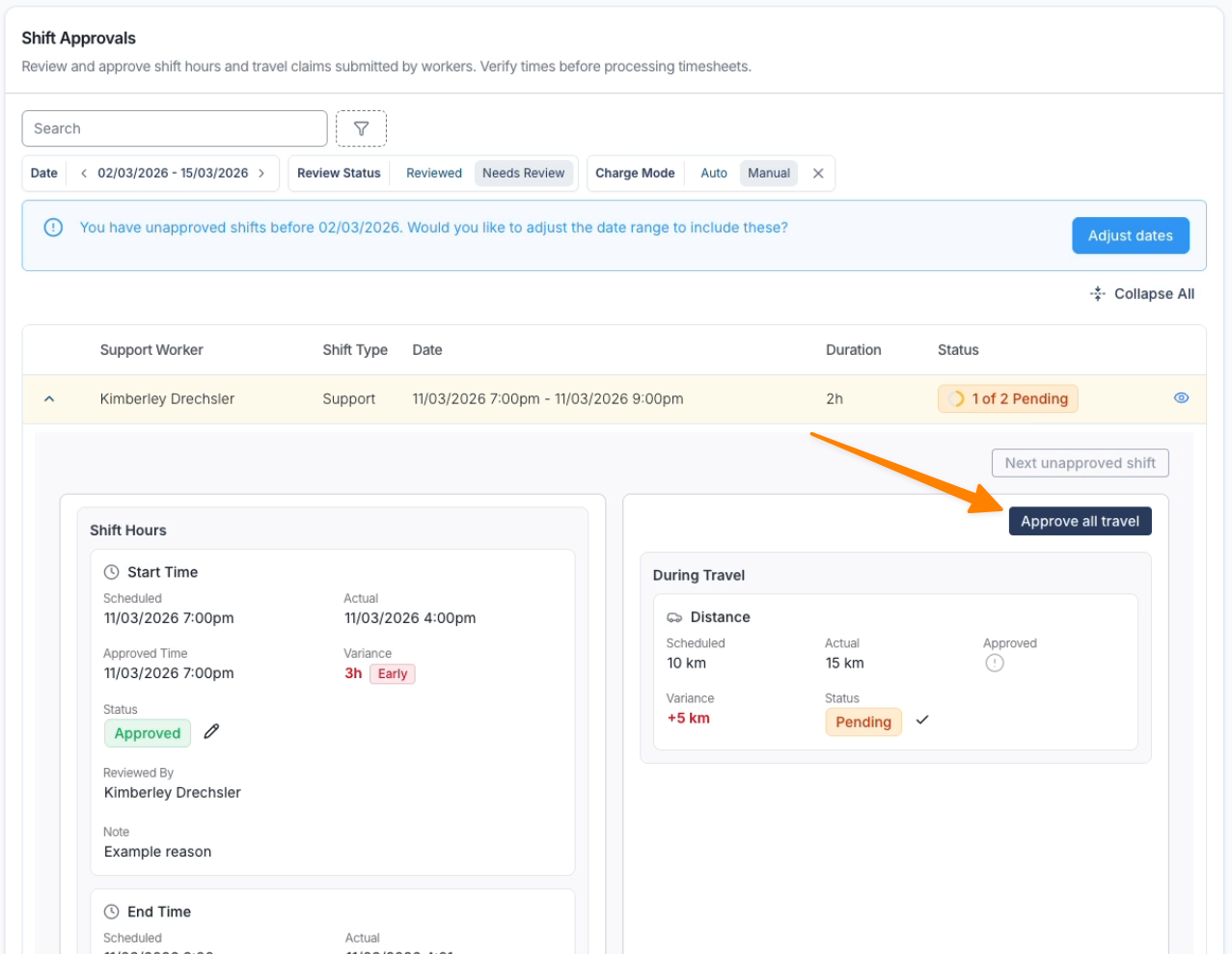
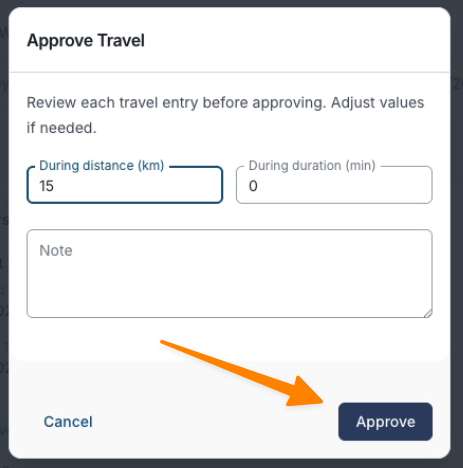
- The shift will move to the Reviewed section.
Next Steps
After you have reviewed all supports within the Shift Approvals page, you can proceed with:
- Processing Timesheet Batches for payroll.
- Generating invoices for the support.
Reviewing Manual Charges during approvals helps you compare payroll hours with Participant billing. Approval does not reconcile a variance automatically.
Review and resolve Shift Alerts before approving shifts.