Deleting Support Charges
Overview
Charges are removed from a support on its Finance tab. If the charge was applied across a repeating support, Astalty asks which occurrences in the series the removal should apply to - including occurrences that have already happened - and then tells you exactly what it removed and what it left alone.
An invoiced, paid, or invoice-batched charge can be locked until the related billing state is resolved.
This matters most when you are cleaning up a duplicate charge. If the duplicate was created part way through a series, the earlier dates need clearing too, otherwise they keep the extra charge and it reappears the next time those dates are invoiced.
Deleting a charge
- Open the support and go to the Finance tab.
- Find the charge in the table and select the three dot menu at the end of its row.
- Select Delete.
- Confirm with Delete.
For a charge that only ever applied to this one support, that is the whole job - the charge is removed and nothing else changes.
Choosing occurrences on a repeating support
A charge that was added across a repeating series carries a 🔁 icon next to the Charge Item name - hover over it to see "This is a recurring charge." Charges get this marker when they were created with this support and following or this and selected following.
Deleting one of these opens the Delete Recurring Charge panel after you confirm. It lists every occurrence in the series, past and future, so you can clear the charge from dates that have already been delivered as well as ones still to come.
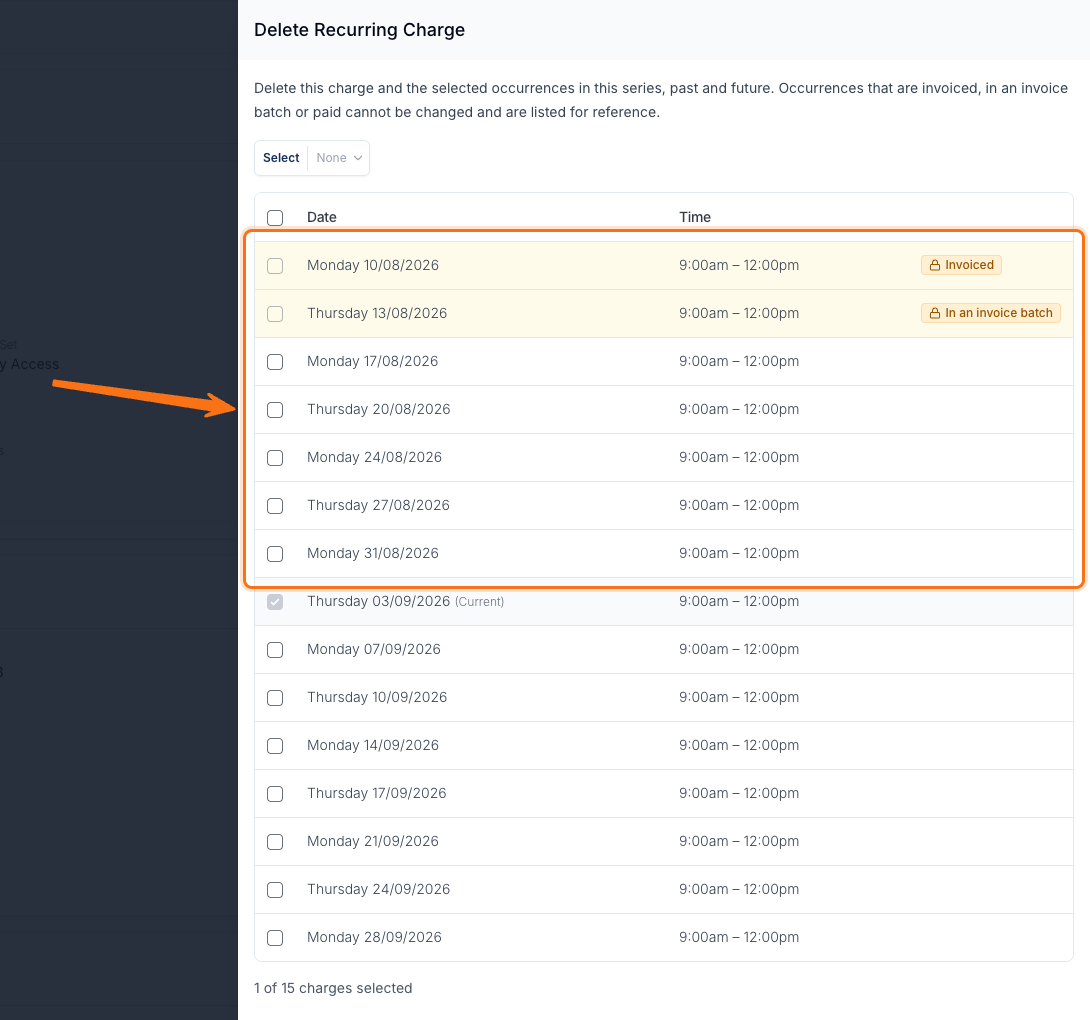
- The occurrence you started from is ticked and can't be unticked. It is marked (Current), or (Current - Past) if that support has already finished.
- Tick any other occurrences the charge should be removed from.
- The checkbox in the table header ticks or clears every occurrence that can be changed.
- The Select dropdown offers day-of-week shortcuts such as Every Monday, which is handy on a series that runs on more than one day. It appears once there are enough occurrences to make the shortcut useful.
- Once you tick an occurrence, a bar above the table counts the ones you added, and the button reads Delete 3 Charges, counting the one you started from, so you can see the size of the change before committing to it.
Only occurrences you have access to are listed, so the panel reflects the supports you can see.
Occurrences that can't be changed
Some occurrences are past the point where a charge can be pulled off them. These are still listed so you can see them, but they are highlighted and their checkbox is disabled, with a padlock chip giving the reason:
| Chip | What it means |
|---|---|
| Invoiced | The charge is on an invoice that has already been issued. |
| In an invoice batch | The charge is sitting in an invoice batch and is locked while the batch is being worked through. |
| Paid | A payment has been allocated against the charge. |
To remove one of these, deal with the invoice or batch first - see Voiding Invoices and Invoice Batches.
What Astalty reports back
Once the removal runs, an alert appears above the charges table summarising the outcome:
- If everything you selected was removed, the alert is green and reads "Removed 3 charges."
- If some occurrences were locked, the alert is amber and adds "2 occurrences were left unchanged.", then lists each one with its date and reason - for example "Monday 10/08/2026 - Invoiced".
Read this before moving on. It is the confirmation that the dates you expected to be cleared actually were, and it names the ones you still need to follow up. Close the alert with the × when you are done with it.
Charges Astalty creates from the support's hours
The hourly charge Astalty creates from the support's own hours - the one carrying the A chip and no 🔁 - isn't part of a charge series, so it doesn't use the panel above. On a repeating support, deleting it opens a shorter Delete Recurring Charge dialog that covers the current session and the ones still to come.
Confirm the delete as normal. Astalty warns you that the charge was created automatically and that deleting it puts the support into Manual Charge mode.
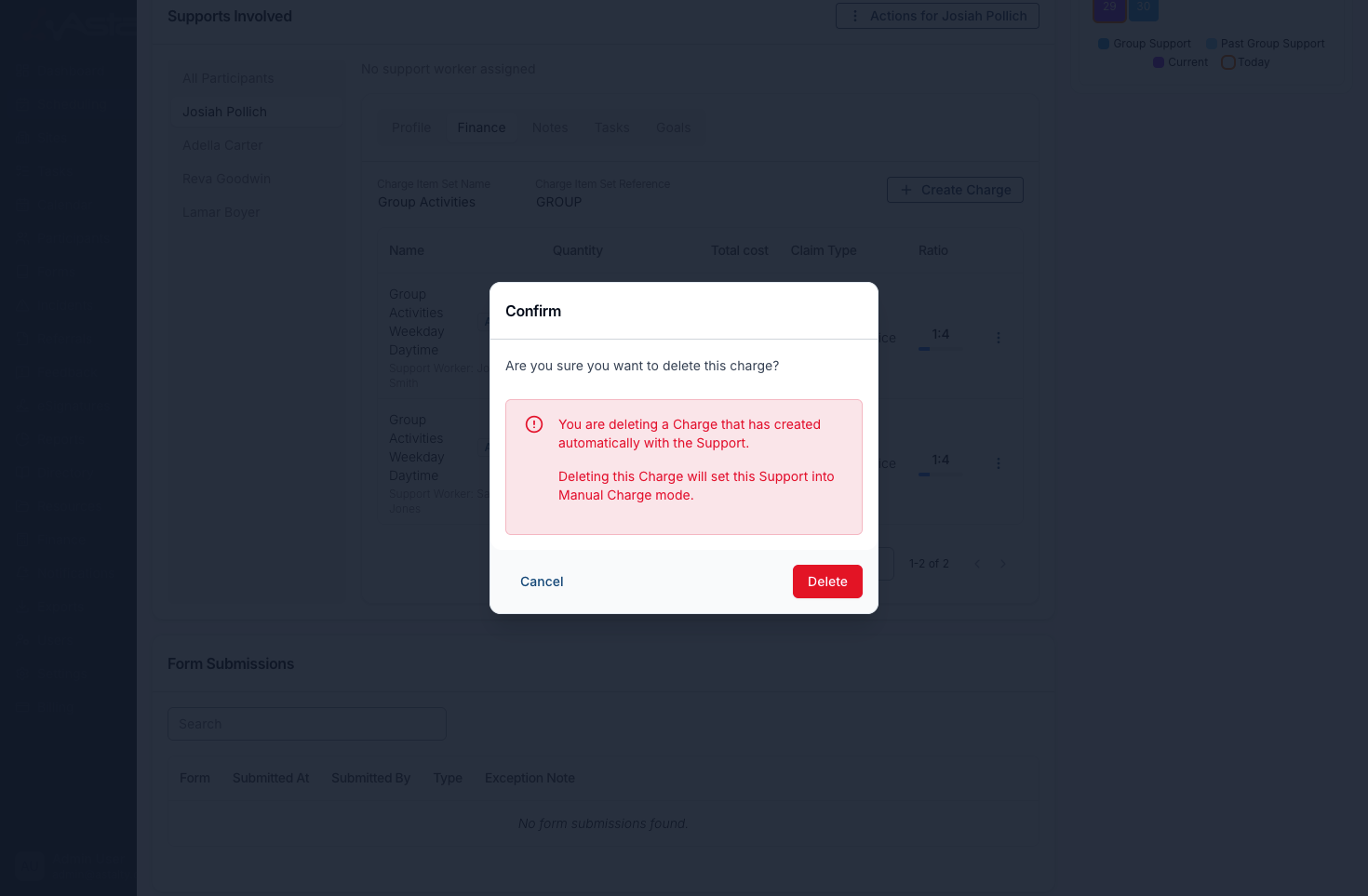
The selection dialog opens straight after.
Choosing the sessions to clear
On a group support the dialog reads "Select which recurring group supports should also have this charge deleted." and lists the sessions in that group support's recurring series. On a repeating direct support it reads "Select which supports in this recurring series should also have this charge deleted." and lists that support's own series.
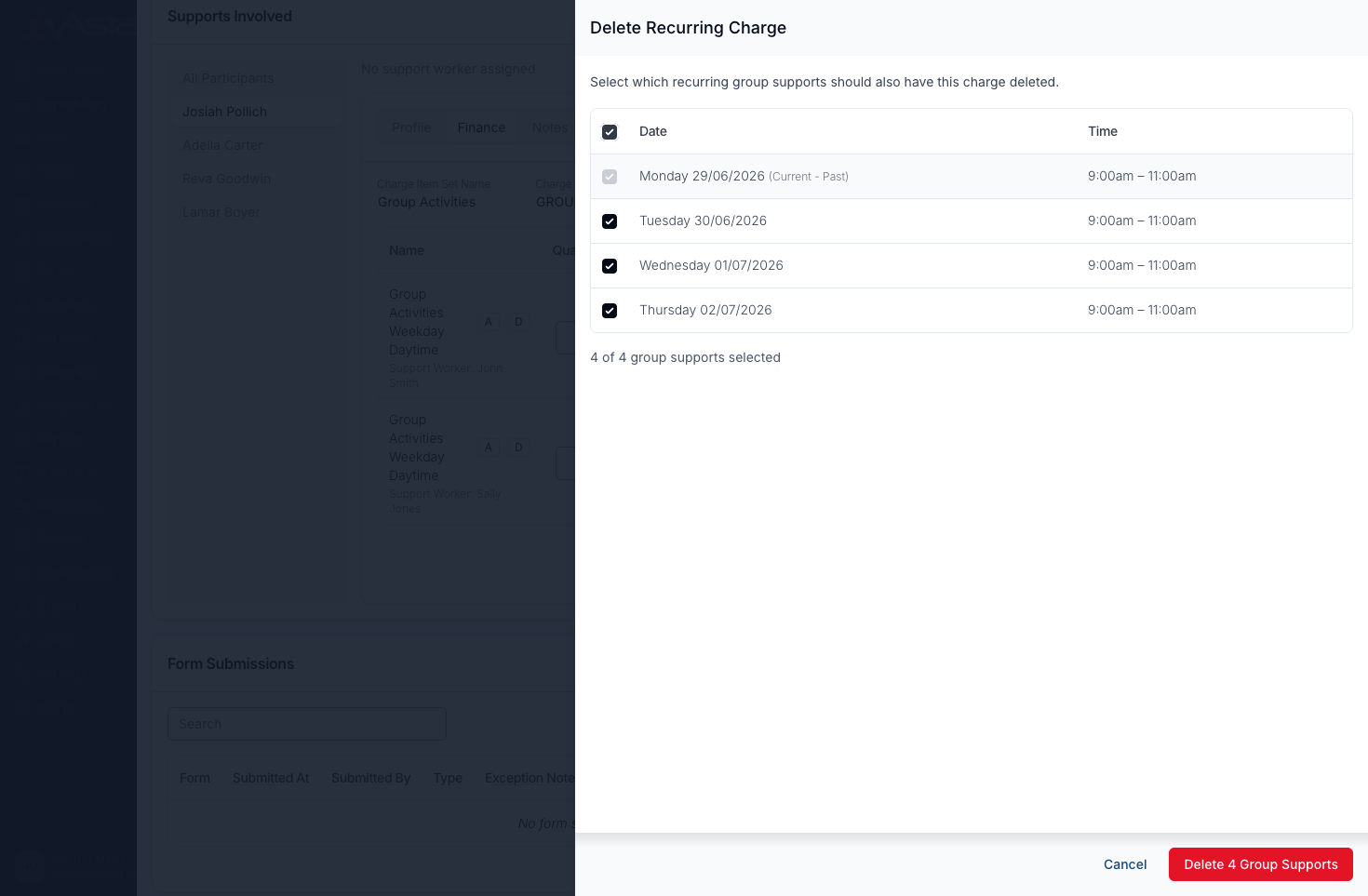
- The session you started from is ticked and can't be unticked. It is marked (Current), or (Current - Past) if it has already finished.
- Only that session and the sessions after it that start today or later are listed. Other past dates in the series aren't offered here, so a charge that also needs clearing from past dates has to be handled on those supports individually.
- Tick any other sessions the charge should come off.
- The checkbox in the table header ticks or clears every other session in the list.
- The Select dropdown offers day-of-week shortcuts such as Every Monday, which is handy on a series that runs on more than one day.
- Once you tick an occurrence, a bar above the table counts the ones you added, and the button reads Delete 3 Charges, counting the one you started from, so you can see the size of the change before committing to it.
Ticking nothing else and confirming still clears the session you started on - the selection only adds to it. Cancel leaves the whole series alone.
Invoiced and paid sessions are skipped automatically
This dialog doesn't mark which sessions can be changed. Every session it lists can be ticked, including ones whose charge has already been invoiced or has had a payment allocated against it. Astalty filters those out when the deletion runs: their charges stay exactly where they are, finalised billing isn't touched, and the rest of the selection goes ahead without an error.
The charge you started from is the exception. If that one is already invoiced, the delete is rejected with "Cannot update a support charge that has been invoiced." and nothing in the series is touched.
What a cleared session ends up with
Each session the deletion reaches is treated the same way as a single delete:
- Every automatically created hourly charge on that session is removed, not only the one you selected. Travel charges are left in place.
- The session moves into Manual Charges mode, and any charges still on it become manual charges, so they stop tracking the support's hours. See Managing Manual Charges.
Keeping track of what changed
Charge removals are recorded against the support, so you can confirm after the fact who removed a charge and when. Open the support, select Actions, then the three dots, then Audit Trail - see Support Audit Log.
Related pages
- Additional Charges - adding a charge to a direct or group support, and applying it across a series.
- Managing Manual Charges - controlling exactly what a support bills.
- Service Dates on Support Charges - correcting the day a charge sits on instead of deleting it.
- Recurring Shifts - setting up and managing repeating supports.