- Scheduling
- Charges
- Service Dates on Support Charges
Service Dates on Support Charges
Overview
When a support runs past midnight - a sleepover, an active overnight, or any shift that starts on one day and finishes on the next - each charge carries its own service date: the day that charge was actually delivered.
This matters because a support that begins at 10:00 PM on Saturday and ends at 8:00 AM on Sunday can carry charges that belong to either day. Setting the service date keeps each charge line on the day it was delivered, rather than every line inheriting the day the support started.
Every charge has a service date, including those on supports that start and finish on the same day - there the only day available is the day of the support, so there is nothing to decide.
Setting the date when you add a charge
In the Additional Charges section
When you create or edit a support that spans more than one day, each charge in the Additional Charges section includes a Date of Service field. Pick the day that charge relates to before selecting Add Charge.
This applies to both direct and group supports. For everything else in this section - Charge Item, Quantity, Claim Type, Description and apportioning - see Additional Charges.
From the Finance tab
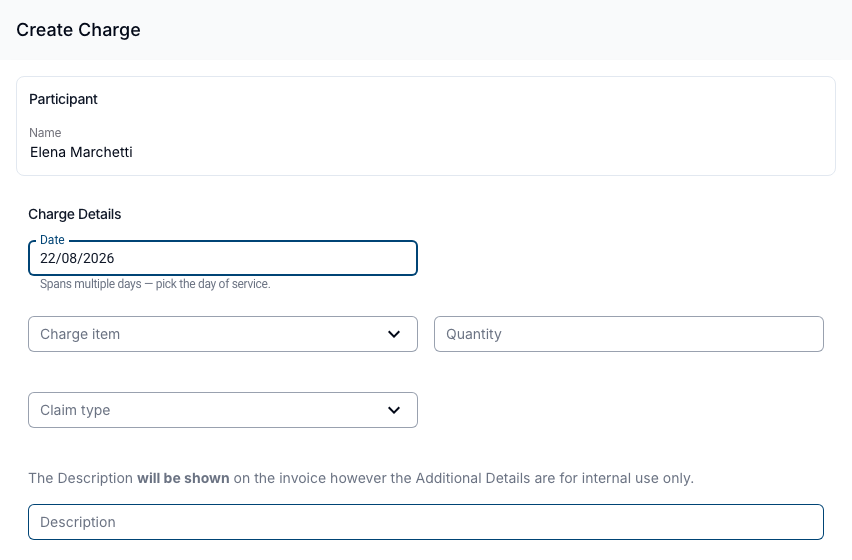
To add a charge to a support that already exists, open the support, go to the Finance tab and select + Create Charge.
The Date field sits at the top of the Charge Details section and defaults to the support's start date. When the support spans more than one day, a hint appears beneath it: "Spans multiple days — pick the day of service."
The Date column
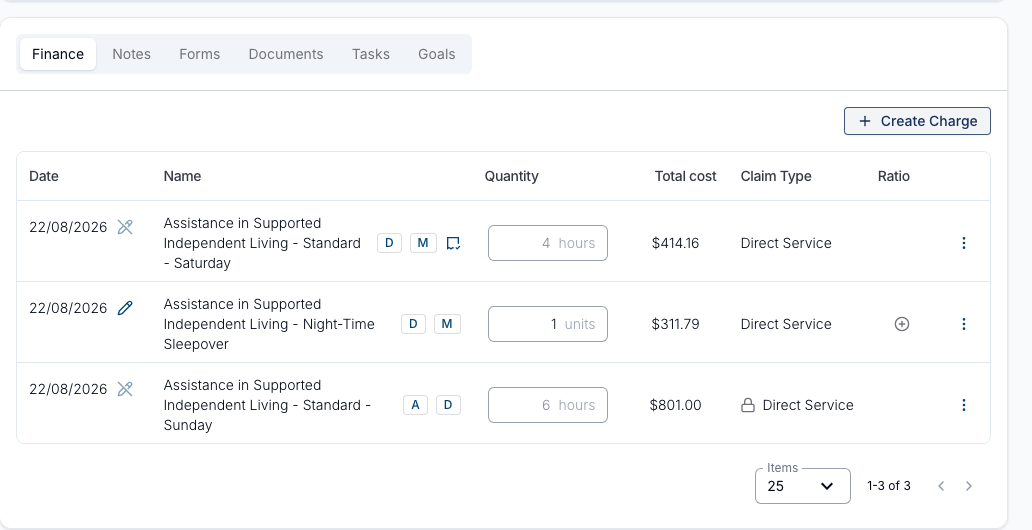
On the Finance tab, the charges table shows a Date column when either:
- the support is set to Manual Charges, or
- a manually created charge on the support sits on a different day from the support's start date.
If neither applies, the column is hidden - every charge falls on the support's start day, so there is nothing to tell apart.
Changing the date of an existing charge
If a charge was added on the wrong day, you can correct it without deleting and re-creating it.
- Go to the Finance tab of the support.
- Find the charge in the table and select the pencil icon beside its date.
- Pick the correct day from the date picker. It only offers the days the support spans.
The change saves as soon as you choose a day - there is no separate save step.
If the charge belongs to a recurring support, Astalty asks which charges the new date should apply to before saving, in the same way as other recurring charge changes.
When the date can't be changed
Some charges can't be re-dated. Their date shows a greyed-out pencil with a line through it instead of the normal pencil. Hover over it to see why:
| Charge | Message on hover |
|---|---|
| Created automatically by Astalty | Dates can't be edited on automatically created charges. |
| Already invoiced | Dates can't be edited on charges that have been invoiced. |
A charge that is both automatically created and invoiced shows the automatically created message.
Automatic charges are dated for you from the support's own times, so they stay in step with it. Invoiced charges are locked because the date has already been claimed - if an invoiced charge carries the wrong date, the invoice needs to be dealt with first.
Related pages
- Additional Charges - adding extra charges to a direct or group support.
- Managing Manual Charges - controlling exactly what a support bills.
- Deleting Support Charges - removing a charge, and choosing which occurrences of a series it comes off.
- Creating a Sleepover or Active Overnight Support - rostering supports that cross midnight.