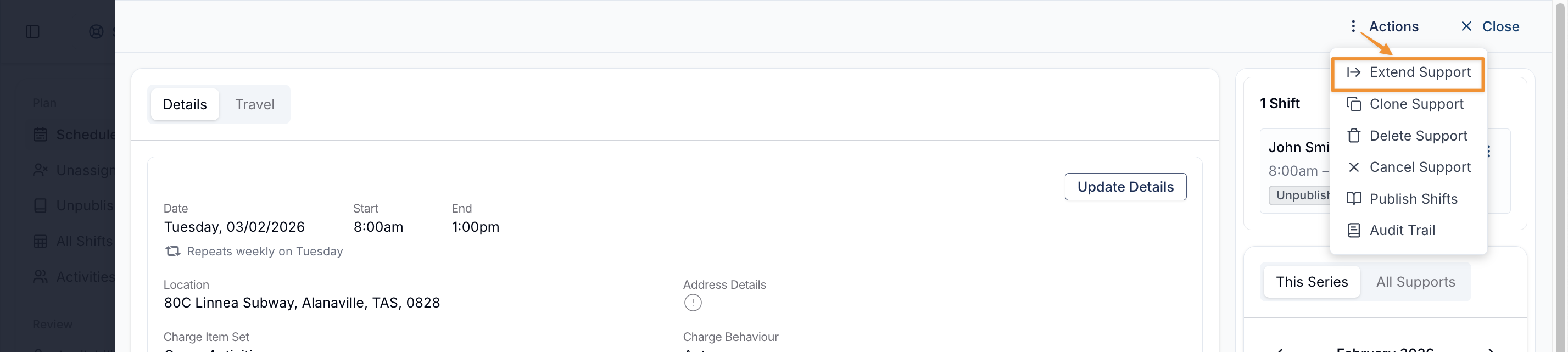
Additional Charges
Overview
Additional Charges add one or more manual charge lines to a direct or group support. The Charge Item must be available through the Participant's plan on the support date.
Adding an Additional Charge
Direct Supports
When creating a Direct Support, select the Participant and complete the support details. Open Additional Charges & Centre Capital, then select Add an Additional Charge.

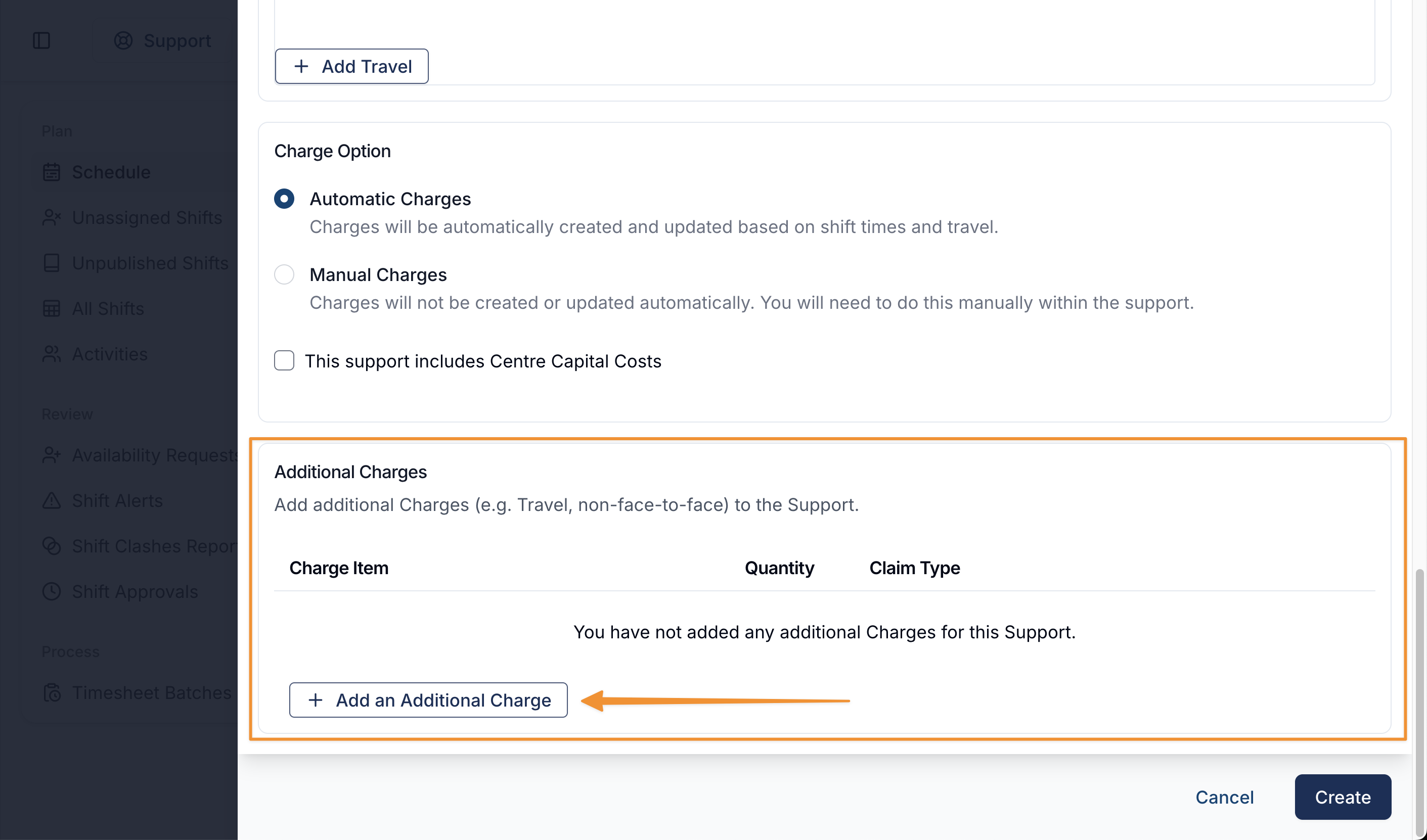
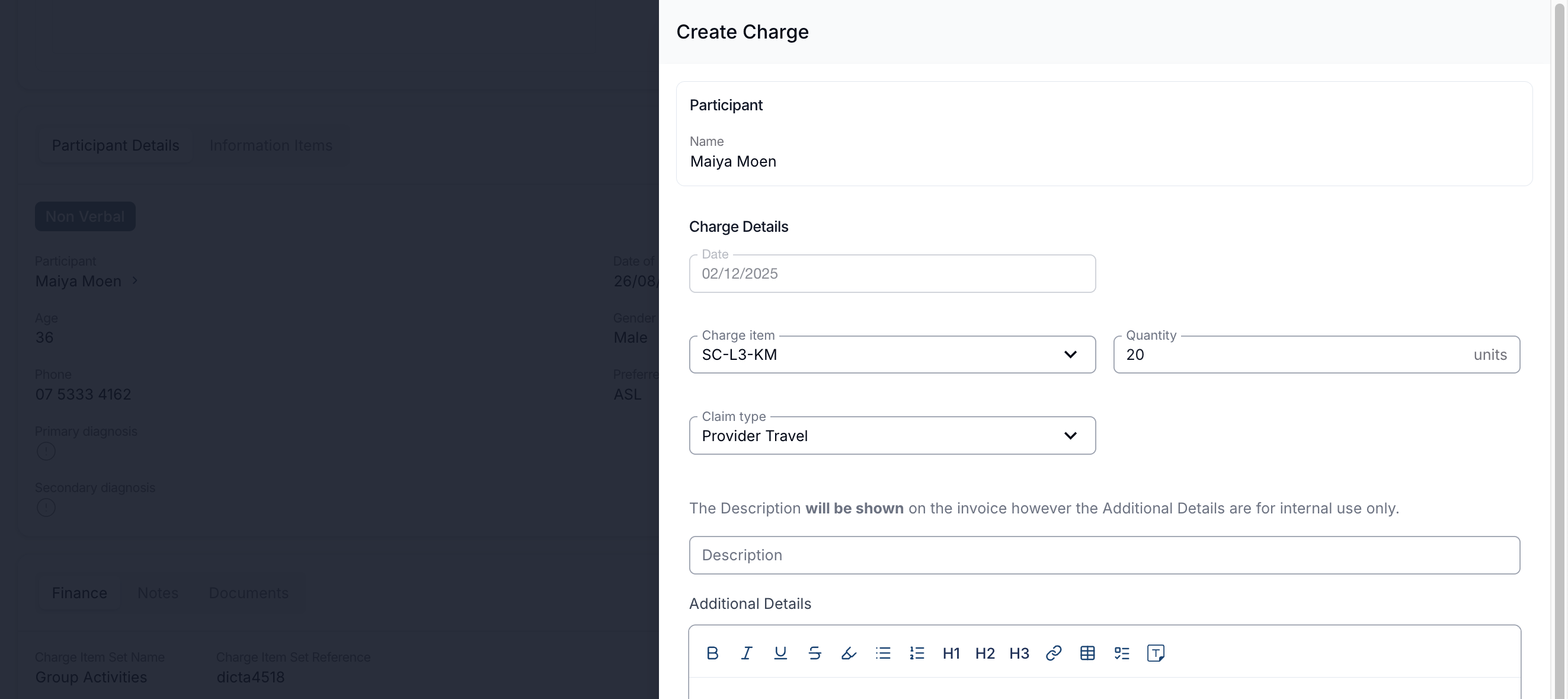
Complete these fields:
- Charge Item from the dropdown,
- insert a Quantity,
- select the Claim Type, and
- provide an optional Description and Additional Details. The description can appear on the invoice; Additional Details are for internal use.
When you're ready, select 'Add Charge'.
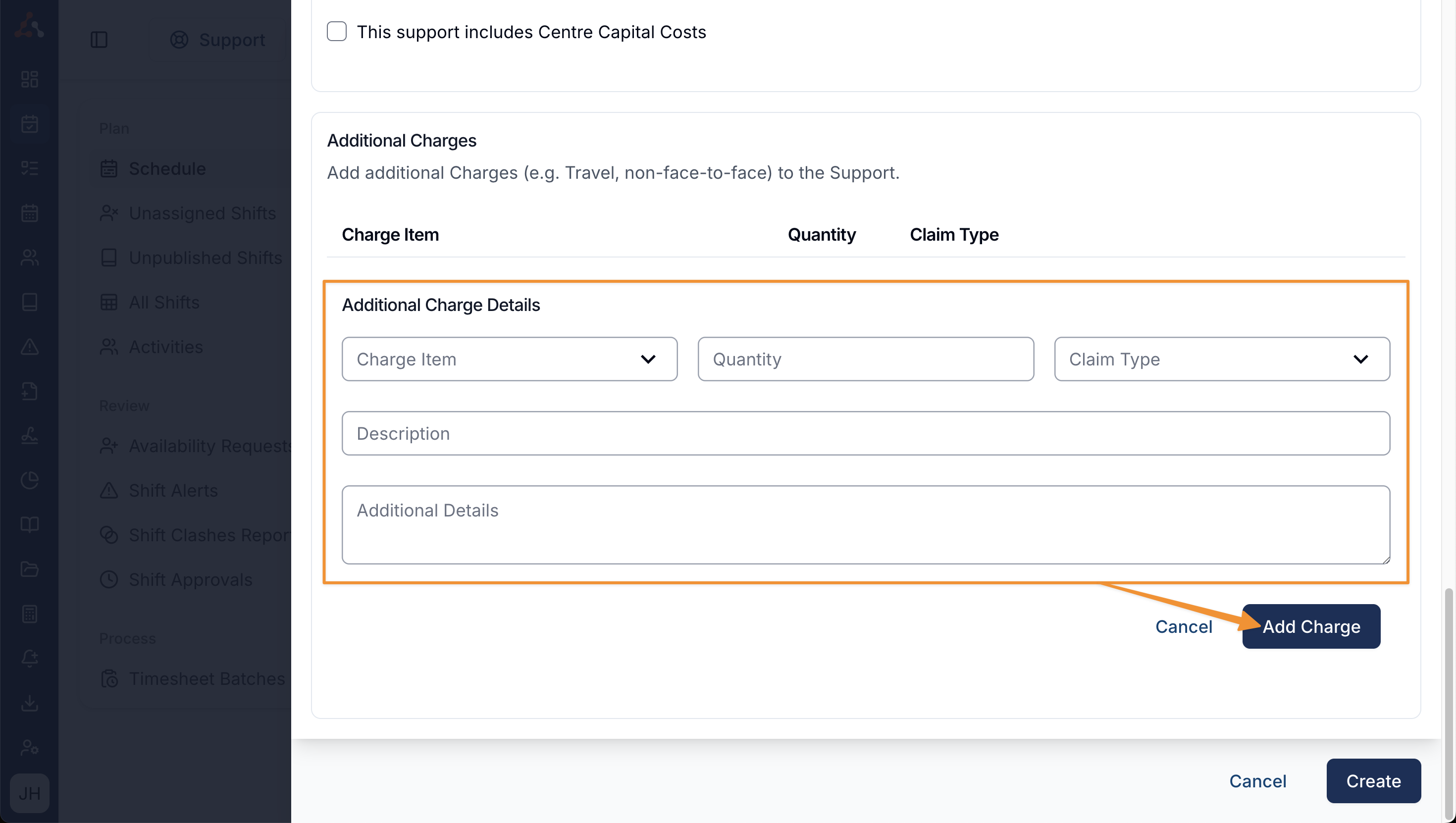
Once you've added a charge, it will be listed within the Additional Charges of that support. You can continue to add further additional charges by selecting "+ Add an Additional Charge", or you can finish creating (or editing) the direct support.
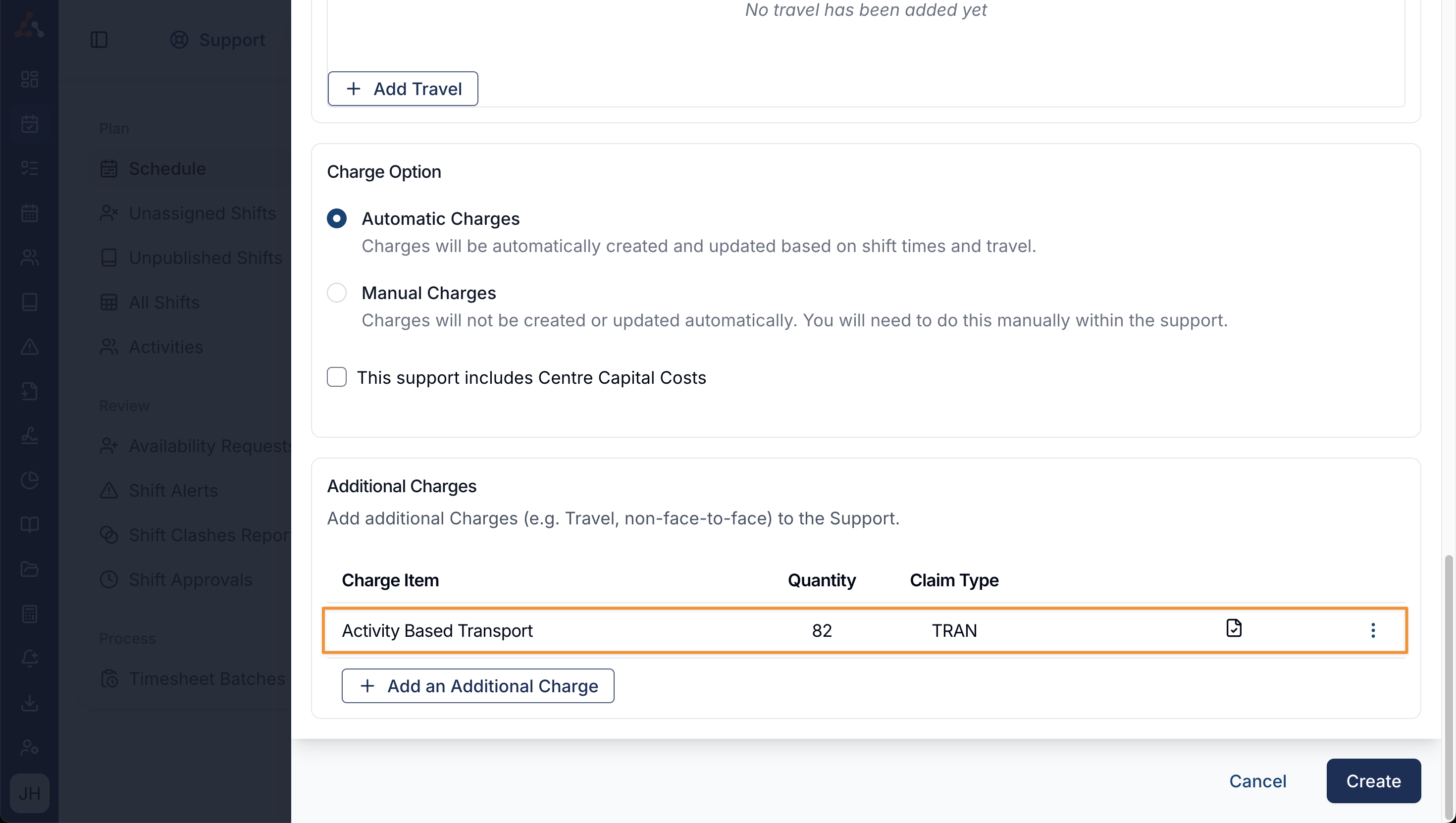
Before creating the support, use the three dot menu on a charge to Edit or Remove it.
Group Supports
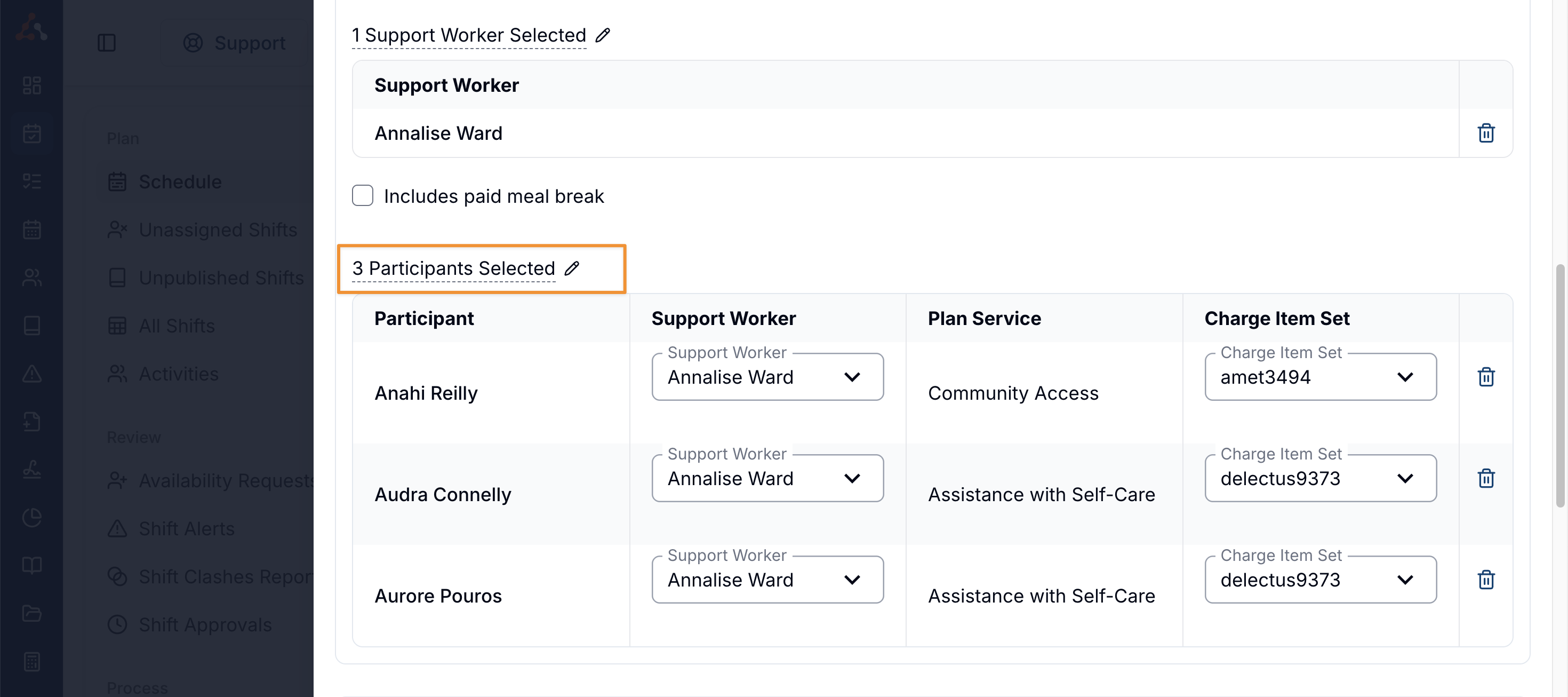
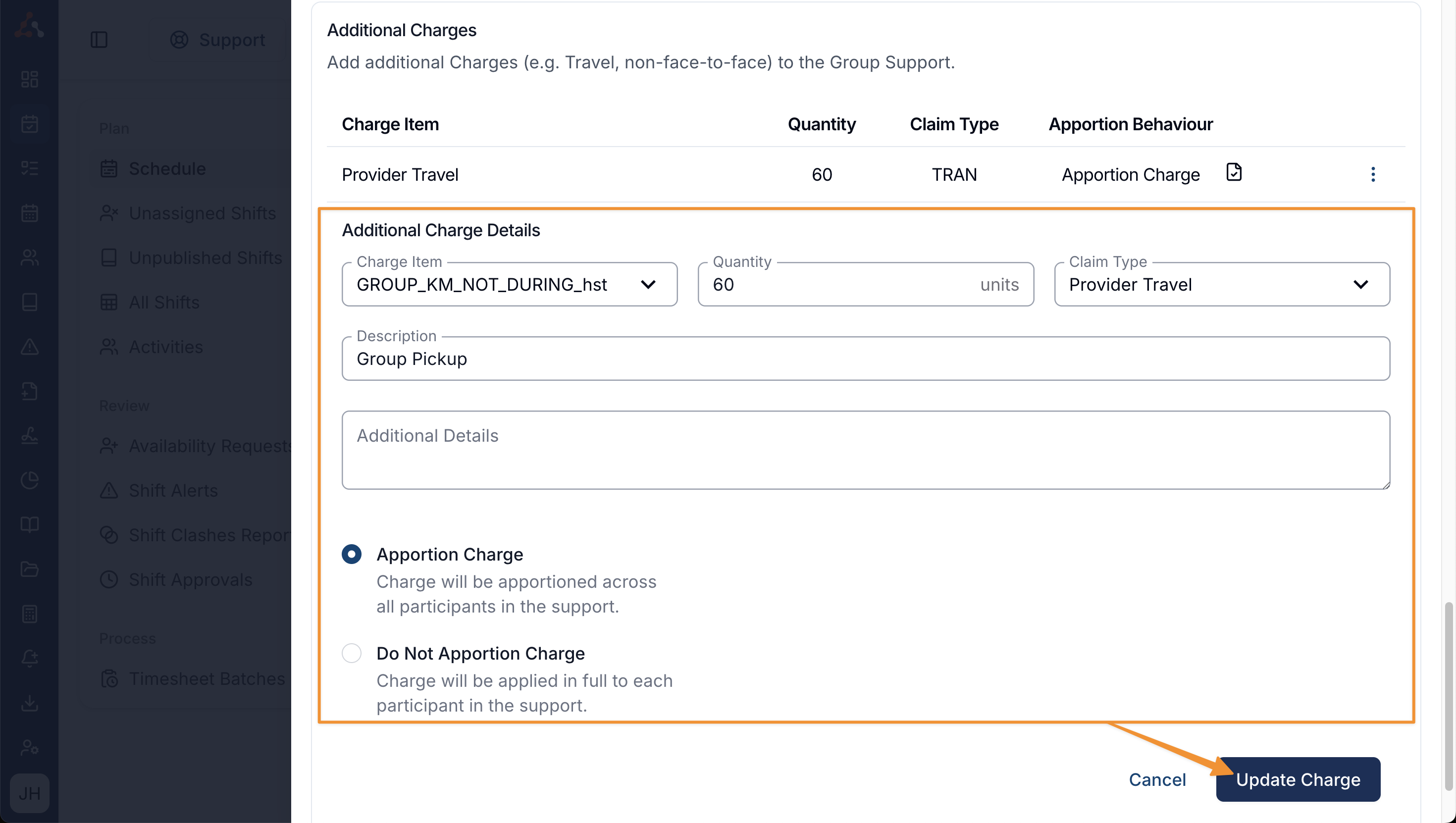
When creating a Group Support, complete the support and Participant details. Open Additional Charges, then select Add an Additional Charge.

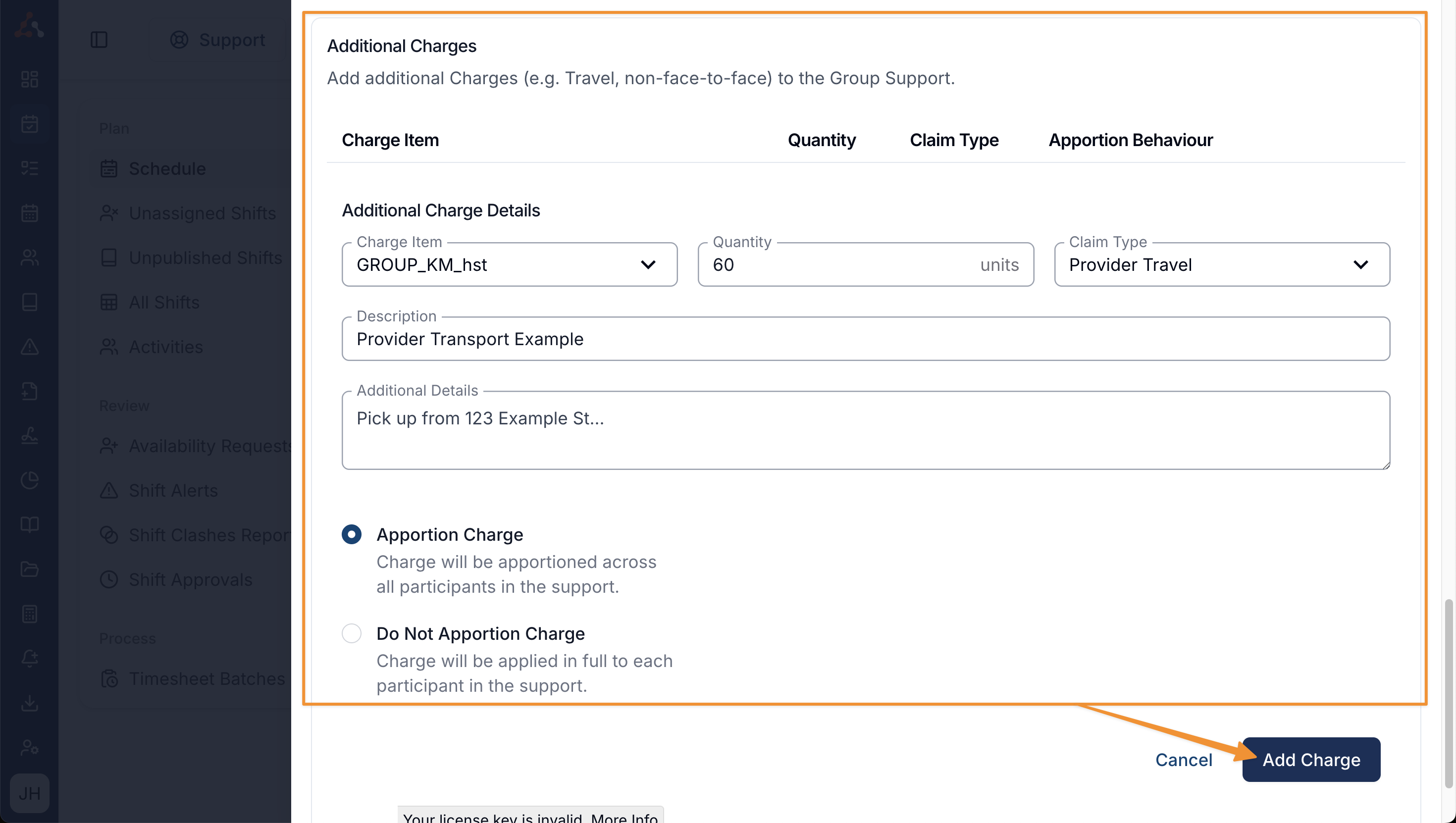
Here you can select the:
- Charge Item from the dropdown,
- insert a Quantity,
- select the Claim Type, and
- provide an optional Description and Additional Details, and
- choose whether to Apportion the charge.
When you're ready, select 'Add Charge'.
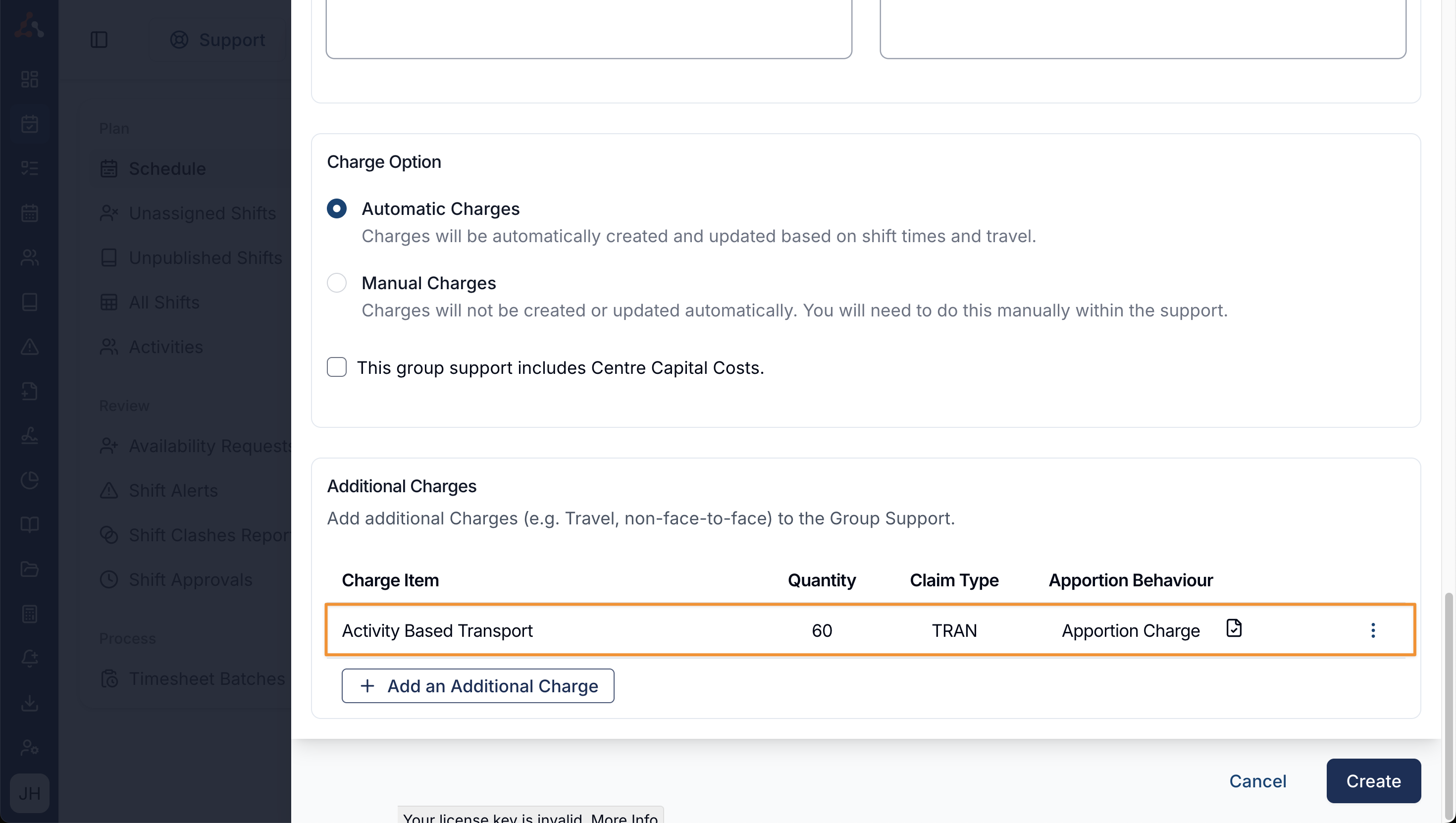
Once you've added a charge, it will be listed within the Additional Charges of that support. You can continue to add further additional charges by selecting "+ Add an Additional Charge", or you can finish creating (or editing) the group support.
After the group support is created, review the resulting charge on each Participant's child support. Apportioning controls how the quantity is divided; it does not create one shared charge line.
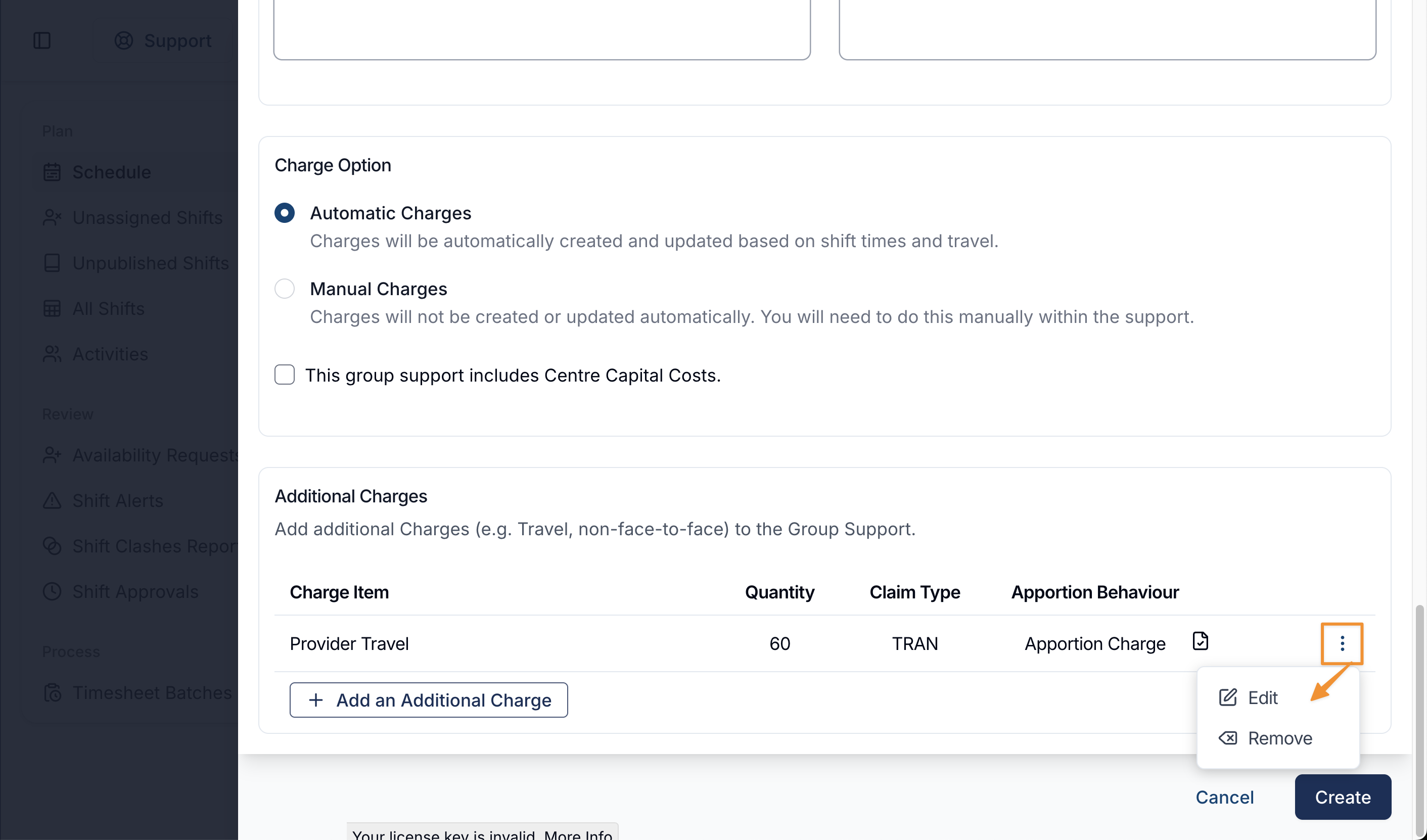
Before creating the support, use the three dot menu to Edit or Remove a charge.
If you are editing the charge, make your adjustments and then select 'Update Charge'.
Editing Additional Charges of existing Supports
Direct Supports
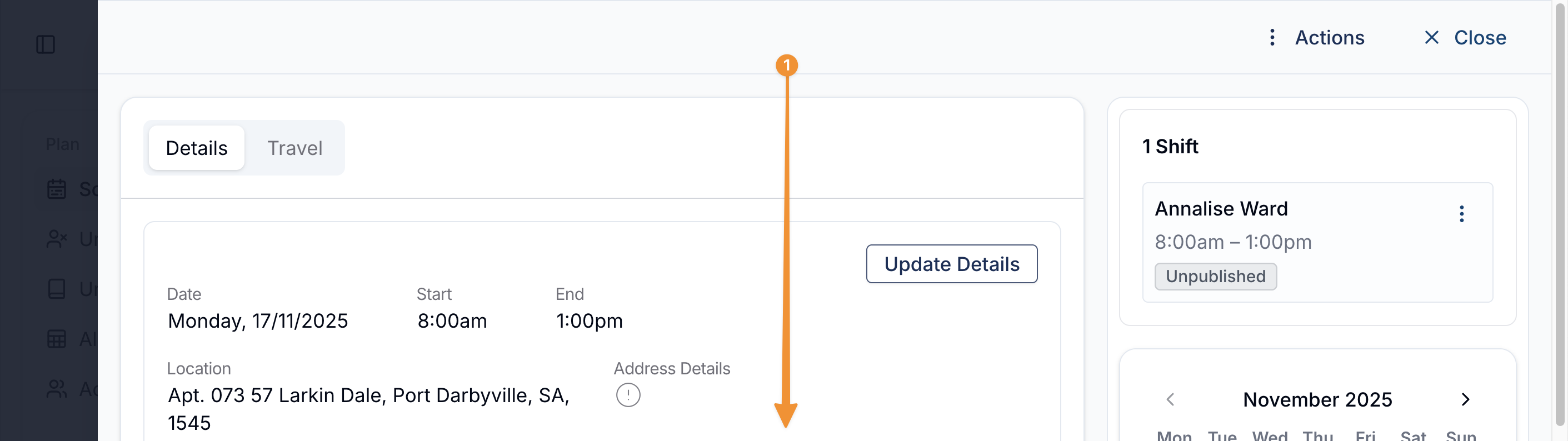
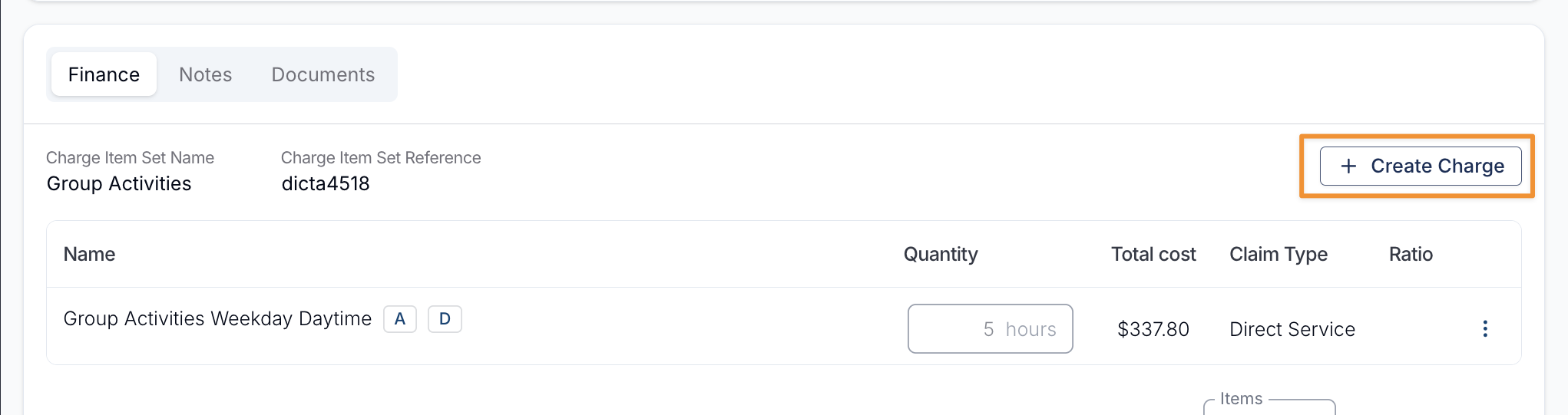
To edit an additional charge on an existing support, open the support and go to the Finance tab.
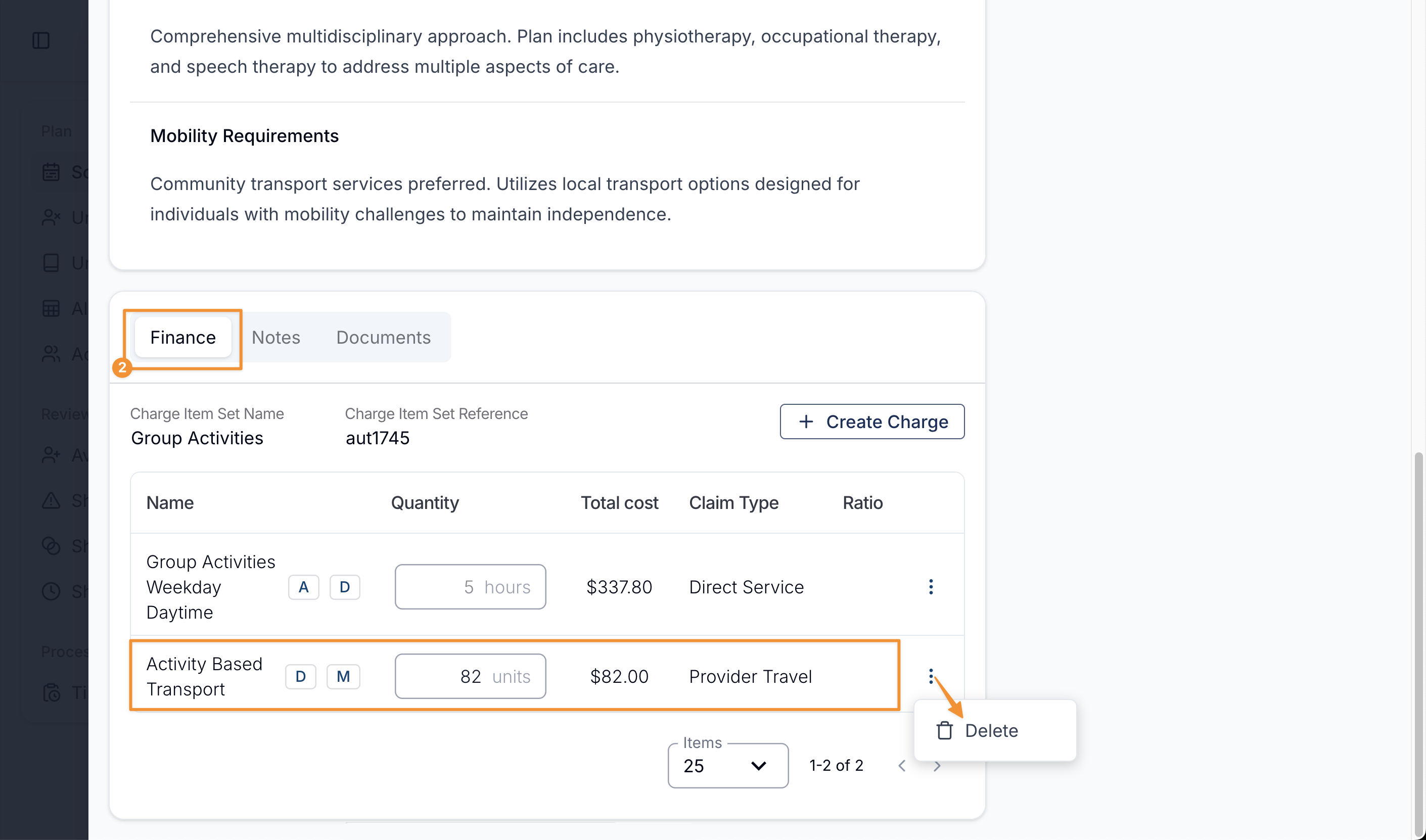
You can change an eligible charge's quantity or total, or delete it. Invoiced, paid, and batched charges can be locked from changes.
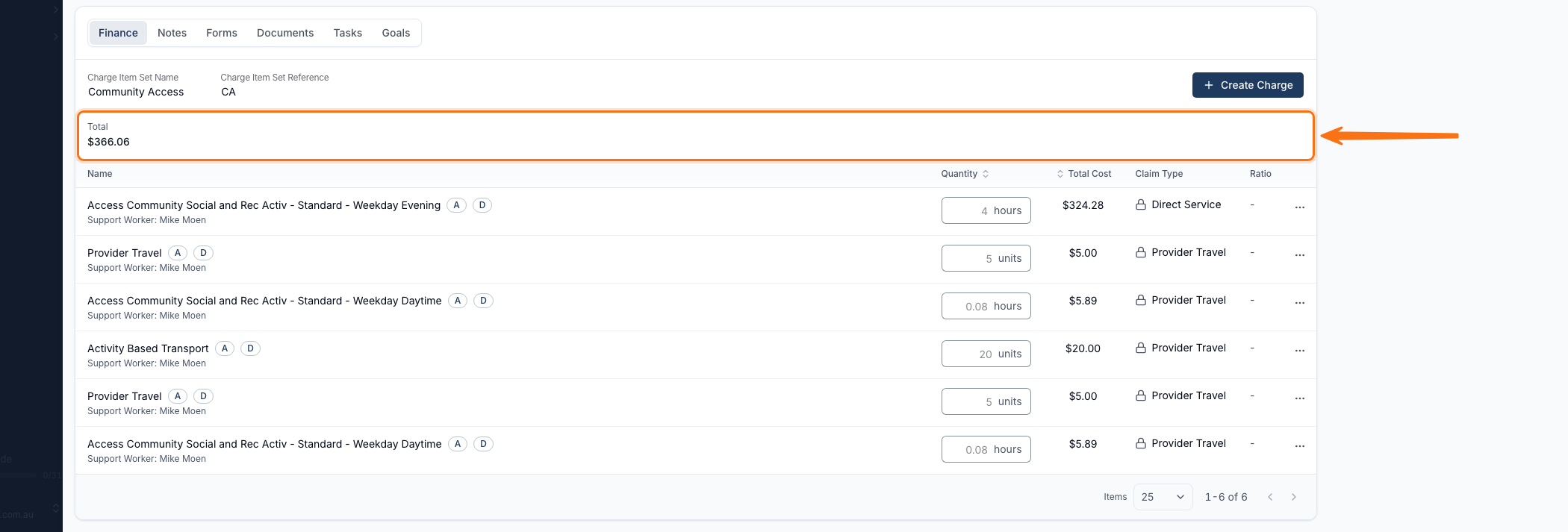
The Finance tab also shows the Total of all the support's charges, above the list, so you don't need to add them up by hand.
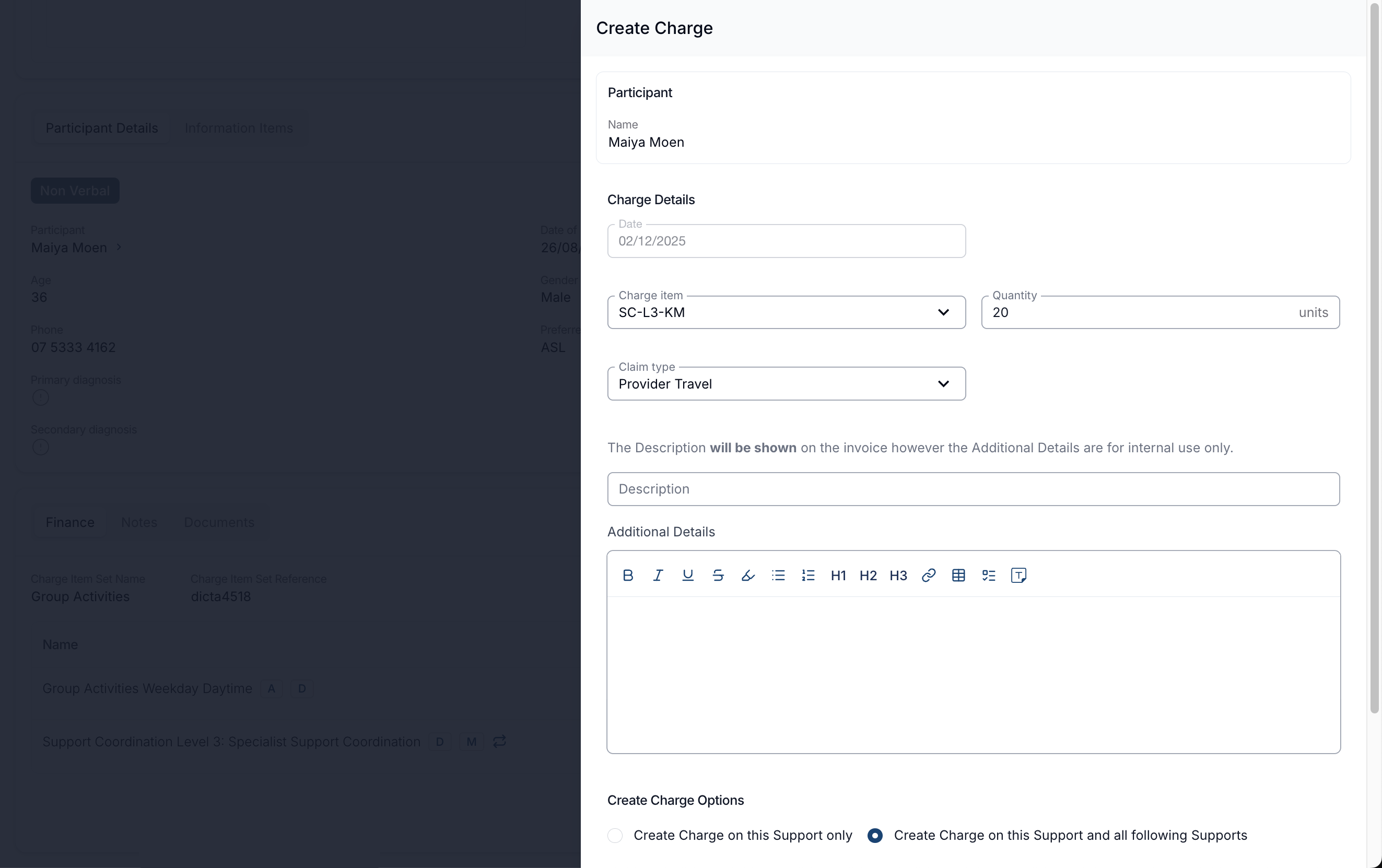
You can also add in new charges here by selecting + Create Charge.
Group Supports
Additional Charges can be edited via the group support, but changes would need to be made to each individual Participant.
To edit the additional charge/s, open the group support and navigate down to 'Supports Involved'
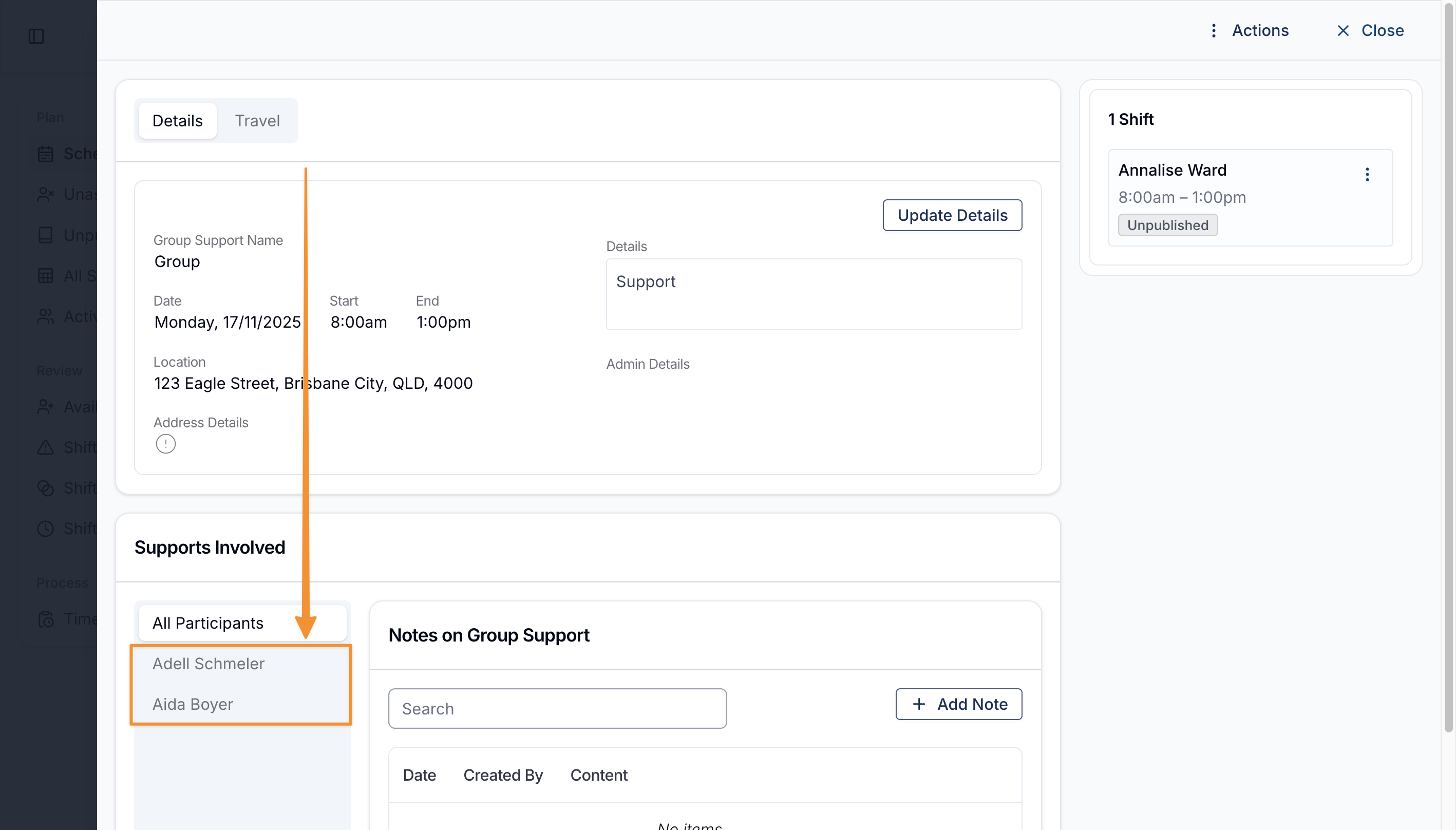
Select the Participant to view their charges in the Finance tab
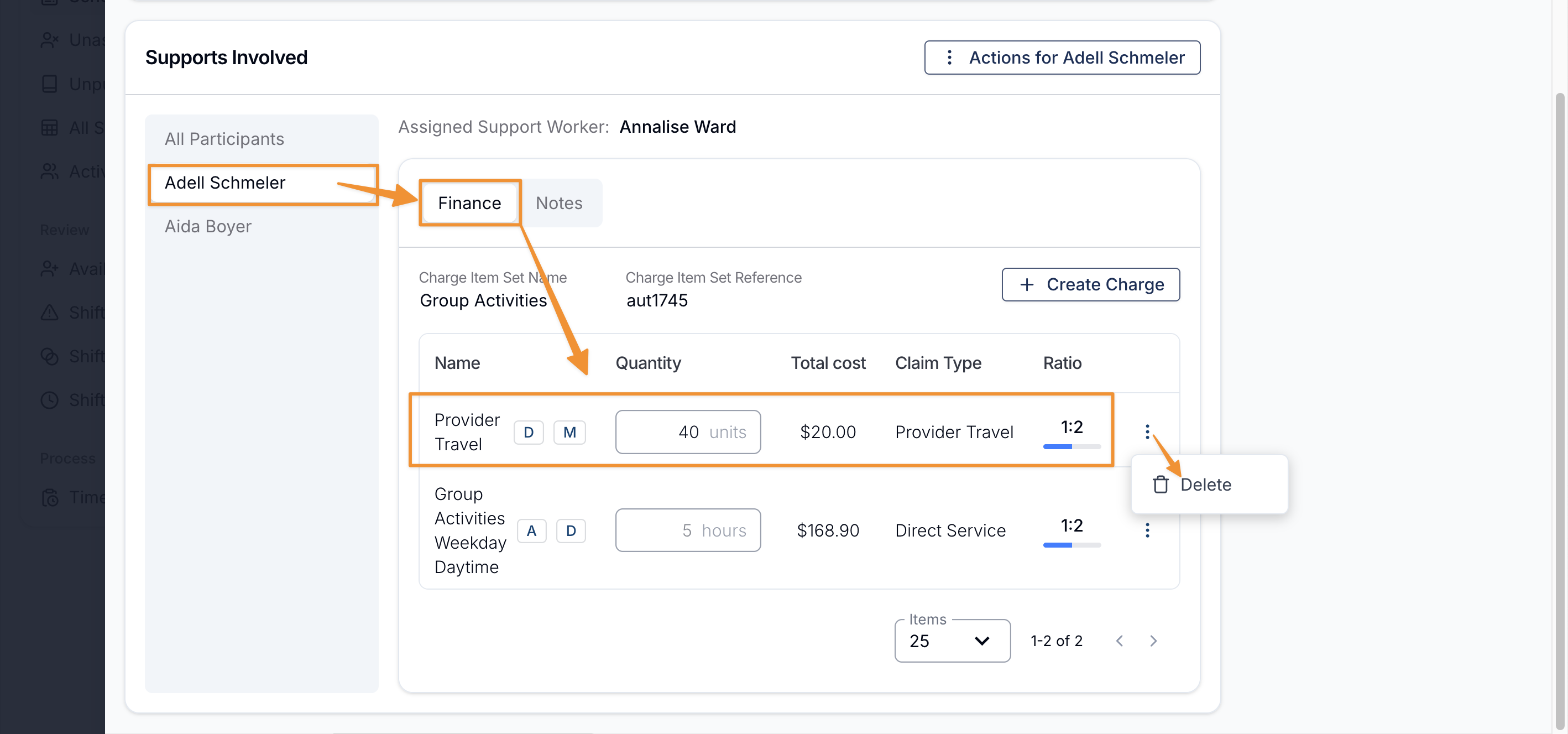
Update the charge, add another charge, or use the three-dot menu to delete it. An apportioned charge shows its ratio.
Recurring Supports
For a recurring direct or group support, the selection panel lets you apply the new charge to the current occurrence and the following occurrences you choose.
Support Goals and Documents use a selected-occurrence picker instead, so you can choose the current Support and specific future Supports. See Support Goals and Documents.
When you choose to apply the change to all future Supports, and the recurring Support is extended - it will include this newly added charge on all of the added supports created when extended.