- Start Here
- Private Browser Window
Private Browser Window
Overview
Sometimes you'll need a private browser window to view Astalty or a form within it. This keeps Astalty logged in on your normal browser session, while letting you open Astalty under a different account, or open external form links without being logged in.
This guide covers private browsing in both Chrome and Edge.
Open Incognito mode within Chrome
- Open Chrome.
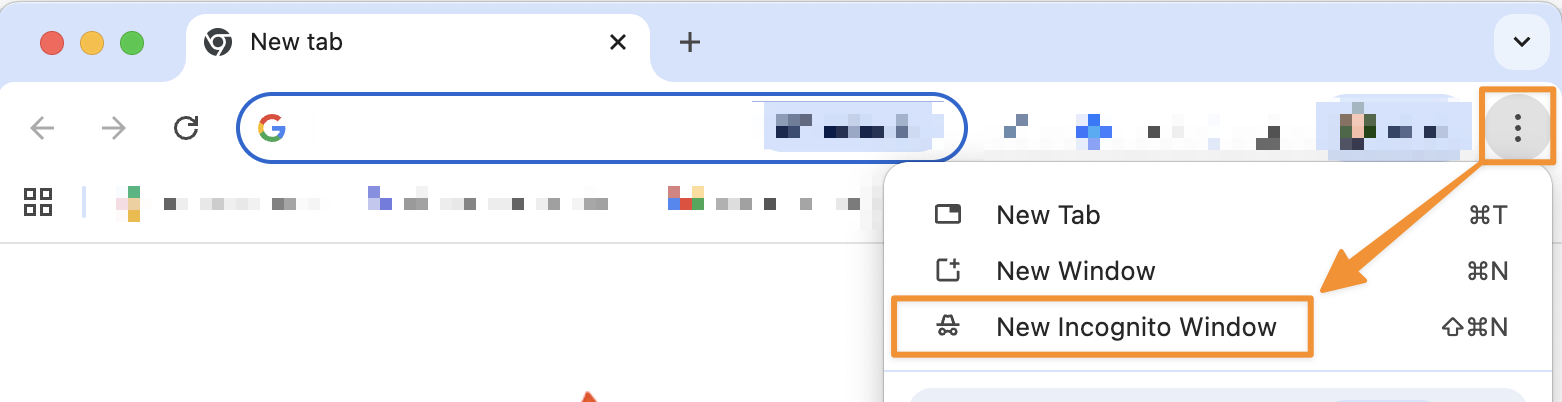
- At the top right, select the 3 dot menu (More), then New Incognito window.
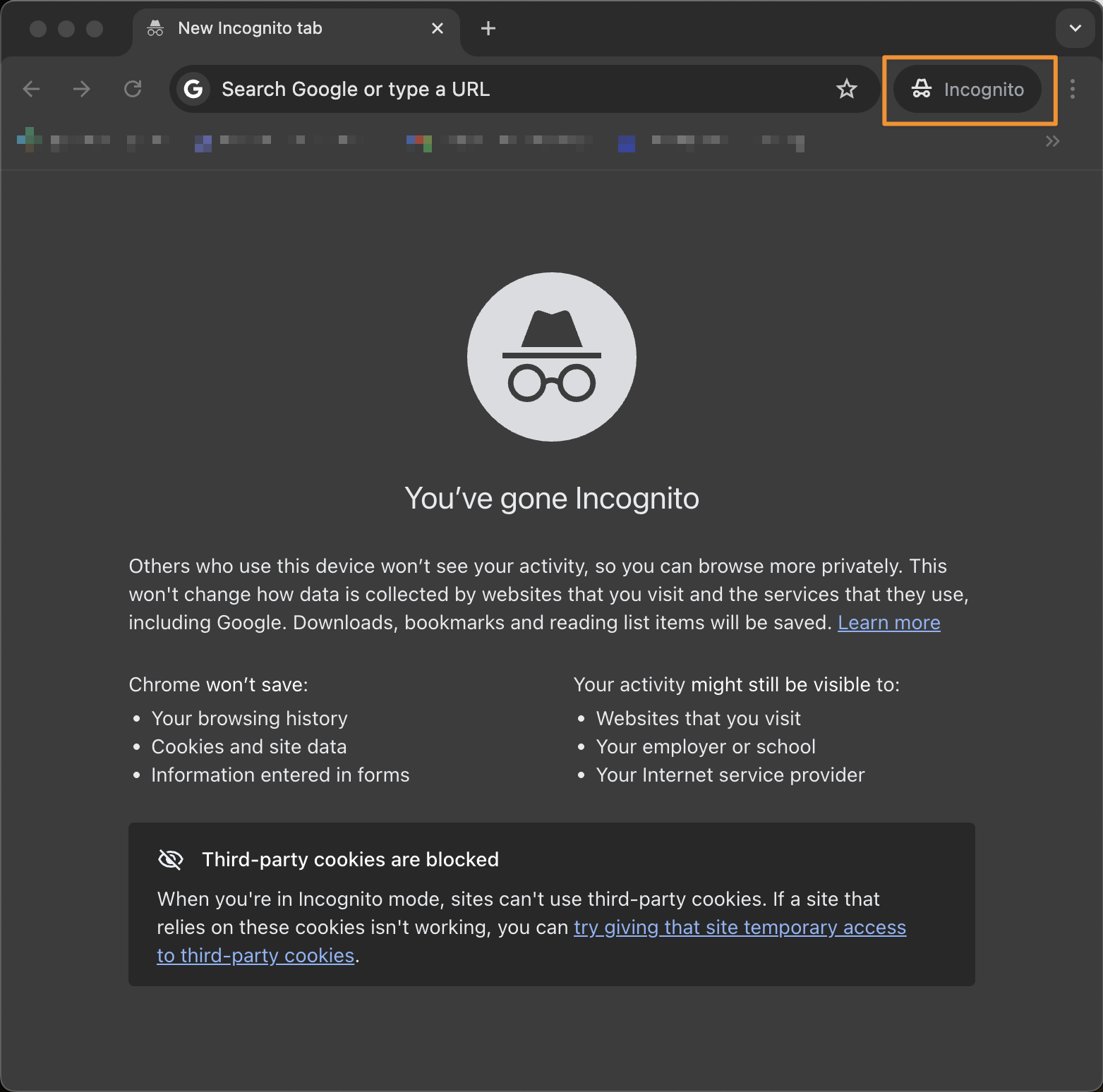
A new window opens, with the Incognito icon shown to the right of the address bar.
You can also use a keyboard shortcut:
- Windows, Linux, or Chrome OS: Ctrl + Shift + n
- Mac: ⌘ + Shift + n
Open InPrivate window within Edge
Open an InPrivate window in any of these ways:
- Right-click the Microsoft Edge logo in the taskbar and select New InPrivate window.
- Right-click a link in Edge and select Open link in InPrivate window.
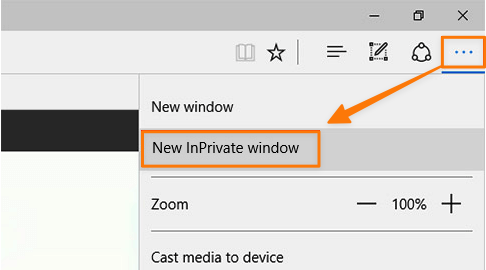
- In Edge, select Settings and more > New InPrivate window.
Close Private Browser
Opening another private window continues the same private session. To exit private mode, close all private windows.
To close a private window:
- Windows or Chromebook: At the top right, select Close (X).
- Mac: At the top left, select Close (X).