How to Claim for Respite?
Respite is billed as Short Term Accommodation (STA): hourly support charges generated from rostered shifts, plus daily accommodation charges raised separately.
Overview
From the 1 July 2026 NDIS price guide, STA support line items are charged per hour. They replace the STA And Assistance (Inc. Respite) 1:1 to 1:4 items, which were charged per day and are claimable until 30 June 2027.
That splits a respite period into charges that come off the roster and charges that do not:
| What you are claiming | Line item | Unit | How to charge it |
|---|---|---|---|
| Support delivered during the period | Short Term Accommodation - Standard, or - High Intensity, for each part of the week | hour | Roster shifts against an STA Charge Item Set |
| An overnight where the worker sleeps on site | Short Term Accommodation - Sleepover | each, per night | Included in both STA presets |
| The Participant's accommodation | Short Term Accommodation - Participant Accommodation (01_250_0115_1_1) | day | Direct Charge |
| The Support Worker's accommodation | Short Term Accommodation - Support Worker Accommodation (01_251_0115_1_1) | day | Direct Charge |
Create the STA Charge Item Set
- Go to Settings → Charge Items and click Add Charge Item Set.
- Select Preset, then choose 01 - Short Term Accommodation Standard or 01 - Short Term Accommodation High Intensity.
- Click Create.
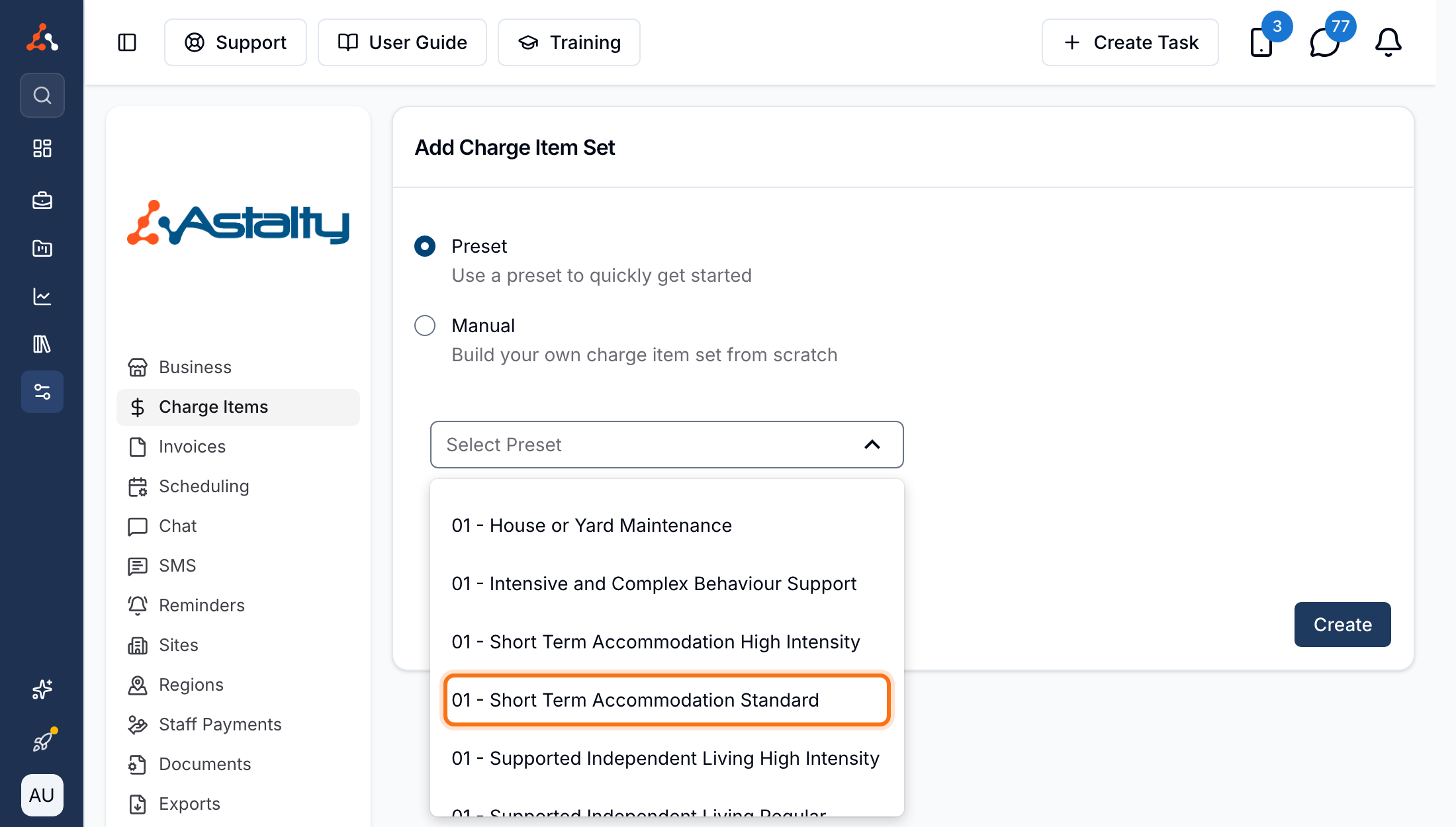
The preset fills in hourly Charge Items for weekday daytime, weekday evening, weekday night, Saturday, Sunday and public holidays, plus the per-night sleepover Charge Item, priced for your organisation's Region. See Creating & Updating Charge Item Sets.
Create the Accommodation Charge Items
Create each accommodation line item as an individual Charge Item.
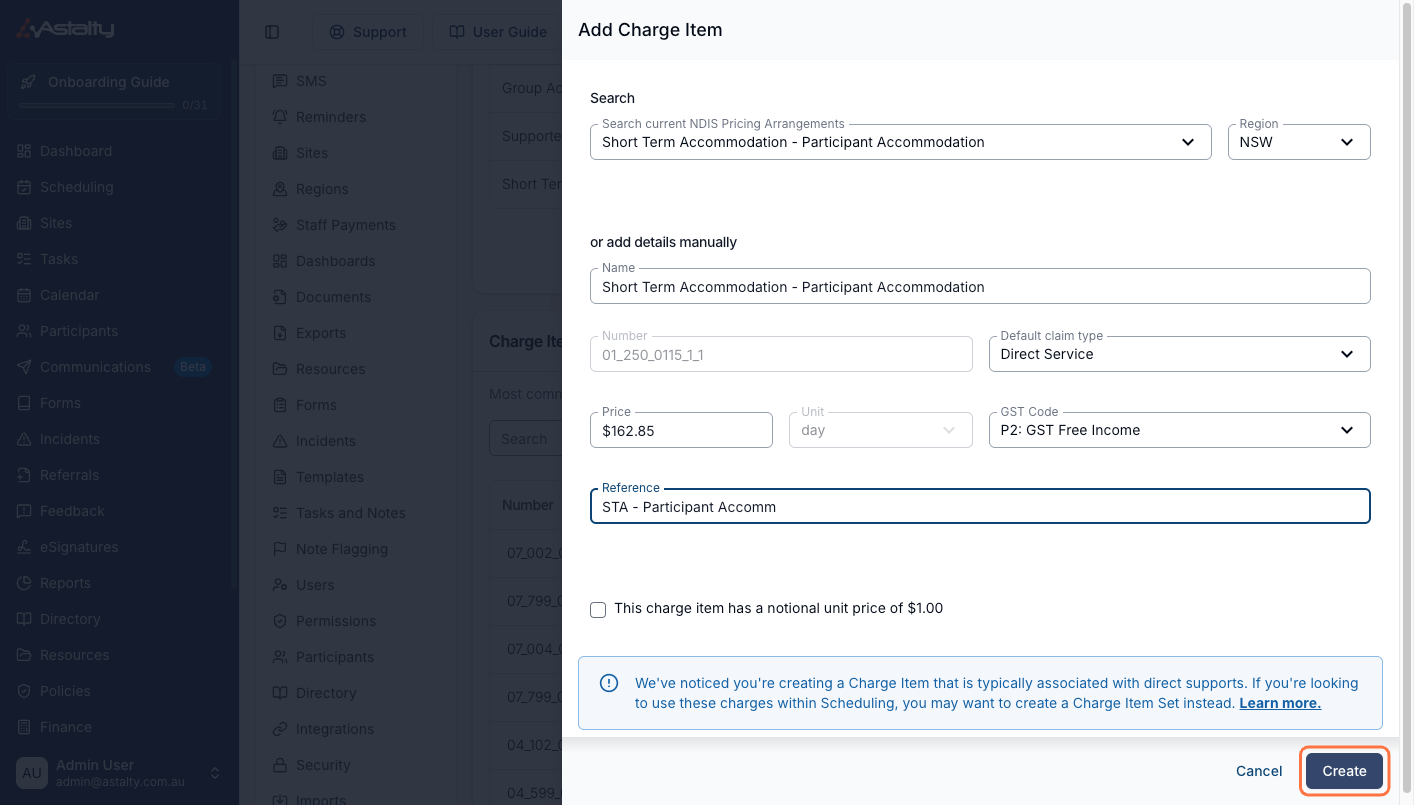
- From Settings → Charge Items, click Add Charge Item.
- Under Search current NDIS Pricing Arrangements, select Short Term Accommodation - Participant Accommodation.
- Set a Reference - for example
STA - Participant Accomm. - Click Create.
- Repeat for Short Term Accommodation - Support Worker Accommodation.
Astalty fills the price from the NDIS price guide for your Region, sets the Unit to day, and defaults the claim type to Direct Service.
Add Them to the Participant's Service
The Charge Item Set and both accommodation Charge Items go on the same Service, so every respite charge draws down the same budget.
- Open the Participant's NDIS Plan and click Add Service.
- Choose Scheduled service, name it, and enter the Budget and management type.
- Set the Support category to the
01Assistance with Daily Life category - a Service only accepts Charge Items from its own category, and every STA line item sits in that one. - Under Charge Items, tick the Participant and Support Worker accommodation items.
- Under Charge Item Sets, tick your STA set.
- Click Create.
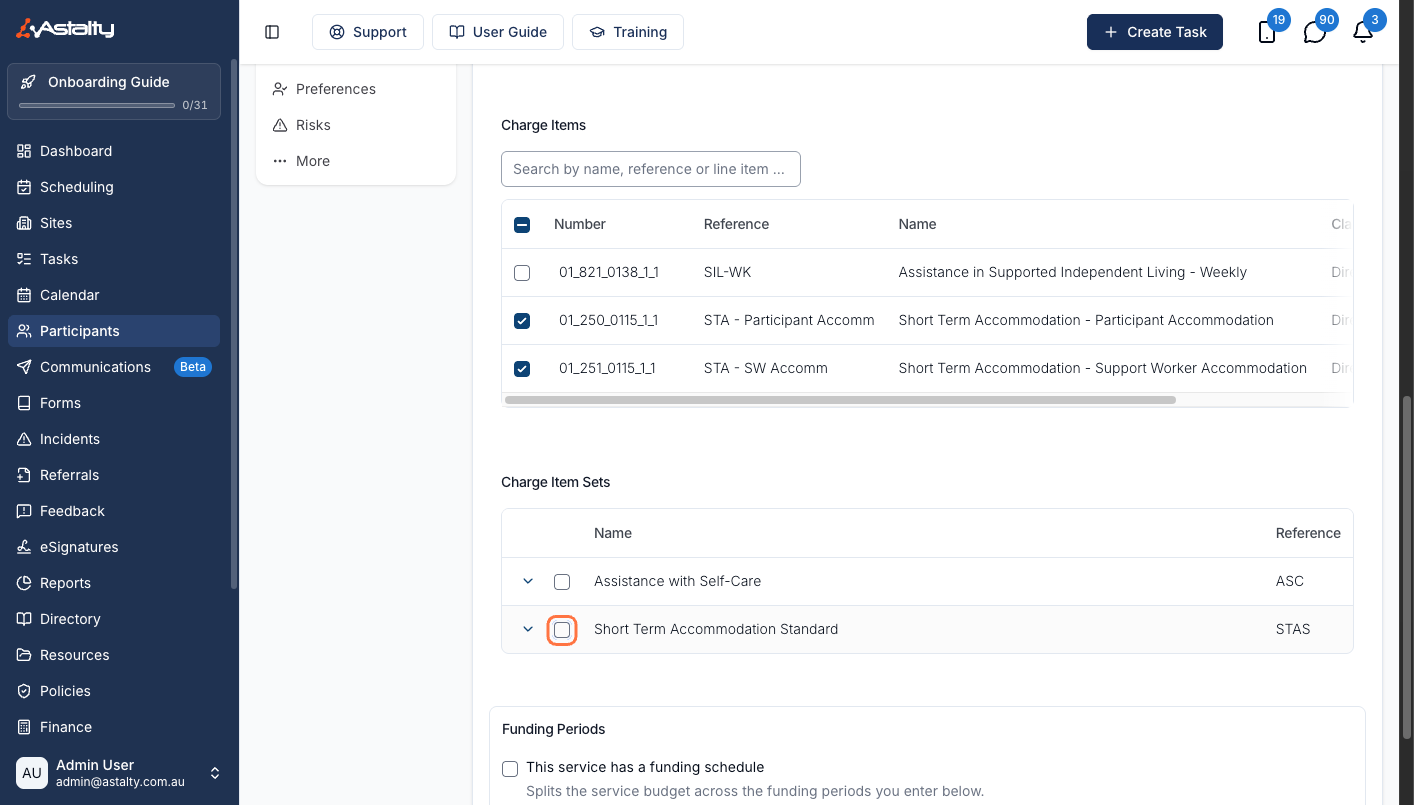
A Charge Item can only belong to one Service at a time. See Creating a Service.
Roster the Respite Shifts
Roster the whole period, then let the Charge Item Set price it.
- In Scheduling, click Add Shift.
- Set the Support Type to Short-Term Accommodation.
- Select the Participant, then the STA Service and its Charge Item Set.
- Set the shift times and assign the Support Workers.
Astalty charges each shift against the Charge Item in the set that matches when it runs - see How Rates Are Selected. A multi-day period is several shifts, each charged for its own hours, so there is no quantity to work out by hand.
For an overnight where the Support Worker sleeps on site, roster a sleepover window rather than a plain shift: the hours either side are charged hourly and the night itself picks up the sleepover Charge Item. See Sleepover Window.
Raise the Accommodation Charges
One Direct Charge per accommodation line item, with the quantity in days.
- Go to Finance → Direct Charges and click Create Direct Charge.
- Select the Participant and set the Date.
- Choose the Charge item - the Participant or Support Worker accommodation item.
- Enter the Quantity in days: one per night of the respite period.
- Set the Claim type to Direct Service, add a Description, then click Create Direct Charge.
- Repeat for the other accommodation item.
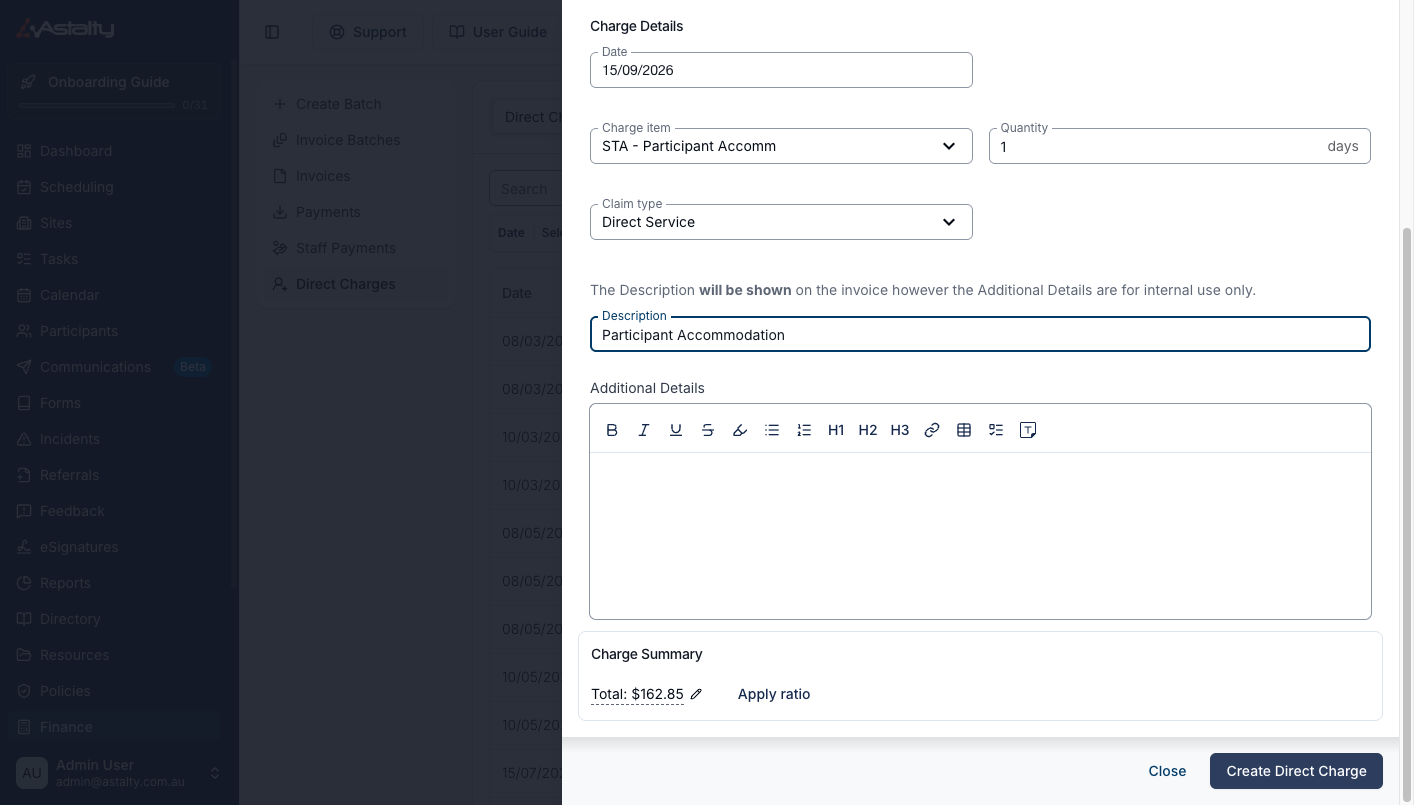
Where respite runs to a regular schedule, set these up as recurring Direct Charges instead of re-entering them each period. See Direct Charges.