Enabling a Team Member to Be Scheduled on Supports
Overview
You can make a Team Member eligible for assignment to Supports without changing their user type.
Steps to Enable Scheduling for a User
- Go to the Users section and open the profile of the team member that you want to schedule for support.
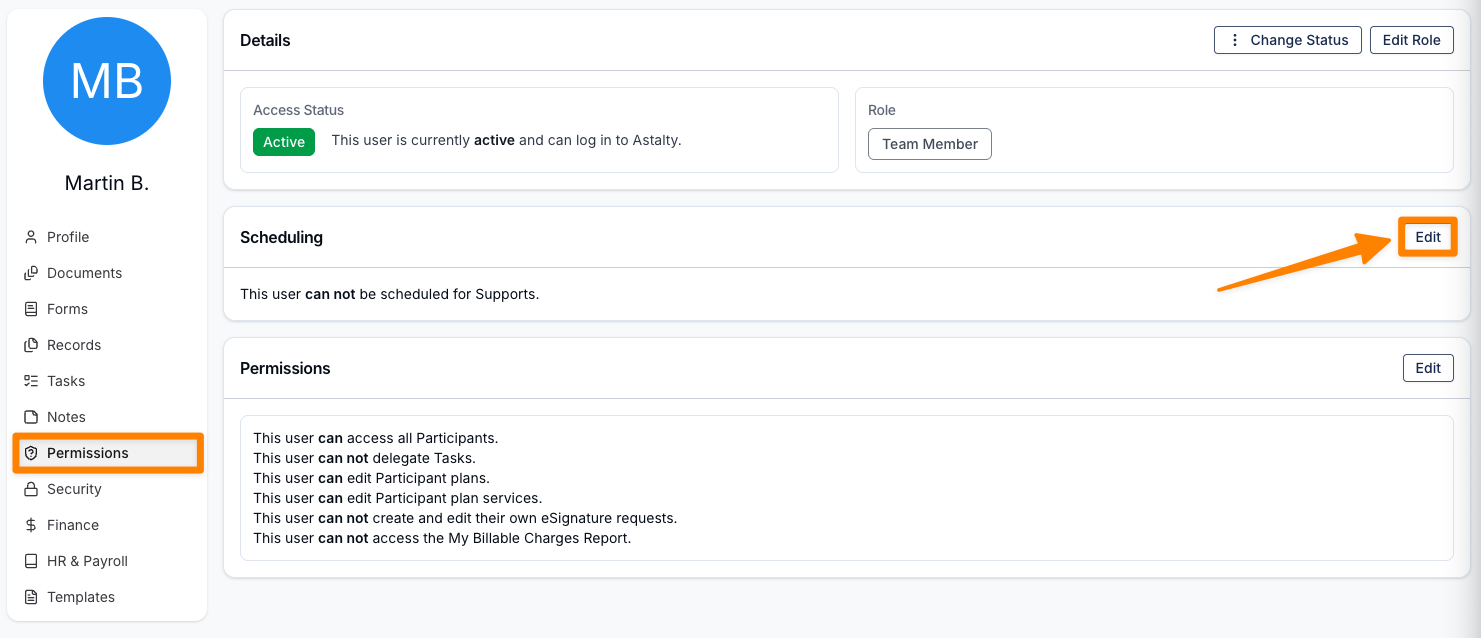
- Open Permissions, then select Edit in the Scheduling card.
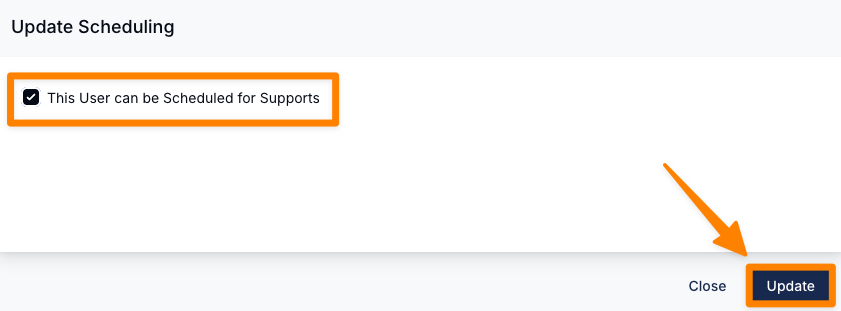
- Turn on Can be Scheduled for Supports, then select Update.
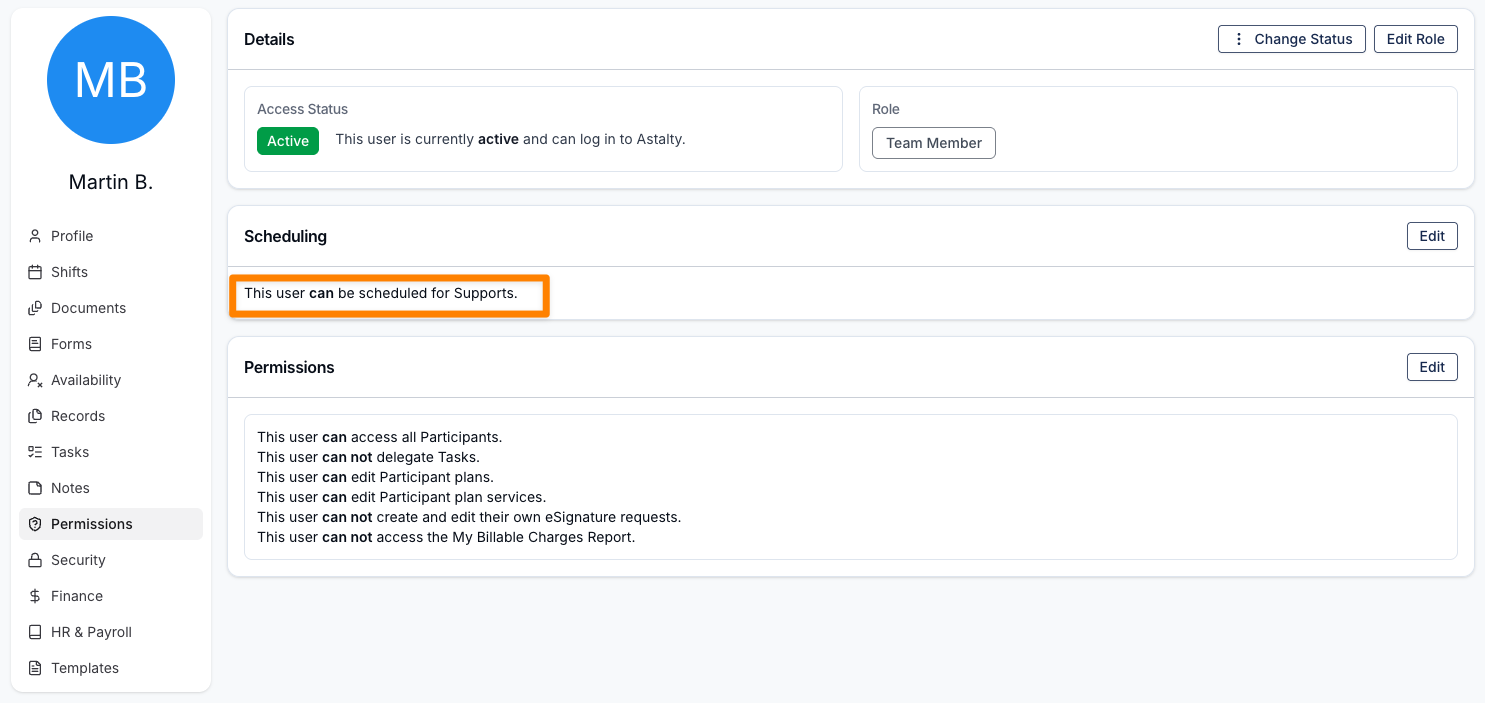
The Scheduling card then reads This user can be scheduled for Supports.
Viewing Scheduled Supports
Once enabled, the user becomes eligible for worker selection on Supports. The setting gives them no other access, such as Scheduling, the Support Worker App or Participant visibility, so confirm their role and access separately before assigning work. If they can sign in to the Support Worker App, their assigned published shifts follow the same visibility rules as other workers.
Video Overview
The following video walks through how you can add a Team Member to be scheduled on support.